
Microsoft Teams Optimization: Australian SMB Guide for Better Collaboration
Introduction
Microsoft Teams has become the collaboration backbone for thousands of Australian small and medium businesses. If you’re paying for Microsoft 365, Teams is included—yet most Australian SMBs use barely 20% of what Teams can do. The platform sits there, underutilized, while businesses struggle with email overload, fragmented communication, and collaboration chaos.
The difference between having Teams and optimizing Teams is the difference between a A$18-31 per user monthly expense and a genuine productivity multiplier. For a typical 20-person Australian SMB, that’s the difference between spending A$4,500-7,500 annually on a glorified chat app versus transforming how your team communicates, collaborates, and operates.
At CloudGeeks, we’ve helped hundreds of Australian businesses move from basic Teams usage to optimized deployments that genuinely improve productivity. This guide shares the practical strategies, Australian-specific configurations, and integration approaches that deliver real results for SMBs.
This isn’t about using every Teams feature—it’s about using the right features well, configured specifically for Australian business contexts, integrated with your existing tools, and secured appropriately for your industry.
The Australian Teams Reality Check
Before diving into optimization strategies, let’s acknowledge the reality of Teams usage in Australian SMBs as of September 2024.
What Most Australian Businesses Actually Use
- Chat and direct messaging (95% of users)
- Video calling (70% of users)
- File sharing, sometimes (40% of users)
- Channels, poorly organized (30% of users)
- Advanced features like apps, workflows, automation (under 10% of users)
What Australian Businesses Complain About
- Too many notifications disrupting work
- Can’t find information from past conversations
- Unclear when to use chat vs email vs channel posts
- Meeting fatigue from back-to-back video calls
- Teams feels cluttered and overwhelming
- Difficulty managing projects within Teams
- Integration with Australian business tools (Xero, MYOB) unclear
The Core Problem
Most businesses installed Teams during COVID, provided minimal training, and let usage evolve organically. Without structure, governance, or intentional design, Teams became chaotic rather than collaborative.
The good news: with proper optimization, Teams genuinely transforms collaboration. The structure, integrations, and habits matter more than the features.
Foundation: Getting Your Teams Structure Right
Before optimizing features, fix your fundamental Teams structure. A well-designed structure reduces noise, improves findability, and makes collaboration intuitive.
Teams vs Channels: Design Principles
Create a Team For:
- Departments (Marketing, Sales, Operations, Finance)
- Major ongoing projects (6+ months duration)
- Company-wide communication (All Staff team)
- Executive leadership (Leadership Team)
- Specific business functions (Client Services, Product Development)
Create Channels Within Teams For:
- Project streams or workstreams
- Topic-specific discussions
- Client accounts or major customers
- Regular meetings and their artifacts
- Resource repositories
Australian SMB Example Structure
For a 25-person Melbourne marketing agency:
Team: All Staff
- General (announcements, company-wide updates)
- Social (team building, celebrations, random chat)
- Resources (policies, templates, onboarding)
- Office Management (facilities, equipment, general requests)
Team: Client Services
- General (team discussions)
- Client: XYZ Corporation (dedicated client channel)
- Client: ABC Industries (dedicated client channel)
- Project Templates (reusable resources)
- Client Onboarding (processes and checklists)
Team: Marketing
- General (team updates)
- Content Strategy (planning and calendar)
- Social Media (campaign discussions)
- Analytics (reporting and insights)
- Creative Assets (design files and brand resources)
Team: Leadership
- General (executive discussions)
- Financial Planning (budgets, forecasts)
- Strategic Initiatives (major projects)
- HR Confidential (staff matters)
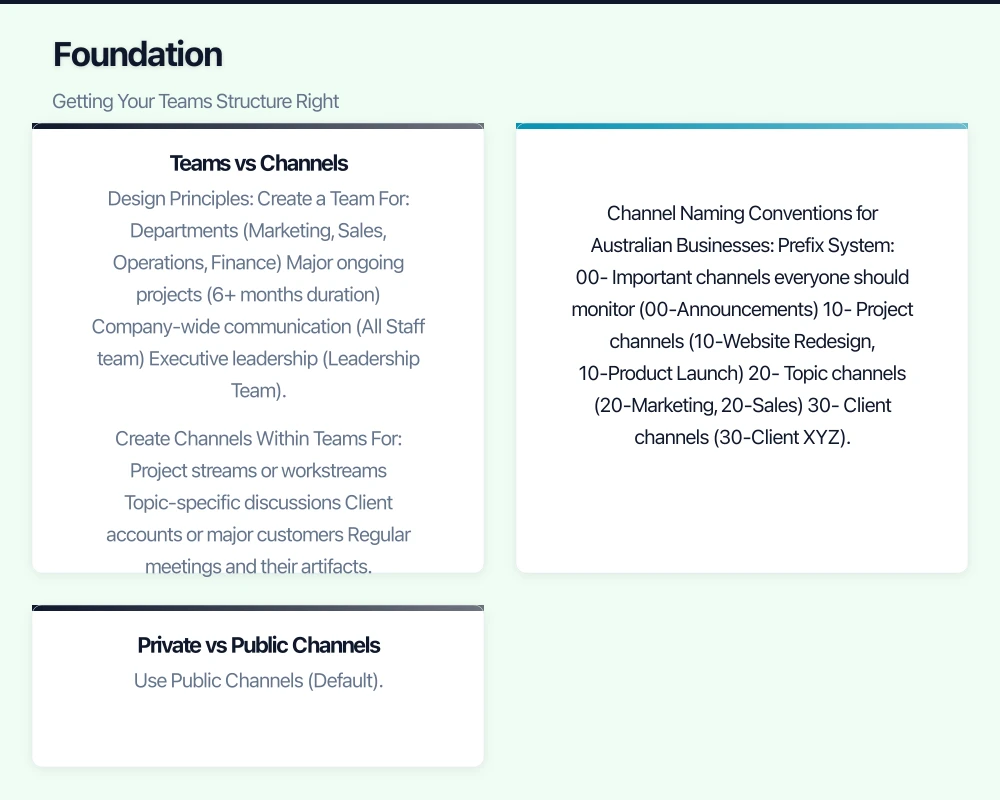
Channel Naming Conventions for Australian Businesses
Consistent naming makes Teams scannable and intuitive:
Prefix System:
00-Important channels everyone should monitor (00-Announcements)10-Project channels (10-Website Redesign, 10-Product Launch)20-Topic channels (20-Marketing, 20-Sales)30-Client channels (30-Client XYZ)50-Resource channels (50-Templates, 50-Documentation)90-Social/informal channels (90-Random, 90-Lunch Spots)
Numbers force logical ordering rather than alphabetical chaos.
Example for Brisbane Consulting Firm:
00-Firm Announcements10-Project: City Council Engagement10-Project: Healthcare Strategy20-Business Development30-Client: Queensland Health30-Client: Brisbane City Council50-Templates and Tools90-Social Chat
Private vs Public Channels
Use Public Channels (Default) For:
- Most business communication
- Project collaboration
- Department discussions
- Client work where team visibility helps
- Knowledge that should be searchable
Use Private Channels Only For:
- Genuinely confidential discussions (HR matters, disciplinary issues)
- Board or executive-only topics
- Merger/acquisition planning
- Salary and compensation discussions
- Legal matters requiring restricted access
Australian businesses often over-use private channels, fragmenting knowledge and reducing collaboration. Default to public, use private sparingly and intentionally.
The “All Staff” Team Rule
Every Australian SMB should have one All Staff team with these essential channels:
- General/Announcements: Company updates, important news (moderated posting)
- Social: Team building, celebrations, non-work chat
- Resources: Policies, templates, onboarding materials
- IT Support: Tech help requests, system status updates
- Facilities: Office-related queries, equipment, facilities management
This gives everyone a central hub and reduces duplicate questions.
Optimizing Teams for Australian Business Workflows
With structure established, optimize how Teams integrates into daily workflows.
Meeting Culture Optimization
Reduce Meeting Volume
Australian businesses have developed terrible meeting habits post-COVID. Teams makes meetings easy—too easy. Optimize by establishing clear guidelines:
Use Channel Posts Instead of Meetings For:
- Status updates and progress reports
- Announcements and information sharing
- Simple questions with straightforward answers
- Decision-making that doesn’t require discussion
- Feedback collection
Schedule Meetings Only When:
- Discussion genuinely needed
- Complex problem-solving required
- Relationship-building important (client meetings, team building)
- Decision requires real-time input from multiple people
- Brainstorming benefits from synchronous interaction
The Australian 25-Minute Meeting Rule
Default to 25-minute meetings instead of 30 minutes, 50 minutes instead of 60. Gives people breathing room between back-to-back calls, reduces fatigue, forces conciseness.
Configure Outlook to shorten meetings by default:
- File > Options > Calendar > Calendar options > “Shorten appointments and meetings”
- Set to 5 or 10 minutes early
Meeting Agenda Requirements
Establish organizational policy: No agenda, no meeting. Use Teams meeting notes feature:
- Create meeting
- Add agenda in meeting notes before sending invite
- Attendees can add to agenda
- Take notes during meeting in same location
- Action items automatically tracked
Channel Posting Best Practices
Channels work best with clear posting guidelines:
Subject Lines Matter
Always use subject lines for channel posts (click “Format” button, add subject). Makes conversations:
- Easier to find later
- Scannable in channel view
- Properly threaded
- Searchable
Australian Business Examples:
Bad: “Quick question about the proposal” Good: “Client XYZ Proposal - Budget Section Clarification Needed”
Bad: “Meeting notes” Good: “Q3 Planning Meeting Notes - 25 Sept 2024”
@Mentions Usage Guidelines
Establish clear @mention expectations:
- @person: Requires this person’s attention/response
- @team: Important for whole team (use sparingly)
- @channel: Urgent, everyone should see immediately (rare use only)
- No @mention: FYI, respond if convenient
Over-@mentioning creates notification fatigue. Under-@mentioning means people miss important information. Clear guidelines help.
Threaded Conversations
Reply in threads, not new posts. Keeps related discussions together, makes conversations followable, improves searchability.
Organizational guideline: If your message relates to an existing post, reply in thread. If it’s a new topic, new post with subject line.
File Management and SharePoint Integration
Every Teams channel has an automatic Files tab backed by SharePoint. Optimize this:
Folder Structure in Channel Files
Create consistent folder structure across channels:
📁 Channel Files
├── 📁 01-Active Projects
├── 📁 02-Completed Projects
├── 📁 03-Templates
├── 📁 04-Meeting Notes
└── 📁 05-Resources
Version Control and Co-Authoring
Teams/SharePoint handles version control automatically:
- Work directly in Teams (don’t download, edit, re-upload)
- Multiple people can edit simultaneously
- Version history preserves all changes
- Comments and suggestions built-in
Train staff to click “Open in Teams” or “Open in Desktop App” and work directly, not download files.
Australian Business Example:
Melbourne accounting firm handles client work:
- Client channels contain dedicated folders per engagement
- Staff edit workpapers directly in Teams
- Version history provides audit trail
- No more “Final_v2_FINAL_updated.xlsx” naming chaos
Search and Discovery Optimization
Teams search is powerful but underutilized:
Advanced Search Techniques
/files- Search only files/messages- Search only messagesfrom:person- Messages from specific personin:channel- Search within specific channel- Quote marks for exact phrases:
"quarterly budget"
Saved Searches
Save frequent searches for quick access. Example saved searches for Australian businesses:
- Important announcements from leadership
- Files modified this week
- Messages mentioning specific clients
- Your action items across all teams
Pinned Posts and Messages
Pin critical information:
- Channel: Pin important announcements, key resources, recurring information
- Chat: Pin important messages for quick reference
- Teams: Pin critical channels to top of teams list
Australian Integration Optimization
The real power of Teams for Australian SMBs comes from integration with local business tools.
Xero Integration for Teams
For the 70%+ of Australian SMBs using Xero, Teams integration improves finance collaboration:
Xero Teams App Setup
- Add Xero app to Teams (Apps > Search “Xero” > Add)
- Authenticate with Xero account
- Add Xero tab to Finance team channel
- Configure notifications
Practical Uses for Australian Businesses:
Finance Channel Integration:
- Real-time notification of invoices requiring approval
- Budget vs actual alerts posted to finance channel
- Month-end close checklist and collaboration
- Expense claim discussions alongside Xero data
Client Channel Integration:
- Client invoice status visible in dedicated client channel
- Payment notifications alert relevant account managers
- Quote approval workflows in Teams
- Client financial discussions with context
Example: Sydney Professional Services Firm
Finance team channel has Xero tab showing:
- Dashboard with receivables aging
- Recent transactions requiring classification
- Budget tracking for current month
- Automated posting when invoices hit 30/60/90 days overdue
Account managers get Xero notifications in client channels when invoices are sent or paid, keeping everyone informed without manual updates.
MYOB Integration
Australian businesses using MYOB (particularly MYOB AccountRight and MYOB Advanced) can integrate with Teams:
MYOB Teams Connector Setup
Third-party connectors (Zapier, Power Automate) enable:
Automated Notifications:
- Post to finance channel when sales exceed daily target
- Alert when inventory drops below reorder point
- Notify when invoices are overdue
- Budget variance alerts
Example Workflow for Perth Wholesale Business:
Power Automate monitors MYOB:
- When inventory item drops below reorder point
- Post message to Operations channel
- @mention purchasing manager
- Include item details and suggested reorder quantity
- Link to supplier contact information
Document Management:
- Store MYOB backup files in dedicated SharePoint folder
- Automated monthly backup to Teams Files
- Version control for important financial documents
- Centralized access for accountant and bookkeeper
Microsoft 365 Apps Integration
Leverage built-in M365 integrations:
Planner for Project Management
Add Planner tab to project channels:
- Visual task boards (Kanban-style)
- Task assignment and tracking
- Deadline management
- Progress visibility
- Integration with Outlook tasks
Australian SMB Example: Adelaide Marketing Agency
Each client project channel has Planner tab:
- Backlog, In Progress, Review, Complete columns
- Tasks assigned to team members
- Due dates aligned with client deliverables
- Comments on tasks for collaboration
- Checklists within tasks for complex work
OneNote for Collaborative Documentation
Add OneNote tab to channels:
- Shared meeting notes (better structure than Teams notes)
- Process documentation
- Project wikis
- Training materials
- Brainstorming spaces
Forms for Feedback and Surveys
Embed Forms in channels:
- Client satisfaction surveys
- Internal feedback collection
- Event registrations
- Simple data collection
Power Automate for Australian Business Workflows
Automate common Australian business processes:
Invoice Approval Workflow:
- Invoice uploaded to specific SharePoint folder
- Automated post to finance channel
- Tag finance manager for approval
- Approved invoices move to “Ready for Payment” folder
- Rejected invoices returned with comments
New Client Onboarding:
- New client added to CRM (Xero, HubSpot, etc.)
- Automatically create dedicated client channel
- Post onboarding checklist to channel
- Add relevant team members
- Populate channel with templates and resources
Leave Request Process:
- Staff submits Form in All Staff team
- Automated post to manager’s chat
- Approval/rejection triggers calendar update
- Confirmation message to requestor
- HR team channel updated
Australian-Specific Apps and Integrations
Australian Payroll Systems:
- Employment Hero: Integrates for leave balance checks, payroll notifications
- KeyPay: Team notifications for payroll runs, leave approvals
- Xero Payroll: Integrated with Xero connector
Australian Banking:
- Most major banks don’t offer direct Teams integration
- Use Power Automate for transaction notifications
- Alerts for large transactions, low balances, payment failures
Australian CRM Systems:
- HubSpot: Strong Teams integration, common in Australian SMBs
- Salesforce: Enterprise-grade integration available
- Pipedrive: Popular with Australian SMBs, connector available
Industry-Specific Australian Tools:
Construction/Trades:
- Simpro: Job management integration via Power Automate
- ServiceM8: Workflow automation for field service
Legal:
- LEAP: Document management integration
- Actionstep: Matter management notifications
Real Estate:
- PropertyMe: Property management updates
- AgentBox: CRM integration
Security and Compliance for Australian Businesses
Teams security matters critically for Australian SMBs, especially with updated Privacy Act requirements and increasing cyber threats.
Essential Security Configurations
Multi-Factor Authentication (MFA)
Non-negotiable for all users:
- Azure AD > Security > MFA
- Enable for all users (no exceptions)
- Use Microsoft Authenticator app (most secure)
- Consider conditional access policies (require MFA for external access)
For Australian businesses, MFA prevents 99.9% of account compromise attacks according to Microsoft. Enable it today.
Guest Access Configuration
Control external collaboration:
Azure AD > External Identities > External collaboration settings:
- Allow guests to be added only by specific roles
- Require approval for guest invitations
- Set guest expiration policies (recommend 90 days)
- Restrict guest access to specific teams only
Australian SMB Recommendation:
- Create “External Collaboration” team for client/partner work
- Restrict guest access to only this team
- Regular quarterly review of active guests
- Remove guests when projects complete
Data Loss Prevention (DLP)
Microsoft 365 Business Premium includes DLP policies:
Configure DLP for Australian Businesses:
-
Financial Information Protection:
- Detect credit card numbers, bank account numbers
- Block external sharing of files containing financial data
- Alert compliance team when attempted
-
Personal Information Protection (Privacy Act Compliance):
- Detect Australian driver’s license numbers
- Identify tax file numbers (TFN)
- Protect Medicare numbers
- Alert when personally identifiable information shared externally
-
Client Confidentiality:
- Restrict sharing of files marked “Confidential”
- Prevent screenshot capabilities in sensitive meetings
- Audit access to private channels
Example DLP Policy for Australian Professional Services:
Policy: Client Confidential Information
- Scope: All Teams, SharePoint, OneDrive
- Conditions: File contains “Confidential”, client ID numbers, or specific client names
- Actions: Block external sharing, notify user, alert compliance officer
- Exceptions: Allow sharing with approved external domains (client email domains)
Meeting Security Best Practices
Lobby Configuration
Control who enters meetings:
For Internal Meetings:
- Everyone in organization bypasses lobby
- External participants wait in lobby
- Organizer admits individually
For Client/External Meetings:
- Only organizer bypasses lobby
- Everyone else waits (even internal participants)
- Prevents unexpected attendees
For Webinars/Large Meetings:
- Use Teams Events for 100+ participants
- Enable registration for participant tracking
- Recording and transcription automatic
Recording and Transcription Policies
Establish clear organizational policies:
Australian Privacy Considerations:
- Always announce when recording starts
- Obtain verbal consent for external meetings
- Store recordings securely (don’t allow download by default)
- Retention policy: Delete recordings after 90 days unless specifically saved
- Restrict access to recordings (only meeting participants)
Meeting Safety Features
Enable for all meetings:
- Watermark content shared on screen (prevents screenshots)
- Prevent chat copying for confidential meetings
- Disable recording for specific meeting types (HR, legal)
- End-to-end encryption for sensitive discussions (Premium feature)
Information Governance
Retention Policies for Australian Businesses
Microsoft 365 Compliance Center > Information governance:
Recommended Policies:
-
Teams Conversations:
- Retain for 7 years (standard business record retention)
- Applies to all channels and chats
- Meets most Australian regulatory requirements
-
Teams Files:
- Retain for 7 years minimum
- Longer for specific industries (legal, accounting, healthcare)
- Configure in SharePoint retention policies
-
Meeting Recordings:
- Retain for 90 days (operational need)
- Specific retention for compliance recordings (legal, healthcare)
- Automatic deletion prevents storage bloat
Inactive Teams Management
Prevent Teams sprawl:
Quarterly Review Process:
- Identify teams with no activity in 90 days
- Contact team owners to verify still needed
- Archive inactive teams (preserves content, removes from active list)
- Delete archived teams after 6 months if not restored
Example: Melbourne Engineering Firm
Quarterly process:
- 45 total teams created over 2 years
- 12 identified as inactive (project teams for completed projects)
- 12 archived (content preserved for reference)
- 3 deleted after 6 months of archive (short-term projects with no ongoing value)
- Result: Active teams list reduced from 45 to 33, improving usability
Compliance for Regulated Australian Industries
Healthcare (AHPRA, Privacy Act):
- Enable Compliance Recording for consultations
- DLP policies for patient identifiers
- Retention policies meeting medical record requirements (7 years minimum)
- Patient consent policies for telehealth via Teams
Legal (Professional Indemnity Requirements):
- Litigation hold capabilities for relevant matters
- eDiscovery for client file searches
- Detailed audit logs for client communication
- Privileged information protection policies
Financial Services (ASIC Requirements):
- Communication retention (7 years minimum)
- Audit trail for financial advice
- DLP for financial product information
- Client identification and verification records
Example: Sydney Financial Planning Firm (20 Staff)
Compliance configuration:
- All client meetings recorded with consent
- Recordings retained for 7 years automatically
- DLP prevents sharing of client financial information externally
- Quarterly eDiscovery checks for compliance spot-checks
- Audit logs reviewed monthly for unusual activity
- External sharing restricted to approved client domains only
Training and Adoption for Australian Teams
Technology doesn’t improve productivity—people using technology well improves productivity. Training and change management determine Teams success.
Effective Training Approach for Australian SMBs
Tiered Training Model:
Level 1: Essential Training (All Users, 1 Hour)
- Basic chat and messaging
- Joining and participating in meetings
- Finding files and messages
- Setting status and notifications
- When to use Teams vs email
Level 2: Power User Training (Frequent Users, 2 Hours)
- Creating and managing channels
- Advanced meeting features (breakout rooms, polls, recording)
- File collaboration and co-authoring
- Apps and integrations
- Search and discovery techniques
Level 3: Admin Training (IT/Management, 4 Hours)
- Security and compliance configuration
- Guest access management
- Teams and channel creation governance
- Integration setup (Xero, MYOB, other apps)
- Reporting and analytics
Australian Training Resources:
Free Resources:
- Microsoft Learn: Free, comprehensive training
- YouTube: Australian Microsoft MVPs create excellent content
- Teams Help Center: Built-in guidance
Paid Training:
- Microsoft Partners: Professional training (A$150-300 per user)
- Online platforms: LinkedIn Learning, Udemy (A$30-50 per user)
- Customized training: Australian IT consultancies (A$1,500-3,000 for SMB)
CloudGeeks Recommendation for 20-Person Business:
Investment: A$2,000-3,000 for comprehensive training
- 1-hour essential training for all 20 staff
- 2-hour power user training for 8 key staff
- 4-hour admin training for 2 IT/management staff
- Follow-up Q&A sessions monthly for 3 months
ROI: If training improves productivity by just 30 minutes per week per person, that’s 173 hours saved monthly (A$8,600+ value at A$50/hour average), recovering training investment in first month.
Change Management Best Practices
Phased Rollout Approach:
Phase 1: Foundation (Week 1-2)
- IT/leadership team setup
- Basic structure created (teams, channels)
- Policies and guidelines documented
- Admin training completed
Phase 2: Pilot (Week 3-4)
- 5-10 enthusiastic early adopters
- One full team or department
- Gather feedback and refine
- Create champions
Phase 3: Broader Rollout (Week 5-8)
- Roll out to remaining teams
- Essential training for all users
- Support resources available
- IT monitoring adoption and issues
Phase 4: Optimization (Week 9-12)
- Add integrations (Xero, MYOB, etc.)
- Power user training
- Refine based on usage patterns
- Advanced features as needed
Australian Business Example: Brisbane Consultancy (30 Staff)
Actual rollout timeline:
- Week 1-2: Leadership team and IT setup, structure design
- Week 3-4: Finance team pilot (8 staff), Xero integration tested
- Week 5-6: Remaining staff trained, all teams created
- Week 7-8: Support period, refinement based on feedback
- Week 9-10: MYOB integration added, advanced training for power users
- Week 11-12: Review, optimize, celebrate successes
Result: 85% daily active usage after 3 months, email volume reduced 40%, meeting time reduced 15%.
Governance Documentation
Create clear organizational guidelines:
Teams Usage Policy (2-3 Pages):
-
When to Use Teams:
- Real-time collaboration and communication
- Project discussions and file sharing
- Internal meetings and video calls
- Client collaboration (with guest access)
-
Teams vs Email Guidelines:
- Use Teams for: Internal communication, quick questions, project work
- Use Email for: External communication (non-guest), formal documentation, contractual matters
-
Channel Posting Expectations:
- Always use subject lines
- Reply in threads
- @mention appropriately
- Keep conversations focused
-
Meeting Expectations:
- Agenda required for all meetings
- 25/50 minute default durations
- Notes taken in Teams
- Action items tracked
-
Security Requirements:
- MFA enabled for all accounts
- No sharing of login credentials
- External sharing only through approved processes
- Confidential information handling procedures
Make policies practical, not bureaucratic. Australian businesses respond better to clear, common-sense guidelines than lengthy policy documents.
Measuring Teams Success
Track metrics that demonstrate Teams value:
Usage Metrics (Microsoft 365 Admin Center)
Key Indicators:
- Daily Active Users: Target 80%+ of licensed users
- Active Teams: Should align with organizational structure
- Active Channels: 60%+ of channels should have activity
- Messages Posted: Increasing trend indicates engagement
- Meetings Held: Track over time for patterns
Australian SMB Benchmarks (CloudGeeks Data, Sept 2024):
Well-optimized 20-person Australian SMB:
- 85-95% daily active users
- 6-10 active teams
- 40-60 active channels
- 400-800 messages per week
- 25-45 meetings per week
Productivity Indicators
Email Volume Reduction
Monitor email traffic before and after Teams optimization:
- Target: 30-50% reduction in internal email
- Indicates shift to Teams for collaboration
- Frees inbox for external communication
Meeting Efficiency
Track meeting metrics:
- Average meeting duration (should decrease)
- Time between meetings (should increase with meeting buffers)
- Meeting attendance rates (should improve with clear agendas)
- Recording usage (indicates flexible participation)
Time to Decision
Measure how long decisions take:
- Before Teams optimization: Email chains, long delays
- After Teams optimization: Channel discussions, faster resolution
Example: Adelaide Marketing Agency
Before Teams optimization:
- Decision on client proposal direction: 3-4 days (email back-and-forth)
After Teams optimization:
- Same decision: 4-6 hours (channel discussion with @mentions, quick consensus)
Return on Investment Calculation
Direct Costs:
- Microsoft 365 licenses: A$18.70/user/month (Business Standard)
- Training investment: A$2,500 one-time
- Setup and configuration time: 20 hours at A$100/hour = A$2,000
- Ongoing support: 2 hours/month at A$100/hour = A$200/month
20-Person Business Annual Cost:
- Licenses: A$4,488
- Training (amortized over 3 years): A$833
- Setup (amortized over 3 years): A$667
- Support: A$2,400
- Total: A$8,388 annually
Productivity Benefits (Conservative Estimates):
- 30 minutes saved per person per week (reduced email, faster decisions, better collaboration)
- 20 people × 30 minutes × 48 working weeks = 480 hours saved annually
- At A$50/hour average fully-loaded cost: A$24,000 value
ROI: 286% in first year
Even if actual productivity gains are half the estimate, ROI remains strongly positive.
Common Mistakes Australian SMBs Make with Teams
Learn from others’ errors:
Mistake 1: No Structure or Governance
Problem:
- Teams created randomly
- No naming conventions
- Duplicate channels
- No guidelines on usage
Result: Chaos, poor adoption, inability to find information
Solution: Establish structure before rollout, clear governance policies, regular cleanup
Mistake 2: Treating Teams Like Email
Problem:
- Using chat for one-way broadcasting
- Not leveraging channels
- Missing collaborative features
- Still CC’ing everyone on everything
Result: Teams becomes annoying, not useful
Solution: Train on Teams-native workflows, establish Teams vs email guidelines
Mistake 3: Notification Overload
Problem:
- Default notification settings too noisy
- Overuse of @channel and @team
- No quiet hours configured
- Constant interruptions
Result: Staff ignore notifications or disable Teams
Solution: Configure sensible notification defaults, train on @mention etiquette, encourage quiet hours
Mistake 4: Ignoring Mobile Experience
Problem:
- Only considering desktop experience
- Complex structure unusable on mobile
- Not training mobile usage
Result: Field staff, remote workers can’t participate effectively
Solution: Test mobile experience, simplify structure, mobile-specific training
Mistake 5: Security as Afterthought
Problem:
- Guest access unrestricted
- No DLP policies
- MFA not enforced
- Oversharing externally
Result: Data breaches, compliance failures, security incidents
Solution: Security configuration from day one, regular audits, clear policies
Mistake 6: No Integration Strategy
Problem:
- Using Teams in isolation
- Manual data entry between systems
- Not leveraging M365 ecosystem
- Missing Australian tool integrations (Xero, MYOB)
Result: Teams adds complexity rather than reducing it
Solution: Integration planning, automate workflows, connect business systems
Mistake 7: Inadequate Training
Problem:
- No training provided
- Assumption that Teams is “intuitive”
- No ongoing support
- Champions not identified
Result: Poor adoption, underutilization, frustration
Solution: Comprehensive training program, ongoing support, champion network
The Path Forward: Your Teams Optimization Roadmap
Optimizing Teams doesn’t happen overnight. Here’s a practical roadmap for Australian SMBs:
Month 1: Foundation and Assessment
Week 1-2: Audit Current State
- Review existing Teams structure
- Identify active vs inactive teams
- Survey staff on pain points
- Document current workflows
- Assess security configuration
Week 3-4: Design Future State
- Create ideal Teams structure
- Establish naming conventions
- Define governance policies
- Plan integrations (Xero, MYOB, etc.)
- Create training plan
Month 2: Implementation
Week 5-6: Technical Setup
- Implement security configurations (MFA, DLP, retention)
- Create new Teams structure
- Archive or delete unused teams
- Configure integrations
- Set up automation workflows
Week 7-8: Training and Rollout
- Deliver essential training to all staff
- Power user training for key staff
- Provide documentation and quick reference guides
- Launch internal communications campaign
- Establish support channels
Month 3: Optimization
Week 9-10: Refinement
- Gather feedback on new structure
- Adjust based on usage patterns
- Add requested features/integrations
- Advanced training sessions
- Celebrate early wins
Week 11-12: Measurement and Planning
- Review usage metrics
- Calculate productivity improvements
- Identify next optimization opportunities
- Plan for ongoing governance
- Document lessons learned
Ongoing: Continuous Improvement
Monthly:
- Review usage analytics
- Identify underutilized channels/teams
- Check for new integration opportunities
- Tips and tricks communication to staff
Quarterly:
- Comprehensive usage review
- Security audit
- Guest access cleanup
- Teams structure assessment
- Training refreshers for new staff
Annually:
- Full optimization review
- ROI calculation
- Strategy alignment
- Feature updates assessment
- Governance policy updates
Conclusion: Teams as Strategic Asset
Microsoft Teams isn’t just collaboration software included with your M365 subscription—it’s a strategic asset that can fundamentally transform how your Australian business operates. But transformation requires intentional optimization, not just deployment.
The difference between Teams as an expensive chat app and Teams as a productivity multiplier comes down to:
Structure: Well-designed teams and channels that match your business, not chaotic organic growth
Integration: Connected to your Australian business tools (Xero, MYOB, industry systems), not isolated
Security: Properly configured for Australian compliance and privacy requirements, not wide-open defaults
Training: Comprehensive adoption program, not “figure it out yourself”
Governance: Clear policies and ongoing management, not set-and-forget
For Australian SMBs, the opportunity is significant. The average 20-person business pays A$4,500-7,500 annually for Microsoft 365. Optimizing Teams can return 3-5x that investment in productivity improvements, reduced meeting time, faster decision-making, and better collaboration.
The businesses we work with at CloudGeeks that successfully optimize Teams share common characteristics:
- Leadership commitment to changing workflows, not just deploying software
- Investment in proper training (A$100-150 per user)
- Clear governance from day one
- Integration with existing business systems
- Ongoing measurement and refinement
They see measurable results: 30-50% reduction in internal email, 15-25% reduction in meeting time, faster decision cycles, improved remote work capability, and staff who genuinely prefer Teams to previous workflows.
Your Next Steps:
- Audit your current Teams usage - Are you getting value from your M365 investment?
- Identify your top 3 pain points - What frustrates staff most about current collaboration?
- Choose one area to improve first - Structure, security, integrations, or training
- Implement systematically - Follow the roadmap, don’t try to fix everything at once
- Measure and refine - Track metrics, gather feedback, continuously improve
Optimizing Microsoft Teams isn’t a weekend project—it’s a 3-month journey with ongoing refinement. But for Australian SMBs ready to invest the effort, the productivity gains, cost savings, and collaboration improvements deliver returns far exceeding the investment.
Need help optimizing Teams for your Australian business? The CloudGeeks team specializes in Microsoft 365 optimization for Australian SMBs, including Teams structure design, security configuration, Australian integration setup (Xero, MYOB, industry-specific tools), and training programs. Contact our Microsoft 365 specialists to discuss your specific requirements and create a tailored optimization roadmap for your business.
Related Articles
- Microsoft 365 vs Google Workspace: Complete 2024 Comparison for Australian SMBs
- Microsoft 365 for Small Business: Getting the Setup Right
- Microsoft 365 Copilot: Australian SMB Readiness Guide
- Email Security for Australian SMBs: Practical Guide
- Cloud Storage for Australian SMBs: OneDrive vs Google Drive 2023
For executive-level thinking on technology investment and digital strategy, explore Ash Ganda’s blog on enterprise innovation.
Cloud Geeks operates under the Ganda Tech Services umbrella, delivering end-to-end technology solutions for Australian businesses.