
Microsoft 365 for Small Business: Getting the Setup Right

Introduction
Microsoft 365 is the default productivity platform for most Australian small businesses. Email, documents, collaboration, video meetings—it handles the core of daily work.
But there’s a gap between “having Microsoft 365” and “having it set up properly.” Many businesses buy licenses, migrate email, and call it done. Months later they discover security gaps, unused features, and administrative headaches that proper setup would have prevented.
This guide covers how to get Microsoft 365 right from the start—or fix common issues if you’ve already set it up.
Choosing the Right Plan
Business Plans Compared
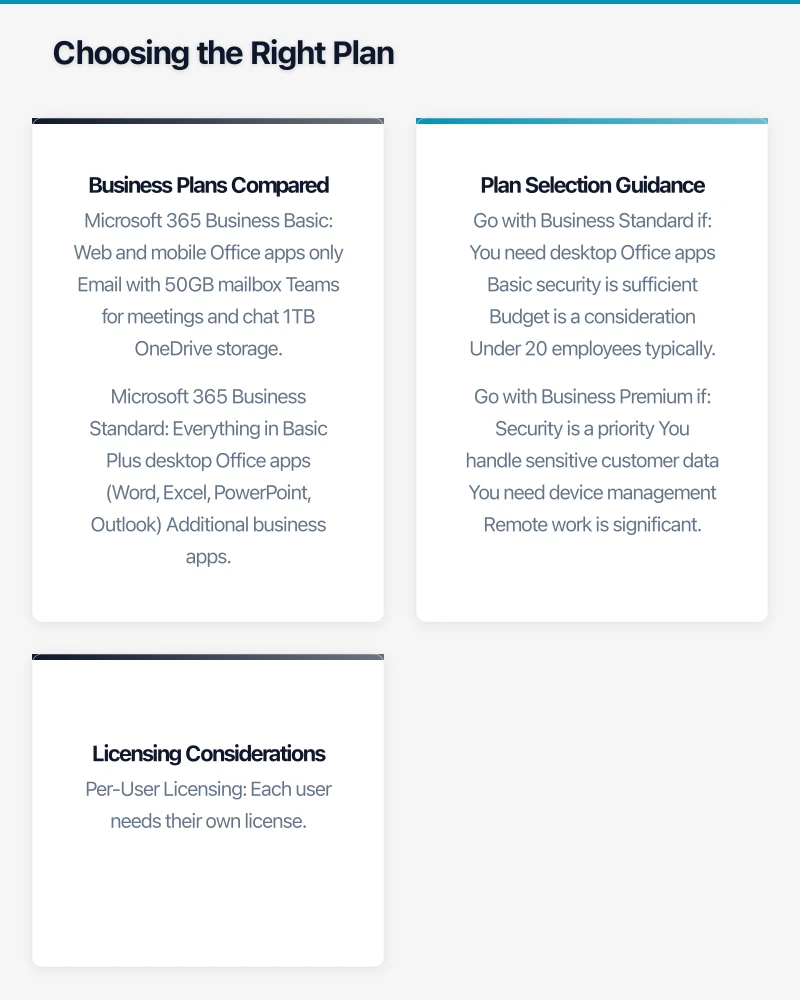
Microsoft offers several small business plans:
Microsoft 365 Business Basic
- Web and mobile Office apps only
- Email with 50GB mailbox
- Teams for meetings and chat
- 1TB OneDrive storage
- No desktop Office apps
Best for: Businesses comfortable with web-based apps and limited budget.
Microsoft 365 Business Standard
- Everything in Basic
- Plus desktop Office apps (Word, Excel, PowerPoint, Outlook)
- Additional business apps
Best for: Most small businesses needing full Office functionality.
Microsoft 365 Business Premium
- Everything in Standard
- Plus advanced security features
- Device management (Intune)
- Azure AD Premium P1
- Advanced threat protection
Best for: Businesses needing stronger security, those handling sensitive data, or regulated industries.
Plan Selection Guidance
Go with Business Standard if:
- You need desktop Office apps
- Basic security is sufficient
- Budget is a consideration
- Under 20 employees typically
Go with Business Premium if:
- Security is a priority
- You handle sensitive customer data
- You need device management
- Remote work is significant
- You’re in a regulated industry
The security features in Business Premium are worth the premium for most businesses. The cost of a single security incident exceeds years of the price difference.
Licensing Considerations
Per-User Licensing
Each user needs their own license. Sharing accounts:
- Violates licensing terms
- Creates security issues
- Loses individual accountability
- Breaks audit trails
Mixed Licensing
You can mix plans:
- Standard for most users
- Premium for administrators and users handling sensitive data
- Basic for users who only need email and mobile access
This approach balances cost with appropriate protection.
Initial Setup Essentials
Domain Configuration
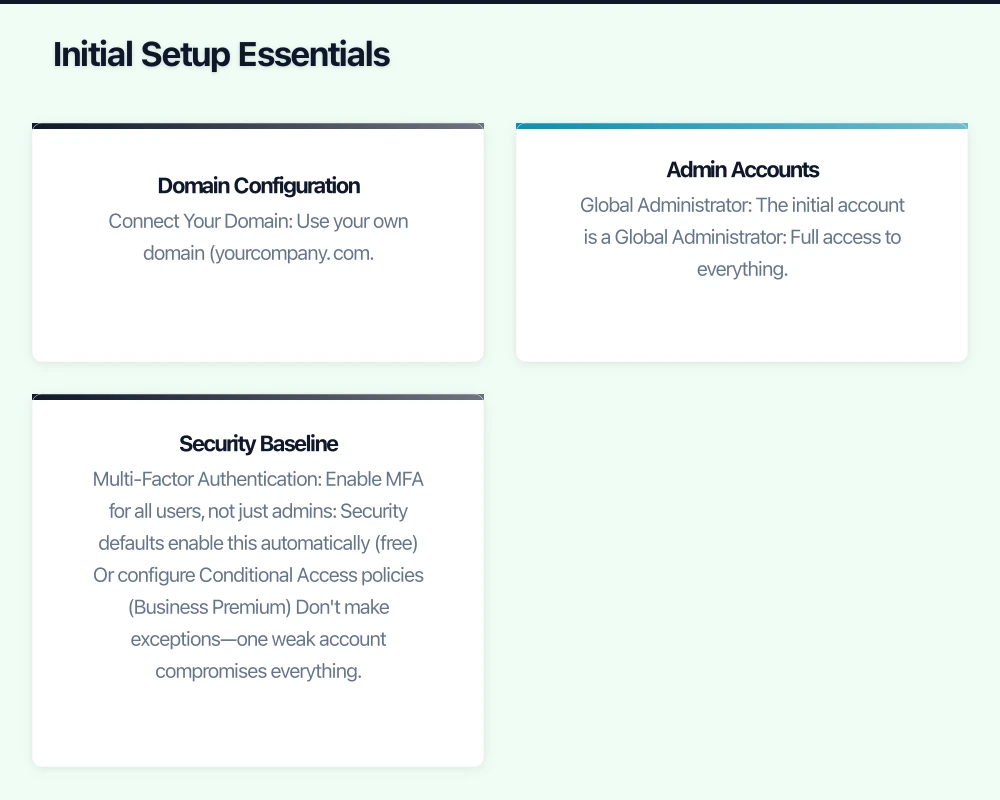
Connect Your Domain
Use your own domain (yourcompany.com.au) rather than the default onmicrosoft.com:
- Professional email addresses
- Consistent branding
- You own the domain if you ever migrate away
DNS Records
Microsoft 365 requires specific DNS records:
- MX records for email routing
- SPF, DKIM, DMARC for email authentication
- Autodiscover for Outlook configuration
- CNAME records for various services
Get these right during setup. Incorrect DNS causes email delivery problems.
Admin Accounts
Global Administrator
The initial account is a Global Administrator:
- Full access to everything
- Protect it carefully
- Use a strong password
- Enable MFA immediately
Separate Admin Accounts
Best practice:
- Admin accounts separate from daily use accounts
- Admin accounts used only for administration
- Reduces risk if daily account is compromised
For small businesses, at minimum:
- One Global Admin for emergencies
- One or two accounts with limited admin roles for daily administration
Security Baseline
Multi-Factor Authentication
Enable MFA for all users, not just admins:
- Security defaults enable this automatically (free)
- Or configure Conditional Access policies (Business Premium)
- Don’t make exceptions—one weak account compromises everything
External Sharing Settings
Configure OneDrive and SharePoint sharing:
- Review default sharing settings
- Restrict anonymous sharing if not needed
- Set expiration for external sharing links
- Audit external sharing regularly
Email Security
Configure protection:
- Anti-phishing policies
- Safe attachments (Business Premium)
- Safe links (Business Premium)
- External sender warnings
Email Migration
Migration Approaches
Cutover Migration
All mailboxes at once:
- Simpler planning
- Shorter transition period
- More disruptive if problems occur
- Best for smaller businesses (under 50 mailboxes)
Staged Migration
Groups of users over time:
- Reduced risk
- Longer overall timeline
- More complex management
- Better for larger or complex environments
Migration Preparation
Before Migration
- Inventory all email addresses
- Clean up mailboxes (delete unnecessary mail)
- Note any forwarding rules
- Document shared mailboxes and distribution lists
- Plan cutover timing (weekend often best)
- Communicate with staff
During Migration
- Monitor migration progress
- Test sending and receiving
- Verify calendar and contacts
- Check mobile devices
- Be available for issues
After Migration
- Verify all users can access email
- Update DNS records as needed
- Monitor for delivery issues
- Train users on differences
- Decommission old system (after verification period)
Essential Configuration
OneDrive Setup
Known Folder Move
Configure OneDrive to back up:
- Desktop
- Documents
- Pictures
This protects user files automatically. Critical for business continuity.
Sync Client Deployment
Ensure OneDrive sync client is:
- Installed on all computers
- Signed in and syncing
- Set to Files On-Demand (saves disk space)
Teams Configuration
Team Structure
Plan before creating teams:
- Don’t create teams for everything
- Align with natural work groups
- Consider channel structure
- Use private channels for sensitive topics
External Access
Configure guest access appropriately:
- Enable if you collaborate with external parties
- Restrict if not needed
- Review guest accounts periodically
- Set expiration for guest access
Meeting Settings
Configure meeting defaults:
- Lobby settings for external users
- Recording permissions
- Screen sharing restrictions
- Dial-in conferencing if needed
SharePoint Organisation
Site Structure
Plan SharePoint sites:
- Team sites for collaboration
- Communication sites for broadcasting
- Hub sites to connect related sites
- Clear naming conventions
Permissions
Configure access:
- Use groups, not individuals
- Break inheritance sparingly
- Document permission decisions
- Review periodically
Security Configuration
Conditional Access (Business Premium)
What It Does
Controls access based on conditions:
- User location
- Device status
- Application being accessed
- Risk level
Recommended Policies
Start with:
- Require MFA for all users
- Block legacy authentication
- Require compliant devices for sensitive apps
- Location-based restrictions if appropriate
Device Management (Business Premium)
Mobile Device Management
Protect business data on phones:
- Require PIN/password
- Enable encryption
- Remote wipe capability
- Separate work and personal data
Windows Device Management
For company computers:
- Security policy enforcement
- Application management
- Update management
- Compliance monitoring
Data Loss Prevention
Basic Protection
Even Business Standard includes:
- Sensitivity labels (manual application)
- Retention policies
- eDiscovery basics
Advanced Protection (Business Premium)
Additional capabilities:
- Automatic sensitivity labeling
- Data loss prevention policies
- Information barriers
- Advanced audit
Common Setup Mistakes
Security Neglected
The Mistake: Setting up email and apps but leaving security at defaults.
The Fix: Configure MFA immediately. Review sharing settings. Enable available security features.
No Backup Strategy
The Mistake: Assuming Microsoft backs up everything.
The Fix: Microsoft provides infrastructure resilience, not data backup. Consider third-party backup for comprehensive protection.
Permission Chaos
The Mistake: Everyone has access to everything, or permissions are a mess.
The Fix: Plan permissions from the start. Use groups. Document decisions. Review regularly.
Training Skipped
The Mistake: Users left to figure it out themselves.
The Fix: Basic training on new tools. Document key processes. Provide ongoing support.
Admin Sprawl
The Mistake: Multiple people with Global Admin access for convenience.
The Fix: Limit Global Admins. Use role-based access. Protect admin accounts carefully.
Ongoing Management
Regular Tasks
Weekly
- Check service health dashboard
- Review security alerts
- Monitor storage usage
- Address user issues
Monthly
- Review admin audit logs
- Check external sharing reports
- Update security policies as needed
- Verify backups
Quarterly
- User access review
- License utilisation check
- Security configuration review
- Plan assessment (right licenses?)
Keeping Current
Microsoft updates frequently:
- Subscribe to Message Center updates
- Review changes before they deploy
- Plan for significant changes
- Test new features before rollout
Getting Help
Microsoft Resources
- Microsoft 365 admin centre documentation
- Microsoft Learn training
- Microsoft 365 community forums
- FastTrack deployment assistance (for qualifying customers)
When to Get Professional Help
Consider a Microsoft partner for:
- Complex migrations
- Security configuration
- Compliance requirements
- Ongoing management support
Look for:
- Microsoft Partner status
- Small business experience
- Australian presence
- Clear pricing
Conclusion
Microsoft 365 setup isn’t complicated, but doing it right matters. Proper configuration from the start saves headaches later—security incidents, permission problems, and frustrated users.
Invest time in initial setup. Choose the right plan for your needs. Configure security properly. Train your team. Maintain it ongoing.
The productivity gains from Microsoft 365 are real, but only if it’s set up to work for your business.
For executive-level thinking on technology investment and digital strategy, explore Ash Ganda’s blog on enterprise innovation.
This article is brought to you by Ganda Tech Services — Sydney’s complete digital solutions provider covering cloud, web, and mobile.