
Email Security for Australian SMBs: The Practical Protection Guide
Email remains the primary attack vector for Australian businesses. Over 90% of cyber attacks begin with a phishing email. For SMBs without dedicated security teams, email protection often receives insufficient attention until an incident occurs.
This guide covers practical email security measures that Australian small businesses can implement without enterprise security budgets.
Why Email Security Matters for SMBs
The Threat Landscape
Business Email Compromise (BEC) Attackers impersonate executives or suppliers to request fraudulent payments. The FBI reports BEC losses exceeded $2.7 billion globally in 2022. Australian businesses are frequent targets.
Typical scenario: An email appearing to be from your CEO requests urgent payment to a “new supplier.” The email address is slightly different ([email protected] vs [email protected]), or comes from a compromised account.
Phishing Attacks Fake login pages steal credentials. Attackers then use those credentials for further access—email accounts, cloud services, banking.
Sophistication has increased dramatically. Modern phishing emails are grammatically correct, visually convincing, and often reference real business context gathered from LinkedIn or company websites.
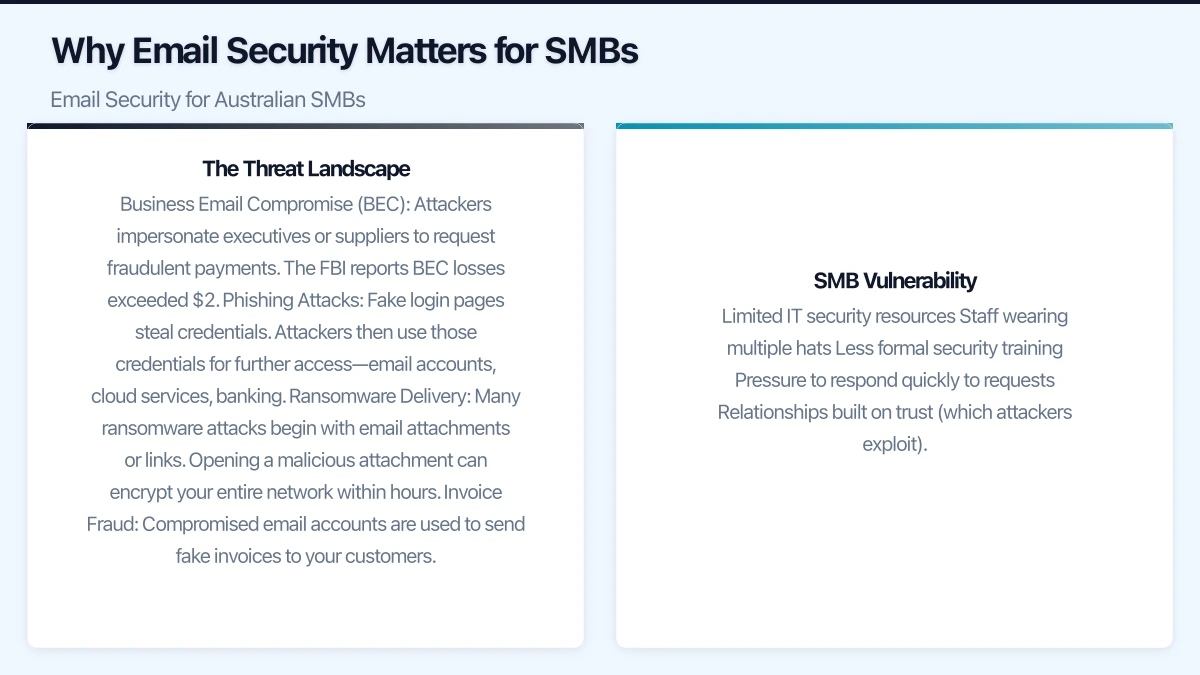
Ransomware Delivery Many ransomware attacks begin with email attachments or links. Opening a malicious attachment can encrypt your entire network within hours.
Invoice Fraud Compromised email accounts are used to send fake invoices to your customers. By the time you discover the breach, payments have been redirected to criminal accounts.
SMB Vulnerability
SMBs face particular challenges:
- Limited IT security resources
- Staff wearing multiple hats
- Less formal security training
- Pressure to respond quickly to requests
- Relationships built on trust (which attackers exploit)
Email Authentication: The Technical Foundation
Email authentication prevents attackers from sending emails that appear to come from your domain. Without authentication, anyone can send emails that look like they’re from your business.
SPF (Sender Policy Framework)
SPF specifies which servers are authorised to send email for your domain.
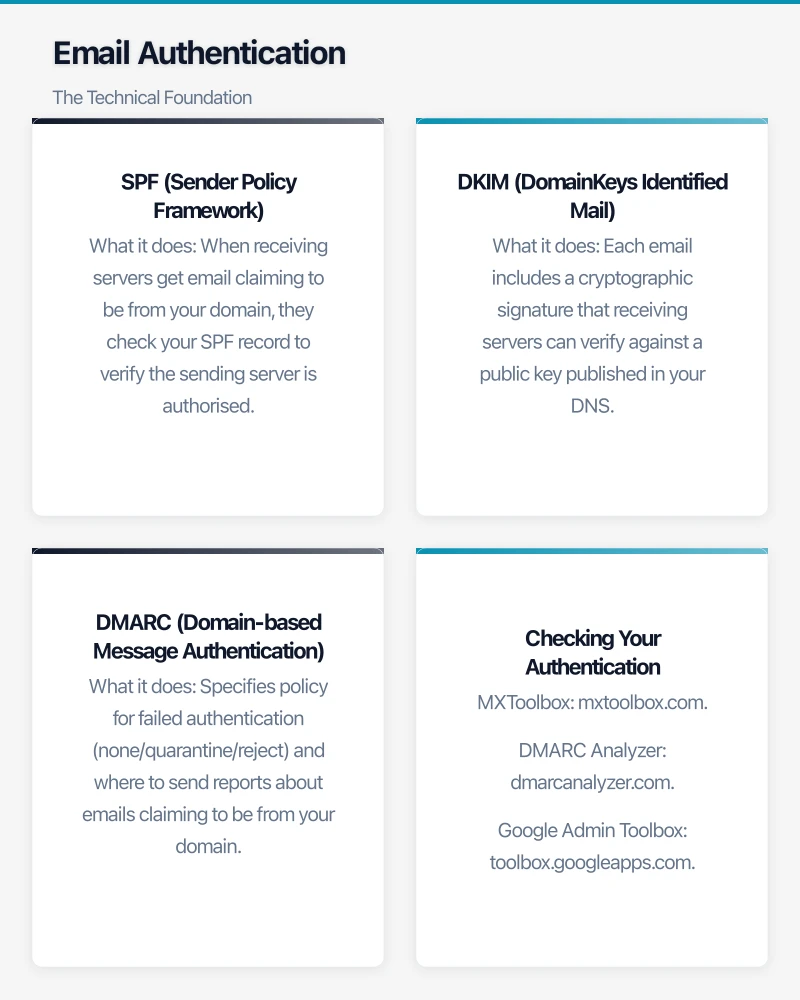
What it does: When receiving servers get email claiming to be from your domain, they check your SPF record to verify the sending server is authorised.
Implementation: Add a DNS TXT record for your domain:
v=spf1 include:_spf.google.com include:spf.protection.outlook.com -allThis example authorises Google Workspace and Microsoft 365 to send email for your domain. The -all indicates emails from other servers should be rejected.
For Microsoft 365 users, SPF is typically:
v=spf1 include:spf.protection.outlook.com -allFor Google Workspace users:
v=spf1 include:_spf.google.com -allDKIM (DomainKeys Identified Mail)
DKIM adds a digital signature to your emails, proving they weren’t tampered with and genuinely came from your domain.
What it does: Each email includes a cryptographic signature that receiving servers can verify against a public key published in your DNS.
Implementation:
- Microsoft 365: Enable in the Microsoft 365 admin centre under Settings > Domains
- Google Workspace: Admin console > Apps > Google Workspace > Gmail > Authenticate email
Your email provider generates the keys—you add the public key to your DNS as directed.
DMARC (Domain-based Message Authentication)
DMARC tells receiving servers what to do when SPF or DKIM checks fail, and provides reporting on authentication results.
What it does: Specifies policy for failed authentication (none/quarantine/reject) and where to send reports about emails claiming to be from your domain.
Implementation:
Start with monitoring policy (p=none):
v=DMARC1; p=none; rua=mailto:[email protected]This doesn’t block anything but sends reports about who’s sending email using your domain.
After monitoring (2-4 weeks), move to quarantine:
v=DMARC1; p=quarantine; rua=mailto:[email protected]Then eventually reject:
v=DMARC1; p=reject; rua=mailto:[email protected]Important: Don’t jump to reject policy without monitoring first—you might block legitimate email from systems you’ve forgotten about.
Checking Your Authentication
Use free tools to verify your configuration:
- MXToolbox: mxtoolbox.com
- DMARC Analyzer: dmarcanalyzer.com
- Google Admin Toolbox: toolbox.googleapps.com
Test by sending email to external accounts and checking headers for authentication results.
Microsoft 365 Security Settings
Most Australian SMBs use Microsoft 365. These settings significantly improve security.
Enable Security Defaults
Microsoft 365 Security Defaults provide baseline protection:
- Multi-factor authentication required for all users
- Blocking legacy authentication protocols
- Protecting privileged accounts
Enable in: Azure Active Directory > Properties > Manage Security defaults > Enable
This single setting dramatically reduces account compromise risk.
Configure Anti-Phishing Policies
In Microsoft 365 Defender (security.microsoft.com):
Mailbox Intelligence Learns each user’s communication patterns and flags unusual senders.
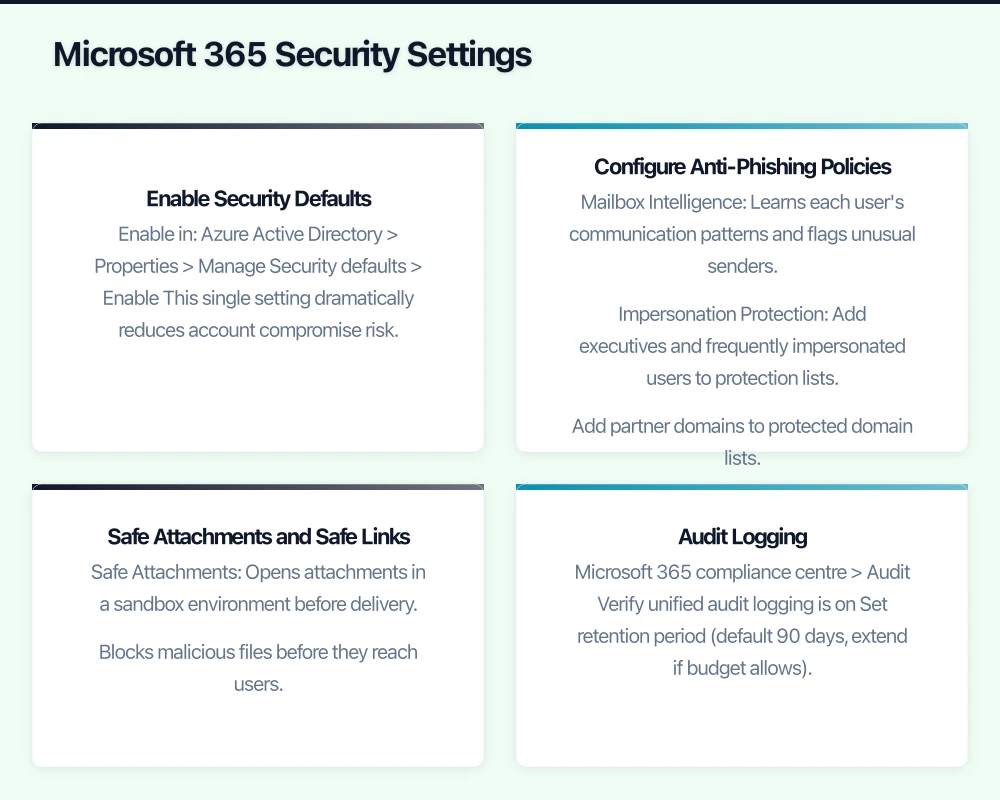
Impersonation Protection Add executives and frequently impersonated users to protection lists. Add partner domains to protected domain lists.
Advanced Phishing Thresholds Increase sensitivity for users who handle financial transactions or sensitive data.
Safe Attachments and Safe Links
Safe Attachments Opens attachments in a sandbox environment before delivery. Blocks malicious files before they reach users.
Safe Links Rewrites URLs in emails to route through Microsoft scanning. Protects against malicious links even if the destination becomes compromised after email delivery.
Enable both in Microsoft 365 Defender > Policies & rules > Threat policies.
Audit Logging
Ensure audit logging is enabled to track suspicious activity:
- Microsoft 365 compliance centre > Audit
- Verify unified audit logging is on
- Set retention period (default 90 days, extend if budget allows)
Audit logs are essential for investigating potential compromises.
Google Workspace Security Settings
For businesses on Google Workspace:
Advanced Phishing Protection
Admin console > Security > Gmail > Safety:
- Enable attachment protection
- Enable links and external images protection
- Enable spoofing and authentication protection
Enhanced Pre-Delivery Scanning
Scans attachments before delivery, quarantining suspicious files.
Security Sandbox
Available on Enterprise plans—opens attachments in sandbox before delivery.
2-Step Verification
Enforce for all users: Admin console > Security > 2-Step Verification > Enforcement
This is the single most impactful security setting.
Staff Training
Technical controls stop many threats. Staff awareness stops the rest.
What to Train
Recognising Phishing
- Urgency (“Act now!”, “Urgent action required”)
- Unusual requests (password resets, payment changes)
- Sender address discrepancies
- Generic greetings when personal is expected
- Links that don’t match displayed text
Verification Procedures
- Call to verify unexpected payment requests (using known numbers, not numbers in the email)
- Check email addresses carefully, character by character
- When in doubt, ask—better safe than compromised
Reporting
- How to report suspicious emails
- Encouraging reporting without blame
- What happens when something is reported
Training Approaches
Simulated Phishing Send fake phishing emails to test awareness:
- Microsoft Attack Simulator (included in some plans)
- KnowBe4, Proofpoint, or similar services
- Measure click rates, use results to guide training
Regular Reminders Brief, regular security reminders beat annual training:
- Monthly security tips
- Alerts when new threats emerge
- Celebration of good catches (staff who report phishing)
Real Incident Learning When incidents occur (even near-misses), share lessons:
- What happened
- How it was caught
- What could have been done differently
- No blame, only learning
Practical Policies
Payment Change Procedures
Establish verification for any payment instruction changes:
- Changes to supplier bank details must be verified by phone
- Use phone numbers from original contracts, not from the change request
- Two-person approval for payment detail changes
- Waiting period before new bank details become active
These procedures would prevent most BEC attacks.
External Email Warnings
Configure warnings on external emails:
Microsoft 365: Use mail flow rules to add warnings to external emails Google Workspace: Enable external recipient warnings
A simple banner—“This email originated outside the organisation”—prompts scrutiny.
Sensitive Data Policies
Restrict sending sensitive data via email:
- No passwords via email (use secure password managers)
- Encrypt emails containing sensitive personal information
- Consider secure file sharing instead of attachments for sensitive documents
Access Control
Limit email access appropriately:
- Remove access promptly when staff leave
- Review mailbox permissions regularly
- Use shared mailboxes instead of forwarding for departed staff
Incident Response
When You Suspect Compromise
Immediate Actions
- Change the affected account password immediately
- Review recent sent items for fraudulent emails
- Check for mail forwarding rules (attackers add these)
- Review sign-in logs for unusual activity
- Notify affected parties if fraudulent emails were sent
Investigation
- When did compromise occur?
- What was accessed?
- Were any other accounts affected?
- Was data exfiltrated?
Recovery
- Reset credentials for affected users
- Review and remove any attacker-created rules
- Enable additional security controls
- Notify affected parties
- Report to ACSC (Australian Cyber Security Centre) if significant
Reporting
Report significant cyber incidents:
- ACSC: cyber.gov.au/acsc/report
- OAIC: If personal information was compromised
- Police: If financial crime occurred
- Banks: If payment fraud attempted
Budget-Friendly Security Tools
Included with Microsoft 365
Many security features are included:
- Security Defaults (all plans)
- Basic anti-phishing (all plans)
- Safe Links and Safe Attachments (Business Premium and above)
- Microsoft Defender for Office 365 (some plans)
Check what your current plan includes before purchasing additional tools.
Free Tools
- Have I Been Pwned (haveibeenpwned.com): Check if credentials are in known breaches
- DMARC reports: Free analysis tools for authentication reports
- MXToolbox: DNS and email authentication testing
Affordable Add-Ons
If budget allows:
- Microsoft 365 Business Premium upgrade: Significant security improvements
- Third-party email filtering: Mimecast, Proofpoint (for higher-risk businesses)
- Security awareness training: KnowBe4, Proofpoint Security Awareness
Getting Started Checklist
This Week
- Check SPF, DKIM, DMARC records (use MXToolbox)
- Enable Security Defaults in Microsoft 365
- Enable 2-Step Verification in Google Workspace
- Brief staff on current phishing threats
This Month
- Configure anti-phishing policies in email platform
- Implement external email warnings
- Establish payment change verification procedures
- Review who has access to sensitive mailboxes
Ongoing
- Regular security awareness communications
- Periodic simulated phishing tests
- Review audit logs for unusual activity
- Update procedures based on new threats
Getting Help
Email security configuration can be complex, and mistakes can block legitimate email. At CloudGeeks, we help Australian SMBs implement email security controls correctly, train staff effectively, and respond when incidents occur.
Whether you need a security review, help configuring Microsoft 365 or Google Workspace security, or ongoing security management, we’re here to help protect your business.
Related Articles
- Cloud Security Fundamentals for Australian Small Business
- Australian SMB Cloud Backup Strategy 2024
- Building a Cybersecurity-First Culture in the Age of AI
Your clients expect mobile access. Awesome Apps specialises in building customer-facing mobile apps backed by reliable cloud infrastructure.
Ashish Ganda is the founder of Ganda Tech Services, a Sydney-based technology consultancy helping Australian businesses grow through cloud, web, and mobile solutions.