
Cloud Storage for Australian SMBs: OneDrive vs Google Drive vs Dropbox

Introduction
Storing files locally on individual computers is risky and inefficient. Hard drives fail. Laptops get stolen. Teams can’t collaborate on the same documents. Cloud storage solves these problems—but which service should your business use?
For most Australian SMBs, the choice comes down to OneDrive (Microsoft), Google Drive, or Dropbox. Each has strengths. The right choice depends on your existing tools, collaboration needs, and how you work.
The Main Options
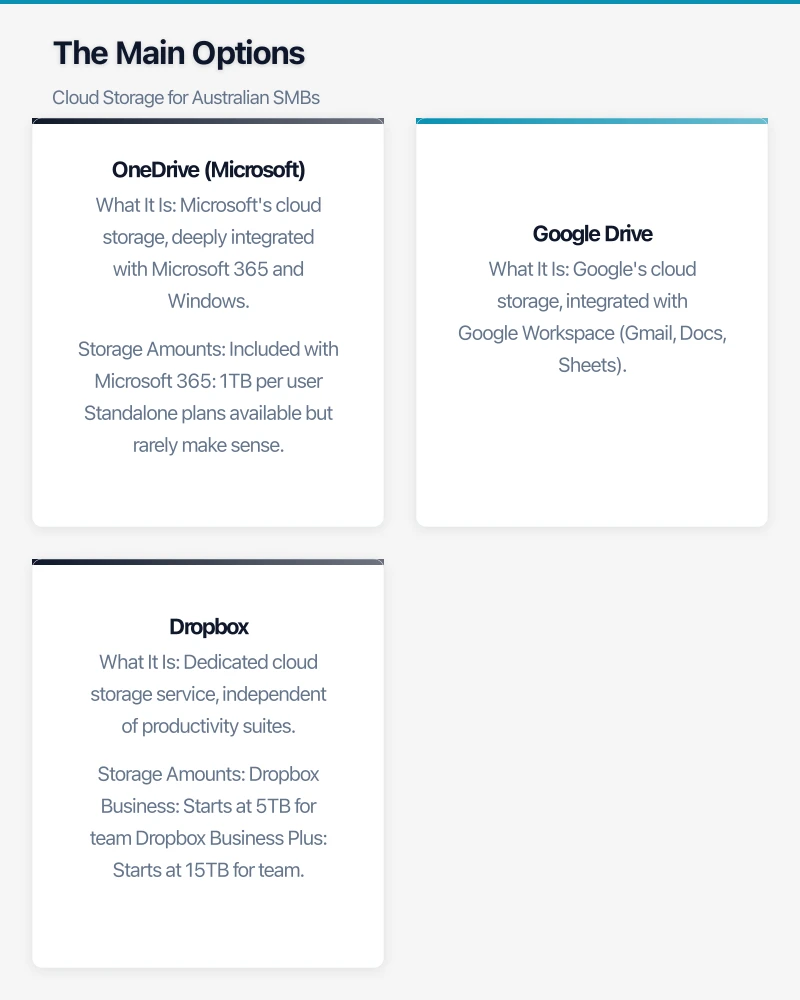
OneDrive (Microsoft)
What It Is
Microsoft’s cloud storage, deeply integrated with Microsoft 365 and Windows.
Storage Amounts
- Included with Microsoft 365: 1TB per user
- Standalone plans available but rarely make sense
Key Strengths
- Seamless integration with Microsoft Office
- Deep Windows integration
- Automatic Desktop/Documents/Pictures backup
- SharePoint integration for team sites
- Familiar interface for Microsoft users
Considerations
- Best value when bundled with Microsoft 365
- Mac integration is decent but not as smooth as Windows
- Relies on Microsoft ecosystem
Google Drive
What It Is
Google’s cloud storage, integrated with Google Workspace (Gmail, Docs, Sheets).
Storage Amounts
- Google Workspace Business Starter: 30GB per user
- Google Workspace Business Standard: 2TB per user
- Google Workspace Business Plus: 5TB per user
Key Strengths
- Excellent real-time collaboration in Google Docs/Sheets
- Strong search capabilities
- Good cross-platform support
- Native web-based document editing
- Generous storage in higher tiers
Considerations
- Best when using Google Workspace for email and productivity
- Google Docs format requires conversion for Microsoft Office users
- Different interface from traditional file systems
Dropbox
What It Is
Dedicated cloud storage service, independent of productivity suites.
Storage Amounts
- Dropbox Business: Starts at 5TB for team
- Dropbox Business Plus: Starts at 15TB for team
Key Strengths
- Simple, reliable file sync
- Works well across all platforms equally
- Good for businesses using mixed ecosystems
- Strong third-party app integrations
- Paper for collaborative documents
Considerations
- Additional cost on top of productivity suite
- Less integrated than OneDrive/Microsoft or Drive/Google
- Smaller feature set than competitors
Comparison by Category
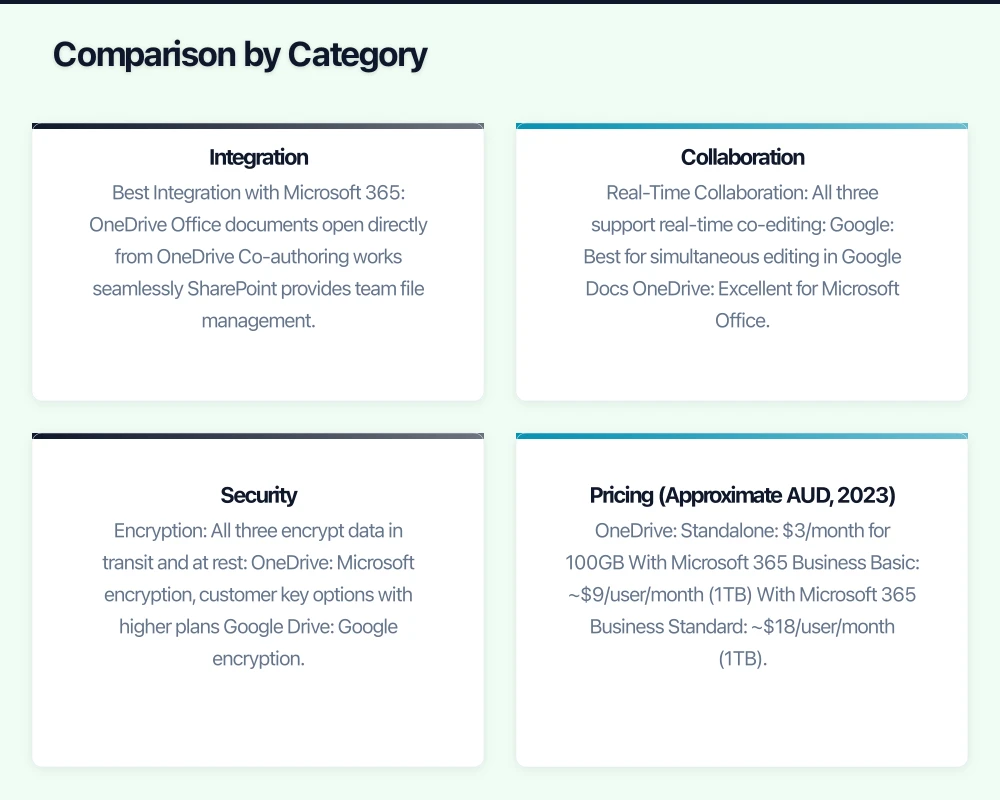
Integration
Best Integration with Microsoft 365: OneDrive
- Office documents open directly from OneDrive
- Co-authoring works seamlessly
- SharePoint provides team file management
- Outlook attachments can link to OneDrive
Best Integration with Google Workspace: Google Drive
- Google Docs, Sheets, Slides are native
- Gmail attachment integration
- Google Meet file sharing
- Seamless across Google services
Best for Mixed Environments: Dropbox
- Works equally well with any productivity suite
- Microsoft Office integration available
- Google Docs integration available
- No ecosystem lock-in
Collaboration
Real-Time Collaboration
All three support real-time co-editing:
- Google: Best for simultaneous editing in Google Docs
- OneDrive: Excellent for Microsoft Office co-authoring
- Dropbox: Good with Dropbox Paper, Office integration
External Sharing
Sharing with people outside your organisation:
- OneDrive: Flexible sharing links, expiration options, password protection
- Google Drive: Easy sharing, access controls, link sharing
- Dropbox: Simple link sharing, transfer feature for large files
Comments and Feedback
- Google: Strong commenting in Google Docs
- OneDrive: Comments work well in Office documents
- Dropbox: Comments on any file type, plus annotations
Security
Encryption
All three encrypt data in transit and at rest:
- OneDrive: Microsoft encryption, customer key options with higher plans
- Google Drive: Google encryption, customer-managed keys available
- Dropbox: Dropbox encryption, advanced security in higher tiers
Compliance
For regulated industries:
- OneDrive: Strong compliance credentials (Microsoft has extensive certifications)
- Google Drive: Google Cloud compliance certifications
- Dropbox: SOC 2, ISO 27001, GDPR compliant
Admin Controls
- OneDrive: Extensive controls through Microsoft 365 admin centre
- Google Drive: Strong admin console in Google Workspace
- Dropbox: Admin console with sharing and security controls
Pricing (Approximate AUD, 2023)
OneDrive
- Standalone: $3/month for 100GB
- With Microsoft 365 Business Basic: ~$9/user/month (1TB)
- With Microsoft 365 Business Standard: ~$18/user/month (1TB)
Google Drive
- Standalone: $3/month for 100GB
- Google Workspace Business Starter: ~$9/user/month (30GB)
- Google Workspace Business Standard: ~$18/user/month (2TB)
Dropbox
- Plus (individual): $17/month (2TB)
- Business: ~$22/user/month (5TB)
- Business Plus: ~$33/user/month (15TB)
Note: Prices change. Check current pricing.
Value Analysis
- If you use Microsoft 365: OneDrive is included—no additional storage cost
- If you use Google Workspace: Google Drive is included—no additional storage cost
- Dropbox makes sense if you need storage independent of productivity suite, or work across ecosystems
Decision Framework
Choose OneDrive If…
- You use Microsoft 365 for email and Office apps
- Your team is Windows-based
- You want desktop/documents backup built in
- You value Microsoft ecosystem integration
- You need SharePoint for team sites
Choose Google Drive If…
- You use Google Workspace for email and productivity
- You prefer web-based applications
- Real-time collaboration is critical
- You want generous storage per user
- You prefer Google’s interface and search
Choose Dropbox If…
- You use a mix of Microsoft and Google tools
- You need platform-neutral storage
- Simplicity and reliability are priorities
- You value their specific integrations
- You don’t need productivity suite integration
What About Using Multiple?
Some businesses use more than one:
- Primary storage through Microsoft 365 or Google Workspace
- Dropbox for specific use cases (external sharing, creative files)
This can work but adds:
- Complexity in knowing where files are
- Additional cost
- More systems to manage
- Potential sync confusion
Generally, pick one and standardise.
Migration Considerations
Moving Between Services
If switching cloud storage:
Plan the Migration
- Inventory current files and structure
- Clean up before moving (delete obsolete files)
- Map folder structure to new service
- Plan user training
- Set cutover date
Migration Options
- Manual copy (small amounts)
- Microsoft or Google migration tools (if moving to their service)
- Third-party migration tools (Mover, CloudM, etc.)
- Gradual migration alongside cutover period
Post-Migration
- Verify all files transferred
- Update links and bookmarks
- Confirm permissions are correct
- Train users on new service
- Decommission old service (after verification period)
Avoiding Lock-In
Keep portability in mind:
- Store important documents in standard formats (docx, xlsx, pdf)
- Don’t rely exclusively on cloud-native formats without export capability
- Maintain backup independent of cloud provider
- Document your file organisation
Best Practices
Organisation
Folder Structure
Create logical organisation:
- By department or function
- By project or client
- By year (for archives)
- Consistent naming conventions
Permissions
- Not everyone needs access to everything
- Use groups for permission management
- Review permissions periodically
- Document who has access to what
Backup
Cloud Storage Isn’t Backup
Cloud storage provides:
- Access from anywhere
- Sync across devices
- Some version history
- Protection from local hardware failure
Cloud storage doesn’t protect from:
- Accidental deletion (after retention period)
- Malicious deletion
- Account compromise
- Ransomware that syncs encrypted files
Backup Strategy
Consider additional backup:
- Third-party backup for cloud data
- Local backup of critical files
- Version history awareness
- Regular backup verification
Security
User Practices
- Strong passwords on accounts
- MFA enabled (mandatory)
- Don’t share passwords
- Be careful with sharing links
Admin Practices
- Configure sharing policies
- Monitor external sharing
- Review audit logs periodically
- Maintain user access hygiene
Conclusion
For most Australian SMBs, the choice is straightforward:
- Using Microsoft 365? Use OneDrive. It’s included and integrated.
- Using Google Workspace? Use Google Drive. It’s included and integrated.
- Mixed environment or special needs? Consider Dropbox.
Don’t overcomplicate it. Pick the option that fits your existing tools, set it up properly, and standardise across the business. The best cloud storage is the one your team actually uses consistently.
Pairing cloud infrastructure with a professional website amplifies your online presence. Cosmos Web Tech builds high-performance sites that make the most of solid hosting foundations.
This article is brought to you by Ganda Tech Services — Sydney’s complete digital solutions provider covering cloud, web, and mobile.