
Power Automate Workflow Automation for Australian SMBs

Every Australian business has repetitive processes that consume hours of staff time: approval workflows, data entry, notification sending, file management, and countless other tasks that follow predictable patterns. Microsoft Power Automate transforms these manual processes into automated workflows, freeing your team to focus on work that actually requires human judgment.
At CloudGeeks, we’ve implemented hundreds of Power Automate workflows for Australian SMBs. The ROI is often remarkable: workflows costing hours to build save hundreds of hours annually. This guide provides the practical foundation to start automating your business processes.
What is Power Automate?
Power Automate is Microsoft’s workflow automation platform. It connects applications and services to automate tasks without writing code.
Core Concepts
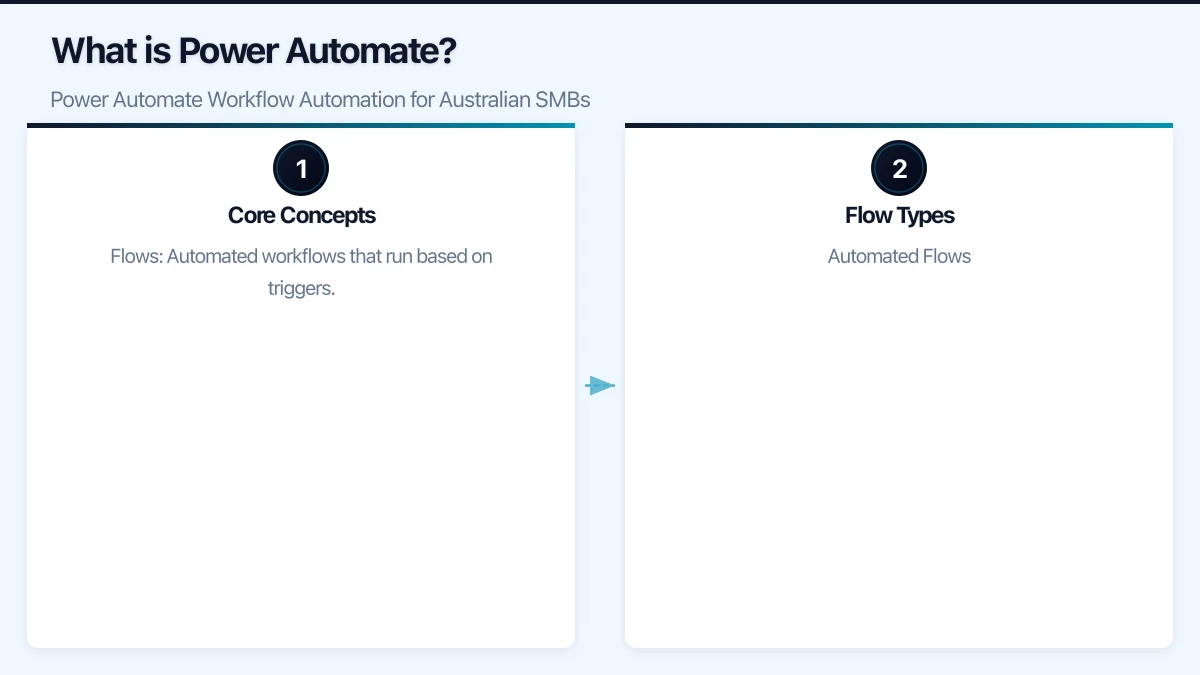
Flows: Automated workflows that run based on triggers.
Triggers: Events that start a flow (email received, file created, scheduled time, button press).
Actions: Steps the flow takes (send email, create record, update file, post message).
Connectors: Integrations with applications (Microsoft 365, Salesforce, Xero, hundreds more).
Flow Types
Automated Flows Triggered by events:
- New email received
- File uploaded to SharePoint
- Teams message posted
- Form submitted
Scheduled Flows Run on a schedule:
- Daily report generation
- Weekly data cleanup
- Monthly invoice reminders
- Annual review notifications
Instant Flows Triggered manually:
- Button press in app
- Teams message action
- SharePoint item action
- Power Apps integration
Desktop Flows (RPA) Automate desktop applications:
- Legacy application automation
- Web scraping
- Desktop data entry
- File manipulation
Licensing and Costs
Understanding licensing is essential for planning.
Included with Microsoft 365
Most Microsoft 365 Business and Enterprise plans include:
- Standard connectors (Microsoft apps, common services)
- 6,000 actions per user per month (pooled)
- Basic flow capabilities
Included Connectors (sample):
- Microsoft 365 (Outlook, SharePoint, Teams, OneDrive)
- Dynamics 365
- Azure services
- SQL Server
- Twitter, RSS
Premium Licensing
Power Automate Premium: $22.50 AUD/user/month
- Premium connectors (Salesforce, SAP, etc.)
- Custom connectors
- Desktop flows (RPA)
- 40,000 actions per user per month
Power Automate Process: $225 AUD/month per bot
- Unattended RPA automation
- Run without user login
- For high-volume automation
Cost Planning
| Scenario | License Needed | Monthly Cost |
|---|---|---|
| Basic M365 automation (10 users) | Included with M365 | $0 |
| Using Xero connector (10 users) | Premium per user | $225 |
| Salesforce integration (5 users) | Premium per user | $112.50 |
| Desktop automation (1 bot) | Process license | $225 |
Recommendation: Start with included capabilities. Add premium licenses only when specific connectors or RPA are needed.
High-Value Automation Opportunities
Identifying Automation Candidates
Look for processes that are:
- Repetitive: Performed the same way repeatedly
- Rule-based: Follow predictable logic
- Time-consuming: Take significant staff time
- Error-prone: Manual steps cause mistakes
- Multi-system: Involve copying data between applications
Top Automation Use Cases for Australian SMBs
1. Approval Workflows Streamline approval processes:
- Leave requests
- Purchase approvals
- Document sign-offs
- Expense reimbursements
Typical time saved: 2-5 hours/week
2. Email Management Automate email handling:
- Auto-categorise incoming emails
- Create tasks from emails
- Save attachments to SharePoint
- Send auto-responses
Typical time saved: 3-8 hours/week
3. Data Synchronisation Keep systems in sync:
- CRM to accounting integration
- Form submissions to database
- SharePoint to Teams notifications
- External data to internal reports
Typical time saved: 5-15 hours/week
4. Notifications and Reminders Automated alerts:
- Contract renewal reminders
- Overdue task notifications
- New customer onboarding
- Meeting follow-ups
Typical time saved: 2-4 hours/week
5. Document Management Automated document handling:
- File organisation and naming
- Metadata application
- Archive old documents
- Generate documents from templates
Typical time saved: 3-6 hours/week
Building Your First Flows
Flow 1: Email Attachment to SharePoint
Purpose: Automatically save email attachments to SharePoint folder.
Trigger: When a new email arrives (Outlook 365)
Conditions:
- From specific sender OR
- With specific subject keywords OR
- Has attachments
Actions:
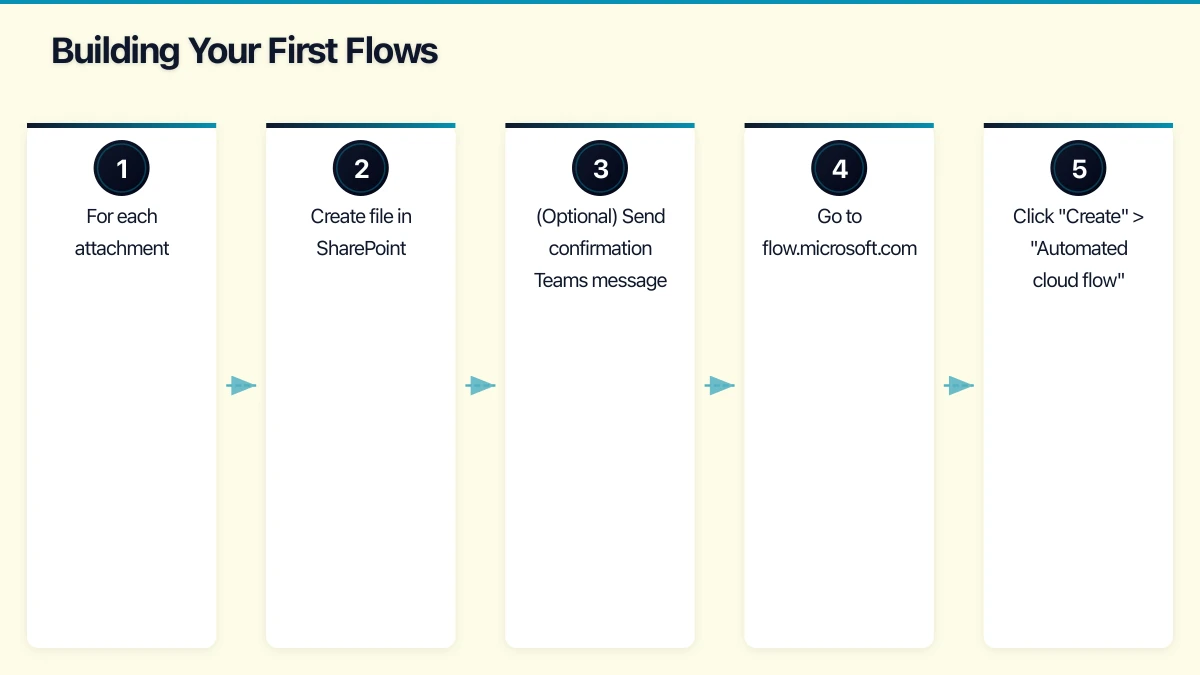
- For each attachment
- Create file in SharePoint
- (Optional) Send confirmation Teams message
Step-by-Step:
- Go to flow.microsoft.com
- Click “Create” > “Automated cloud flow”
- Name: “Save Attachments to SharePoint”
- Trigger: “When a new email arrives (V3)” - Outlook
- Configure trigger:
- Folder: Inbox
- Has Attachments: Yes
- Add condition if needed (From, Subject contains)
- Add action: “Apply to each”
- Select: Attachments from trigger
- Inside loop, add: “Create file” - SharePoint
- Site Address: Select your site
- Folder Path: /Shared Documents/Email Attachments
- File Name: Attachment Name
- File Content: Attachment Content
- Save and test
Flow 2: Leave Request Approval
Purpose: Streamline employee leave requests.
Components:
- Microsoft Forms (request submission)
- Power Automate (workflow)
- Outlook (notifications)
- SharePoint (record keeping)
Flow Logic:
- Employee submits leave form
- Flow sends approval request to manager
- Manager approves or rejects
- Employee notified of decision
- Leave recorded in SharePoint list
Step-by-Step:
- Create Microsoft Form:
- Employee Name
- Leave Type (Annual, Sick, Personal)
- Start Date
- End Date
- Reason (optional)
- Manager Email
-
Create SharePoint List:
- Title (auto-generated)
- Employee Name
- Leave Type
- Start Date
- End Date
- Status (Pending, Approved, Rejected)
- Manager Response
-
Create Flow:
- Trigger: “When a new response is submitted” - Forms
- Action: “Get response details” - Forms
- Action: “Start and wait for an approval”
- Type: Approve/Reject - First to respond
- Title: Leave Request from [Employee Name]
- Assigned to: [Manager Email from form]
- Details: Include leave dates and type
- Condition: If Outcome equals “Approve”
- Yes: Create SharePoint item with Status = Approved
- Yes: Send email to employee (Approved)
- No: Create SharePoint item with Status = Rejected
- No: Send email to employee (Rejected)
Flow 3: Daily Report Summary
Purpose: Send daily summary of key metrics.
Trigger: Recurrence (daily at 8 AM AEST)
Actions:
- Query SharePoint lists or Excel for data
- Calculate summary metrics
- Format email content
- Send to specified recipients
Example Data Sources:
- Open support tickets
- Pending invoices
- New leads today
- Tasks due today
Flow 4: New Employee Onboarding
Purpose: Automate tasks when new employee starts.
Trigger: New item in “Employees” SharePoint list
Actions:
- Create Planner tasks for IT setup
- Send welcome email to employee
- Notify manager of start date
- Add to relevant Teams/Groups
- Schedule orientation meetings
Planner Tasks Created:
- Create user account (IT)
- Provision laptop (IT)
- Set up email and Teams (IT)
- Create security badge (Facilities)
- Schedule orientation (HR)
- Assign mentor (Manager)
Flow 5: Invoice Processing
Purpose: Streamline supplier invoice handling.
Trigger: Email with invoice attachment OR form submission
Actions:
- Extract invoice data (manual or AI Builder)
- Create approval request
- Log to accounting system
- Save to SharePoint with metadata
- Notify accounts payable
Advanced Techniques
Using Variables
Variables store values for use throughout your flow:
Common Variable Uses:
- Counters in loops
- Accumulating values
- Storing API responses
- Building dynamic strings
Example: Count items in a loop
Initialize variable: Counter (Integer) = 0
Apply to each (items):
  Increment variable: Counter by 1
Compose: Total items: @{variables('Counter')}
Conditions and Branching
Make decisions based on data:
Simple Condition:
If Amount is greater than 5000
  Then: Send to Director for approval
  Else: Send to Manager for approval
Switch Statement:
Switch on Department:
  Case "Sales": Notify Sales Manager
  Case "Marketing": Notify Marketing Manager
  Default: Notify General Manager
Error Handling
Make flows resilient:
Configure Run After:
- Set actions to run after previous action fails
- Create error notification branch
- Log errors to SharePoint or email
Scope for Try-Catch:
Scope "Try":
  [Actions that might fail]
Scope "Catch" (run after Try has failed):
  Send error notification email
  Log error to SharePoint
Working with JSON
Many connectors return JSON data:
Parse JSON: Convert string to usable data Compose: Create JSON objects Select: Transform arrays Filter Array: Filter data sets
Integration Examples
Microsoft 365 Integrations
Teams + SharePoint:
- Post to Teams when document added
- Create SharePoint item from Teams form
- Archive Teams files to SharePoint
Outlook + Planner:
- Create Planner task from flagged email
- Send task completion notifications
- Weekly task summary email
Forms + Excel:
- Log form responses to Excel
- Update Excel and trigger workflow
- Generate reports from Excel data
Australian Business Application Integrations
Xero Integration (Premium connector):
- Create invoice when SharePoint item approved
- Sync contacts between CRM and Xero
- Notify when payment received
MYOB Integration (via API or Premium):
- Similar capabilities to Xero
- May require custom connector
Employment Hero (via API):
- Leave request integration
- Employee data sync
- Payroll notifications
Custom API Connections
For applications without built-in connectors:
HTTP Action: Call any REST API Custom Connector: Build reusable connector for your APIs Azure Functions: Complex logic via code
Governance and Best Practices
Flow Naming Convention
Consistent naming helps management:
[Type]-[Department]-[Process]-[Version]
Examples:
AUTO-HR-LeaveApproval-v2
SCHEDULED-Finance-DailyReport-v1
INSTANT-Sales-QuoteGenerator-v1
Documentation
Document each flow:
- Purpose and business process
- Trigger and conditions
- Actions performed
- Error handling
- Owner and maintainer
- Dependencies
Environment Strategy
For Larger Organisations:
- Development environment for building/testing
- Production environment for live flows
- Solutions for deploying between environments
For SMBs:
- Use personal flows for testing
- Promote to team/environment when ready
- Regular backup via export
Security Considerations
Connection Management:
- Use service accounts for shared flows
- Review connection permissions regularly
- Remove connections when staff leave
Data Sensitivity:
- Be careful with sensitive data in flows
- Use secure outputs for passwords/keys
- Audit flows accessing sensitive systems
Troubleshooting Common Issues
Flow Not Triggering
Possible Causes:
- Trigger conditions not met
- Connection expired or broken
- Flow turned off
- Licensing limitation reached
Resolution Steps:
- Check flow is turned on
- Verify trigger conditions
- Test connection
- Review run history for errors
- Check action usage limits
Flow Failing
Possible Causes:
- Missing required data
- Connection permission issue
- Timeout on long operations
- Downstream system unavailable
Resolution Steps:
- Review run history details
- Check action error message
- Verify input data
- Test individual actions
- Add error handling
Performance Issues
Possible Causes:
- Too many actions
- Large data sets
- Sequential instead of parallel
- Unnecessary loops
Optimisation:
- Use filter queries at source
- Process in batches
- Use concurrency control
- Remove unnecessary actions
ROI Calculation
Measuring Automation Value
Time Savings Calculation:
Manual time per instance: 15 minutes
Instances per week: 50
Weekly manual time: 12.5 hours
Annual manual time: 650 hours

Automated time per instance: 0 (automated)
Development time: 8 hours
Annual maintenance: 10 hours
Total automation time: 18 hours

Annual time saved: 632 hours
Value at $55/hour: $34,760/year
Typical ROI by Flow Type
| Flow Type | Dev Time | Annual Savings | ROI |
|---|---|---|---|
| Email management | 4 hours | $8,000 | 1,800% |
| Approval workflow | 8 hours | $15,000 | 1,700% |
| Data sync | 16 hours | $25,000 | 1,400% |
| Report generation | 6 hours | $12,000 | 1,800% |
| Onboarding | 12 hours | $18,000 | 1,350% |
Implementation Roadmap
Month 1: Foundation
Week 1-2:
- Identify automation opportunities
- Prioritise by impact and complexity
- Select first 3-5 flows to build
- Train power users on basics
Week 3-4:
- Build and test priority flows
- Deploy to production
- Document processes
- Gather user feedback
Month 2: Expansion
Week 5-6:
- Review flow performance
- Address issues and optimise
- Identify next batch of flows
- Train additional users
Week 7-8:
- Build additional flows
- Implement more complex scenarios
- Establish governance practices
- Create templates for common patterns
Month 3: Maturity
Week 9-10:
- Comprehensive flow inventory
- Performance optimisation
- Security review
- User adoption assessment
Week 11-12:
- Advanced training for power users
- Custom connector evaluation
- Long-term automation strategy
- Success metrics reporting
Getting Started Resources
Learning Path
- Microsoft Learn: Free Power Automate courses
- Power Automate documentation: Official reference
- Power Automate community: Forums and templates
- YouTube: Tutorial videos
Templates to Start With
Power Automate includes hundreds of templates:
- Save email attachments to OneDrive
- Get daily reminder emails
- Create tasks from flagged emails
- Track time for meetings
- Post to Teams when file changes
Access via flow.microsoft.com > Templates
Support Options
Self-Service:
- Microsoft documentation
- Community forums
- Template gallery
Professional Help:
- Microsoft partner support
- Power Platform consultants
- IT service providers
At CloudGeeks, we help Australian businesses implement Power Automate workflows that deliver real productivity gains. From identifying automation opportunities through building and maintaining flows, we provide the expertise to transform your manual processes. Contact us to discuss your automation requirements.
Related Articles
- Microsoft Teams Optimisation Guide
- SharePoint Document Management Guide
- Microsoft 365 Copilot Implementation Guide
- Digital Transformation Roadmap for Australian SMBs
Considering an online store backed by your cloud infrastructure? Cosmos Web Tech creates Shopify and WooCommerce stores optimised for the Australian market.
Ashish Ganda is the founder of Ganda Tech Services, a Sydney-based technology consultancy helping Australian businesses grow through cloud, web, and mobile solutions.