
Microsoft Teams Optimisation Guide for Australian Businesses
Microsoft Teams has become the collaboration backbone for most Australian businesses. But there’s a significant difference between “using Teams” and “using Teams effectively.” After years of helping Australian SMBs implement and optimise Teams, we’ve seen organisations transform their collaboration from chaotic to streamlined, and others struggle with Teams sprawl that reduces rather than enhances productivity.
At CloudGeeks, we approach Teams optimisation as an ongoing process, not a one-time setup. This guide provides the framework and specific configurations to get Teams working properly for your Australian business.
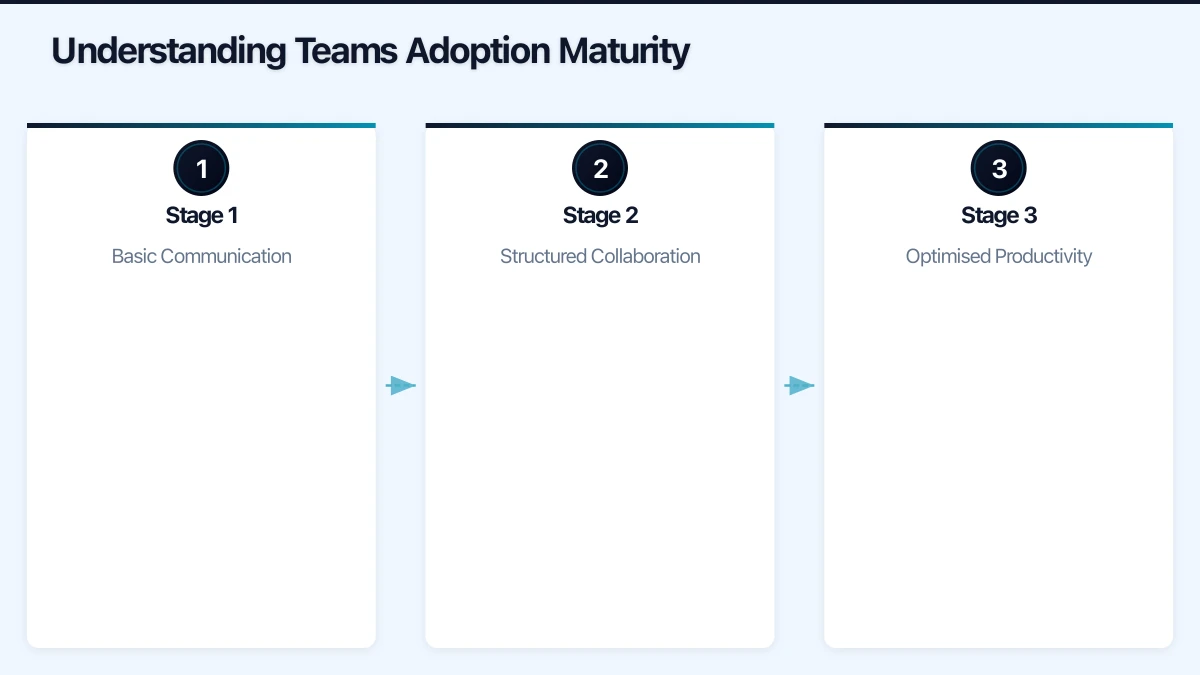
Understanding Teams Adoption Maturity
Most organisations progress through predictable Teams maturity stages:
Stage 1: Basic Communication
- Teams used primarily for chat and video calls
- Minimal structure or governance
- Files scattered across channels and chats
- No clear policies or guidelines
Stage 2: Structured Collaboration
- Teams and channels aligned to business structure
- Governance policies defined
- File management practices established
- Basic integrations implemented
Stage 3: Optimised Productivity
- Workflows automated through Power Automate
- Deep integration with business applications
- Analytics-driven optimisation
- Continuous improvement culture
Most Australian SMBs operate at Stage 1 or early Stage 2. This guide helps you advance through the stages systematically.
Teams Architecture Best Practices
Team Structure Design
The most common mistake is creating too many teams. Follow these principles:
Principle 1: Teams Should Be Persistent Create teams for ongoing work groups, not projects with defined end dates. For projects, use channels within existing teams or private channels.
Principle 2: Align with Business Structure Map teams to your organisational structure where it makes sense:
| Business Unit | Suggested Team Structure |
|---|---|
| Sales | One “Sales” team with channels per region/product |
| Marketing | One “Marketing” team with channels per campaign type |
| Operations | One “Operations” team with channels per function |
| Projects | Channels within department teams, or dedicated project teams for large initiatives |
Principle 3: Limit Team Proliferation For a 50-person company:
- Target: 8-15 teams maximum
- Avoid: 50+ teams (common problem)
Channel Strategy
Channels organise conversations within teams. Use them effectively:
Standard Channels
- Visible to all team members
- Use for: Department-wide discussions, announcements, general topics
- Examples: “General”, “Announcements”, “Resources”
Private Channels
- Visible only to selected members
- Use for: Sensitive projects, leadership discussions, HR matters
- Limitations: Cannot add guests, limited app support
Shared Channels
- Span across multiple teams
- Use for: Cross-departmental projects, external collaboration
- Considerations: Complex permissions, limited features
Channel Naming Convention:
[Category] - [Description]
Examples:
01 - General
02 - Announcements
03 - Projects - Website Redesign
04 - Clients - ABC Company
Numbering ensures consistent ordering across the organisation.
File Management in Teams
Teams file storage uses SharePoint. Understanding this relationship is crucial.
Where Files Live:
- Team files: SharePoint team site
- Private channel files: Separate SharePoint site
- Chat files: OneDrive of sender
File Organisation Best Practices:
- Create folder structure within channels
- Use metadata and views in SharePoint for advanced organisation
- Avoid deeply nested folders (max 3 levels recommended)
- Use consistent naming conventions
Recommended Folder Structure (within channel):
Channel Files/
  01_Current_Projects/
  02_Templates/
  03_Reference_Materials/
  04_Archive/
Governance Framework
Without governance, Teams becomes chaotic. Implement these policies.
Team Creation Policy
Option 1: Open Creation (Not Recommended) Anyone can create teams. Results in proliferation and confusion.
Option 2: Controlled Creation (Recommended) Limit team creation to specific roles or require approval.
Implementation in Microsoft 365 Admin:
- Create a security group for users allowed to create teams
- Configure group creation settings in Azure AD
- Communicate process for requesting new teams
Team Request Process:
- User submits request (Teams form or email)
- IT/admin reviews against naming and purpose guidelines
- Team created with appropriate settings
- Requester becomes owner with training provided
Naming Conventions
Consistent naming helps users find and understand teams:
Team Naming Standard:
[Department/Project] - [Purpose]
Examples:
Sales - Australia Region
Marketing - Brand Assets
Project - CRM Implementation 2026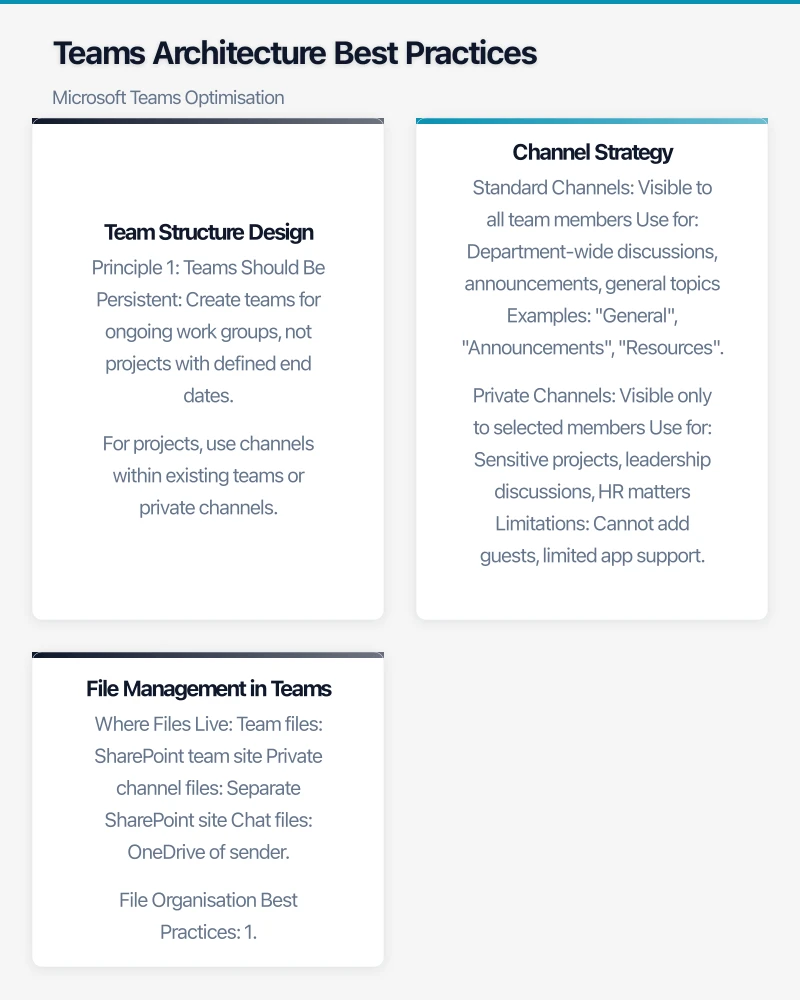
Channel Naming Standard:
[Category] - [Topic]
Examples:
Clients - Major Accounts
Projects - Q1 Campaign
Resources - Training Materials
Guest Access Policy
External collaboration is common but requires controls:
Guest Access Decisions:
- Will you allow external guests? (Most businesses: Yes)
- Who can invite guests? (Recommendation: Team owners only)
- What can guests access? (Recommendation: Specific teams only)
- How long can guests remain? (Recommendation: Quarterly review)
Guest Configuration Steps:
- Enable guest access in Teams admin centre
- Configure Azure AD external collaboration settings
- Set default permissions for guests
- Establish guest review process
Retention and Lifecycle
Teams generate significant data. Manage it proactively:
Retention Policy Recommendations:
- Chat messages: 2-7 years (depending on compliance needs)
- Channel messages: 2-7 years
- Files: Align with broader document retention policy
Team Lifecycle Management:
- Active teams: No action needed
- Inactive teams (90+ days no activity): Archive warning
- Abandoned teams (180+ days no activity): Archive or delete
Implementation: Use Microsoft 365 Groups expiration policies or third-party governance tools.
Meeting Optimisation
Meetings consume significant Teams usage. Optimise them.
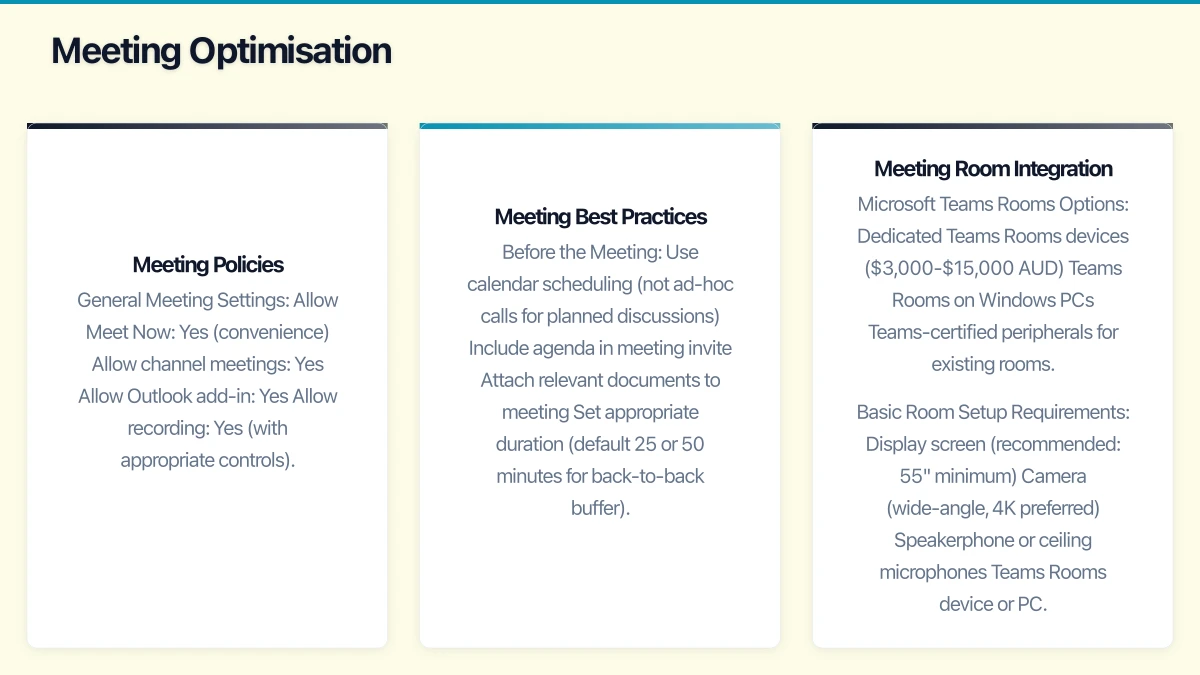
Meeting Policies
Configure appropriate policies in Teams admin centre:
General Meeting Settings:
- Allow Meet Now: Yes (convenience)
- Allow channel meetings: Yes
- Allow Outlook add-in: Yes
- Allow recording: Yes (with appropriate controls)
- Meeting chat: Enabled
Recording and Transcription:
- Allow cloud recording: Yes
- Allow transcription: Yes (significant productivity benefit)
- Recording storage: OneDrive (default) or SharePoint
- Automatic recording deletion: Configure retention
For Australian Compliance:
- Consider notification requirements for recording
- Review privacy implications for transcription
- Communicate recording policies to all participants
Meeting Best Practices
Establish organisational norms for effective meetings:
Before the Meeting:
- Use calendar scheduling (not ad-hoc calls for planned discussions)
- Include agenda in meeting invite
- Attach relevant documents to meeting
- Set appropriate duration (default 25 or 50 minutes for back-to-back buffer)
During the Meeting:
- Use Together Mode or Gallery View for engagement
- Leverage meeting chat for links and side discussions
- Use Whiteboard for collaborative ideation
- Record meetings with transcription for reference
After the Meeting:
- Review AI-generated meeting summary (if using Copilot)
- Share recording link with absentees
- Follow up on action items through chat or Planner
Meeting Room Integration
For offices with meeting rooms:
Microsoft Teams Rooms Options:
- Dedicated Teams Rooms devices ($3,000-$15,000 AUD)
- Teams Rooms on Windows PCs
- Teams-certified peripherals for existing rooms
Basic Room Setup Requirements:
- Display screen (recommended: 55” minimum)
- Camera (wide-angle, 4K preferred)
- Speakerphone or ceiling microphones
- Teams Rooms device or PC
Budget-Friendly Option: Teams-certified webcam and speakerphone ($500-$1,000) with existing PC.
Apps and Integrations
Teams value increases significantly with proper integrations.
Essential Integrations for Australian SMBs
Productivity:
- Planner: Task management within Teams
- OneNote: Shared notebooks for teams
- Power Automate: Workflow automation
- Forms: Surveys and data collection
Business Applications:
- Xero/MYOB: Accounting notifications
- Salesforce/HubSpot: CRM updates
- ServiceNow/Freshdesk: Support ticket notifications
- Project management tools: Asana, Monday, etc.
App Management
Control which apps users can access:
App Permission Policies:
- Allow all apps: Simple but less controlled
- Allow specific apps: More control, more management
- Block specific apps: Block problematic apps only
Recommended Approach:
- Allow Microsoft apps
- Allow verified third-party apps
- Block or require approval for custom apps
- Review app usage quarterly
Power Automate Integration
Automate common workflows:
High-Value Automations:
- Post message when document is uploaded
- Create task when tagged in channel
- Send approval requests for document review
- Post daily/weekly summary of activity
Example: New Employee Notification
Trigger: New item in SharePoint "Employees" list
Action 1: Post to "HR" channel with welcome message
Action 2: Create Planner task for IT setup
Action 3: Send email to hiring manager
Performance Optimisation
Ensure Teams runs smoothly for all users.
Network Requirements
Teams requires reliable network connectivity:
Bandwidth Requirements (per user):
- Audio calls: 100 Kbps
- Video calls (720p): 1.5 Mbps
- Screen sharing: 250 Kbps
- Teams meetings (optimal): 4 Mbps
Australian-Specific Considerations:
- NBN connection quality varies significantly
- Regional offices may have limited bandwidth
- Consider SD-WAN for distributed offices
Network Optimisation:
- Prioritise Teams traffic (QoS)
- Use local internet breakout
- Configure split tunnelling for VPN users
- Monitor network performance
Desktop Client Optimisation
Keep Teams running smoothly:
Best Practices:
- Keep Teams updated (automatic updates enabled)
- Clear cache periodically (if experiencing issues)
- Limit concurrent Teams windows
- Close unused applications during video calls
Hardware Recommendations:
- Minimum: 4GB RAM, dual-core processor
- Recommended: 8GB RAM, quad-core processor
- Video calls: Decent webcam and headset/microphone
Mobile Experience
Many users access Teams on mobile:
Mobile Policies:
- Require device PIN/biometrics
- Configure Intune app protection policies
- Enable mobile notifications (balanced with after-hours boundaries)
Analytics and Continuous Improvement
Use data to improve Teams adoption and effectiveness.
Teams Usage Analytics
Available in Teams Admin Centre:
- Active users trend
- Channel messages and chat activity
- Meeting usage and duration
- App usage statistics
Key Metrics to Track:
- Weekly active users (target: 90%+ of licensed users)
- Messages per user per week (indicates engagement)
- Meeting hours per user (watch for meeting overload)
- File collaboration activity
Identifying Issues
Common issues indicated by analytics:
Low Adoption Signals:
- Users still primarily using email for internal communication
- Low message volume in team channels
- High volume of 1:1 chats (indicates channel under-utilisation)
Overload Signals:
- Excessive meeting hours
- After-hours activity (burnout risk)
- Notification overload complaints
Continuous Improvement Process
Monthly:
- Review usage analytics
- Gather user feedback
- Address common issues
- Communicate tips and tricks
Quarterly:
- Audit team structure and governance compliance
- Review and update policies
- Assess new features for adoption
- Training refresh for users
Annually:
- Comprehensive Teams audit
- Strategic planning for Teams usage
- Major feature adoption decisions
- Governance policy review
Training and Change Management
Technology without training fails.
Training Approach
Tiered Training Model:
Level 1: All Users (30 minutes)
- Basic navigation
- Chat and calling
- Joining meetings
- Finding files
Level 2: Active Collaborators (60 minutes)
- Creating and managing channels
- File collaboration
- Meeting organisation
- Basic integrations
Level 3: Team Owners (90 minutes)
- Team configuration
- Member management
- Governance compliance
- Advanced features
Training Resources
Microsoft Resources:
- Microsoft Teams video training (free)
- Microsoft 365 Learning Pathways
- LinkedIn Learning (included in some subscriptions)
Internal Resources to Create:
- Quick reference guides for your configuration
- Short video tutorials for common tasks
- FAQ document addressing common questions
- Champions who can help colleagues
Ongoing Support
Establish support mechanisms:
Tier 1: Self-Service
- FAQ and knowledge base
- Microsoft support articles
- Video tutorials
Tier 2: Peer Support
- Teams champions in each department
- Internal Teams channel for questions
Tier 3: IT Support
- Helpdesk for technical issues
- Configuration changes
- Permission and access requests
Getting Started
Teams optimisation is a journey. Start with these steps:
Week 1: Assessment
- Review current team structure
- Analyse usage patterns
- Gather user feedback
- Identify top pain points
Week 2-3: Quick Wins
- Clean up unused teams (archive or delete)
- Implement naming conventions
- Configure basic governance policies
- Enable transcription for meetings
Week 4-6: Foundation Building
- Design optimal team structure
- Document governance policies
- Configure security and compliance settings
- Plan user training
Ongoing: Continuous Improvement
- Regular analytics review
- User feedback collection
- Feature adoption as relevant
- Policy refinement
At CloudGeeks, we help Australian businesses optimise Microsoft Teams for genuine productivity improvement. From initial assessment through ongoing optimisation, we provide the expertise to transform Teams from a communication tool into a collaboration platform. Contact us to discuss your Teams optimisation needs.
Related Articles
- Microsoft Teams Setup Best Practices for Australian SMBs
- Microsoft 365 Copilot Implementation Guide
- SharePoint Online Setup Guide for Australian SMBs
- Remote Work Security for Australian SMBs
If your business also needs a web portal or customer-facing dashboard, Cosmos Web Tech builds custom web applications tailored to Australian SMBs.
Ashish Ganda is the founder of Ganda Tech Services, a Sydney-based technology consultancy helping Australian businesses grow through cloud, web, and mobile solutions.