
Microsoft Teams: Complete Setup Guide for Australian SMBs
For Australian small businesses navigating hybrid work in 2024, Microsoft Teams has become more than just a video calling tool—it’s the central hub for collaboration, communication, and productivity. Yet many SMBs are barely scratching the surface of what Teams can do. If your team is only using it for meetings while juggling emails, shared drives, and half a dozen other tools, you’re missing out on serious efficiency gains.
The challenge isn’t that Teams lacks features—it’s that it has too many, and most Australian businesses don’t know where to start. Between channels, tabs, apps, permissions, and integrations, it’s easy to end up with a chaotic digital workspace that creates more confusion than clarity. This guide cuts through the complexity with practical setup strategies specifically for Australian SMBs, including security considerations that align with the Essential Eight and local compliance requirements.
Understanding Teams Structure: Getting the Foundation Right
Before diving into settings and features, understanding how Teams organizes work is crucial. The platform uses a hierarchy: Teams contain Channels, and Channels contain Tabs and Conversations. Getting this structure right from day one prevents the mess of duplicated channels and confused team members that plague poorly planned deployments.
Teams represent major organizational units—think departments, projects, or client engagements. For a typical Australian SMB with 20-50 employees, you might have 4-8 teams. A Melbourne accounting firm, for example, might create teams for Administration, Client Services, Tax & Compliance, and internal Projects. Each team becomes a dedicated workspace with its own channels, files, and apps.
Channels are subdivisions within a team for specific topics or workstreams. This is where most work happens. The key is finding the right granularity—too few channels and conversations become hard to follow, too many and people don’t know where to post. A practical rule: create a channel when a topic generates consistent discussion or needs dedicated file storage. The Tax & Compliance team might have channels for #general (team announcements), #eofy-prep, #client-queries, and #process-improvements.
The General channel deserves special attention because it’s automatically created in every team and cannot be deleted. Use it for team-wide announcements and important updates that everyone needs to see. Don’t let it become a dumping ground for random conversations—that role belongs in dedicated topic channels.
For Australian businesses, consider creating a dedicated “Social” or “Watercooler” team for non-work chat, especially if you have remote employees across different states. This maintains the professional focus of work teams while giving people space to connect casually.
Essential Setup: Security and Compliance First
Australian SMBs face increasing cybersecurity obligations, and Teams configuration plays a direct role in meeting Essential Eight requirements. Before rolling out Teams broadly, lock down these security settings—retrofitting security onto a messy deployment is far harder than building it in from the start.
Guest access is the first decision point. While Teams makes it easy to invite external collaborators (clients, contractors, partners), you need clear governance. Navigate to the Teams admin center at admin.teams.microsoft.com and review guest access settings under Org-wide settings. For most Australian SMBs, we recommend enabling guest access but restricting it to specific teams. Create a “Client Collaboration” team specifically for external access, keeping your internal teams guest-free. This prevents accidental data exposure while maintaining collaboration flexibility.
Data loss prevention (DLP) becomes critical if you handle sensitive information—financial records, health data, legal documents, or anything covered by the Privacy Act 1988. Microsoft 365 Business Premium and Enterprise plans include DLP policies that can automatically detect and protect sensitive content. Set up policies to flag or block sharing of Australian Tax File Numbers (TFNs), ABNs, credit card numbers, and custom patterns specific to your industry. A Sydney legal firm we worked with configured DLP to prevent sharing documents containing specific client matter numbers outside the organization.
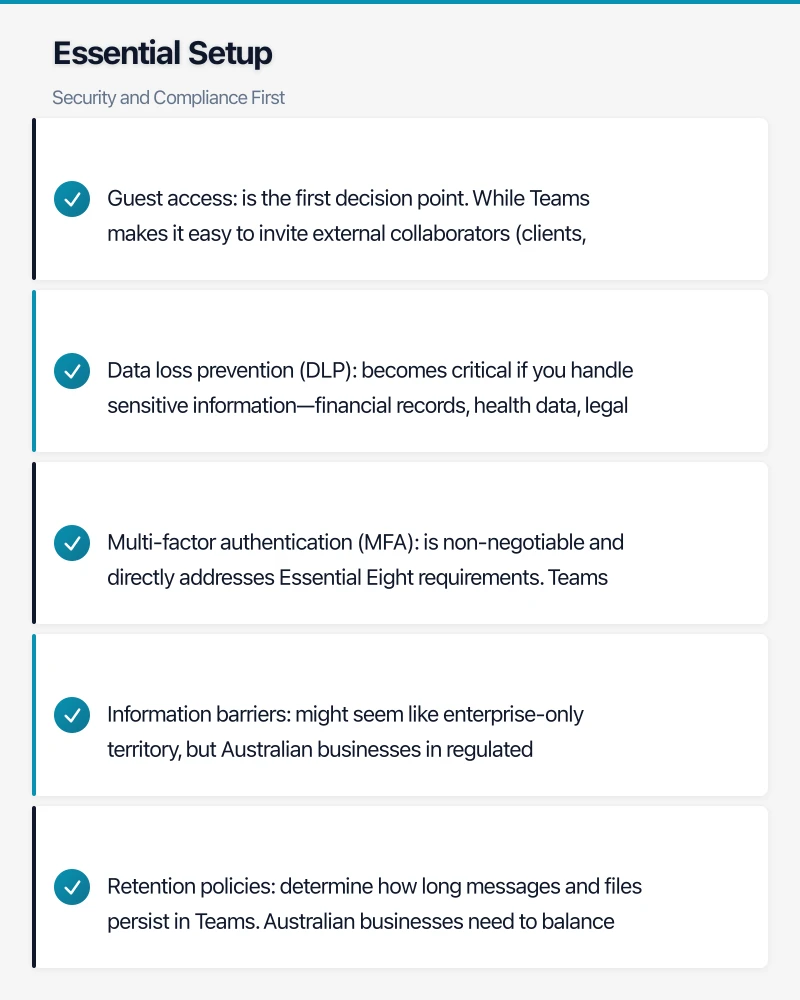
Multi-factor authentication (MFA) is non-negotiable and directly addresses Essential Eight requirements. Teams inherits authentication from your broader Microsoft 365 setup, so configure MFA through the Azure AD admin center. For Australian SMBs on Business Premium or higher plans, use Conditional Access policies to require MFA for all users, especially when accessing Teams from unmanaged devices. The minimal acceptable baseline is Microsoft Authenticator app-based MFA for all accounts.
Information barriers might seem like enterprise-only territory, but Australian businesses in regulated industries (finance, legal, healthcare) should evaluate them. These policies prevent specified groups from communicating in Teams—essential for Chinese walls in accounting firms or ethical barriers in legal practices. While setup requires some technical expertise, it’s far simpler than the alternative compliance headaches.
Retention policies determine how long messages and files persist in Teams. Australian businesses need to balance legal record-keeping obligations with storage costs and privacy considerations. For most SMBs, we recommend a 7-year retention policy for channels containing business-critical discussions and a shorter 2-year policy for general chat. Navigate to the Microsoft Purview compliance portal to configure retention labels and policies.
Channel Organization: Creating a Productive Structure
The difference between Teams implementations that stick and those that fail often comes down to channel organization. Too many Australian SMBs create channels haphazardly as needs arise, ending up with duplicates, ghost channels, and confusion about where to post what.
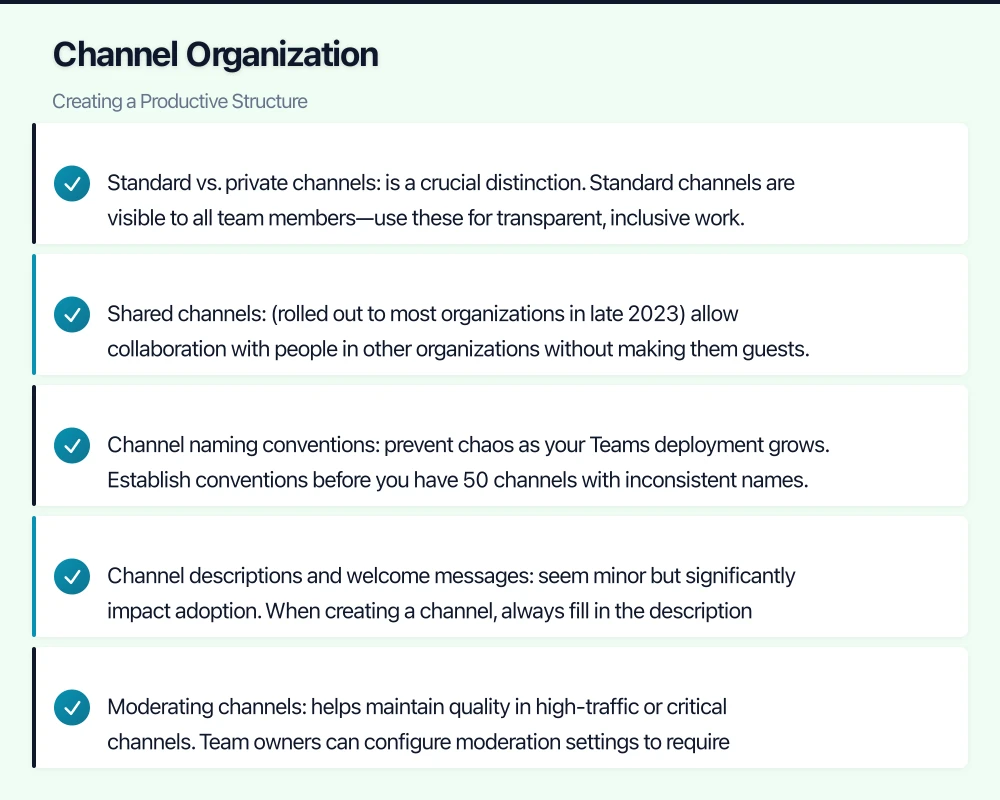
Standard vs. private channels is a crucial distinction. Standard channels are visible to all team members—use these for transparent, inclusive work. Private channels restrict membership and create separate file storage—use these sparingly for sensitive topics like HR matters, M&A discussions, or confidential client work. A Brisbane manufacturing company we advised uses private channels for each major client tender, restricting access to the bid team while keeping general client discussion in standard channels.
Shared channels (rolled out to most organizations in late 2023) allow collaboration with people in other organizations without making them guests. This is transformative for Australian businesses working with long-term partners or participating in industry groups. Instead of juggling emails and shared drives, you can directly collaborate in a shared channel. A Perth engineering consultancy uses shared channels with their regular subcontractors, creating seamless project collaboration while maintaining organizational boundaries.
Channel naming conventions prevent chaos as your Teams deployment grows. Establish conventions before you have 50 channels with inconsistent names. We recommend prefixing channels by type:
- #proj- for project channels (#proj-office-fitout, #proj-website-redesign)
- #client- for client-specific channels (#client-acme-corp)
- #topic- for ongoing subject areas (#topic-marketing, #topic-it-support)
- #social- for non-work channels (#social-friday-drinks, #social-book-club)
Channel descriptions and welcome messages seem minor but significantly impact adoption. When creating a channel, always fill in the description explaining what it’s for and what types of posts belong there. Pin a welcome message in new channels with guidelines, key resources, and relevant links. This self-serve documentation reduces “where should I post this?” questions.
Moderating channels helps maintain quality in high-traffic or critical channels. Team owners can configure moderation settings to require approval for new posts from specific members. A Melbourne professional services firm moderates their #company-announcements channel so only leadership can post, preventing it from becoming cluttered with replies and off-topic discussions. Employees can still reply to announcements, but new threads require approval.
Integrations and Apps: Extending Teams Capabilities
Teams’ real power emerges when you integrate it with the other tools your Australian business already uses. The platform supports hundreds of apps and integrations, but focus on the ones that eliminate context-switching and bring work into Teams rather than the reverse.
Planner integration transforms project management for teams not ready for full-blown tools like Monday.com or Asana. Add Planner as a tab in project channels to create visual task boards, assign work, set deadlines, and track progress—all without leaving Teams. A Gold Coast marketing agency uses Planner tabs in each client team to manage campaign deliverables, with @mentions in channel conversations automatically linking to specific tasks.
SharePoint and file management is deeply integrated since Teams channels are backed by SharePoint folders. Understanding this connection helps you leverage existing SharePoint investments. When you upload a file to a Teams channel, it’s stored in the corresponding SharePoint site. Add the SharePoint library as a tab to access advanced features like version history, metadata, and custom views. For Australian businesses with existing SharePoint document libraries, you can add them as tabs in Teams channels, creating a unified view of related content.
Power Automate (Flow) integration enables workflow automation without coding. Common Australian SMB use cases include:
- Auto-posting daily standup reminders in project channels
- Creating approval flows for purchase requests posted in Teams
- Syncing Teams channel posts to other systems (CRM, ticketing, databases)
- Triggering notifications in Teams based on external events (new customer signup, website form submission)
A Sydney accounting firm automated their client onboarding: when a new client is added to their CRM, Power Automate creates a dedicated Teams channel, adds the client team, posts a welcome message with checklist, and creates initial folders—saving 30 minutes per client.
Third-party app integrations extend Teams into a comprehensive work hub. Consider these high-value integrations for Australian businesses:
- Xero or MYOB: View invoices, expenses, and financial data directly in Teams tabs
- Zoom or Webex: If clients prefer these platforms, integrate them for seamless external meetings
- Polly: Run quick polls and surveys in Teams channels for decision-making
- Trello or Asana: For teams committed to these tools, embed boards in Teams channels
- Forms: Create and share Microsoft Forms directly in channels for feedback and surveys
Custom tabs let you embed any web content in a channel. Add your intranet, BI dashboards, helpdesk portal, or internal tools as tabs so team members access everything from Teams. A Melbourne retailer embedded their inventory management dashboard as a tab in the Operations team, giving instant visibility without separate logins.
Meeting Best Practices: Making Virtual Collaboration Work
With hybrid work now standard for Australian SMBs, effective Teams meetings are essential. Yet most organizations haven’t established meeting norms, leading to Zoom fatigue and unproductive sessions.
Meeting scheduling efficiency starts with the Outlook integration. Schedule Teams meetings directly from Outlook calendar, automatically adding the Teams link and dial-in details. For recurring team meetings, create channel meetings instead of regular meetings—these appear in the channel’s posts tab, making it easy to find recordings and related discussion. A Brisbane startup runs weekly all-hands as a channel meeting in their #general channel, with recordings automatically posted for remote team members in different time zones.
Meeting roles and responsibilities should be explicit. The meeting organizer controls key settings: who can present, who can admit attendees from the lobby, whether recording is allowed. For client meetings, restrict presenting to internal team members. For brainstorming sessions, allow anyone to present. For sensitive discussions, enable the lobby so you control who joins.
Meeting recordings and transcripts are underutilized by Australian SMBs but tremendously valuable. When you record a Teams meeting, it saves to SharePoint (or OneDrive for ad-hoc meetings) with automatic transcription. This creates searchable records of discussions and decisions. A Perth engineering firm requires recording all client meetings, with transcripts reviewed during project retrospectives to identify missed requirements or scope creep.
Background effects and video quality matter for professionalism. Teams offers background blur and custom backgrounds—encourage their use for home-based workers to maintain professional appearance. For Australian businesses concerned about bandwidth (especially regional businesses with limited NBN speeds), consider video quality settings. Teams automatically adjusts quality based on network conditions, but admins can set policies limiting maximum video resolution for users on constrained connections.
Meeting extensions and etiquette should be codified in company guidelines. Simple rules dramatically improve meeting culture:
- Default to 25 or 50-minute meetings (not 30/60) to allow transition time
- Use “Raise hand” feature instead of talking over others
- Post agenda in channel before channel meetings
- Mute when not speaking in large meetings
- Use chat for questions during presentations
- Assign someone to monitor chat and surface questions
Governance and Maintenance: Keeping Teams Healthy
Teams deployments don’t run themselves. Without active governance, you’ll end up with sprawl—hundreds of obsolete teams, duplicate channels, and confused users. Australian SMBs need lightweight governance that prevents chaos without bureaucracy.
Team creation policies determine who can create new teams. By default, any user can create teams, which quickly leads to proliferation. For most Australian SMBs with 20-200 employees, restrict team creation to IT admins and department heads. Configure this in the Teams admin center under Org-wide settings > Teams settings. Users can still request new teams through a simple process—a quick email or chat to IT—but the gate prevents random team creation.
Naming conventions and templates create consistency. Use the Teams templates feature (in admin center under Teams > Team templates) to create standardized team structures. A Sydney consulting firm created templates for Client Projects (with predefined channels: #general, #documents, #meetings, #deliverables) and Internal Departments (with channels: #general, #announcements, #projects, #social). When someone requests a new team, IT applies the appropriate template, ensuring consistent structure.
Lifecycle management addresses teams that outlive their purpose. Project teams for completed work, temporary working groups, and one-off initiatives should be archived when done, not left active cluttering the interface. Review teams quarterly, identify inactive ones (no posts in 90+ days), and archive them. Archived teams remain searchable and accessible but don’t appear in users’ active teams list. A Melbourne law firm archives client matter teams 12 months after matter closure, cleaning up the active workspace while retaining records.
Usage analytics inform governance decisions. The Teams admin center provides detailed analytics on team activity, active users, guest access, and app usage. Review these monthly to identify adoption issues, security risks, or opportunities. If a team has 50 members but only 5 active users, investigate whether it should be archived or restructured. If guest access is exploding, review whether controls are sufficient.
Training and onboarding determine whether your Teams investment pays off. Don’t assume users will figure it out—provide structured onboarding for new employees and ongoing training for new features. A practical approach for Australian SMBs:
- Day 1: 30-minute Teams basics session (chat, calls, channels, files)
- Week 2: Team-specific deep dive on relevant channels, apps, and workflows
- Quarterly: “Teams Tips” lunch-and-learn covering advanced features and new releases
- Documentation: Internal wiki or pinned messages with searchable Teams guidance
Getting Started: Your Implementation Roadmap
For Australian SMBs ready to deploy Teams properly, here’s a practical 6-week implementation roadmap:
Week 1: Planning and Pilot
- Audit current collaboration tools and pain points
- Define team structure (which organizational teams need to be created)
- Configure security baseline (MFA, guest access, DLP)
- Select 1-2 pilot teams (10-15 people) representing different use cases
- Create pilot teams with initial channel structure
Week 2: Pilot Execution
- Train pilot team members (1-hour hands-on session)
- Configure essential integrations (SharePoint, Planner, key apps)
- Establish meeting practices and etiquette guidelines
- Collect feedback daily through quick check-ins
Week 3: Refine and Document
- Analyze pilot feedback and refine approach
- Document naming conventions and governance policies
- Create team templates based on pilot learnings
- Develop internal user guides and quick reference materials
- Configure usage analytics and reporting
Week 4: Broader Rollout
- Create all organizational teams with standardized structure
- Conduct department-by-department training (2 hours per department)
- Migrate critical files from existing file shares to Teams
- Set up department-specific integrations and workflows
Week 5: Advanced Configuration
- Configure retention policies and compliance features
- Set up advanced security features (information barriers if needed)
- Deploy Power Automate workflows for common processes
- Establish channel moderation in critical channels
- Create shared channels for key external partners
Week 6: Optimization and Support
- Review usage analytics and address adoption gaps
- Provide drop-in support sessions for questions
- Archive or remove obsolete teams from pilot phase
- Establish ongoing governance processes (quarterly reviews, lifecycle management)
- Plan quarterly training for advanced features
Australian Context: Compliance and Local Considerations
Australian businesses deploying Teams need to consider several local factors that don’t apply to US or UK implementations.
Data sovereignty matters for organizations handling sensitive data. Microsoft operates Azure datacenters in Sydney and Melbourne, and Teams data for Australian organizations is stored locally by default. However, verify your data residency in the Microsoft 365 admin center under Settings > Org settings > Organization profile > Data location. If you’re subject to strict data residency requirements (government contractors, certain healthcare providers), consider Azure Australia Central regions and review Microsoft’s data boundary commitments.
Essential Eight alignment is increasingly expected of Australian businesses, especially those working with government or critical infrastructure. Teams directly supports several Essential Eight mitigation strategies:
- Application control: Teams is a Microsoft 365 app, allowlisted in most application control frameworks
- Patch applications: Microsoft handles Teams patching automatically via Microsoft 365
- Multi-factor authentication: Enforced through Azure AD as discussed earlier
- Restrict administrative privileges: Configure Teams admin roles (Teams Administrator, Teams Communications Administrator) following least privilege principles
Privacy Act obligations apply to personal information handled in Teams. Ensure your Teams deployment includes appropriate retention policies, access controls, and breach response procedures. Australian Privacy Principle 11 requires securing personal information—DLP policies and encryption (enabled by default) address this. Document your Teams data handling in privacy policies and employee guidelines.
Workplace surveillance concerns have increased with remote work. If you’re monitoring Teams usage analytics or requiring always-on video, understand your obligations under workplace surveillance laws (which vary by state). In NSW, for example, covert surveillance of employees is generally prohibited. Be transparent about what Teams usage data you collect and how it’s used.
Looking Ahead: Teams Evolution in 2024
Microsoft continues rapidly evolving Teams, with several developments on the horizon for Australian businesses:
Teams Premium features (launched late 2023) are becoming more accessible to SMBs, offering advanced meeting capabilities like intelligent recap with AI-generated notes, advanced webinar features, and custom branded meeting experiences. For Australian businesses running client-facing webinars or training, these features justify the additional license cost.
Copilot for Microsoft 365 integration with Teams will transform how we interact with collaboration tools. While currently enterprise-focused and expensive, expect SMB-friendly pricing by late 2024. Copilot promises to summarize missed conversations, answer questions from meeting transcripts, and generate content from channel discussions—potentially game-changing for busy Australian business owners juggling multiple priorities.
Phone system integration continues improving, with Teams becoming a full PBX replacement for many organizations. Australian SMBs tired of expensive on-premise phone systems should evaluate Microsoft Teams Phone with Calling Plans. Recent improvements to emergency calling (including better Australian E000 integration) and voicemail transcription make this increasingly viable.
Industry-specific templates are expanding beyond Microsoft’s standard offerings. Australian industry bodies and Microsoft partners are creating Teams templates for specific sectors—legal matter management, medical practice collaboration, construction project coordination. Watch for Australian-context templates that reduce setup effort.
Need help implementing Microsoft Teams for your Australian business? Our team provides hands-on consulting, custom training, and ongoing support to ensure your collaboration platform actually improves productivity. Contact us for a free Teams readiness assessment.
Cloud is one piece of the digital puzzle. Ash Ganda writes about enterprise technology strategy and how to align IT investments with business growth.
This article is brought to you by Ganda Tech Services — Sydney’s complete digital solutions provider covering cloud, web, and mobile.