
Remote Work Security: VPN, MFA, and Endpoint Protection Guide for Australian SMBs
Remote Work Security: VPN, MFA, and Endpoint Protection Guide for Australian SMBs
The shift to hybrid and remote work arrangements has fundamentally changed how Australian SMBs approach security. What worked when everyone sat in the same office—a single firewall protecting your network perimeter—no longer provides adequate protection when staff connect from home offices, cafes, and regional locations across Australia.
For Australian businesses, this isn’t just about preventing security breaches. It’s about compliance with the Privacy Act 1988, meeting Essential Eight maturity requirements, and protecting customer data in an environment where the Australian Cyber Security Centre reports that small businesses face increasingly sophisticated threats. The good news? You don’t need an enterprise security budget to protect your remote workforce effectively.
This guide walks through the three foundational security layers every Australian SMB needs for remote work: Virtual Private Networks (VPNs), Multi-Factor Authentication (MFA), and endpoint protection. We’ll cover practical implementation steps, Australian compliance considerations, and realistic cost estimates for businesses operating with SMB budgets.
Understanding Your Remote Work Security Requirements
Before selecting specific tools, Australian SMBs need to understand their security baseline. The Australian Signals Directorate’s Essential Eight framework provides an excellent starting point, particularly for businesses in regulated industries or those working with government contracts.
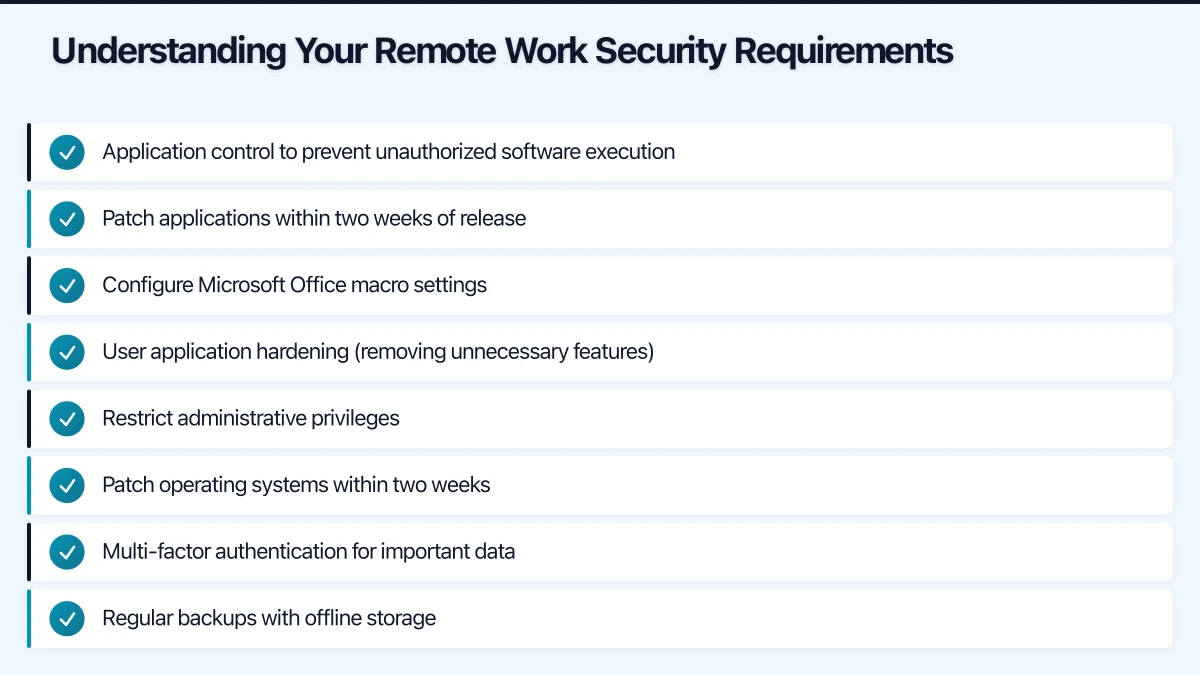
Essential Eight Maturity Level One requires:
- Application control to prevent unauthorized software execution
- Patch applications within two weeks of release
- Configure Microsoft Office macro settings
- User application hardening (removing unnecessary features)
- Restrict administrative privileges
- Patch operating systems within two weeks
- Multi-factor authentication for important data
- Regular backups with offline storage
For remote work specifically, this translates to ensuring every device connecting to your business systems meets minimum security standards, regardless of where employees work from.
Privacy Act 1988 considerations are equally important. When staff access customer data remotely, Australian businesses must:
- Implement reasonable security measures to protect personal information
- Ensure data isn’t exposed through unsecured networks
- Maintain audit trails showing who accessed what data and when
- Notify affected individuals if a data breach occurs
The Australian Information Commissioner has made clear that “working from home” isn’t an excuse for lax security. A Brisbane accounting firm learned this the hard way in early 2024 when a staff member’s compromised home computer led to client data exposure, resulting in both regulatory penalties and reputational damage.
VPN Selection and Implementation for Australian SMBs
A Virtual Private Network creates an encrypted tunnel between remote devices and your business network, ensuring that data in transit can’t be intercepted by malicious actors. For Australian SMBs, VPNs serve two critical purposes: securing data transmission and ensuring staff connecting from public networks (cafes, airports, coworking spaces) maintain the same security posture as office workers.
Choosing the Right VPN Solution
Australian SMBs have three main VPN options, each with distinct advantages:
1. Cloud-based VPN Services (Recommended for most SMBs)
Services like Perimeter 81, NordLayer, and Twingate provide managed VPN solutions with Australian server locations. These platforms handle the technical complexity while giving you centralized control.
Cost: $8-15 per user per month Australian benefit: Sydney and Melbourne server locations ensure low latency Best for: Businesses without dedicated IT staff
2. Router-based VPN
If you already have business-grade routers (Cisco, Ubiquiti, Mikrotik), you can configure built-in VPN servers. This creates a direct tunnel to your office network.
Cost: $0 additional (uses existing hardware) Australian benefit: Complete control over Australian data residency Best for: Businesses with existing network infrastructure and technical capability
3. Cloud Platform VPN
If you’re running workloads on AWS, Azure, or GCP, native VPN solutions (AWS Client VPN, Azure VPN Gateway, Google Cloud VPN) integrate seamlessly with your cloud environment.
Cost: $0.05-0.15 per connection hour + data transfer Australian benefit: Direct connection to Sydney/Melbourne cloud regions Best for: Cloud-first businesses with infrastructure in Australian regions
Practical Implementation Steps
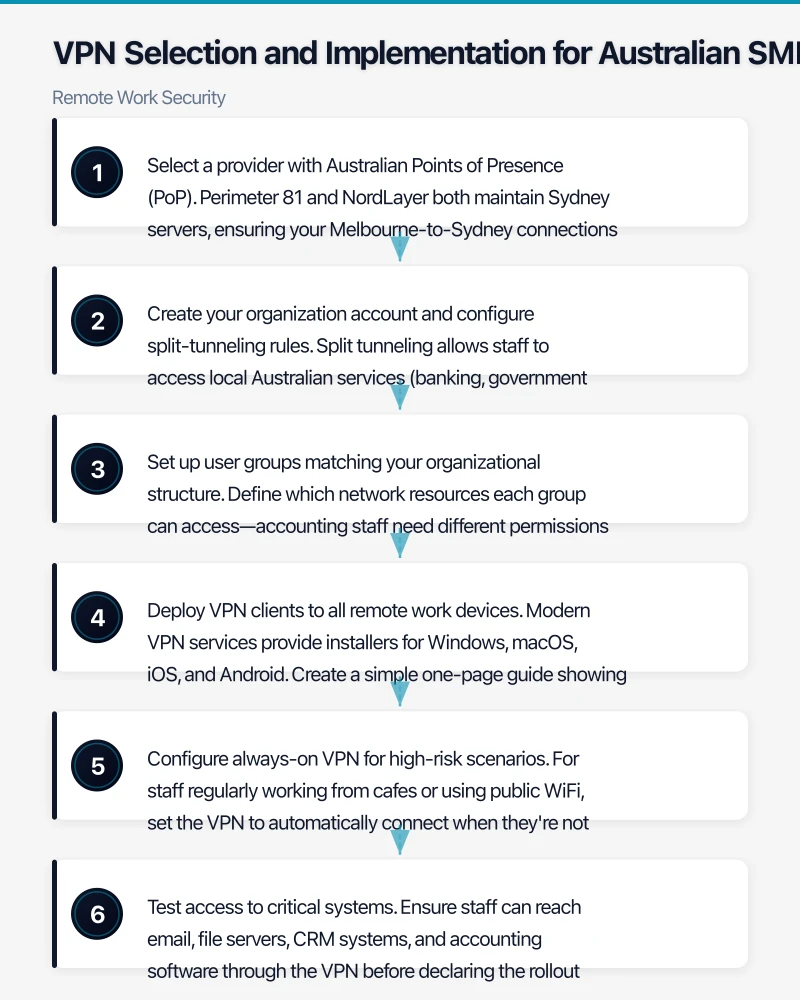
For most Australian SMBs, we recommend starting with a cloud-based VPN service. Here’s how to implement it properly:
Week 1: Setup and Configuration
-
Select a provider with Australian Points of Presence (PoP). Perimeter 81 and NordLayer both maintain Sydney servers, ensuring your Melbourne-to-Sydney connections aren’t routing through Singapore or the US.
-
Create your organization account and configure split-tunneling rules. Split tunneling allows staff to access local Australian services (banking, government portals) directly while routing work traffic through the VPN. This improves performance and prevents issues with geo-restricted services.
-
Set up user groups matching your organizational structure. Define which network resources each group can access—accounting staff need different permissions than sales teams.
Week 2: Deployment and Training
-
Deploy VPN clients to all remote work devices. Modern VPN services provide installers for Windows, macOS, iOS, and Android. Create a simple one-page guide showing staff how to connect.
-
Configure always-on VPN for high-risk scenarios. For staff regularly working from cafes or using public WiFi, set the VPN to automatically connect when they’re not on trusted networks.
-
Test access to critical systems. Ensure staff can reach email, file servers, CRM systems, and accounting software through the VPN before declaring the rollout complete.
Week 3: Monitoring and Adjustment
-
Monitor connection logs for the first few weeks. Look for staff struggling to connect—often this indicates they’re behind restrictive firewalls (apartment building WiFi, hotel networks) that block VPN protocols.
-
Document your VPN usage for compliance purposes. The Privacy Act requires reasonable security measures, and implementing VPN with appropriate access controls demonstrates due diligence.
Common Australian VPN Challenges
Challenge 1: NBN Upload Speed Limitations
Many Australian residential NBN connections have asymmetric speeds (50 Mbps down, 20 Mbps up). When staff upload large files through VPN, this bottleneck becomes obvious. Consider implementing direct cloud storage (OneDrive, SharePoint, Google Drive) for large file transfers, using the VPN primarily for application access.
Challenge 2: Mobile Coverage in Regional Areas
Staff traveling through regional Australia face spotty mobile coverage. Configure VPN clients to queue connection attempts rather than failing immediately, and train staff to work offline when necessary, syncing when connectivity returns.
Challenge 3: Performance Impact
Encryption introduces overhead. For latency-sensitive applications (VoIP, video conferencing), use split tunneling to route these directly to Australian services while protecting sensitive business data through the VPN.
Multi-Factor Authentication: Your Second Security Layer
Multi-Factor Authentication (MFA) requires users to provide two or more verification factors to access systems—typically something they know (password) and something they have (phone, security key). For Australian SMBs, MFA isn’t optional; it’s Essential Eight Maturity Level One requirement for accessing important data repositories.
Why MFA Matters for Remote Work
Password breaches are incredibly common. The 2024 Australian Cyber Security Centre Threat Report shows that compromised credentials remain the leading attack vector for SMBs. When staff work remotely, you can’t rely on network-level security to catch unauthorized access—MFA provides that critical second layer of defense.
A Sydney professional services firm experienced this firsthand in March 2024. An employee’s password appeared in a data breach from an unrelated service where they’d reused their work password. Without MFA, attackers would have gained immediate access to client files. With MFA enabled, the login attempts triggered alerts, and the firm blocked access before any data was compromised.
Implementing MFA Across Your Business Systems
Modern Australian SMBs typically use multiple cloud services—Microsoft 365, Google Workspace, Xero, MYOB, Salesforce, and various industry-specific platforms. Each requires separate MFA configuration.
Microsoft 365 MFA Setup
For businesses using Microsoft 365 (the majority of Australian SMBs), MFA configuration is straightforward:
- Sign into the Microsoft 365 admin center (admin.microsoft.com)
- Navigate to Setup > Sign-in and security
- Enable “Require multi-factor authentication” for all users
- Choose authentication methods: Microsoft Authenticator app (recommended), SMS backup, phone call backup
Microsoft provides Conditional Access policies even on Business Basic subscriptions, allowing you to require MFA only for external access while trusting office network connections.
Cost: Included with Microsoft 365 Business Basic ($8/user/month) and higher plans
Google Workspace MFA Setup
Google Workspace customers follow a similar process:
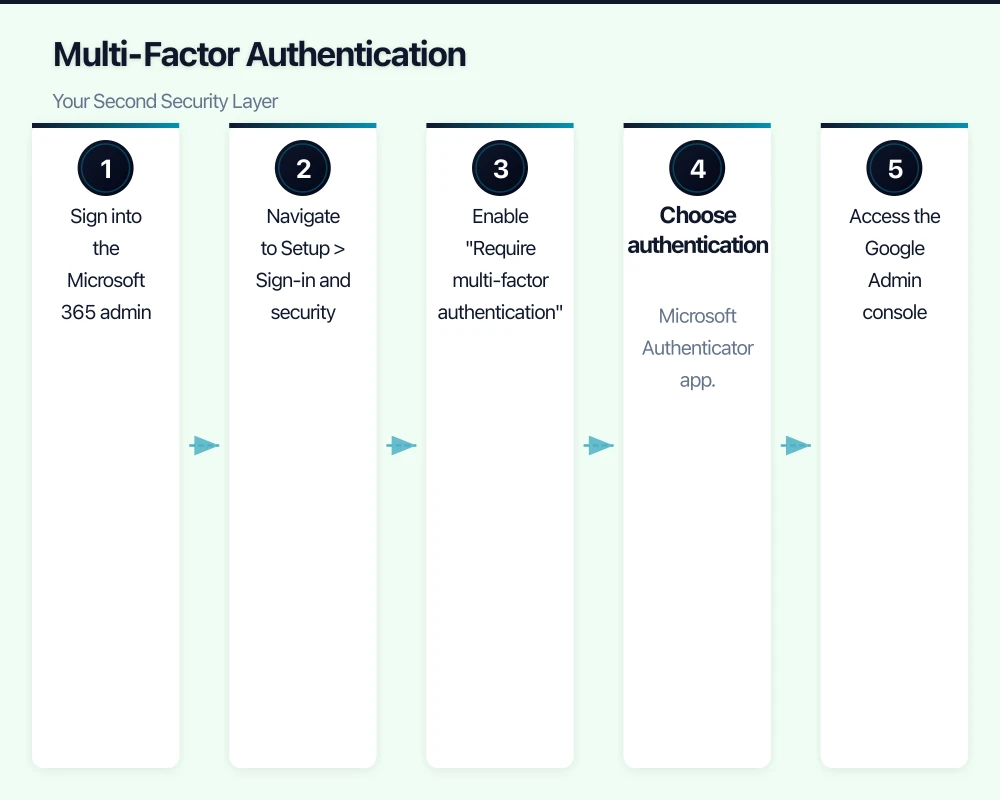
- Access the Google Admin console (admin.google.com)
- Navigate to Security > Authentication > 2-Step Verification
- Enable 2SV and choose enforcement options
- Select verification methods: Google Authenticator, Google Prompt, SMS backup
Cost: Included with all Google Workspace plans (from $7.80/user/month)
Third-Party Application MFA
For other business applications, check provider documentation:
- Xero: Settings > Users > Two-step authentication
- MYOB: My Account > Security > Enable 2FA
- Salesforce: Setup > Identity > Multi-Factor Authentication
- Deputy, Deputy, Simpro, ServiceM8: Check vendor security settings
MFA Best Practices for Australian SMBs
Use authenticator apps over SMS when possible
While SMS MFA is better than no MFA, authenticator apps (Microsoft Authenticator, Google Authenticator, Authy) provide stronger security. SMS can be intercepted through SIM swapping—a growing problem in Australia where attackers convince mobile carriers to transfer a victim’s number to a new SIM card they control.
Provide backup authentication methods
Staff lose phones, travel without mobile coverage, or factory reset devices without deregistering authenticators. Always configure at least two authentication methods, and maintain secure admin recovery procedures.
Document MFA for compliance
Essential Eight compliance requires evidence that MFA is implemented and monitored. Maintain records showing:
- Which systems have MFA enabled
- When users enrolled in MFA
- Failed MFA attempt logs (potential security incidents)
- Regular access reviews confirming only current staff have active MFA
Train staff on MFA alert awareness
Teach employees to NEVER approve MFA requests they didn’t initiate. MFA fatigue attacks—where attackers repeatedly trigger MFA prompts hoping users approve one to stop the notifications—are increasingly common. A Melbourne logistics company fell victim to this in May 2024 when an exhausted employee approved a 2am MFA request just to stop their phone buzzing.
Endpoint Protection: Securing Remote Devices
Your VPN and MFA are only effective if the devices connecting to your systems are secure. Endpoint protection encompasses antivirus, anti-malware, device encryption, and patch management—ensuring each laptop, desktop, and mobile device meets minimum security standards.
Essential Endpoint Protection Components
1. Next-Generation Antivirus (NGAV)
Traditional signature-based antivirus isn’t sufficient for modern threats. Next-generation solutions use behavioral analysis and machine learning to identify malicious activity.
Recommended solutions for Australian SMBs:
-
Microsoft Defender for Business: Integrated with Microsoft 365, provides enterprise-grade protection at SMB pricing. Includes threat detection, vulnerability management, and automated investigation.
- Cost: $4/user/month (or included with Microsoft 365 Business Premium at $33/user/month)
-
Bitdefender GravityZone Business Security: Well-regarded independent testing results, light system impact, Australian support available.
- Cost: $55-75/device/year
-
Sophos Intercept X: Strong ransomware protection, cloud-managed console, Sydney-based support team.
- Cost: $60-80/device/year
2. Disk Encryption
Laptops get lost, stolen from vehicles, or left in cafes. Disk encryption ensures that even if someone physically possesses a device, they can’t access data without the encryption key.
Windows users: BitLocker (included with Windows 10/11 Pro) Mac users: FileVault (built into macOS) Management: Use Microsoft Intune or Jamf to verify encryption status across all devices
3. Patch Management
The Essential Eight requires patching applications and operating systems within two weeks of security update release. For remote devices, you can’t rely on staff remembering to install updates.
Windows devices: Windows Update for Business (configure through Group Policy or Intune) Mac devices: Jamf or Kandji for managed updates Third-party applications: Patch management tools like PDQ Deploy or ManageEngine Patch Manager Plus
Implementing Endpoint Protection for Remote Staff
Phase 1: Assess Current State (Week 1)
Before deploying new security tools, understand what you’re working with:
-
Create an inventory of all devices accessing business systems. Include staff-owned devices if you allow BYOD (Bring Your Own Device).
-
Document operating system versions. Windows 7 and older MacOS versions don’t receive security updates—these devices need replacement or upgrade before remote work access is granted.
-
Check current antivirus coverage. Many businesses discover that home workers disabled corporate antivirus because it “made their computer slow” or their subscription lapsed.
Phase 2: Deploy Core Protection (Week 2-3)
For Microsoft 365 Business Premium customers, enabling Microsoft Defender for Business provides integrated protection:
- Access Microsoft 365 Defender portal (security.microsoft.com)
- Navigate to Endpoints > Configuration management
- Create security policies for Windows and Mac devices
- Deploy policies to user groups
For businesses not using Microsoft 365 Business Premium, deploy your chosen endpoint protection solution:
- Create deployment packages with your antivirus provider
- Send installation links to remote staff with clear instructions
- Verify installation through the vendor’s management console
- Configure scheduled scans and automatic updates
Phase 3: Enable Encryption and Monitoring (Week 4)
- Verify disk encryption status across all devices
- Configure automatic BitLocker/FileVault encryption for new devices
- Set up device compliance policies requiring encryption for network access
- Establish monthly compliance reporting
Managing BYOD (Bring Your Own Device) Security
Many Australian SMBs allow staff to use personal devices for work, reducing hardware costs but increasing security complexity. If you permit BYOD, implement these minimum requirements:
Acceptable Use Policy: Document what business data can be accessed from personal devices, staff responsibilities for security, and company rights to remote wipe business data if devices are lost.
Mobile Device Management (MDM): Use Microsoft Intune, Jamf, or similar MDM solutions to enforce security policies on personal devices without accessing personal data. You can require:
- Device encryption
- Screen lock with password/biometric
- Up-to-date operating system
- Approved app versions only
Containerization: Tools like Microsoft Intune create secure “containers” on personal devices where business data lives separately from personal apps and files. If someone leaves the company or loses their device, you can wipe the business container without affecting personal data.
Cost: Microsoft Intune included with Microsoft 365 Business Premium, or $10/user/month standalone
Bringing It All Together: Your Three-Layer Security Stack
Implementing all three security layers—VPN, MFA, and endpoint protection—creates defense in depth. If one layer fails, the others maintain security.
Real-world scenario: A Perth marketing agency employee clicked a phishing link in June 2024. The malicious email appeared to come from their bank and looked completely legitimate.
- Layer 1 (Endpoint Protection): Microsoft Defender for Business detected suspicious behavior when the clicked link attempted to download malware, blocking it immediately.
- Layer 2 (MFA): The phishing site also attempted to capture the employee’s Microsoft 365 password. Even with the password compromised, MFA prevented account access.
- Layer 3 (VPN): Network monitoring detected the anomalous connection attempt and flagged it for review.
Without this layered approach, a single phishing email could have compromised the entire agency’s client data.
Cost Summary for Australian SMBs
For a 15-person Australian SMB implementing comprehensive remote work security:
Option 1: Microsoft 365-Centric Stack
- Microsoft 365 Business Premium: $33/user/month × 15 = $495/month
- Includes: Email, Office apps, MFA, Microsoft Defender, Intune MDM
- VPN Service (Perimeter 81): $12/user/month × 15 = $180/month
- Total: $675/month ($8,100/year)
Option 2: Best-of-Breed Stack
- Google Workspace Business Standard: $18/user/month × 15 = $270/month
- Bitdefender GravityZone: $65/device/year × 15 = $975/year ($81/month)
- NordLayer VPN: $12/user/month × 15 = $180/month
- Jamf Now MDM: $6/device/month × 15 = $90/month
- Total: $621/month ($7,452/year)
Option 3: Budget-Conscious Stack
- Microsoft 365 Business Basic: $8/user/month × 15 = $120/month
- Microsoft Defender for Business: $4/user/month × 15 = $60/month
- Router-based VPN: $0 (using existing hardware)
- BitLocker/FileVault: $0 (built into OS)
- Total: $180/month ($2,160/year)
Even the budget-conscious option provides Essential Eight Level One compliance and meets Privacy Act reasonable security requirements.
Australian Compliance Checklist
Before considering your remote work security complete, verify these Australian-specific compliance points:
Essential Eight Maturity Level One Compliance
- MFA enabled for all users accessing important data
- Application control implemented on all endpoints
- Operating systems patched within two weeks
- Applications patched within two weeks
- Administrative privileges restricted and monitored
- Regular backups performed with offline storage
- Microsoft Office macros configured appropriately
- User application hardening applied
Privacy Act 1988 Compliance
- Personal information accessed remotely is encrypted in transit (VPN)
- Devices storing personal information use disk encryption
- Access logs maintained showing who accessed what data
- Data breach response plan documented and tested
- Staff trained on privacy obligations when working remotely
Industry-Specific Requirements
- Health sector: Comply with My Health Records Act requirements
- Financial services: Meet APRA CPS 234 requirements
- Legal sector: Maintain legal professional privilege protections
- Government contractors: Achieve required Essential Eight maturity level (often Level 2 or 3)
Next Steps: Implementing Your Remote Work Security
Start with these immediate actions:
This Week:
- Audit current MFA coverage—enable it everywhere it’s available
- Verify all remote devices have active, updated antivirus
- Check that BitLocker or FileVault encryption is enabled on all laptops
This Month:
- Select and deploy a VPN solution for all remote staff
- Implement endpoint protection across all devices
- Document your security measures for compliance purposes
This Quarter:
- Conduct security awareness training for all staff
- Test your data breach response procedures
- Review and update your IT security policies
- Schedule regular security audits
Remote work security doesn’t require enterprise budgets or dedicated security teams. By implementing these three foundational layers—VPN, MFA, and endpoint protection—Australian SMBs can protect business and customer data while maintaining the flexibility that remote work provides.
The key is starting now. Every day without proper remote work security is another day of unnecessary risk. Pick the option that fits your budget and technical capability, then implement it systematically. Your business, your customers, and your compliance obligations will thank you.
Need help implementing remote work security for your Australian business? CloudGeeks provides practical IT solutions for Australian SMBs, including security assessments, cloud migration, and ongoing IT support.
For executive-level thinking on technology investment and digital strategy, explore Ash Ganda’s blog on enterprise innovation.
This article is brought to you by Ganda Tech Services — Sydney’s complete digital solutions provider covering cloud, web, and mobile.