
SharePoint Document Management Guide for Australian Businesses
SharePoint has evolved from a clunky internal website tool to a powerful document management platform. Yet many Australian businesses still treat it as a dumping ground for files rather than a strategic information management system. The difference between organisations that struggle with SharePoint and those that thrive comes down to proper planning, governance, and ongoing management.
At CloudGeeks, we’ve helped dozens of Australian businesses transform their SharePoint environments from chaotic file shares into structured collaboration hubs. This guide provides the framework and practical steps to implement effective document management in SharePoint.
Why Document Management Matters
Before diving into SharePoint specifics, understand why proper document management is worth the effort.
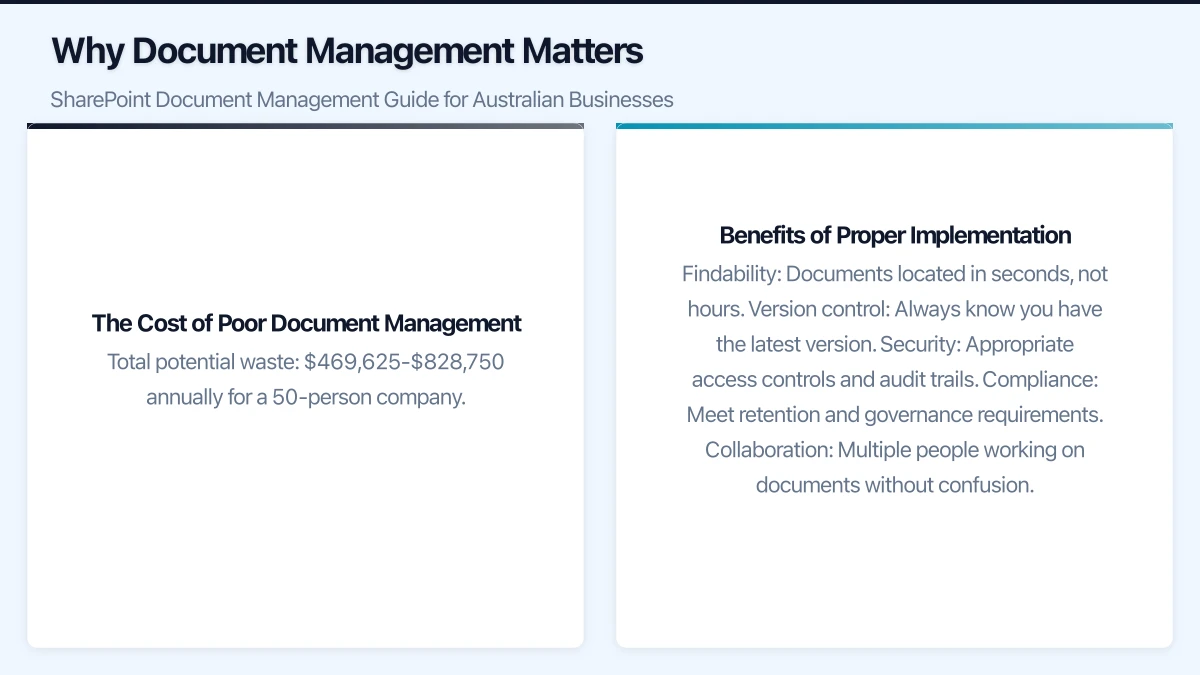
The Cost of Poor Document Management
Research consistently shows knowledge workers spend significant time on document-related activities:
| Activity | Time Spent Weekly | Annual Cost (50 employees at $85k/year) |
|---|---|---|
| Searching for documents | 2-3 hours | $221,000-$331,500 |
| Recreating lost documents | 1-2 hours | $110,500-$221,000 |
| Version confusion | 30-60 minutes | $27,625-$55,250 |
| Filing and organising | 1-2 hours | $110,500-$221,000 |
Total potential waste: $469,625-$828,750 annually for a 50-person company.
Benefits of Proper Implementation
- Findability: Documents located in seconds, not hours
- Version control: Always know you have the latest version
- Security: Appropriate access controls and audit trails
- Compliance: Meet retention and governance requirements
- Collaboration: Multiple people working on documents without confusion
SharePoint Architecture Fundamentals
Understanding SharePoint’s structure is essential for effective implementation.
Hierarchy Overview
Microsoft 365 Tenant
  └── SharePoint Sites
        ├── Communication Sites (one-way publishing)
        │     └── Pages and News
        └── Team Sites (collaboration)
              └── Document Libraries
                    └── Folders (use sparingly)
                    └── Documents (with metadata)
Site Types
Team Sites
- Connected to Microsoft 365 Groups
- Collaborative workspaces
- Private by default
- Use for: Departments, projects, teams
Communication Sites
- Not connected to Groups
- Publishing and broadcasting
- Typically more public
- Use for: Intranet, announcements, company-wide resources
Document Libraries
Each site contains document libraries for storing files:
- Default library: “Documents” created automatically
- Custom libraries: Create for different document types
- Features: Versioning, check-out, metadata, views
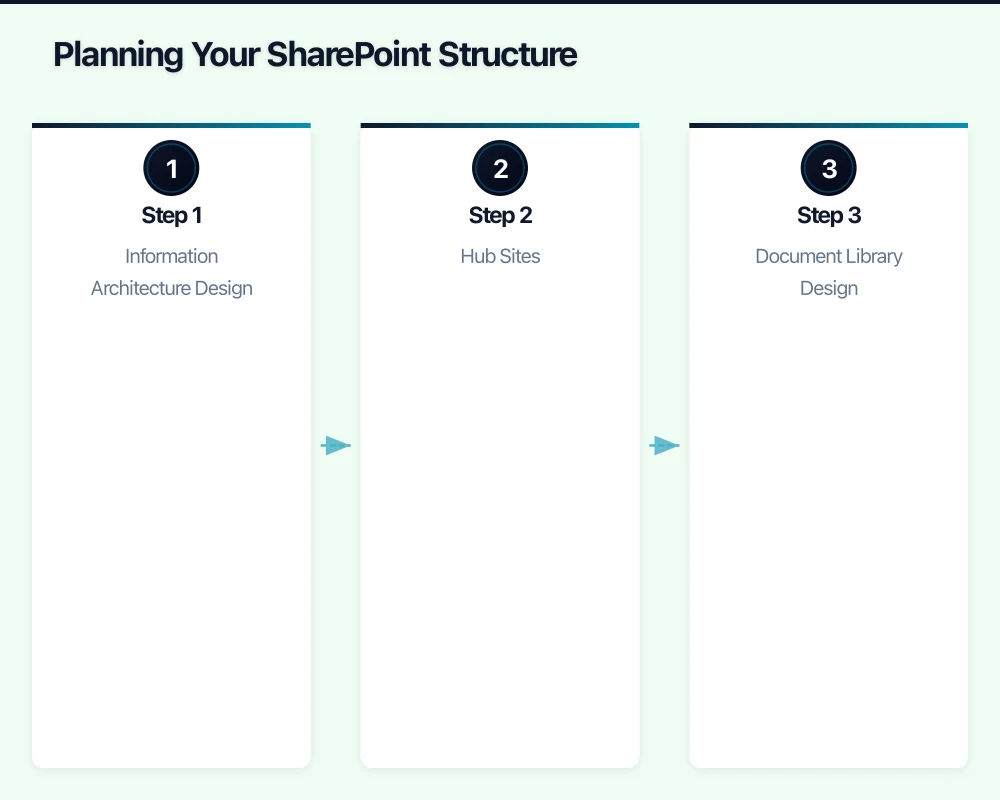
Planning Your SharePoint Structure
Step 1: Information Architecture Design
Design your site structure before creating anything.
Common Patterns:
Pattern A: Department-Based
Company Intranet (Communication Site)
├── Sales (Team Site)
├── Marketing (Team Site)
├── Finance (Team Site)
├── Operations (Team Site)
└── HR (Team Site)
Pattern B: Functional
Company Intranet (Communication Site)
├── Projects (Hub Site)
│     ├── Project A (Team Site)
│     ├── Project B (Team Site)
│     └── Project C (Team Site)
├── Clients (Hub Site)
│     ├── Client A (Team Site)
│     └── Client B (Team Site)
└── Resources (Team Site)
Pattern C: Hybrid
Company Intranet (Communication Site)
├── Departments (Hub Site)
│     ├── Sales
│     ├── Marketing
│     └── Operations
├── Projects (Hub Site)
│     └── Active projects
└── Shared Resources (Team Site)
Recommendation for Most SMBs: Pattern C (Hybrid) provides the best balance of departmental organisation and cross-functional project collaboration.
Step 2: Hub Sites
Hub sites connect related sites together:
Benefits of Hubs:
- Shared navigation across associated sites
- Aggregated search across hub
- Common branding and look
- News rolled up from all associated sites
Typical Hub Structure:
- Intranet Hub (company-wide)
- Department Hubs (for large departments)
- Project Hub (all active projects)
Step 3: Document Library Design
Within each site, plan document libraries thoughtfully.
Library Strategy:
- Don’t create too many libraries (harder to find files)
- Don’t put everything in one library (poor performance, confusing)
- Use metadata instead of deep folder structures
Typical Site Library Structure:
For a department site:
- Documents: General department documents
- Templates: Standard templates and forms
- Archive: Completed projects and old documents
For a project site:
- Documents: Active project documents
- Deliverables: Client-facing outputs
- Reference: Background materials and research
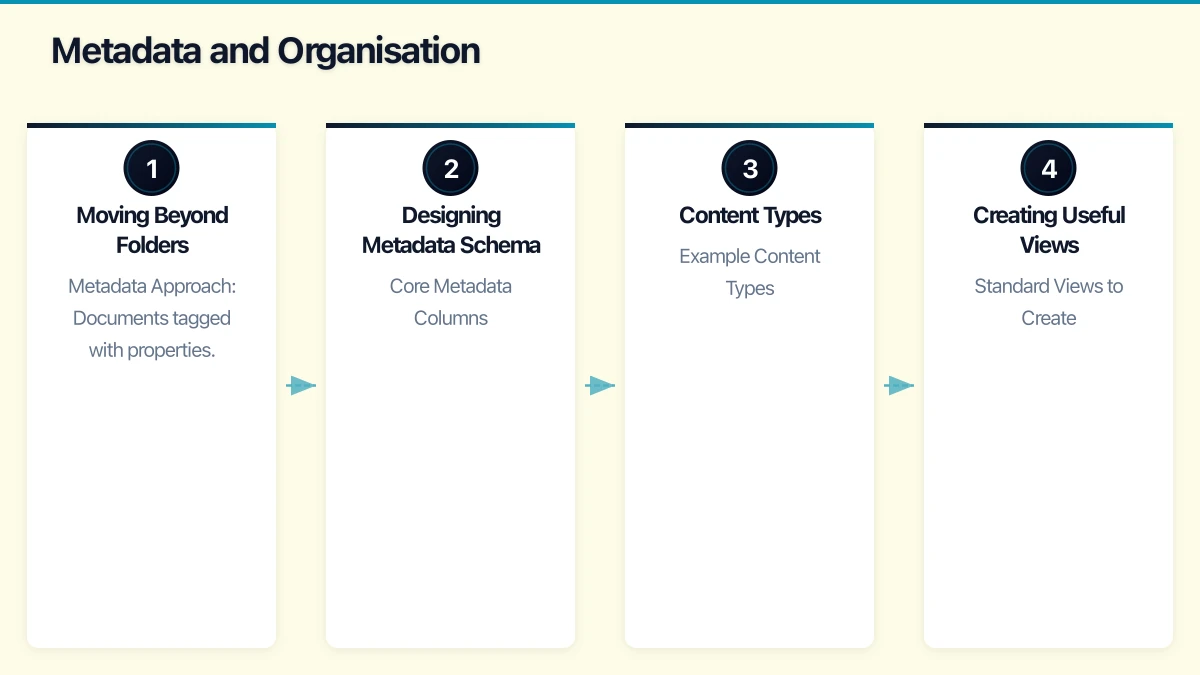
Metadata and Organisation
Moving Beyond Folders
Folders are familiar but limiting:
- Force single classification (file can only be in one folder)
- Create deep hierarchies that hide content
- Don’t support multiple views of same content
Metadata Approach: Documents tagged with properties that enable filtering and views.
| Traditional Folder | Metadata Equivalent |
|---|---|
| /2026/January/Invoices | Document Type = Invoice, Year = 2026, Month = January |
| /Clients/ABC/Contracts | Client = ABC Company, Document Type = Contract |
| /Projects/WebRedesign/Design | Project = Web Redesign, Phase = Design |
Designing Metadata Schema
Create consistent metadata (columns) across your organisation.
Core Metadata Columns:
| Column Name | Type | Purpose |
|---|---|---|
| Document Type | Choice | Categorise documents |
| Status | Choice | Track document lifecycle |
| Client | Lookup | Link to client list |
| Project | Lookup | Link to project list |
| Confidentiality | Choice | Classification for security |
| Review Date | Date | Trigger for review workflows |
Document Type Values (example):
- Contract
- Proposal
- Invoice
- Report
- Presentation
- Correspondence
- Policy
- Procedure
- Template
Status Values:
- Draft
- In Review
- Approved
- Published
- Archived
Content Types
Content types bundle metadata, templates, and workflows for document categories.
Example Content Types:
Contract Content Type:
- Template: Contract template.docx
- Columns: Client, Contract Value, Start Date, End Date, Status
- Retention: 7 years after end date
Policy Content Type:
- Template: Policy template.docx
- Columns: Policy Owner, Review Date, Approval Status
- Workflow: Annual review reminder
Creating Useful Views
Views display documents filtered and sorted by metadata.
Standard Views to Create:
| View Name | Filter | Sort | Purpose |
|---|---|---|---|
| All Documents | None | Modified date desc | Everything |
| My Documents | Created By = [Me] | Modified date desc | Personal files |
| Recent | Modified < 7 days | Modified date desc | Recent activity |
| By Type | Group by Document Type | Name | Browse by category |
| Needs Review | Review Date < Today | Review Date asc | Overdue reviews |
| Draft Documents | Status = Draft | Modified date desc | Work in progress |
Permissions and Security
Permission Model
SharePoint permissions cascade from site to library to folder/item:
Site Permissions
  └── Library Permissions (inherits or unique)
        └── Folder Permissions (inherits or unique)
              └── Item Permissions (inherits or unique)
Best Practice: Keep inheritance wherever possible. Broken inheritance creates management complexity.
Permission Levels
Standard Levels:
- Full Control: Complete administrative access
- Design: Create lists, document libraries, pages
- Edit: Add, edit, delete items
- Contribute: Add and edit items (not delete lists)
- Read: View only
Custom Levels (create as needed):
- Contribute No Delete: Add and edit, but cannot delete
- Restricted Edit: Edit specific items only
Permission Groups
Create groups aligned with your organisation:
Typical Group Structure:
| Group | Permission Level | Members |
|---|---|---|
| Site Owners | Full Control | IT admins, site administrators |
| Site Members | Edit | Department members |
| Site Visitors | Read | Other employees |
| External - [Client Name] | Contribute (specific library) | Client contacts |
External Sharing
Configure external sharing for client collaboration:
Sharing Options:
- Anyone links: No authentication (avoid for confidential content)
- Specific people: Named external users
- Existing guests: Previously invited guests only
Recommended Settings:
- Enable external sharing at site level only when needed
- Use specific people sharing, not anyone links
- Set expiration on sharing links (30-90 days)
- Require guests to sign in
Governance Framework
Governance Policy Components
Document your SharePoint governance policy:
Site Creation:
- Who can create sites? (Recommendation: IT approval required)
- Naming convention for sites
- Required metadata for site registration
- Site owner responsibilities
Content Standards:
- Naming conventions for documents
- Required metadata
- Version control settings
- Retention requirements
Security:
- Permission request process
- External sharing approval
- Sensitivity labelling requirements
- Regular access reviews
Naming Conventions
Consistent naming helps findability:
Site Naming:
[Type]-[Name]
Examples:
DEPT-Sales
DEPT-Marketing
PROJ-WebsiteRedesign
CLIENT-ABCCompany
Document Naming:
[Type]-[Description]-[Version]
Examples:
Contract-ABCCompany-ServiceAgreement-v2.0
Report-Q1SalesAnalysis-2026
Policy-RemoteWork-Approved
Lifecycle Management
Documents and sites have lifecycles. Manage them.
Document Lifecycle:
- Creation: Document created from template
- Collaboration: Multiple contributors, version tracking
- Review/Approval: Formal review process
- Publication: Final version available
- Archive: Move to archive when no longer active
- Deletion: Delete per retention policy
Site Lifecycle:
- Creation: Site provisioned for purpose
- Active: Normal use
- Inactive: Low activity warning
- Archive: Read-only preservation
- Deletion: Site removed per policy
Automation: Use Microsoft 365 Groups expiration or third-party tools to manage inactive sites.
Implementation Roadmap
Phase 1: Foundation (Weeks 1-4)
Week 1-2: Planning
- Document current state and pain points
- Design site architecture
- Define metadata schema
- Draft governance policies
Week 3-4: Core Setup
- Create hub sites
- Create department/team sites
- Configure document libraries
- Set up metadata columns and content types
Phase 2: Migration (Weeks 5-8)
Week 5-6: Migration Planning
- Inventory existing content
- Map content to new structure
- Plan migration approach
- Communicate with users
Week 7-8: Content Migration
- Migrate department by department
- Verify permissions
- Apply metadata where possible
- Redirect users from old locations
Phase 3: Adoption (Weeks 9-12)
Week 9-10: Training
- Create training materials
- Conduct training sessions
- Establish support channels
- Deploy champions in each department
Week 11-12: Optimisation
- Gather feedback
- Refine views and navigation
- Address permission issues
- Update documentation
Phase 4: Ongoing Management
Monthly:
- Review site analytics
- Address user feedback
- Clean up outdated content
- Update training materials
Quarterly:
- Audit permissions
- Review inactive sites
- Assess governance compliance
- Plan improvements
Common Implementation Mistakes
Mistake 1: Over-Engineering
Symptom: Excessively complex site structure, too many metadata columns, complicated workflows.
Impact: Users avoid SharePoint, revert to email and local files.
Solution: Start simple. Add complexity only when proven necessary.
Mistake 2: Under-Governing
Symptom: Site sprawl, inconsistent naming, permission chaos, duplicate content.
Impact: Cannot find content, security risks, management burden.
Solution: Implement governance from day one. Easier than fixing later.
Mistake 3: Ignoring Change Management
Symptom: Low adoption, continued use of old systems, user frustration.
Impact: Investment wasted, dual systems maintained, benefits unrealised.
Solution: Invest in training, communication, and ongoing support.
Mistake 4: Migrating Everything
Symptom: Old, outdated, duplicate content migrated to new system.
Impact: New system immediately cluttered, findability poor.
Solution: Archive or delete before migrating. Only migrate current, relevant content.
Integration with Microsoft 365
Teams Integration
Every Teams team has an associated SharePoint site:
- Team files stored in SharePoint
- Channel files in channel folders
- Access SharePoint through Files tab
Best Practice: Use SharePoint for structured document management, Teams for collaboration and communication.
OneDrive Relationship
OneDrive is personal storage, SharePoint is team storage:
- OneDrive: Personal files, work in progress, individual ownership
- SharePoint: Team files, shared documents, collaborative work
Sync: Users can sync SharePoint libraries to their desktop via OneDrive sync client.
Power Platform Integration
Automate SharePoint with Power Platform:
Power Automate Examples:
- Approval workflow for documents
- Notification when document added
- Archive old documents automatically
- Generate documents from templates
Power Apps Examples:
- Custom forms for document submission
- Document request and tracking app
- Compliance reporting dashboard
Australian Compliance Considerations
Data Sovereignty
For businesses requiring Australian data residency:
- Verify Microsoft 365 tenant is configured for Australian data location
- SharePoint data stored in Australian data centres
- Review Microsoft’s data handling documentation
Privacy Act Compliance
SharePoint supports Privacy Act requirements:
- Access controls to limit personal information access
- Audit logs for compliance verification
- Retention policies for data minimisation
- Sensitivity labels for classification
Industry-Specific Requirements
Legal Services:
- Client matter organisation
- Document retention requirements
- Ethical wall considerations
Healthcare:
- Health records management
- Access auditing requirements
- Extended retention periods
Financial Services:
- APRA requirements for document management
- Audit trail requirements
- Long-term retention needs
Getting Started
Effective SharePoint document management requires planning and commitment, but the benefits are substantial.
This Week:
- Assess current SharePoint state
- Identify biggest pain points
- Review this guide with stakeholders
- Begin architecture planning
This Month:
- Design site architecture
- Define metadata schema
- Draft governance policies
- Plan pilot implementation
This Quarter:
- Implement pilot sites
- Migrate pilot content
- Train pilot users
- Gather feedback and refine
At CloudGeeks, we help Australian businesses implement effective SharePoint document management. From architecture design through migration and ongoing optimisation, we provide the expertise to transform your document chaos into organised collaboration. Contact us to discuss your SharePoint project.
Related Articles
- SharePoint Online Setup Guide for Australian SMBs
- Microsoft Teams Optimisation Guide
- Microsoft 365 vs Google Workspace for Australian SMBs
- Cloud Backup and Disaster Recovery
Pair your cloud backend with a polished mobile experience. Awesome Apps develops apps for iOS and Android that keep your team and customers connected.
Cloud Geeks operates under the Ganda Tech Services umbrella, delivering end-to-end technology solutions for Australian businesses.