
Azure Virtual Desktop Guide for Australian SMBs
Azure Virtual Desktop (AVD) has emerged as a compelling solution for Australian SMBs seeking secure, flexible access to Windows desktops and applications. Whether you need to support remote workers, provide secure access to sensitive applications, or reduce hardware management overhead, AVD offers enterprise-grade virtual desktop infrastructure without enterprise-scale complexity.
At CloudGeeks, we’ve implemented AVD for Australian businesses ranging from 10 to 500 users. This guide provides the practical knowledge you need to evaluate, implement, and manage AVD for your organisation.
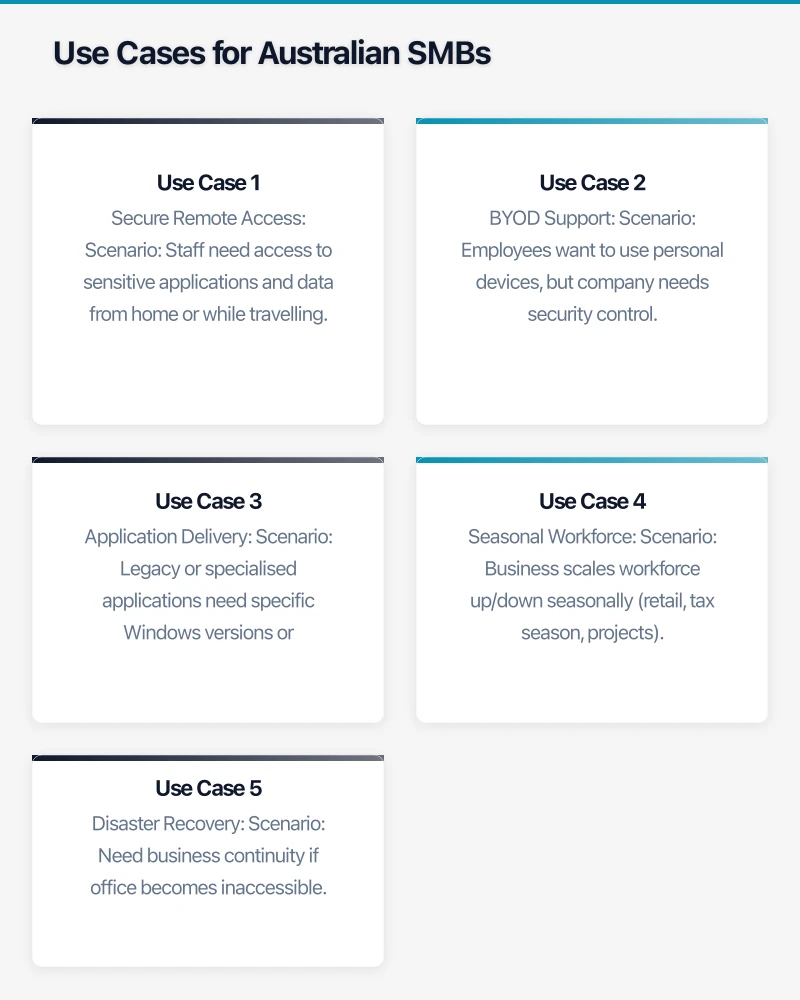
What is Azure Virtual Desktop?
Azure Virtual Desktop is Microsoft’s cloud-based desktop and application virtualisation service running on Azure.
Key Capabilities
Virtual Desktops Full Windows 11 or Windows 10 desktop experience accessible from any device.
RemoteApp Individual applications published without full desktop (e.g., access just your accounting software).
Multi-Session Windows Multiple users share a single Windows VM, reducing costs significantly.
Azure Integration Native integration with Azure AD, Microsoft 365, and other Azure services.
AVD vs Alternatives
| Feature | Azure Virtual Desktop | Windows 365 | Traditional VDI |
|---|---|---|---|
| Pricing model | Pay-per-use | Fixed per user | Capital + operating |
| Scalability | Highly scalable | Fixed capacity | Hardware-limited |
| Management | Medium complexity | Simple | High complexity |
| Customisation | Highly customisable | Limited | Fully customisable |
| Multi-session | Yes | No | Depends on vendor |
| Cost for 25 users | $500-2,000/month | $1,000-2,500/month | $3,000-5,000/month |
Recommendation: AVD for customisation and cost optimisation; Windows 365 for simplicity; traditional VDI for air-gapped environments.
Use Cases for Australian SMBs
Use Case 1: Secure Remote Access
Scenario: Staff need access to sensitive applications and data from home or while travelling.
Benefits:
- Data never leaves Azure (secure by design)
- Strong authentication with Azure AD
- Centralised security controls
- Access from any device including personal devices
Example: Accounting firm provides staff access to practice management and tax software without sensitive client data residing on personal laptops.
Use Case 2: BYOD Support
Scenario: Employees want to use personal devices, but company needs security control.
Benefits:
- Personal device accesses corporate desktop, not corporate data directly
- No corporate data on personal device
- Consistent work environment regardless of personal device
- Easy offboarding (revoke access, no device to wipe)
Example: Marketing agency allows contractors to use personal Macs while accessing Windows design applications and client files securely.
Use Case 3: Application Delivery
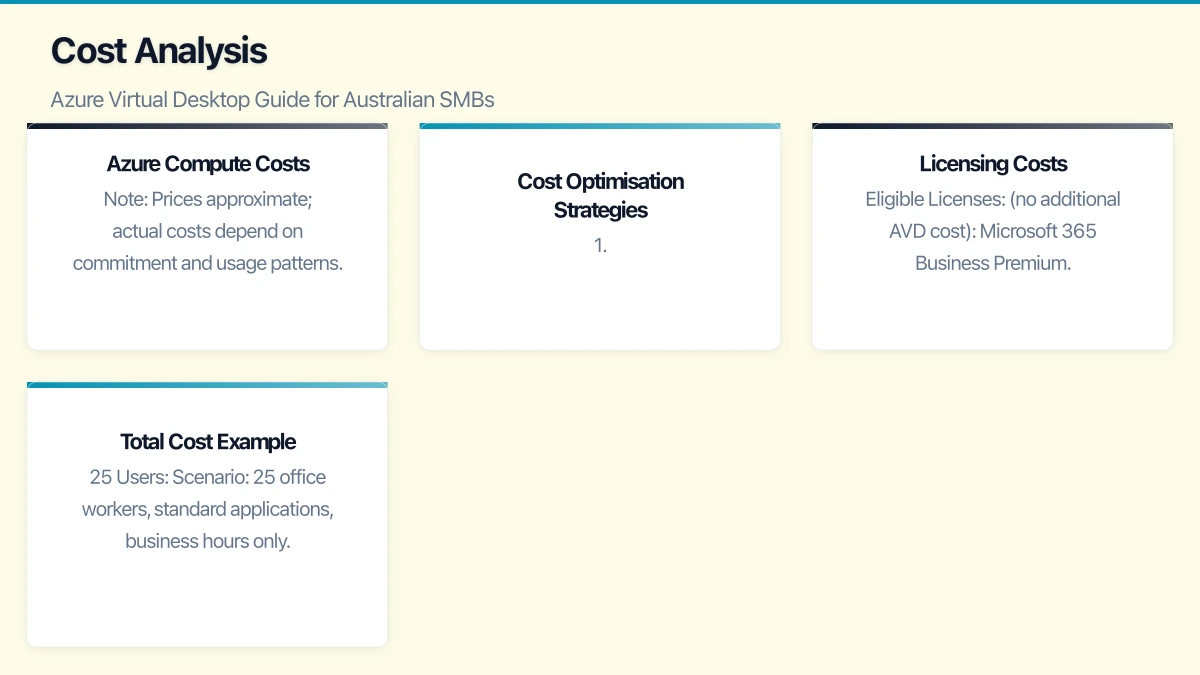
Scenario: Legacy or specialised applications need specific Windows versions or configurations.
Benefits:
- Deliver applications without installing on endpoints
- Support legacy applications requiring older Windows
- Centralised application updates
- License optimisation
Example: Engineering firm delivers CAD applications to remote engineers without powerful laptops.
Use Case 4: Seasonal Workforce
Scenario: Business scales workforce up/down seasonally (retail, tax season, projects).
Benefits:
- Provision desktops instantly
- Scale down when not needed
- Pay only for what you use
- Consistent onboarding experience
Example: Tax practice adds 20 contractors during tax season, provisions AVD desktops in hours, deprovisions when season ends.
Use Case 5: Disaster Recovery
Scenario: Need business continuity if office becomes inaccessible.
Benefits:
- Desktops accessible from anywhere
- No dependency on office infrastructure
- Rapid failover capability
- Tested and ready
Example: Any business wanting resilience against office outages (fire, flood, pandemic).
Architecture Options
Option 1: Pooled Desktops
Multiple users share a pool of virtual machines. When a user logs in, they’re assigned an available VM.
Characteristics:
- Non-persistent: User customisations don’t persist
- Lower cost: VMs shared among users
- Simpler management: Standardised image
- Best for: Task workers, call centres, shift workers
Cost Efficiency: 5-10 users per VM possible with Windows 10/11 multi-session.
Option 2: Personal Desktops
Each user has their own dedicated VM that persists between sessions.
Characteristics:
- Persistent: User customisations retained
- Higher cost: 1 VM per user
- More management: Individual VMs to maintain
- Best for: Knowledge workers, developers, power users
When Required: Users install own applications, need persistent data, heavy customisation.
Option 3: RemoteApp
Individual applications published, not full desktops.
Characteristics:
- Application appears in local window
- Lower resource usage per user
- Specific application delivery
- Best for: Single application access, legacy app delivery
Example: Publish accounting application to users who only need that one app.
Recommended Architecture for SMBs
Typical 50-User Implementation:
Azure Virtual Desktop Deployment
├── Host Pool 1: General Workers (Pooled)
│   ├── 3x D4s_v5 VMs (32 users capacity)
│   ├── Windows 11 Enterprise Multi-session
│   └── Microsoft 365 Apps
├── Host Pool 2: Power Users (Personal)
│   ├── 5x D4s_v5 VMs (5 users)
│   ├── Windows 11 Enterprise
│   └── Specialised applications
└── Host Pool 3: RemoteApp
    ├── 1x D4s_v5 VM
    └── Legacy accounting application
Cost Analysis
Azure Compute Costs
VM pricing in Australia East region (January 2026):
| VM Size | vCPUs | RAM | Monthly Cost | Users (Multi-session) |
|---|---|---|---|---|
| D2s_v5 | 2 | 8GB | ~$130 | 3-5 |
| D4s_v5 | 4 | 16GB | ~$260 | 6-10 |
| D8s_v5 | 8 | 32GB | ~$520 | 12-20 |
| D16s_v5 | 16 | 64GB | ~$1,040 | 25-40 |
Note: Prices approximate; actual costs depend on commitment and usage patterns.
Cost Optimisation Strategies
1. Reserved Instances Commit to 1 or 3 years for 40-65% savings:
| Term | Savings |
|---|---|
| 1 Year Reserved | ~40% |
| 3 Year Reserved | ~65% |
Example: D4s_v5 drops from ~$260/month to ~$90/month with 3-year reservation.
2. Auto-Scaling Scale down during off-hours:
| Strategy | Savings |
|---|---|
| Stop VMs overnight (8 PM-6 AM) | ~40% |
| Stop VMs on weekends | ~28% |
| Combined | ~55% |
3. Multi-Session Windows 10/11 Enterprise multi-session allows multiple users per VM:
| Approach | VMs for 25 Users | Monthly Cost |
|---|---|---|
| Personal (1:1) | 25 VMs | ~$6,500 |
| Multi-session (8:1) | 4 VMs | ~$1,040 |
| Savings | 84% |
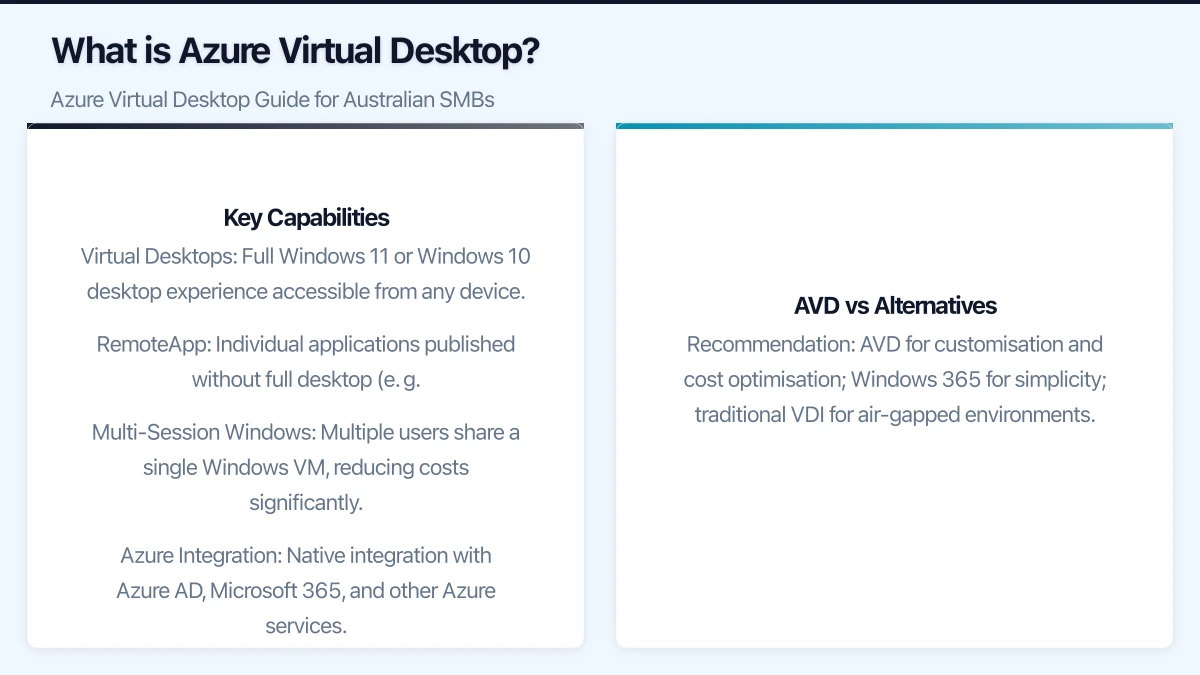
Licensing Costs
AVD requires appropriate licensing:
Eligible Licenses (no additional AVD cost):
- Microsoft 365 Business Premium
- Microsoft 365 E3/E5
- Windows 10/11 Enterprise E3/E5
- Windows 10/11 Education A3/A5
For External Users: Per-user access pricing applies (~$5-15 AUD/user/month).
Total Cost Example: 25 Users
Scenario: 25 office workers, standard applications, business hours only.
Option A: All Pooled (Multi-session)
| Component | Monthly Cost |
|---|---|
| 3x D4s_v5 VMs (pay-as-you-go) | $780 |
| Storage (3x 128GB Premium SSD) | $60 |
| Network (outbound data) | $50 |
| Subtotal | $890 |
| With Auto-scaling (55% off) | $400 |
| With Reserved (additional 40% off) | $240 |
Cost per user: $9.60-$35.60/month (depending on optimisations).
Option B: Mixed (Pooled + Personal)
| Component | Monthly Cost |
|---|---|
| 2x D4s_v5 (Pooled, 20 users) | $520 |
| 5x D2s_v5 (Personal, 5 power users) | $650 |
| Storage | $100 |
| Network | $60 |
| Subtotal | $1,330 |
| Optimised | $500-600 |
Cost per user: $20-$53/month (depending on optimisations).
Comparison to Alternatives:
- Windows 365: $40-75/user/month
- Local workstations: $50-100/user/month (amortised hardware + support)
Implementation Guide
Prerequisites
Azure Environment:
- Azure subscription with appropriate permissions
- Virtual network configured (or plan to create)
- Azure AD tenant (can be existing M365 tenant)
Licensing:
- Eligible Windows license for each user
- Microsoft 365 Apps license if using M365 apps
Network Considerations:
- Sufficient internet bandwidth at user locations
- Latency to Azure Australia East < 100ms recommended
Phase 1: Planning (Weeks 1-2)
Week 1: Assessment
- Document user requirements and personas
- Inventory applications to deploy
- Assess current infrastructure
- Define success criteria
User Persona Template:
| Persona | Count | Desktop Type | Applications | Sessions/Day |
|---|---|---|---|---|
| Admin staff | 15 | Pooled | M365, Browser | 8 hours |
| Finance | 5 | Pooled | M365, Xero | 8 hours |
| Developers | 5 | Personal | M365, VS Code, Docker | Variable |
Week 2: Architecture Design
- Design host pool structure
- Plan networking (VNet, subnets)
- Determine VM sizing and scaling
- Plan identity and access
Phase 2: Build (Weeks 3-6)
Week 3-4: Foundation
- Create Azure Resources:
Resource Group: rg-avd-prod-ae
Virtual Network: vnet-avd-ae
Subnet: snet-avd-hosts (10.1.0.0/24)- Configure Host Pool:
Host Pool: hp-general-pooled
  Type: Pooled
  Load Balancing: Breadth-first
  Max Sessions: 10 per host
Validation: No- Create VM Image:
- Start with Azure Gallery image (Windows 11 Multi-session)
- Install required applications
- Configure policies and settings
- Generalise and capture as custom image
Week 5-6: Desktop Deployment
- Deploy Session Hosts:
- Deploy VMs from custom image
- Join to host pool
- Configure auto-scaling
- Configure Application Groups:
Application Group: ag-desktop-general
  Type: Desktop
  Applications: Full Desktop

Application Group: ag-remoteapp-legacy
  Type: RemoteApp
Applications: Legacy App Only- Assign Users:
- Assign Azure AD groups to application groups
- Configure Conditional Access policies
- Enable MFA for AVD access
Phase 3: Testing (Weeks 7-8)
Testing Checklist:
- User can connect from Windows client
- User can connect from web browser
- User can connect from Mac/mobile
- Applications launch correctly
- Printing works (if required)
- Performance is acceptable
- Auto-scaling functions correctly
- User profiles work as expected
Pilot Users:
- Select 5-10 users for pilot
- Include different personas
- Gather detailed feedback
- Address issues before broader rollout
Phase 4: Rollout (Weeks 9-12)
Rollout Waves:
- Wave 1: IT and technical staff (Week 9)
- Wave 2: Pilot departments (Week 10)
- Wave 3: General staff (Week 11-12)
Training Topics:
- How to connect (client and web)
- Saving files (OneDrive vs local)
- Performance expectations
- Support process
Communication:
- Announce timeline
- Provide quick-start guides
- Establish support channels
- Celebrate successful adoption
User Experience Optimisation
Connection Options
Windows Desktop Client (Recommended):
- Best performance
- Full feature support
- Automatic updates
- Download from Microsoft Store
Web Client:
- No installation required
- Works on any browser
- Slightly reduced performance
- Good for occasional access
Mac Client:
- Native Mac application
- Good performance
- Available from Mac App Store
Mobile Clients:
- iOS and Android apps
- Suitable for light work
- Touch-optimised interface
Performance Optimisation
Network:
- Minimum 2 Mbps per user recommended
- 5 Mbps+ for video and graphics
- Low latency essential (< 100ms to Azure)
VM Right-Sizing:
- Monitor performance metrics
- Adjust VM size based on actual usage
- Use Azure Advisor recommendations
Profile Management: Use FSLogix for profile management:
- Fast sign-in/sign-out
- Profile persistence
- Office container for Outlook/OneDrive
Teams Optimisation:
- Enable Teams media optimisation
- Requires Windows client
- Audio/video redirected to local device
Security Configuration
Identity Security
Azure AD Integration:
- Single Sign-On with Azure AD
- Conditional Access policies
- Multi-factor authentication
Conditional Access Policies:
| Policy | Condition | Action |
|---|---|---|
| Require MFA | All AVD access | MFA required |
| Compliant devices | Sensitive apps | Require Intune compliance |
| Location-based | Outside Australia | Block or require MFA |
| Session timeout | All users | Sign out after 8 hours |
Network Security
Network Isolation:
- AVD hosts in dedicated subnet
- Network Security Groups (NSG) limiting traffic
- No direct internet access for hosts
- Azure Firewall for egress filtering (optional)
Private Endpoints:
- Avoid public endpoints where possible
- Private Link for storage and other services
- Reduces attack surface
Data Protection
Where Data Resides:
- User profiles: Azure Storage (Australia)
- OneDrive: Microsoft 365 (Australia)
- Local VM: Ephemeral (non-persistent pools)
Data Controls:
- Disable clipboard redirection (optional)
- Disable drive redirection (optional)
- Enable screen capture protection
- Watermarking (Enterprise feature)
Monitoring and Management
Azure Monitor for AVD
Built-in monitoring provides:
- Connection success/failure rates
- User experience metrics
- VM performance data
- Session information
Key Metrics to Monitor:
| Metric | Target | Alert Threshold |
|---|---|---|
| Connection success rate | > 99% | < 95% |
| Input delay | < 100ms | > 200ms |
| Frames skipped | < 1% | > 5% |
| VM CPU utilisation | < 80% | > 90% |
Automated Scaling
Configure scaling to balance cost and availability:
Scaling Plan Configuration:
Peak Hours (8 AM - 6 PM AEST):
  Minimum hosts: 3
  Maximum hosts: 6
  Load threshold: 75%

Off-Peak (6 PM - 8 AM AEST):
  Minimum hosts: 1
  Maximum hosts: 2

Weekends:
  Minimum hosts: 0
  Maximum hosts: 1
Image Management
Maintain VM images for consistency and security:
Monthly Maintenance:
- Update base image with patches
- Update applications
- Test updated image
- Deploy to validation host pool
- Roll out to production
Image Versioning:
Image naming: img-avd-win11-v[year][month]
Example: img-avd-win11-v202603
Common Challenges and Solutions
Challenge 1: Slow Performance
Symptoms: Users report lag, slow application response.
Potential Causes:
- Insufficient VM resources
- Network latency
- Storage IOPS limitations
- Too many users per host
Solutions:
- Review Azure Monitor metrics
- Right-size VMs
- Use Premium SSD storage
- Reduce users per host
- Optimise for high-latency connections
Challenge 2: Printing Issues
Symptoms: Users cannot print or printing is slow.
Solutions:
- Use Universal Print (Microsoft 365)
- Configure printer redirection correctly
- Deploy print server in Azure (if needed)
- Use PDF printing where possible
Challenge 3: Profile Issues
Symptoms: Slow sign-in, profile corruption, missing data.
Solutions:
- Implement FSLogix properly
- Use Premium storage for profiles
- Monitor profile container size
- Regular profile maintenance
Challenge 4: Application Compatibility
Symptoms: Applications don’t work or perform poorly in AVD.
Solutions:
- Test applications before deployment
- Check vendor support for VDI
- Consider RemoteApp for problematic apps
- Use application compatibility shims
Cost Management
Ongoing Cost Optimisation
Monthly Review:
- Review actual vs provisioned capacity
- Adjust reserved instances
- Optimise auto-scaling rules
- Right-size VMs based on usage
Azure Cost Management:
- Set budgets and alerts
- Use cost analysis to identify savings
- Apply tags for cost allocation
- Review recommendations
Expected Total Cost of Ownership
For a 25-user AVD deployment:
| Component | Monthly Cost | Annual Cost |
|---|---|---|
| Azure compute (optimised) | $350 | $4,200 |
| Storage | $100 | $1,200 |
| Networking | $50 | $600 |
| Monitoring/management | $50 | $600 |
| Total Azure | $550 | $6,600 |
| Management time (internal) | $200 | $2,400 |
| Total TCO | $750 | $9,000 |
Per user per month: ~$30
Getting Started
Azure Virtual Desktop offers Australian SMBs a powerful platform for secure, flexible desktop delivery. Success requires careful planning, proper implementation, and ongoing management.
Immediate Steps:
- Assess current desktop needs and pain points
- Identify potential use cases
- Evaluate licensing position
- Calculate preliminary cost estimates
Next Steps:
- Design solution architecture
- Plan pilot deployment
- Build and test environment
- Roll out to users
At CloudGeeks, we help Australian businesses design, implement, and manage Azure Virtual Desktop environments. From initial assessment through ongoing operations, we provide the expertise to make AVD successful for your organisation. Contact us to discuss your virtual desktop requirements.
Related Articles
- AWS vs Azure Cloud Comparison for Australian SMBs
- Remote Work Security for Australian SMBs
- Azure Migration Guide for Australian SMBs
- Microsoft 365 Copilot Implementation Guide
Pairing cloud infrastructure with a professional website amplifies your online presence. Cosmos Web Tech builds high-performance sites that make the most of solid hosting foundations.
Part of the Ganda Tech Services family, Cloud Geeks delivers specialist IT and cloud solutions for Australian small and medium businesses.