
Network Security for Remote Work: Australian SMB Guide
Remote and hybrid work is the permanent reality for Australian businesses. The flexibility benefits are clear, but so are the security challenges. Your network perimeter no longer ends at the office firewall; it extends to every home office, coffee shop, and airport lounge where your employees work.
At CloudGeeks, we’ve helped Australian SMBs transition from pandemic-era quick fixes to sustainable, secure remote work architectures. This guide provides the framework and practical steps to secure your distributed workforce.
The Remote Work Security Challenge
Traditional network security assumed a clear perimeter: protect the office network, and assets inside are safe. Remote work breaks this model:
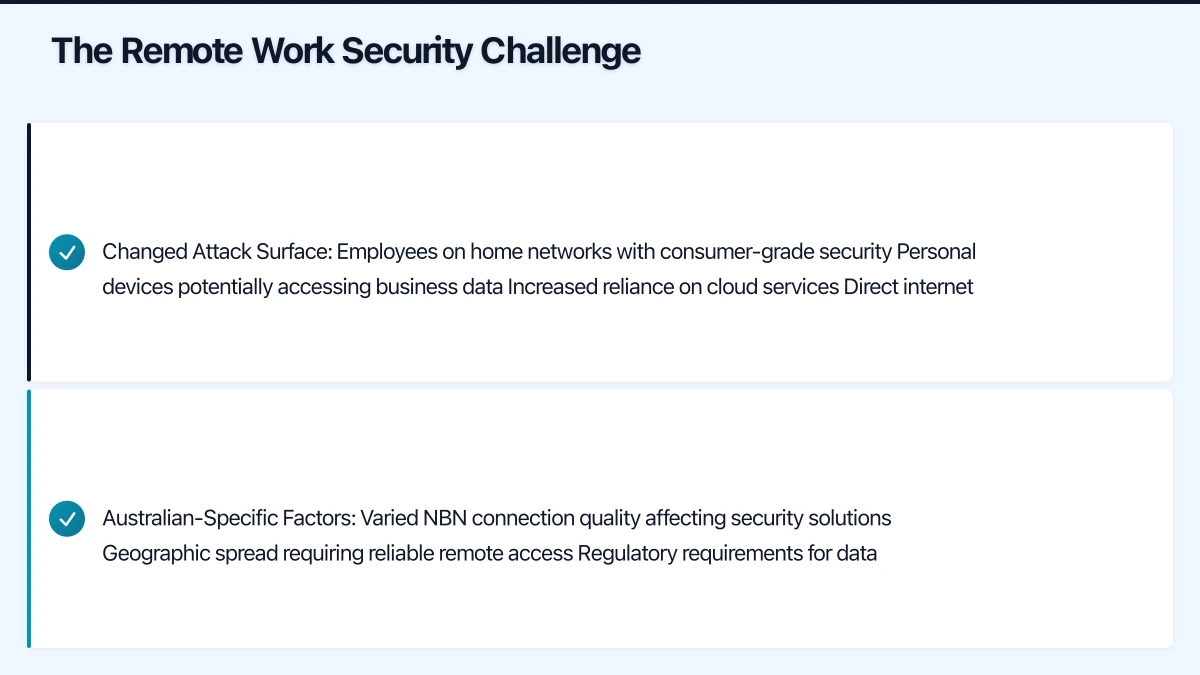
Changed Attack Surface:
- Employees on home networks with consumer-grade security
- Personal devices potentially accessing business data
- Increased reliance on cloud services
- Direct internet access bypassing corporate security
Australian-Specific Factors:
- Varied NBN connection quality affecting security solutions
- Geographic spread requiring reliable remote access
- Regulatory requirements for data protection
- Limited local IT support in regional areas
Common Remote Work Security Gaps
Based on our assessments of Australian SMBs:
| Gap | Prevalence | Risk Level |
|---|---|---|
| No MFA on remote access | 35% | Critical |
| Outdated VPN or no VPN | 45% | High |
| Unmanaged personal devices | 60% | High |
| No endpoint protection on remote devices | 40% | Critical |
| Weak home router security | 80% | Medium |
| No data loss prevention | 70% | Medium |
Security Architecture Options
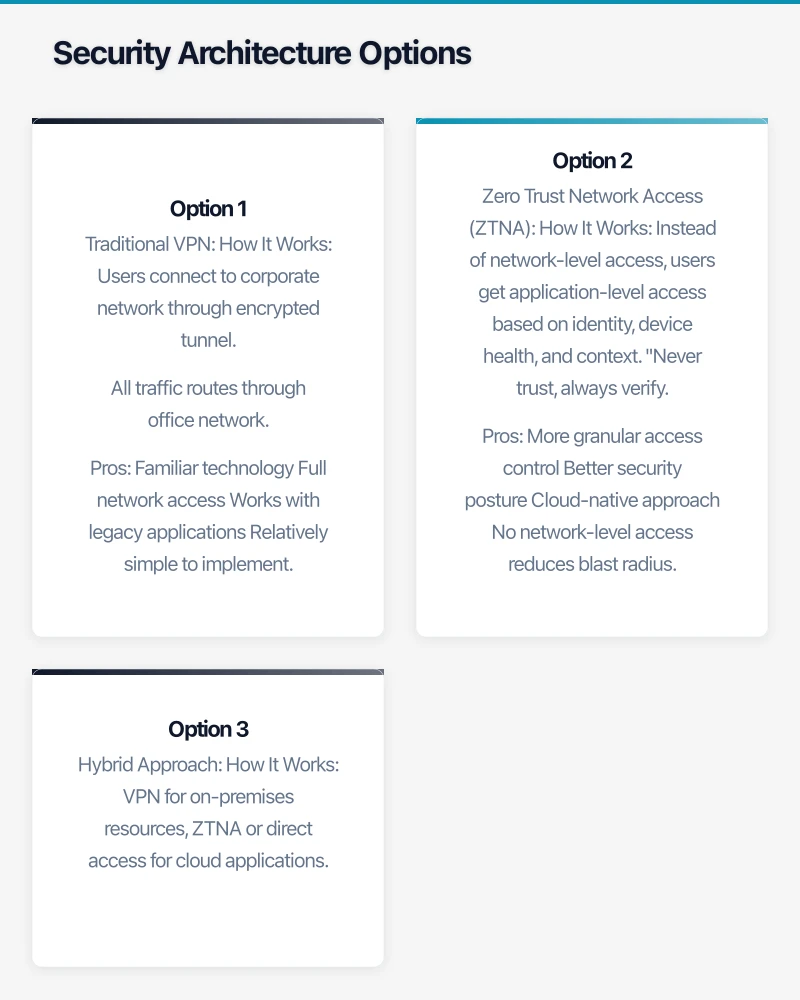
Option 1: Traditional VPN
How It Works: Users connect to corporate network through encrypted tunnel. All traffic routes through office network.
Pros:
- Familiar technology
- Full network access
- Works with legacy applications
- Relatively simple to implement
Cons:
- Creates single point of failure
- Bandwidth constraints (all traffic through VPN)
- Performance issues for cloud applications
- Requires VPN client management
Best For: Businesses with significant on-premises infrastructure and legacy applications.
Recommended Solutions:
| Solution | Best For | Monthly Cost (25 users) |
|---|---|---|
| FortiClient VPN | Existing Fortinet users | $200-400 |
| Cisco AnyConnect | Enterprise environments | $300-500 |
| OpenVPN | Budget-conscious SMBs | $100-200 |
| WireGuard | Tech-savvy teams | Free-$150 |
Option 2: Zero Trust Network Access (ZTNA)
How It Works: Instead of network-level access, users get application-level access based on identity, device health, and context. “Never trust, always verify.”
Pros:
- More granular access control
- Better security posture
- Cloud-native approach
- No network-level access reduces blast radius
Cons:
- More complex to implement
- Requires application-by-application configuration
- May not work with all legacy applications
- Higher initial effort
Best For: Cloud-first businesses, organisations with sensitive data, those planning for growth.
Recommended Solutions:
| Solution | Best For | Monthly Cost (25 users) |
|---|---|---|
| Microsoft Entra Private Access | M365 shops | Included in some M365 tiers |
| Cloudflare Access | Cloud-native teams | $100-400 |
| Zscaler Private Access | Enterprise | $400-800 |
| Tailscale | Tech teams | $75-200 |
Option 3: Hybrid Approach
How It Works: VPN for on-premises resources, ZTNA or direct access for cloud applications.
Pros:
- Optimises performance (cloud apps don’t go through VPN)
- Supports legacy and modern applications
- Gradual migration path
- Balances security and usability
Cons:
- More complex to manage
- Multiple security policies to maintain
- User training for different access methods
Best For: Most Australian SMBs with mixed on-premises and cloud environments.
Recommendation by Business Profile
| Business Profile | Recommended Approach |
|---|---|
| Cloud-first, SaaS-heavy | ZTNA or Conditional Access only |
| Significant on-prem servers | Hybrid (VPN + cloud direct) |
| Legacy applications | Traditional VPN with split tunnelling |
| Highly sensitive data | ZTNA with strong device compliance |
Implementation: Microsoft 365 Security Stack
For businesses on Microsoft 365, a comprehensive remote security approach uses the built-in capabilities.
Layer 1: Identity Security
Multi-Factor Authentication (MFA) Non-negotiable for all users.
Configuration steps:
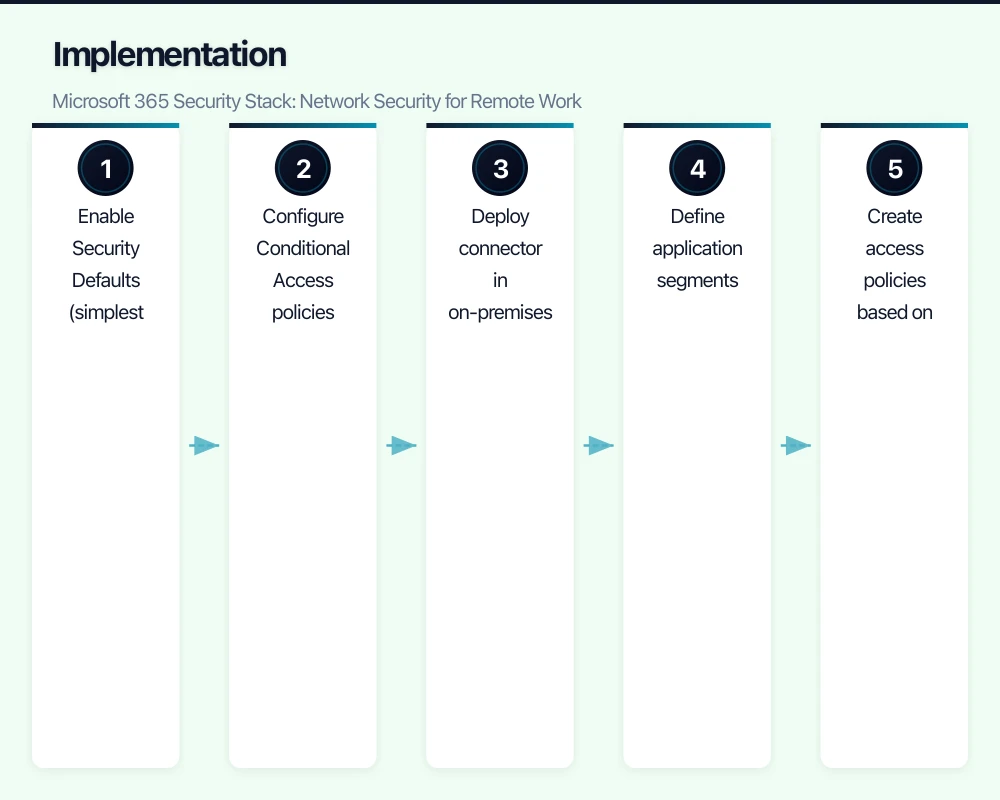
- Enable Security Defaults (simplest option) or
- Configure Conditional Access policies for granular control
Conditional Access Policies Control access based on conditions:
| Policy | Condition | Action |
|---|---|---|
| Require MFA | All users, all apps | MFA required |
| Block legacy auth | Legacy protocols | Block |
| Require compliant device | Sensitive apps | Require Intune compliance |
| Block risky sign-ins | High risk detected | Block and require password change |
| Location-based | Outside Australia | Require MFA + approval |
Layer 2: Device Security
Microsoft Intune Device Management
For company-owned devices:
- Full device management
- Configuration policies
- Application deployment
- Remote wipe capability
For personal devices (BYOD):
- App protection policies (MAM)
- Selective wipe of company data
- Conditional Access compliance requirements
Compliance Policies to Enforce:
| Requirement | Windows | macOS | iOS/Android |
|---|---|---|---|
| Encryption enabled | Required | Required | Required |
| Antivirus active | Required | Required | N/A |
| Minimum OS version | Windows 11 22H2+ | macOS 14+ | iOS 17+/Android 13+ |
| PIN/password | 6+ characters | 6+ characters | 6+ digits |
| Jailbreak/root | N/A | N/A | Not allowed |
Layer 3: Application Security
Microsoft Defender for Cloud Apps (CASB) Visibility and control over cloud application usage.
Key capabilities:
- Discover shadow IT (unapproved cloud apps)
- Apply access policies to cloud apps
- Detect anomalous user behaviour
- Data loss prevention for cloud apps
Application Protection Policies For mobile access to company data:
- Prevent copy/paste to personal apps
- Require app PIN
- Block screenshots in company apps
- Encrypt app data
Layer 4: Network Security
Microsoft Entra Private Access ZTNA solution for accessing on-premises resources without VPN.
Configuration:
- Deploy connector in on-premises environment
- Define application segments
- Create access policies based on user/device
- Users access via Global Secure Access client
Benefits over VPN:
- Application-level access, not network-level
- No exposed VPN endpoints
- Adaptive access based on risk
Implementation Roadmap (M365 Security)
Week 1-2: Identity Foundation
- Enable MFA for all users
- Create basic Conditional Access policies
- Block legacy authentication
- Configure password protection
Week 3-4: Device Management
- Enrol devices in Intune
- Deploy compliance policies
- Configure app protection policies
- Test enforcement
Week 5-6: Advanced Protection
- Enable Microsoft Defender for Business
- Configure Defender for Cloud Apps
- Implement data loss prevention
- Deploy secure access if needed
Week 7-8: Monitoring and Refinement
- Review sign-in logs and alerts
- Adjust policies based on feedback
- Document procedures
- Train IT staff on monitoring
Endpoint Security for Remote Devices
Remote devices need comprehensive endpoint protection.
Endpoint Detection and Response (EDR)
EDR goes beyond antivirus to detect and respond to advanced threats.
Minimum EDR Capabilities:
- Behavioural analysis (not just signature matching)
- Real-time monitoring and alerting
- Automated response actions
- Forensic investigation capabilities
- Centralised management console
Recommended Solutions:
| Solution | Included With | Standalone Cost (25 devices) |
|---|---|---|
| Microsoft Defender for Business | M365 Business Premium | ~$300/month |
| CrowdStrike Falcon Go | N/A | ~$750/month |
| SentinelOne | N/A | ~$600/month |
| Sophos Intercept X | N/A | ~$500/month |
Recommendation: Microsoft Defender for Business provides excellent protection at no additional cost for M365 Business Premium subscribers.
Device Hardening
Configure devices to minimise attack surface:
Windows Hardening Checklist:
- BitLocker encryption enabled
- Windows Hello for Business configured
- Local admin password randomised (LAPS)
- Windows Firewall enabled
- Automatic updates enabled
- SmartScreen enabled
- Attack surface reduction rules configured
macOS Hardening Checklist:
- FileVault encryption enabled
- Gatekeeper enabled
- Firewall enabled
- Automatic updates enabled
- Screen lock timeout configured
Patch Management
Unpatched systems are the top attack vector.
Patch Management Requirements:
- Critical patches: Within 48 hours
- Important patches: Within 2 weeks
- Other patches: Within 1 month
Implementation Options:
| Solution | Best For | Monthly Cost |
|---|---|---|
| Windows Update for Business | Windows devices in Intune | Free |
| Intune | Microsoft ecosystem | Included in M365 |
| Automox | Cross-platform | $3-5/device |
| Action1 | Budget option | Free-$2/device |
Securing Home Networks
While you cannot fully control home networks, you can mitigate risks.
Employee Guidance
Provide clear guidance for home network security:
Router Security:
- Change default admin password
- Enable WPA3 (or WPA2 minimum)
- Use strong Wi-Fi password (12+ characters)
- Disable WPS
- Update router firmware
- Enable router firewall
Network Segmentation (for tech-comfortable employees):
- Separate IoT devices on guest network
- Work devices on primary network
- Gaming/streaming on separate network if possible
Company-Provided Solutions
For high-risk roles or sensitive data access:
Option 1: Mobile Hotspot Provide dedicated mobile hotspot for work use.
- Bypasses home network entirely
- Controlled by company policy
- Cost: $50-80/month data plan
Option 2: Secure Router Provide preconfigured secure router.
- Consistent security configuration
- Company-managed updates
- Cost: $200-400 one-time + management
Option 3: Network Security Appliance Deploy small security appliance for home use.
- Enterprise-grade protection
- VPN endpoint capability
- Cost: $500-1,000 + subscription
Data Loss Prevention
Prevent sensitive data from leaving your control.
DLP Strategy
Step 1: Identify Sensitive Data
- Customer personal information
- Financial records
- Intellectual property
- Employee records
- Credentials and access tokens
Step 2: Label and Classify Use sensitivity labels in Microsoft 365:
- Public
- Internal
- Confidential
- Highly Confidential
Step 3: Apply Protection Policies
| Label | SharePoint | Devices | |
|---|---|---|---|
| Public | No restrictions | No restrictions | No restrictions |
| Internal | Warning on external | Internal only | No restrictions |
| Confidential | Block external | Specific users | Encrypt |
| Highly Confidential | Encrypt + audit | Named individuals | Encrypt + audit |
Microsoft Purview DLP
Built-in DLP for Microsoft 365:
Key Policies to Implement:
- Detect and warn when sharing Australian personal information externally
- Block sharing of financial data to personal email
- Audit access to highly confidential documents
- Prevent download of sensitive data to unmanaged devices
Monitoring and Incident Response
Security Monitoring
Essential Monitoring Points:
| Log Source | What to Monitor | Tool |
|---|---|---|
| Sign-in logs | Failed attempts, unusual locations | Entra ID |
| Conditional Access | Blocked access attempts | Entra ID |
| Endpoint alerts | Malware, suspicious activity | Defender |
| Phishing attempts, malware | Defender for Office | |
| Cloud apps | Unusual file sharing, downloads | Defender for Cloud Apps |
Alert Priorities
| Alert Type | Response Time | Action |
|---|---|---|
| Active malware detection | Immediate | Isolate device, investigate |
| Impossible travel sign-in | 1 hour | Verify with user, block if fraudulent |
| Multiple failed MFA | 2 hours | Contact user, check for attack |
| Sensitive file shared externally | 4 hours | Verify legitimacy, revoke if needed |
| New admin created | Same day | Verify authorisation |
Incident Response Plan
Document procedures for common incidents:
Compromised Account:
- Disable account immediately
- Revoke all sessions
- Reset password
- Review recent activity
- Check for mail forwarding rules
- Review shared files and permissions
- Re-enable with MFA verification
Malware Detection:
- Isolate device from network
- Review alert details
- Determine if data was accessed/exfiltrated
- Remediate or reimage device
- Review how malware entered
- Update protections
Security Awareness for Remote Workers
Technology alone is insufficient. Train users.
Training Topics
Essential Training:
- Recognising phishing emails
- Secure password practices
- MFA usage and importance
- Reporting suspicious activity
- Physical security for devices
- Public Wi-Fi risks
Remote-Specific Training:
- Home network security
- Secure video conferencing
- Protecting work in public spaces
- Family member access to work devices
- Travel security
Phishing Simulation
Regular phishing tests reinforce training:
Recommended Frequency: Monthly Target Click Rate: under 5% Response to Clicks: Additional training, not punishment
Simulation Platforms:
- Microsoft Attack Simulator (included in M365 E5/Defender)
- KnowBe4 ($200-400/month for 25 users)
- Proofpoint Security Awareness ($200-300/month for 25 users)
Budget Planning
Essential Security (25 Remote Users)
| Component | Monthly Cost |
|---|---|
| M365 Business Premium (includes Defender, Intune) | $825 |
| Security awareness training | $100 |
| Additional monitoring/SIEM | $200 |
| Total | $1,125/month |
Annual: $13,500 AUD
Enhanced Security (25 Remote Users)
| Component | Monthly Cost |
|---|---|
| M365 Business Premium | $825 |
| Premium EDR (CrowdStrike/SentinelOne) | $600 |
| Security awareness training | $200 |
| SIEM/SOC monitoring | $500 |
| Secure web gateway | $200 |
| Total | $2,325/month |
Annual: $27,900 AUD
Implementation Priority
Immediate (This Week)
- Enable MFA for all users
- Verify endpoint protection on all devices
- Review remote access method security
- Confirm backup covers remote device data
Short-Term (This Month)
- Implement Conditional Access policies
- Deploy device management (Intune)
- Configure compliance policies
- Enable basic DLP policies
Medium-Term (This Quarter)
- Evaluate ZTNA options
- Implement security monitoring
- Deploy security awareness training
- Create incident response procedures
Ongoing
- Regular security assessments
- Continuous monitoring and response
- Policy refinement based on threats
- User training and phishing simulation
Remote work security requires ongoing attention, not one-time implementation. Build security into your culture and processes.
At CloudGeeks, we help Australian businesses implement secure remote work architectures. From assessment through implementation and ongoing management, we provide the expertise to keep your distributed workforce secure. Contact us to discuss your remote work security requirements.
Related Articles
- VPN vs Zero Trust: Remote Work Security for Australian SMBs
- Cybersecurity Essentials for Australian Small Business
- Essential Eight Implementation Guide
- Password Management for Australian SMBs
If your business also needs a web portal or customer-facing dashboard, Cosmos Web Tech builds custom web applications tailored to Australian SMBs.
Ashish Ganda is the founder of Ganda Tech Services, a Sydney-based technology consultancy helping Australian businesses grow through cloud, web, and mobile solutions.