
Email Security and Phishing Protection for Australian Businesses
Introduction
Email remains the primary attack vector for Australian businesses. The ACSC reports that phishing and business email compromise (BEC) account for more financial losses than any other cybercrime category, with Australian businesses losing hundreds of millions annually.
The threats have evolved. Modern phishing isn’t the obvious “Nigerian prince” emails of the past—it’s sophisticated impersonation of suppliers, executives, and trusted services. AI-generated content makes these attacks more convincing than ever.
The good news: effective email security is achievable for Australian SMBs without enterprise budgets. This guide covers practical measures to protect your business from email-based threats.
Understanding Email Threats
Phishing: The Core Threat
Phishing emails attempt to trick recipients into:
- Clicking malicious links
- Opening infected attachments
- Entering credentials on fake login pages
- Transferring money to fraudulent accounts
- Revealing sensitive information
Modern Phishing Characteristics
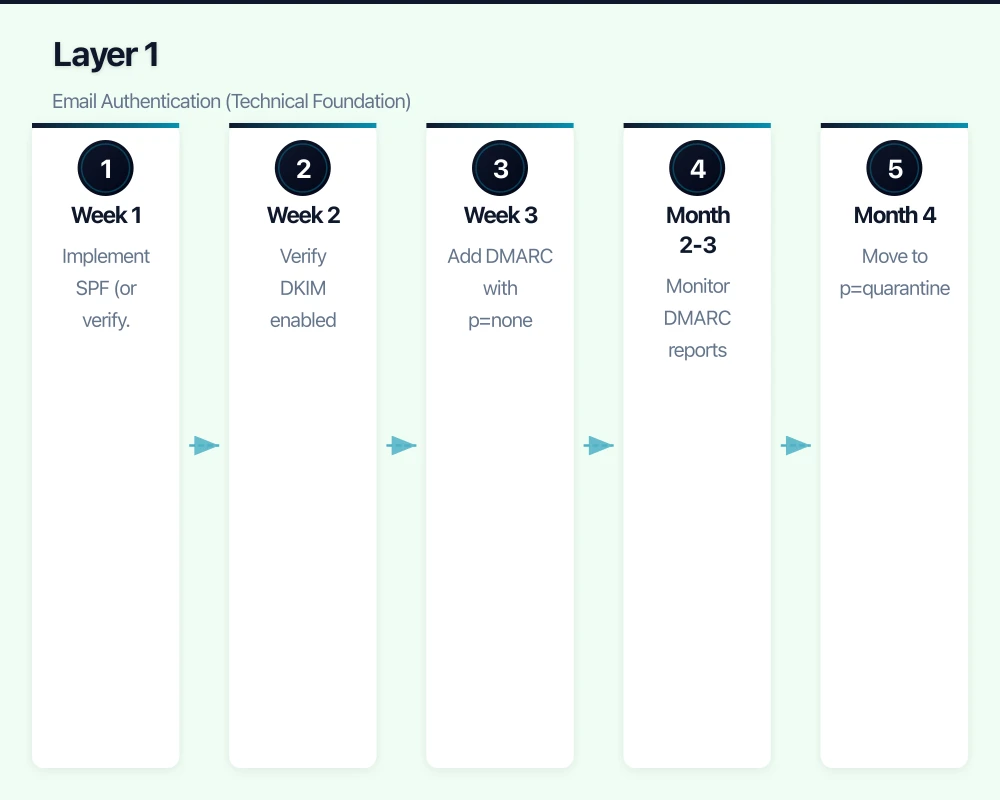
- Targeted (spear phishing) rather than mass campaigns
- Impersonation of known senders
- Urgency and emotional manipulation
- Professional appearance and language
- Legitimate-looking domains (typosquatting)
Business Email Compromise (BEC)
BEC is phishing’s sophisticated cousin:
Invoice Fraud
- Attacker compromises supplier email
- Sends invoice with changed bank details
- Business pays fraudster instead of supplier
- Average Australian loss: A$50,000-500,000
CEO Fraud
- Impersonation of executive
- Urgent request for wire transfer or gift cards
- Targets finance staff or assistants
- Often timed for when executive is “unavailable”
Payroll Diversion
- Impersonation of employee
- Request to change direct deposit details
- Payroll goes to fraudster account
- May not be discovered for weeks
Current Attack Trends (2026)
AI-Enhanced Phishing
- AI-generated content without spelling/grammar errors
- Deepfake voice messages for verification calls
- Automated personalisation at scale
- More convincing pretexts
Multi-Channel Attacks
- Email followed by phone call “verification”
- SMS and email coordinated attacks
- Social media reconnaissance for targeting
- Microsoft Teams/Slack as new vectors
QR Code Phishing (Quishing)
- Malicious QR codes in emails
- Bypasses traditional link scanning
- Directs to credential harvesting sites
- Growing rapidly in prevalence
Layer 1: Email Authentication (Technical Foundation)
Email authentication prevents attackers from sending emails that appear to come from your domain.
SPF (Sender Policy Framework)
What It Does
- Lists which servers can send email for your domain
- Receiving servers check if email came from authorised source
- Helps prevent email spoofing
Implementation
Add a DNS TXT record:
v=spf1 include:_spf.google.com include:spf.protection.outlook.com -allKey Components
include:- authorised sending services-all- reject all others (strict, recommended)~all- soft fail others (for testing)
Common Includes for Australian SMBs
- Microsoft 365:
include:spf.protection.outlook.com - Google Workspace:
include:_spf.google.com - Xero:
include:spf.xero.com - Mailchimp:
include:servers.mcsv.net
DKIM (DomainKeys Identified Mail)
What It Does
- Adds cryptographic signature to outgoing emails
- Receiving servers verify signature
- Ensures email hasn’t been modified in transit
Implementation
- Generate DKIM keys in your email platform
- Add public key as DNS record
- Platform signs outgoing emails automatically
Most email platforms (Microsoft 365, Google Workspace) handle DKIM configuration automatically or with simple setup.
DMARC (Domain-based Message Authentication)
What It Does
- Tells receiving servers what to do with failed SPF/DKIM
- Provides reporting on authentication failures
- Essential for preventing domain impersonation
Implementation Stages
Stage 1: Monitor (Start Here)
v=DMARC1; p=none; rua=mailto:[email protected]- No enforcement, just reporting
- Collect data on who sends as your domain
- Identify legitimate senders to authorise
Stage 2: Quarantine
v=DMARC1; p=quarantine; rua=mailto:[email protected]- Failed emails go to spam
- Gradual enforcement
- Monitor for legitimate emails affected
Stage 3: Reject (Goal)
v=DMARC1; p=reject; rua=mailto:[email protected]- Failed emails blocked entirely
- Maximum protection against spoofing
- Only after confirming all legitimate sources authorised
DMARC Reporting Services
Free/low-cost options for Australian SMBs:
- DMARC Analyzer (free tier available)
- Valimail (free monitoring)
- Postmark DMARC (free monitoring)
These services make DMARC reports readable and actionable.
Authentication Implementation Priority
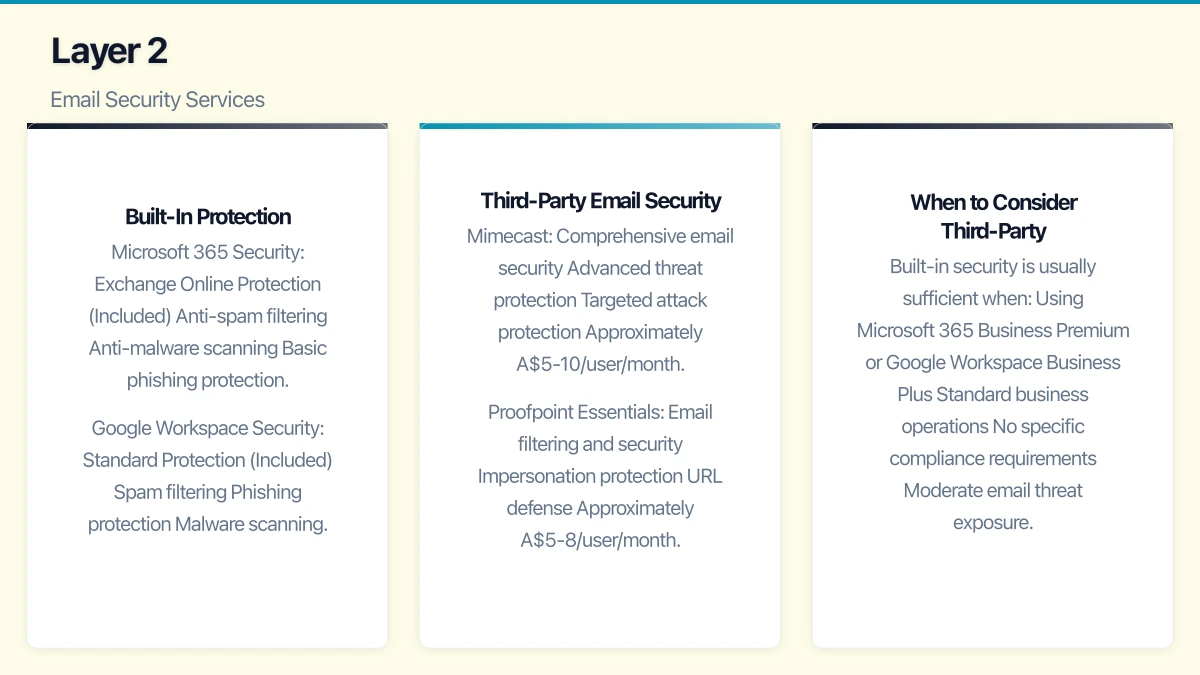
- Week 1: Implement SPF (or verify existing)
- Week 2: Verify DKIM enabled
- Week 3: Add DMARC with p=none
- Month 2-3: Monitor DMARC reports
- Month 4: Move to p=quarantine
- Month 6: Move to p=reject
Layer 2: Email Security Services
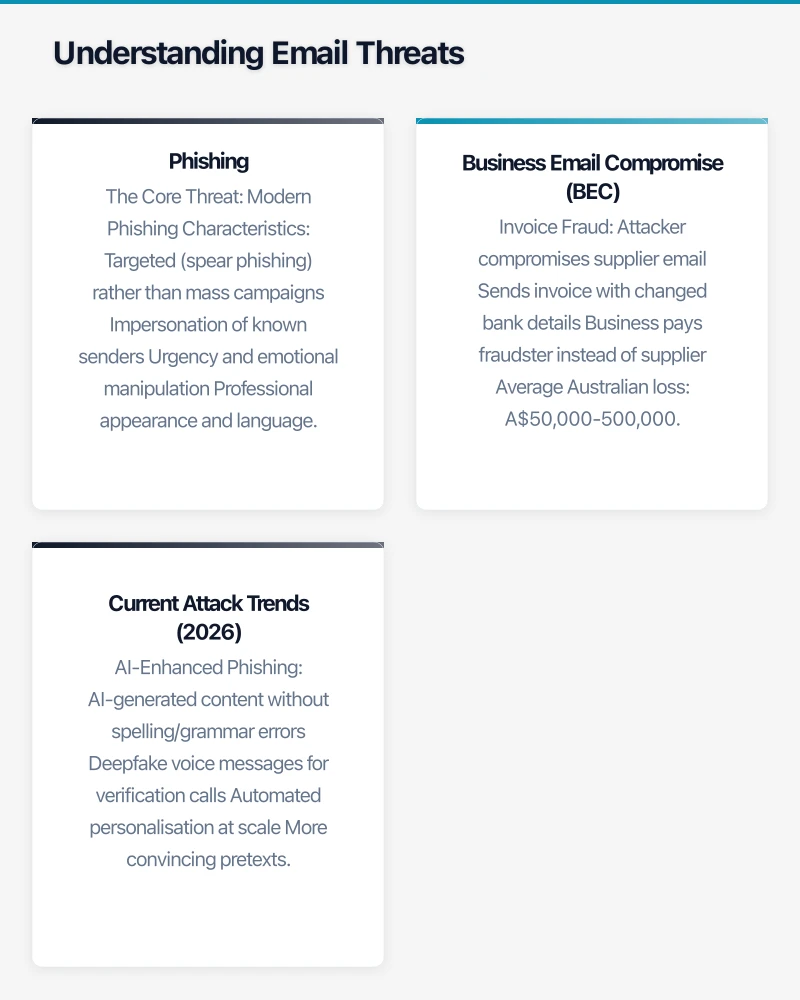
Built-In Protection
Microsoft 365 Security
Exchange Online Protection (Included)
- Anti-spam filtering
- Anti-malware scanning
- Basic phishing protection
- Safe Attachments (scans attachments)
Microsoft Defender for Office 365 (Business Premium)
- Advanced phishing protection
- Safe Links (URL scanning)
- Impersonation protection
- Automated investigation
- Attack simulation training
Google Workspace Security
Standard Protection (Included)
- Spam filtering
- Phishing protection
- Malware scanning
- Suspicious link warnings
Enhanced Security (Business Plus)
- Advanced phishing protection
- Attachment sandboxing
- Security investigation tool
- Gmail confidential mode
Third-Party Email Security
For enhanced protection or non-Microsoft/Google platforms:
Mimecast
- Comprehensive email security
- Advanced threat protection
- Targeted attack protection
- Approximately A$5-10/user/month
Proofpoint Essentials
- Email filtering and security
- Impersonation protection
- URL defense
- Approximately A$5-8/user/month
Barracuda Email Protection
- AI-powered threat detection
- BEC protection
- Email encryption
- Approximately A$4-7/user/month
When to Consider Third-Party
Built-in security is usually sufficient when:
- Using Microsoft 365 Business Premium or Google Workspace Business Plus
- Standard business operations
- No specific compliance requirements
- Moderate email threat exposure
Consider third-party when:
- Using basic Microsoft 365 or Google plans
- High-risk industry (finance, legal, healthcare)
- Frequent targeted attacks
- Need email archiving/compliance features
- Want additional impersonation protection
Layer 3: Technical Controls
Configure Your Email Platform
Microsoft 365 Security Settings
Enable These Features
- Safe Attachments policy (automatic scanning)
- Safe Links policy (URL rewriting and scanning)
- Anti-phishing policy (impersonation protection)
- External email tagging (“This email is from outside your organisation”)
- Block auto-forwarding to external addresses
Impersonation Protection
- Protect specific users (executives, finance)
- Protect your domain
- Configure trusted senders/domains
- Set action to quarantine or reject
Google Workspace Security Settings
Enable These Features
- Enhanced pre-delivery message scanning
- Attachment protection (aggressive mode)
- Links and external images protection
- Spoofing and authentication protection
- External recipient warnings
Additional Technical Controls
Block Dangerous File Types
Block or quarantine emails with:
- Executable files (.exe, .bat, .cmd, .ps1)
- Script files (.js, .vbs, .wsf)
- Macro-enabled Office files (.docm, .xlsm)
- Archive files with executables
External Email Tagging
Add banner to external emails: “CAUTION: This email originated from outside the organisation. Do not click links or open attachments unless you recognise the sender.”
Helps staff identify impersonation attempts.
Email Encryption
For sensitive communications:
- Microsoft 365 Message Encryption (built-in)
- Google Confidential Mode (built-in)
- Third-party encryption for cross-platform needs
Layer 4: Staff Training and Awareness
Technical controls catch most threats. Human awareness catches the rest.
Effective Training Principles
Frequency Over Intensity
- Short, regular training beats annual marathon sessions
- Monthly reminders more effective than annual compliance training
- Reinforce learning through repetition
Practical, Not Theoretical
- Show real examples (anonymised if needed)
- Practice with simulations
- Focus on recognition and reporting
- Avoid blame culture
Just-in-Time Learning
- Training at relevant moments
- Reinforcement after near-misses
- Immediate feedback on simulations
Phishing Simulation Programs
Microsoft Attack Simulation Training
- Included in Microsoft 365 Business Premium
- Built-in simulation templates
- Training assigned based on results
- Progress reporting
Third-Party Options
- KnowBe4 (popular, comprehensive)
- Proofpoint Security Awareness
- Cofense PhishMe
- SANS Security Awareness
Simulation Best Practices
- Start with easier simulations
- Increase difficulty gradually
- Focus on education, not punishment
- Report results at team level, not individual (usually)
- Follow up failed simulations with training
Key Messages for Staff
Red Flags to Recognise
- Unexpected urgency (“must be done today”)
- Requests bypassing normal processes
- Pressure not to verify through other channels
- Unusual sender address (check carefully)
- Requests for credentials or sensitive data
- Unexpected attachments or links
Safe Behaviours
- Verify unusual requests through separate channel (call known number)
- Check sender addresses carefully (hover, don’t trust display name)
- Don’t click links in unexpected emails (go to site directly)
- Report suspicious emails (don’t just delete)
- When in doubt, ask
Verification Procedures
- Financial changes require phone verification (call known number)
- Credential requests always suspicious
- Executive requests verified through assistant or direct call
- Supplier changes verified through established contacts
Layer 5: Business Processes
Financial Controls
Payment Process Safeguards
New Supplier/Payee Setup
- Verify bank details through independent source
- Call using known number (not from email)
- Require management approval for new payees
- Cool-off period before first payment
Bank Detail Change Requests
- Always verify by phone
- Use established contact numbers
- Require written confirmation
- Consider callback to old number
Large or Unusual Payments
- Dual approval required
- Verbal confirmation with requester
- Delay for verification if suspicious
- No exceptions for “urgent” requests
Invoice Verification
Supplier Invoice Checks
- Compare to purchase orders
- Verify bank details match records
- Check for slight changes to familiar details
- Confirm unusual invoices directly with supplier
Internal Approvals
- Segregation of duties (different people approve and pay)
- Dollar thresholds for additional approvals
- Audit trail for all payments
Incident Response
When Suspicious Email Received
- Don’t click, don’t reply, don’t forward
- Report to IT/security team
- If clicked/opened, report immediately (no blame)
- IT investigates and blocks if malicious
When Email Compromise Suspected
- Immediately change affected passwords
- Review recent email activity
- Check for forwarding rules
- Notify potentially affected parties
- Engage IT support for investigation
When Payment Fraud Occurs
- Contact bank immediately (recall may be possible)
- Report to police (Australian Cybercrime Online Reporting Network)
- Notify relevant parties
- Document for insurance claim
- Review and strengthen controls
Implementation Checklist
Immediate (This Week)
- Verify SPF record exists and is correct
- Verify DKIM is enabled
- Add DMARC record (p=none to start)
- Enable external email warnings
- Review email security settings in M365/Workspace
Short-Term (This Month)
- Block dangerous file types
- Configure impersonation protection
- Implement payment verification procedures
- Send security awareness reminder to staff
- Establish suspicious email reporting process
Medium-Term (This Quarter)
- Review DMARC reports and address issues
- Move DMARC to quarantine then reject
- Implement phishing simulation program
- Document financial controls
- Train staff on verification procedures
Ongoing
- Monthly security awareness touchpoints
- Quarterly phishing simulations
- Regular review of email security settings
- Annual review of procedures and controls
Measuring Email Security Effectiveness
Metrics to Track
Technical Metrics
- Phishing emails blocked (from email security reports)
- DMARC compliance rate
- Authentication pass/fail rates
Human Metrics
- Phishing simulation click rates
- Suspicious email reports (more reports = better awareness)
- Time to report suspicious emails
- Training completion rates
Incident Metrics
- Actual phishing incidents
- Successful attacks (hopefully zero)
- Near-misses caught
- Response times
Benchmarks
Phishing Simulation Click Rates
- First simulation: 15-30% click rate typical
- After 6 months training: Target under 10%
- After 12 months: Target under 5%
- Best performers: under 2%
Don’t expect perfection—even well-trained organisations have some clicks. Focus on trend improvement.
Conclusion
Email security requires a layered approach: technical authentication to prevent spoofing, security services to catch malicious content, staff training to recognise what gets through, and business processes to prevent financial fraud.
For Australian SMBs, start with the fundamentals:
- Implement email authentication (SPF, DKIM, DMARC)
- Use security features in your email platform
- Train staff regularly with practical, engaging content
- Establish verification procedures for financial transactions
Perfect security isn’t achievable, but significantly reducing risk is both practical and affordable. The investment in email security is minimal compared to the potential cost of a successful BEC attack or ransomware infection.
Need help assessing or improving your email security? CloudGeeks provides practical email security assistance for Australian SMBs. Contact us for an obligation-free discussion.
Related Articles
- Endpoint Security Best Practices for Australian SMBs
- Essential Eight Implementation Guide
- Cybersecurity Insurance Guide
- Data Protection and Privacy Act Compliance
Need a web presence to complement your cloud setup? Our web team at Cosmos Web Tech designs fast, secure websites for Australian businesses.
Cloud Geeks is the IT infrastructure division of Ganda Tech Services, providing managed cloud and cybersecurity solutions to Australian businesses.