
Azure AD and Identity Management for Australian SMBs: Complete Guide
Introduction
Identity is the new security perimeter. With Australian SMBs increasingly working remotely, using cloud applications, and accessing data from multiple devices, the traditional approach of securing a network boundary is no longer sufficient. Instead, securing and managing user identities has become the foundation of modern security.
Microsoft Entra ID (formerly Azure Active Directory) provides the identity platform that underpins Microsoft 365 and can extend to secure access across your entire application landscape. For Australian SMBs already on Microsoft 365, you’re already using Entra ID—but you may not be using it effectively.
This guide covers practical identity management for Australian SMBs: what Entra ID can do, how to configure it properly, and how to use it as the foundation for Zero Trust security.
Understanding Microsoft Entra ID
What Is Entra ID?
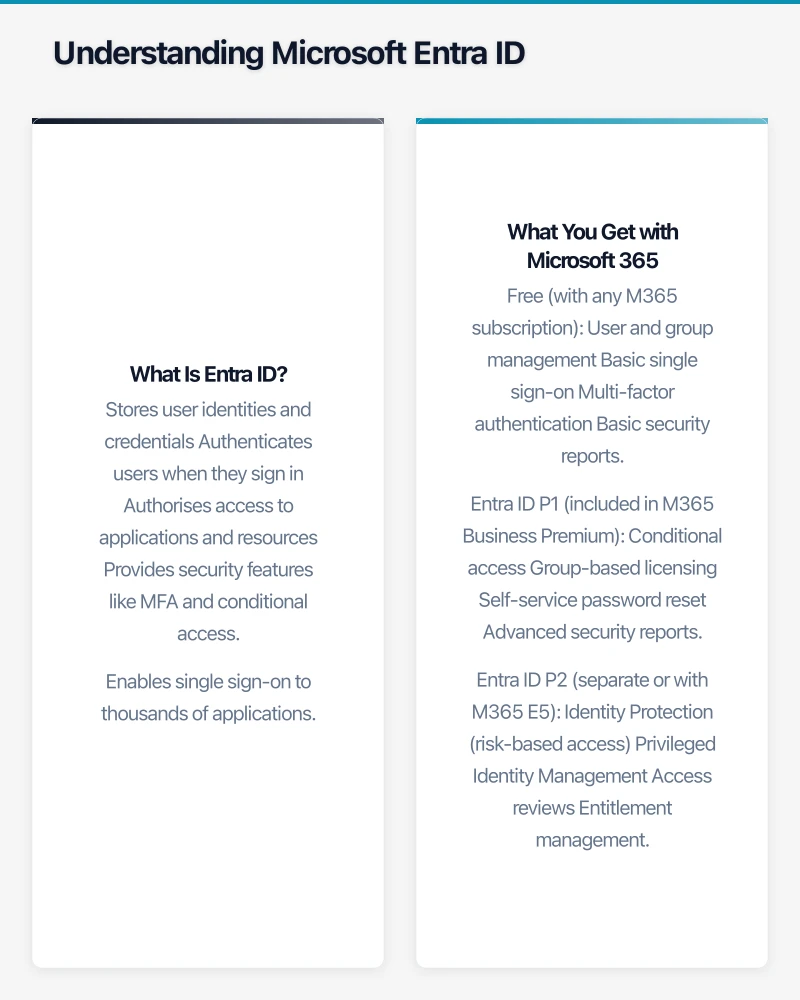
Microsoft Entra ID (still commonly called Azure AD) is Microsoft’s cloud-based identity and access management service. It:
- Stores user identities and credentials
- Authenticates users when they sign in
- Authorises access to applications and resources
- Provides security features like MFA and conditional access
- Enables single sign-on to thousands of applications
Entra ID vs On-Premises Active Directory
| Feature | On-Premises AD | Entra ID |
|---|---|---|
| Location | Your servers | Microsoft cloud |
| Primary use | Windows network | Cloud applications |
| Authentication | Kerberos, NTLM | OAuth, SAML, OpenID Connect |
| Device management | Group Policy | Intune |
| Best for | Traditional office networks | Cloud-first organisations |
Many organisations use both, synchronised together. But increasingly, Entra ID alone is sufficient for cloud-first SMBs.
What You Get with Microsoft 365
Every Microsoft 365 subscription includes Entra ID:
Free (with any M365 subscription)
- User and group management
- Basic single sign-on
- Multi-factor authentication
- Basic security reports
Entra ID P1 (included in M365 Business Premium)
- Conditional access
- Group-based licensing
- Self-service password reset
- Advanced security reports
- Dynamic groups
- Application proxy
Entra ID P2 (separate or with M365 E5)
- Identity Protection (risk-based access)
- Privileged Identity Management
- Access reviews
- Entitlement management
For most Australian SMBs, the features included with M365 Business Premium (Entra ID P1) provide comprehensive identity management capability.
Core Identity Management Tasks
2.1 User Management
Creating Users
Options for adding users:
- Manual creation in Microsoft 365 admin centre
- Bulk import from CSV
- Synchronisation from on-premises AD
- API/PowerShell for automation
User Attributes to Configure
- Display name and user principal name
- Contact information
- Job title and department
- Manager (for approval workflows)
- Office location
- Group memberships
Best Practices
- Use consistent naming conventions ([email protected])
- Populate job titles and departments (useful for dynamic groups)
- Assign managers (enables approval workflows)
- Review and update regularly
2.2 Group Management
Groups simplify access management—assign permissions to groups, not individuals.
Group Types
Security Groups
- Control access to resources
- Can be assigned to applications, SharePoint sites, etc.
- Example: “Finance Team,” “Project X Members”
Microsoft 365 Groups
- Create shared resources automatically
- Include mailbox, SharePoint site, Teams team
- Example: “Marketing Team” creates [email protected], SharePoint site, etc.
Dynamic Groups (P1 Required)
- Membership based on user attributes
- Automatically updates as attributes change
- Example: All users where Department = “Sales”
Dynamic Group Examples
All Sydney Office Staff
(user.city -eq "Sydney")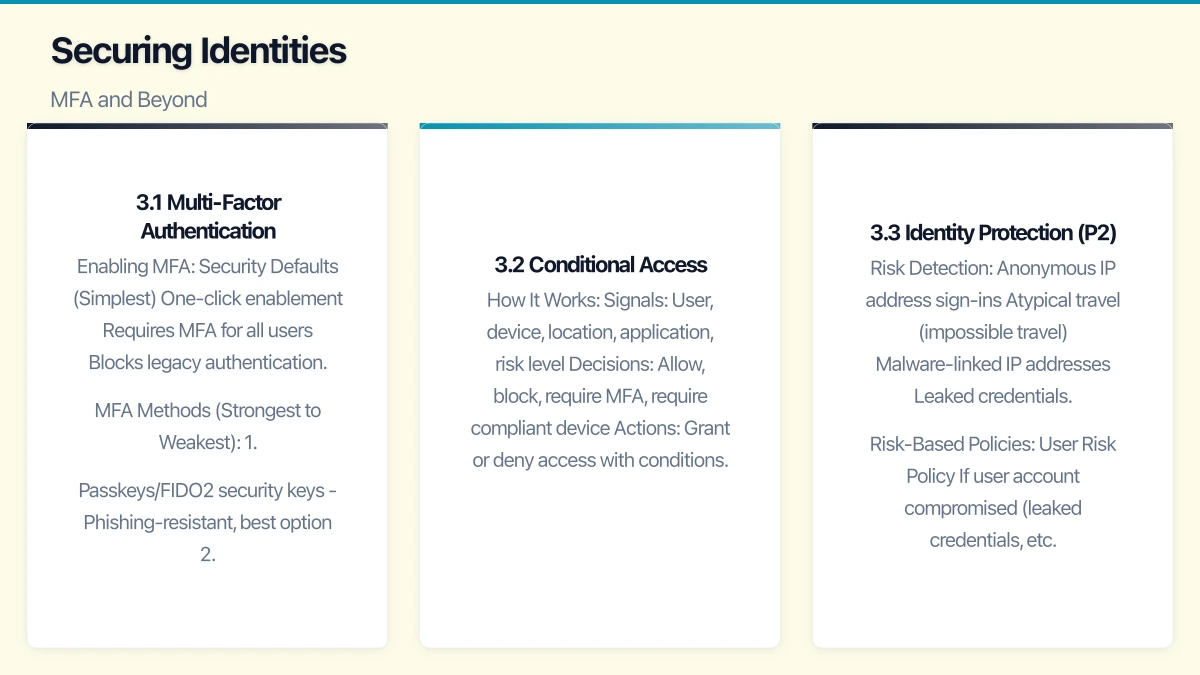
All Managers
(user.jobTitle -contains "Manager")All Finance Department
(user.department -eq "Finance")2.3 Application Integration
Entra ID can provide single sign-on to thousands of applications.
SaaS Application Integration
Pre-integrated applications (thousands available):
- Go to Entra ID → Enterprise Applications → New Application
- Search for application (e.g., Salesforce, Xero, Dropbox)
- Follow configuration wizard
- Assign users or groups
- Users can now access via My Apps portal or directly
Common Applications for Australian SMBs
- Xero (accounting)
- MYOB (accounting)
- Salesforce (CRM)
- HubSpot (CRM/marketing)
- Dropbox (file sharing)
- Slack (if not using Teams)
- Zoom (if not using Teams)
- DocuSign (e-signatures)
Custom/Line-of-Business Applications
For applications not in the gallery:
- SAML-based: Configure as custom SAML application
- OAuth-based: Configure as custom OAuth application
- Legacy/on-premises: Use Application Proxy (P1)
2.4 Self-Service Capabilities
Reduce IT burden with self-service features.
Self-Service Password Reset (P1)
Enable users to reset passwords without IT involvement:
- Entra ID → Password Reset → Properties
- Enable for selected users or all users
- Configure authentication methods (phone, email, app)
- Configure registration requirements
Benefits
- Reduces IT support tickets (password resets often 20-30% of tickets)
- Users can resolve issues immediately
- Works 24/7 without IT availability
Self-Service Group Management
Allow users to request group membership:
- Configure group for self-service
- Assign group owners
- Users request membership via My Apps
- Owners approve or deny
Securing Identities: MFA and Beyond
3.1 Multi-Factor Authentication
MFA is non-negotiable for any business. It stops the vast majority of identity attacks.
Enabling MFA
Security Defaults (Simplest)
- One-click enablement
- Requires MFA for all users
- Blocks legacy authentication
- Good for businesses wanting simple, effective security
Conditional Access (More Control, P1 Required)
- Granular policies
- MFA only in specific situations
- More flexibility but more complexity
MFA Methods (Strongest to Weakest)
- Passkeys/FIDO2 security keys - Phishing-resistant, best option
- Microsoft Authenticator app (number matching) - Strong, convenient
- Microsoft Authenticator app (push) - Good, some fatigue risk
- TOTP codes (any authenticator app) - Good, manual entry required
- Phone call - Acceptable, voice phishing risk
- SMS - Weakest, SIM swap risk
Recommended Configuration
- Require Microsoft Authenticator or security keys
- Disable SMS where possible
- Implement number matching for push notifications
3.2 Conditional Access
Conditional Access provides intelligent access decisions based on context.
How It Works
- Signals: User, device, location, application, risk level
- Decisions: Allow, block, require MFA, require compliant device
- Actions: Grant or deny access with conditions
Essential Policies for Australian SMBs
Policy 1: Require MFA for All Users
- Applies to: All users (exclude emergency accounts)
- Conditions: All cloud apps
- Grant: Require MFA
Policy 2: Block Legacy Authentication
- Applies to: All users
- Conditions: Client apps = Legacy authentication clients
- Grant: Block
Policy 3: Require Compliant Device for Sensitive Apps
- Applies to: All users
- Conditions: Finance applications, SharePoint sites with sensitive data
- Grant: Require compliant device or MFA
Policy 4: Block Access from High-Risk Locations
- Applies to: All users (except if needed)
- Conditions: Named locations = Countries you don’t operate in
- Grant: Block
Location-Based Policies for Australian Businesses
Define trusted locations:
- Australian IP ranges (if identifiable)
- Office IP addresses
- Trusted partner networks
Then create policies:
- Reduced requirements from trusted locations
- Enhanced requirements from untrusted locations
- Block from specific countries if no legitimate access needed
3.3 Identity Protection (P2)
Identity Protection uses machine learning to detect and respond to identity risks.
Risk Detection
- Anonymous IP address sign-ins
- Atypical travel (impossible travel)
- Malware-linked IP addresses
- Leaked credentials
- Password spray attacks
Risk-Based Policies
User Risk Policy
- If user account compromised (leaked credentials, etc.)
- Require password change
- Block until resolved
Sign-In Risk Policy
- If sign-in looks suspicious
- Require MFA
- Block high-risk sign-ins
For SMBs Without P2
- Use Security Defaults for basic protection
- Review sign-in reports regularly
- Implement strong conditional access policies
Device Management Integration
4.1 Entra ID Join
Devices can be registered with Entra ID for management and security.
Device Registration Types
Entra ID Registered
- Personal devices (BYOD)
- User signs in to apps with work account
- Minimal device management
- Good for personal phones accessing email
Entra ID Joined
- Company-owned devices
- Full device management capability
- Single sign-on to cloud resources
- Best for cloud-first organisations
Hybrid Entra ID Joined
- Devices joined to both on-premises AD and Entra ID
- For organisations with on-premises AD
- Transitional state for many organisations
4.2 Device Compliance with Intune
Combine Entra ID with Intune (included in M365 Business Premium) for device compliance.
Compliance Policies
- Require device encryption
- Require PIN/password
- Require OS version
- Require antivirus/EDR
- Block jailbroken/rooted devices
Conditional Access + Compliance
- Require compliant device for access
- Or require MFA if device not compliant
- Protects data on untrusted devices
Example Policy: Finance Application Access
- Condition: Finance applications
- Grant: Require compliant device
- Result: Only managed, encrypted, secure devices access financial data
Practical Implementation
5.1 Implementation Roadmap
Phase 1: Foundation (Week 1-2)
- Review current Entra ID configuration
- Ensure all users have correct attributes
- Set up emergency access accounts
- Enable Security Defaults (if not using Conditional Access yet)
Phase 2: MFA Rollout (Week 2-4)
- Plan MFA rollout communication
- Configure MFA settings
- Roll out to IT/admins first
- Roll out to all users
- Monitor and support
Phase 3: Application Integration (Week 4-8)
- Identify applications for SSO integration
- Prioritise by user impact and security benefit
- Integrate applications one by one
- Communicate new access methods to users
Phase 4: Conditional Access (Week 6-10)
- Design conditional access policies
- Implement in report-only mode
- Monitor and adjust
- Enable policies
- Document exceptions
Phase 5: Advanced Features (Ongoing)
- Enable self-service password reset
- Implement device compliance
- Review and optimise policies
- Regular access reviews
5.2 Essential Configurations
Emergency Access Accounts
Create break-glass accounts for emergency access:
- Two accounts with Global Administrator role
- Strong, unique passwords (stored securely, not in password manager)
- Excluded from conditional access policies
- No MFA (or hardware key stored securely)
- Monitored for any usage
Naming and Configuration Standards
| Item | Standard |
|---|---|
| User Principal Name | [email protected] |
| Display Name | Firstname Lastname |
| Groups | Type_Purpose (e.g., Security_FinanceAccess) |
| Applications | Vendor_Application |
| Conditional Access | CA###_Description |
5.3 Common Mistakes to Avoid
Mistake 1: Not Excluding Emergency Accounts
- Conditional access blocks all access, including yours
- Always exclude emergency accounts from CA policies
Mistake 2: Too Restrictive Too Fast
- Blocking legitimate access creates business impact
- Use report-only mode, monitor, then enable
Mistake 3: Not Monitoring
- Set up and forget = security blind spots
- Review sign-in logs regularly
- Set up alerts for suspicious activity
Mistake 4: Ignoring Guest Access
- External users (B2B guests) need appropriate policies
- Include guests in MFA requirements
- Limit guest capabilities appropriately
Mistake 5: No Documentation
- Policies without documentation become unmaintainable
- Document all policies and the reasoning
- Review and update documentation
Security Monitoring
6.1 Sign-In Logs
Review sign-in logs regularly:
What to Look For
- Failed sign-in attempts (especially patterns)
- Sign-ins from unexpected locations
- Sign-ins at unusual times
- Legacy authentication attempts
- Risky sign-ins (if Identity Protection enabled)
How to Review
- Entra ID → Sign-in Logs
- Filter by status (failures), location, application
- Investigate anomalies
- Take action on confirmed threats
6.2 Audit Logs
Track administrative changes:
Important Events
- User creation/deletion
- Group membership changes
- Application consent grants
- Policy changes
- Role assignments
Retention
- Default retention: 30 days
- Export to Log Analytics for longer retention
- Consider SIEM integration for larger organisations
6.3 Security Reports
Risky Users Report
- Users with detected account compromise indicators
- Requires investigation and remediation
Risky Sign-Ins Report
- Sign-ins with detected risk indicators
- Review and address patterns
MFA Capable Users
- Ensure all users have MFA configured
- Follow up with non-compliant users
Australian Compliance Considerations
Privacy Act Alignment
Identity Data Protection
- User attributes are personal information
- Appropriate security measures required
- Access controls on administrative functions
- Audit logging for compliance evidence
Data Location
- Entra ID stores data in region configured
- Australian customers: Australia or Asia-Pacific region
- Verify data residency settings in admin centre
Essential Eight Alignment
Multi-Factor Authentication
- Essential Eight control
- Entra ID provides comprehensive MFA
- Conditional access enables contextual MFA
Restrict Administrative Privileges
- Use role-based access control
- Privileged Identity Management (P2) for just-in-time access
- Regular access reviews
User Application Hardening
- Conditional access can restrict application access
- Device compliance requirements
- Block risky applications
Conclusion
Microsoft Entra ID provides Australian SMBs with enterprise-grade identity management included with Microsoft 365. Properly configured, it secures access to cloud applications, enables convenient single sign-on, and provides the foundation for Zero Trust security.
Key actions for Australian SMBs:
- Enable MFA for all users - Non-negotiable baseline security
- Implement conditional access - Context-aware access decisions
- Integrate key applications - Single sign-on for better security and user experience
- Enable self-service - Reduce IT burden, improve user experience
- Monitor continuously - Review logs, investigate anomalies
The identity platform is only as good as its configuration. Take the time to set up Entra ID properly, and you’ll have a security foundation that protects your business while enabling productive work from anywhere.
Need help configuring Entra ID for your Australian business? CloudGeeks provides practical identity and security assistance for SMBs on Microsoft 365. Contact us for an obligation-free discussion.
Related Articles
- Microsoft 365 Business Premium Security Features
- Endpoint Security for Australian SMBs
- Essential Eight Implementation Guide
- Remote Work Security: VPN, MFA, and Endpoint Protection
Need mobile access to your cloud systems? Our app development team at Awesome Apps builds iOS and Android apps for Australian businesses.
Ganda Tech Services brings together cloud infrastructure, web development, and mobile app expertise to help Australian businesses thrive in the digital economy.