
How to Audit Your WordPress Security in Under an Hour: A Checklist for Sydney Businesses
We recently worked through what patching a WordPress site actually costs an Australian small business — the licences, the hours, and what it costs when it goes wrong. That post answers why.
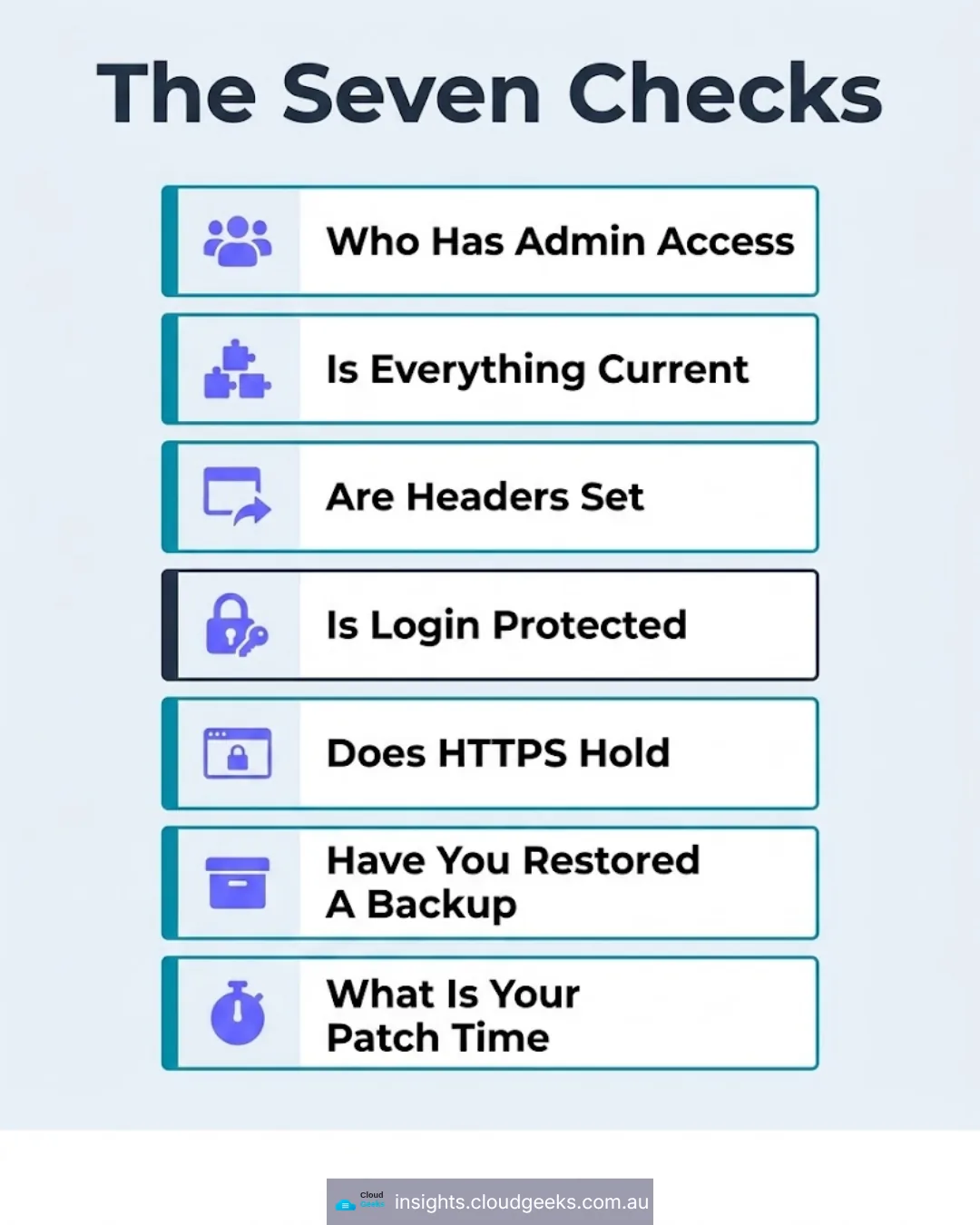
This one answers how, and it is deliberately something you can do yourself. Seven checks, ordered so the ones most likely to find real exposure come first. Set aside an hour. Most sites take less.
You need admin access to your WordPress dashboard and a browser. Nothing else.
Before you start: write down what you find
Open a document. For each check, note the result and the date. This matters for two reasons — you will not remember by next quarter, and the second time you run this the useful information is what changed.
1. Who has admin access? (10 minutes)
Start here, because this is where we find real problems most often and it costs nothing to check.
Go to Users in your dashboard and sort by role. For every Administrator, answer three questions:
- Do I know who this is?
- Do they still work here or still do work for us?
- Do they need Administrator, or would Editor do?
Common findings, all of them ordinary: the developer who built the site four years ago, an agency that stopped working with you, a staff member who left, a plugin support account created for a one-off issue in 2023, and two or three people who need to publish posts and were made Administrators because it was quicker.
What to do: remove accounts nobody can account for. Downgrade anyone who does not need admin — Editor can publish and manage content without being able to install plugins or change site settings. If you need to keep an account for a supplier, that is fine; it should just be a decision rather than an accident.
A dormant admin account is not dangerous by itself. It becomes dangerous when its password is reused somewhere that gets breached, and nobody is watching an account that nobody uses.
2. Is everything current? (10 minutes)
Go to Dashboard → Updates, then Plugins.
Note three numbers: how many plugins are out of date, how many have not been updated by their author in over a year, and how many you do not recognise.
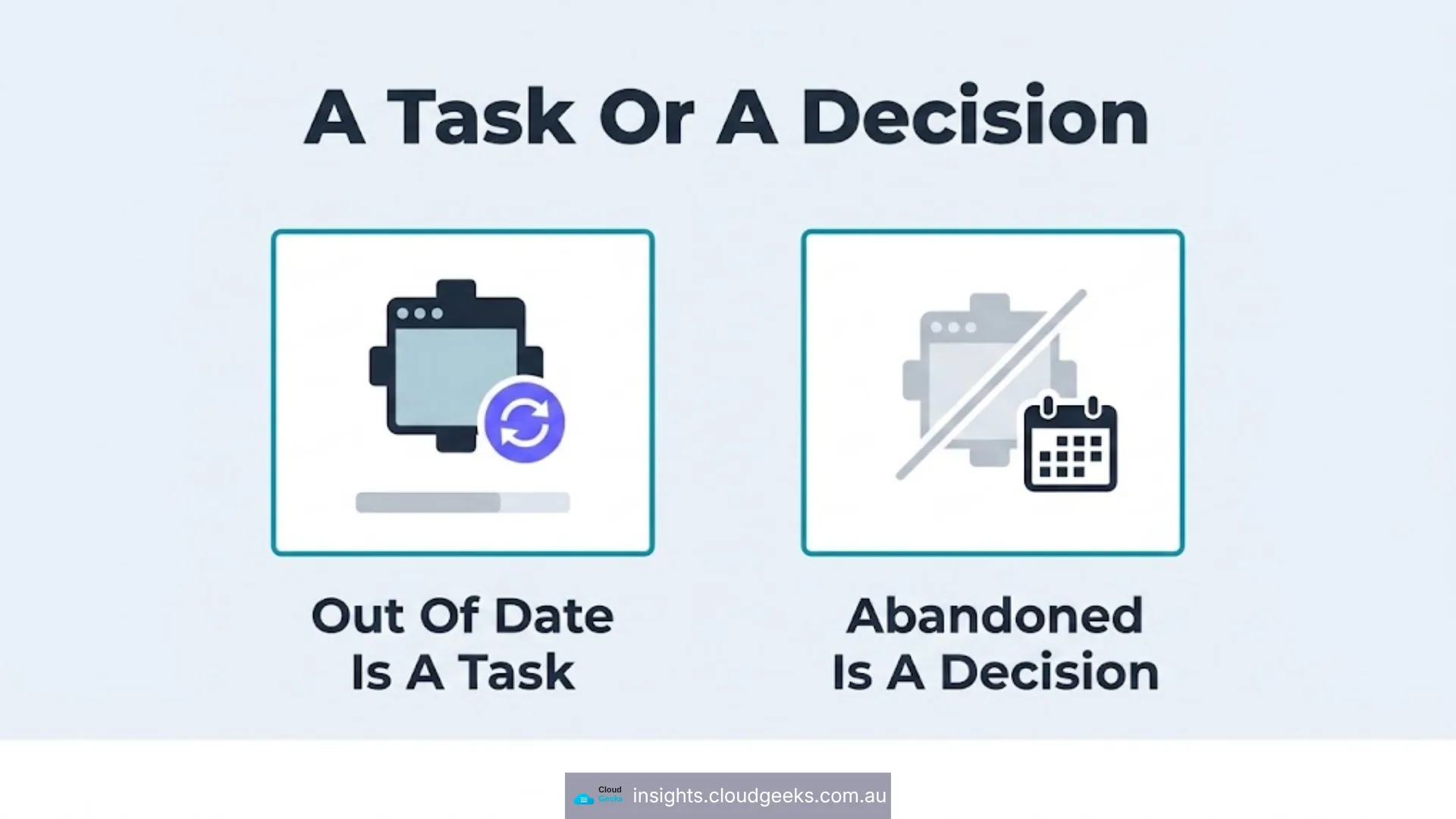
The last two matter more than the first. An out-of-date plugin is a task. A plugin the author has abandoned is a decision — it will not be patched when a vulnerability is found in it, because nobody is maintaining it. WordPress warns you about this on the plugin page (“Untested with your version of WordPress” or a last-updated date well in the past).
What to do: update what is behind, on a staging copy first if the site takes bookings or orders. For anything abandoned, find a maintained alternative or remove it. For anything you do not recognise, find out what it does before you remove it — but find out.
Every plugin you delete is a vulnerability you will never have to patch.
3. Are your security headers set? (5 minutes)
Security headers are instructions your site sends to the visitor’s browser telling it what to allow. They are free, they are configuration rather than code, and most Australian small business sites send none of them.
You can check without any tooling: open your site, right-click, Inspect, go to the Network tab, reload the page, click the first entry, and look at Response Headers. Or use any free header-checking service.
Look for Strict-Transport-Security, X-Content-Type-Options, X-Frame-Options (or an equivalent frame directive), Referrer-Policy and Content-Security-Policy.
What to do: if they are absent, that is a job for whoever manages your hosting — usually minutes of work. Our colleagues at Cosmos wrote up what each header actually does and how to check it, which is the reference to hand over.
4. How is your login protected? (10 minutes)
The WordPress login page is the single most-attacked part of any WordPress site, and it is attacked automatically, constantly, by software that is not targeting you specifically.
Check four things:
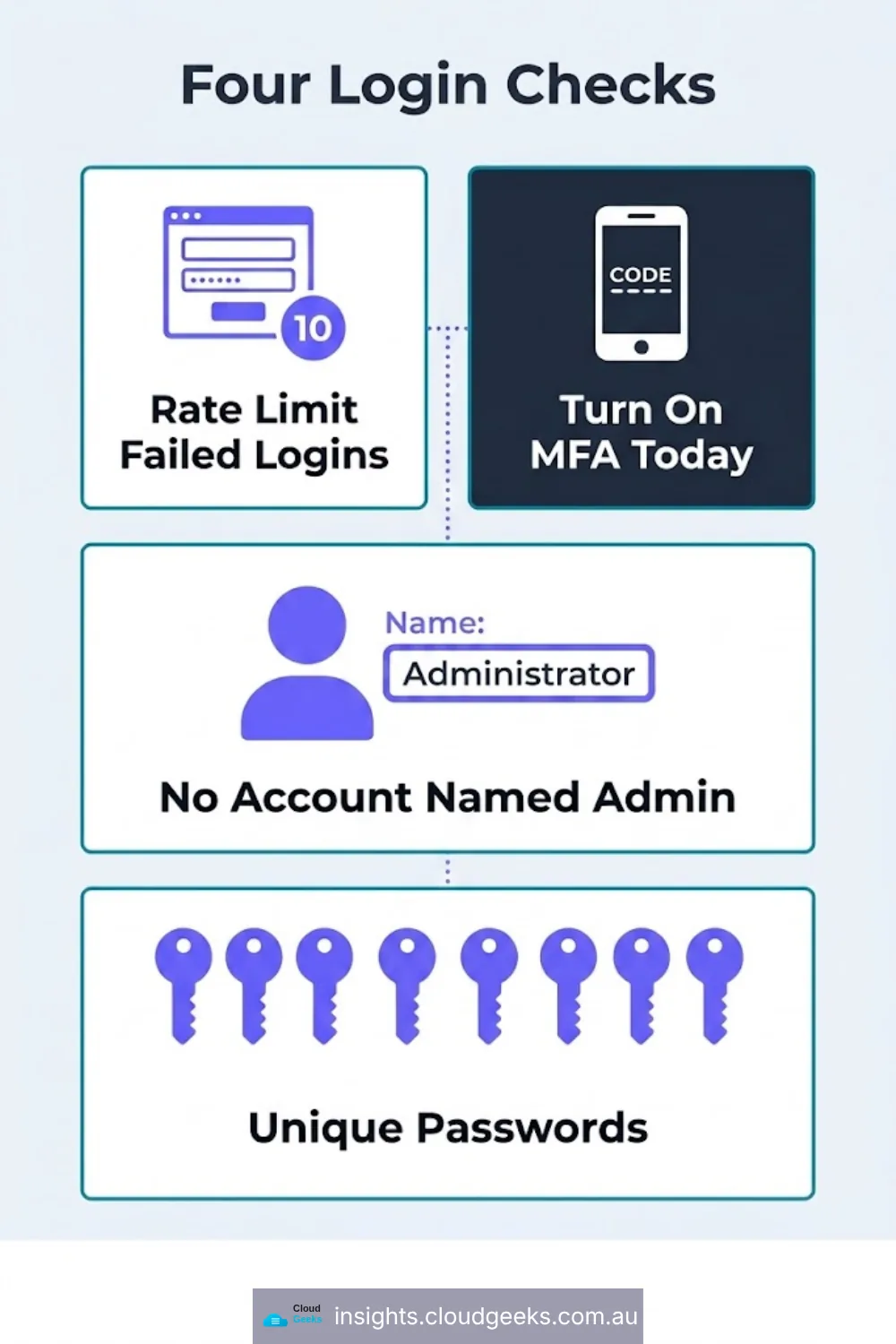
Are there rate limits on failed logins? Most security plugins provide this. Without it, an attacker can attempt passwords indefinitely.
Is multi-factor authentication available, and does anyone use it? For every account that can install a plugin, it should be mandatory. This is the single highest-value control on this list.
Is anyone still using the username admin? It halves the work for anyone guessing, because they now only need the password.
Are passwords unique to this site? A reused password is only as safe as the least careful service you have ever signed up to.
What to do: turn on MFA for every Administrator today. It is usually a plugin and ten minutes. If you do one thing from this entire article, do this one.
5. Is the site actually served over HTTPS, everywhere? (5 minutes)
Load your site and check for the padlock. Then check a few inner pages — a blog post, the contact page, the checkout if you have one.
Then type your address without the s — http://yourdomain.com.au — and confirm it redirects to the secure version rather than simply loading.
What to do: if any page loads insecurely or shows a “mixed content” warning, that is usually a handful of images or scripts still being loaded over http. It is a small fix and worth doing properly.
6. Do you have backups you have restored? (10 minutes)
Not “do you have backups” — everyone says yes to that.
Check: does the backup include the database as well as the files? Is it stored somewhere other than the server the site runs on? How many days of history are kept? And, the one that matters, when did anyone last restore one and open it?
What to do: if the answer to the last question is “never”, schedule it. A backup that has never been restored is an untested assumption, and it is the assumption people discover is wrong at the worst possible moment. We have written before about six automated jobs that each reported success and had done nothing — a nightly backup with two years of green ticks and no successful restore belongs on that list.
7. What is your patch response time? (5 minutes)
Not a dashboard check — a question to answer honestly.
When a serious vulnerability is disclosed in a plugin you use, how long until your site is patched? Hours? Days? Whenever someone next logs in?
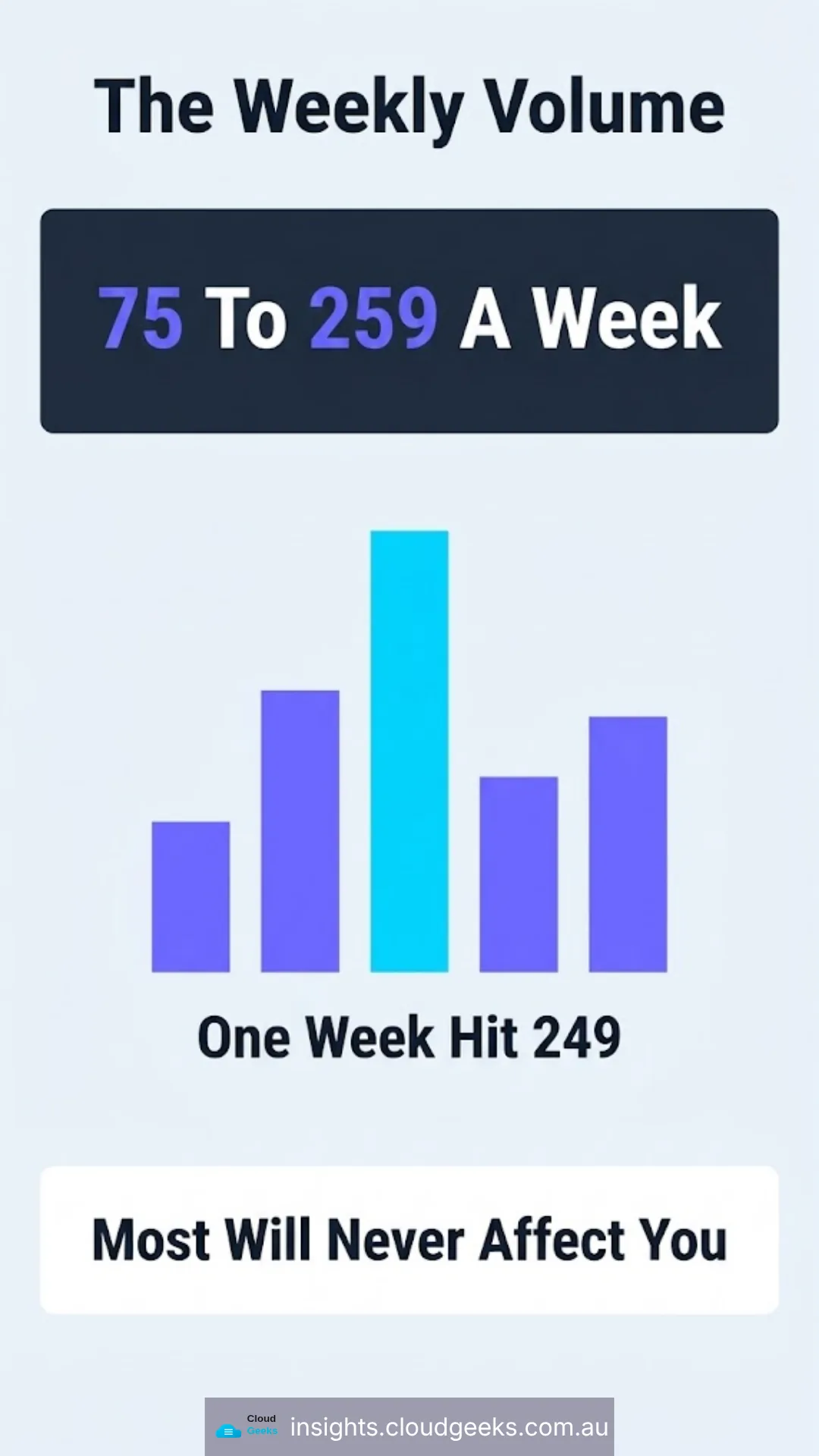
If you do not know, the answer is usually “whenever someone next logs in”, and for a site running a dozen plugins that is the number worth improving. The volume is not small: over a recent five-week stretch, Wordfence disclosed between 75 and 259 WordPress vulnerabilities per week.
What to do: decide who owns this and what “promptly” means. It can be you, a maintenance plan, or a provider. What it cannot be is unassigned, because unassigned means whenever someone happens to notice.
When you are done
You should now have a document with seven answers and a date. Two things to do with it.
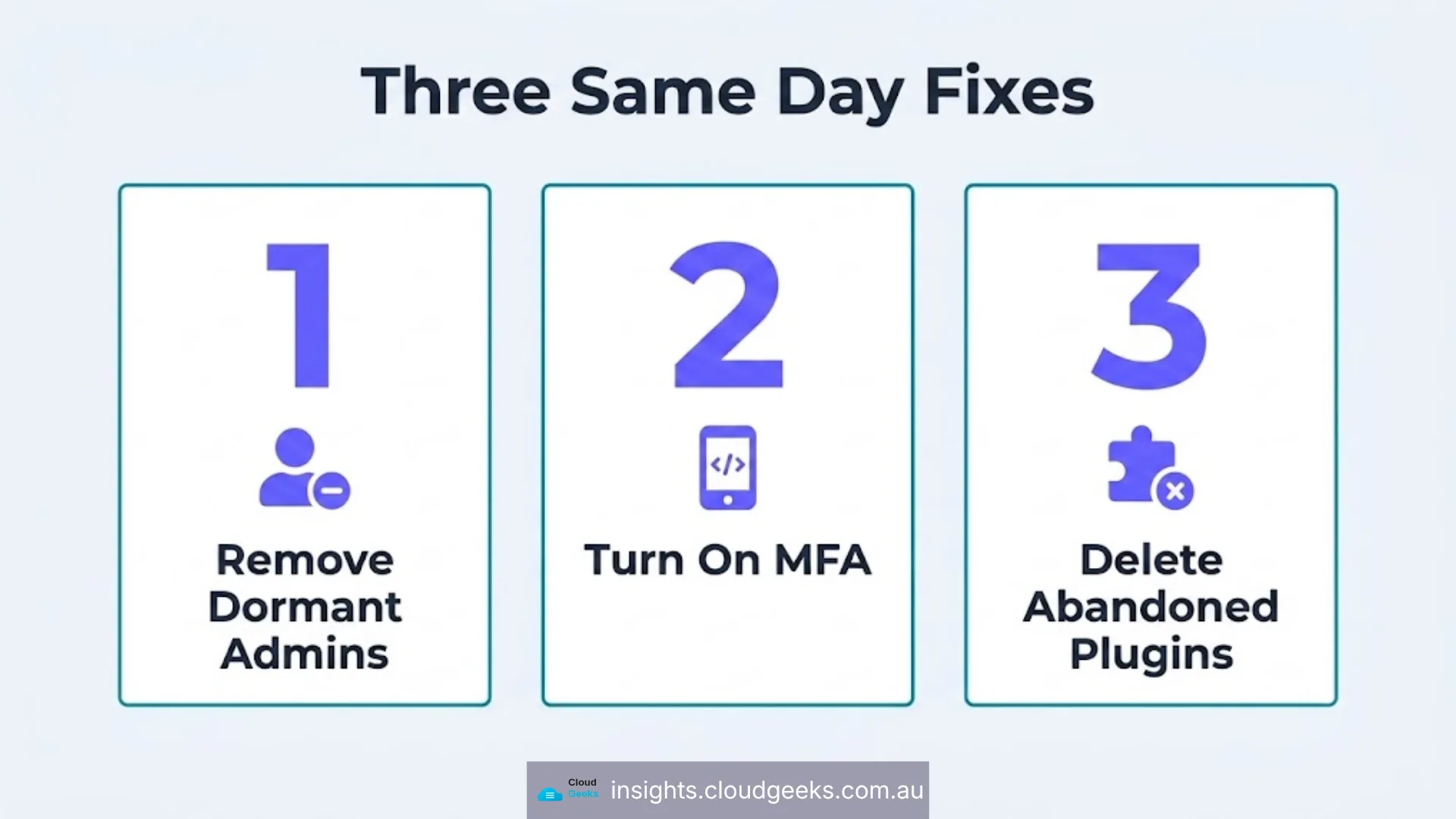
Fix the easy ones this week. Removing dormant admin accounts, turning on MFA, and deleting abandoned plugins are all same-day jobs with real security value.
Put the rest on a schedule. Security headers and backup restore testing need someone with server access. That is a conversation with your provider, and this document is the agenda.
Then diarise it. Quarterly is sensible for most small businesses. The value compounds the second time, because you are comparing rather than starting from nothing.
Frequently asked questions
How do I check if my WordPress site is secure? Work through the seven checks above: admin accounts, plugin currency, security headers, login protection, HTTPS, backups you have restored, and patch response time. It takes under an hour and needs only dashboard access.
How often should a small business audit its WordPress security? Quarterly is sensible for most. Monthly if you take payments or hold customer data. The checks take under an hour once you have done them once.
What is the single most valuable thing on this list? Multi-factor authentication on every account that can install a plugin. It is roughly ten minutes of work and it defeats the most common way small business sites are compromised.
Do I need a security plugin? Most sites benefit from one for login rate limiting and monitoring. It is not a substitute for current plugins, restricted admin access and MFA — a security plugin on an unpatched site is a smoke alarm in a room with no exit.
Should I do this myself or pay someone? Do this audit yourself — it is designed for that. What usually needs a provider is the fixing: security headers, backup restore testing, and taking ownership of patch response.
Related reading: moving admin logins to passkeys.
CloudGeeks provides managed IT, cloud and cybersecurity for Sydney businesses, including WordPress maintenance and patch management. Website design and technical SEO sit with Cosmos Web Tech; mobile apps with Awesome Apps. All divisions of GTS.