
Zero Trust Security Implementation for Small Business
Zero Trust Security Implementation for Small Business
“Zero Trust” has become one of the most discussed concepts in cybersecurity, but for many Australian small businesses, it sounds like an enterprise concept that does not apply to them. That is a misconception. Zero Trust principles can be applied at any scale, and the tools to implement them are already available in the Microsoft 365 and Azure platforms many SMBs already use.
This guide explains Zero Trust in practical terms and provides an implementation roadmap for Australian small businesses.
What Zero Trust Actually Means
Traditional security follows a “castle and moat” model: everything inside the corporate network is trusted, and the firewall protects the perimeter. This model breaks down when:
- Staff work from home or coffee shops
- Business data lives in cloud services, not just on-premise servers
- Personal devices access business resources
- Attacks increasingly originate from compromised internal accounts
Zero Trust starts from a different assumption: trust nothing, verify everything. Every access request — whether from inside or outside the network — must be authenticated, authorised, and continuously validated.
The three core principles of Zero Trust:
- Verify explicitly: Always authenticate and authorise based on all available data points (identity, location, device health, service, data classification, and anomalies).
- Use least privilege access: Limit user access to only what they need, when they need it.
- Assume breach: Minimise blast radius and segment access. Verify end-to-end encryption. Use analytics to get visibility, drive threat detection, and improve defences.
Zero Trust Is Not All or Nothing
You do not need to implement Zero Trust overnight or buy an expensive new platform. It is a journey that builds incrementally on your existing infrastructure. Most Australian SMBs can make significant progress using tools they already have.
Pillar 1: Identity
Identity is the foundation of Zero Trust. Every access decision starts with verifying who is requesting access.
Multi-Factor Authentication
MFA is the single most impactful Zero Trust control. Require it for all users, all the time.
Implementation with Azure AD:
- Enable Security Defaults (free) or Conditional Access policies (Azure AD P1)
- Require MFA for all users accessing cloud applications
- Use Microsoft Authenticator app rather than SMS where possible
- Consider hardware security keys (FIDO2) for administrators
Conditional Access Policies
Conditional Access (included with Microsoft 365 Business Premium) evaluates multiple signals before granting access:
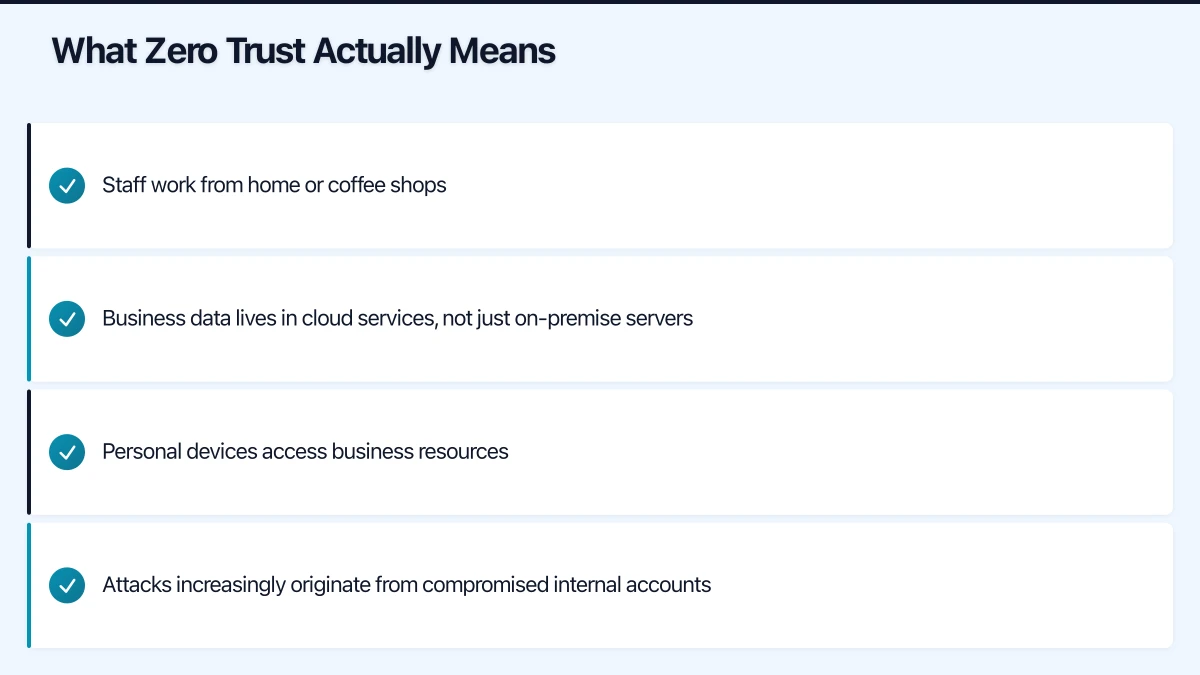
Recommended policies:
-
Require MFA for all users: Base policy that applies to all cloud apps.
-
Block legacy authentication: Old protocols (POP3, IMAP without OAuth, older Outlook clients) do not support MFA. Block them.
-
Require compliant device: Only allow access from devices that meet your Intune compliance policies (encryption enabled, antivirus running, OS updated).
-
Location-based restrictions: If your staff only work in Australia, consider blocking sign-ins from other countries (with exceptions for business travel).
-
Sign-in risk policy (Azure AD P2): Automatically require additional verification when Azure AD detects suspicious sign-in behaviour (unfamiliar location, impossible travel, anonymous IP).
Passwordless Authentication
The most secure authentication eliminates passwords entirely:
- Windows Hello for Business: Biometric or PIN-based authentication tied to the device. Available on Windows 10/11 devices with compatible hardware.
- FIDO2 security keys: Physical keys (YubiKey, Feitian) that provide phishing-resistant authentication. Approximately $50 to $80 per key.
- Microsoft Authenticator passwordless: Users approve a sign-in request on their phone without entering a password.
Passwordless is not required for Zero Trust, but it is a significant improvement over password-plus-MFA.
Pillar 2: Devices
In a Zero Trust model, you do not trust a device just because it is on your network. You verify that it meets your security requirements.
Device Compliance with Intune
Microsoft Intune (included with Microsoft 365 Business Premium) lets you define compliance requirements for devices:
Windows device compliance:
- BitLocker encryption enabled
- Firewall active
- Antivirus running and up to date
- OS version meets minimum requirements
- Device is not jailbroken or rooted
Mobile device compliance:
- Screen lock enabled
- Encryption enabled
- OS version meets minimum requirements
- Not jailbroken/rooted
The compliance check feeds into Conditional Access: non-compliant devices are blocked from accessing business resources until they meet the requirements. This creates a continuous verification loop — the device is not just checked once but is continuously monitored.
App Protection for Unmanaged Devices (BYOD)
For personal devices that are not enrolled in Intune, App Protection Policies protect business data without controlling the entire device:
- Business data is encrypted within managed apps
- Copy/paste between managed and unmanaged apps is restricted
- Business data can be remotely wiped without affecting personal data
- PIN or biometric required to access business apps
Pillar 3: Network
Traditional network security trusts everything inside the firewall. Zero Trust network principles assume the network is always hostile.
Micro-Segmentation
Even within your office network, segment traffic so that a compromise in one area does not give access to everything.
Practical steps:
- Use VLANs to separate your corporate network, guest WiFi, IoT devices, and VoIP phones
- Configure firewall rules between VLANs (for example, guest WiFi can access the internet but not the corporate network)
- Use Network Security Groups in Azure to restrict traffic between cloud resources
Eliminate VPN Dependency
Traditional VPNs grant broad network access once connected — the opposite of Zero Trust. Consider alternatives:
Azure AD Application Proxy: Publishes on-premise web applications to the internet through Azure AD. Users authenticate with Azure AD (including MFA and Conditional Access) and are granted access to specific applications, not the entire network.
Cloud-based applications: The more applications you move to the cloud (SaaS or Azure-hosted), the less need for VPN. Users access applications directly through the internet, authenticated by Azure AD.
If you still need VPN: Configure split tunnelling so only traffic destined for on-premise resources goes through the VPN. Apply Conditional Access policies to VPN connections (require MFA, compliant device).
Pillar 4: Applications
Zero Trust requires that every application access is authorised and monitored.
Single Sign-On (SSO)
Centralise application authentication through Azure AD:
- Register third-party applications in Azure AD for SSO
- Users sign in once to Azure AD and are authenticated to all connected applications
- Conditional Access policies apply to all Azure AD-connected applications
- When a user leaves, disabling their Azure AD account revokes access to all connected apps simultaneously
Cloud App Discovery
Use Microsoft Cloud App Security (or Defender for Cloud Apps) to discover which cloud applications your staff are using:
- Identify shadow IT (applications adopted without IT approval)
- Assess the security posture of discovered applications
- Block risky applications through your firewall or Conditional Access
Pillar 5: Data
Ultimately, Zero Trust protects data. Apply controls directly to data, not just to networks and applications.
Data Classification
Classify your business data by sensitivity:
- Public: Marketing materials, published content
- Internal: General business documents, meeting notes
- Confidential: Financial records, employee data, customer PII
- Highly Confidential: Trade secrets, legal privileged documents, health records
Sensitivity Labels (Microsoft Information Protection)
Microsoft Information Protection (included in Microsoft 365 Business Premium) lets you apply sensitivity labels to documents and emails:
- Labels can encrypt documents automatically
- Labels can restrict actions (prevent forwarding, copying, printing)
- Labels travel with the document, even outside your organisation
- Data Loss Prevention (DLP) policies can prevent sensitive data from being shared inappropriately
Start simple: Create three labels (Internal, Confidential, Highly Confidential) and apply them manually. As you mature, implement automatic labelling based on content detection.
Implementation Roadmap for SMBs
Phase 1: Identity Foundation (Weeks 1-4)
- Enable MFA for all users (Security Defaults or Conditional Access)
- Block legacy authentication
- Create Conditional Access policy requiring MFA for all cloud apps
- Set up break-glass administrator accounts
- Review and reduce administrative privilege assignments
Phase 2: Device Trust (Weeks 4-8)
- Deploy Intune compliance policies for Windows and mobile devices
- Create Conditional Access policy requiring compliant devices
- Configure App Protection Policies for BYOD
- Enable BitLocker encryption on all Windows devices
Phase 3: Application and Network (Weeks 8-12)
- Register critical third-party applications in Azure AD for SSO
- Implement network segmentation (VLANs for corporate, guest, IoT)
- Evaluate VPN alternatives for on-premise application access
- Run Cloud App Discovery to identify shadow IT
Phase 4: Data Protection (Weeks 12-16)
- Define data classification scheme
- Create and deploy sensitivity labels
- Configure basic DLP policies (prevent external sharing of sensitive data)
- Train staff on data classification and handling
Ongoing
- Monitor Azure AD sign-in logs and Conditional Access reports weekly
- Review and update Conditional Access policies quarterly
- Conduct security awareness training monthly
- Assess new applications and services against Zero Trust principles before adoption
Measuring Progress
Track these indicators to measure your Zero Trust maturity:
- MFA adoption rate: Percentage of sign-ins using MFA (target: 100%)
- Compliant device rate: Percentage of devices meeting compliance policies (target: over 95%)
- SSO coverage: Percentage of applications using Azure AD SSO (target: over 80%)
- Legacy authentication: Number of legacy authentication attempts (target: zero)
- Conditional Access policy coverage: Percentage of sign-ins evaluated by at least one Conditional Access policy (target: over 95%)
The Bottom Line
Zero Trust is not a product you buy. It is a set of principles you apply using the tools you already have. For Australian SMBs on Microsoft 365 Business Premium, the most critical Zero Trust capabilities — MFA, Conditional Access, device compliance, app protection, and sensitivity labels — are included in your existing subscription.
Start with identity (MFA and Conditional Access), expand to device trust (Intune compliance), then tackle applications and data protection. Each step materially improves your security posture, and the cumulative effect is a business that is significantly harder for attackers to compromise.
The traditional perimeter is gone. Zero Trust is how modern businesses protect themselves.
Want your team to manage cloud operations from their phones? Awesome Apps creates mobile dashboards and management tools for Australian SMBs.
Ashish Ganda is the founder of Ganda Tech Services, a Sydney-based technology consultancy helping Australian businesses grow through cloud, web, and mobile solutions.