
Windows Server Migration Planning for Small Business
Windows Server Migration Planning for Small Business
If your business is still running Windows Server 2012 R2 or earlier, you are operating on infrastructure that is either out of mainstream support or approaching end of extended support. Windows Server 2012 R2 extended support ends in October 2023, which may feel distant but is close enough that planning should begin now.
Even if you are on Server 2016, there are compelling reasons to evaluate a migration — improved security features, better performance, and alignment with current Microsoft support timelines. This guide walks you through the planning process for a Windows Server migration in a small business environment.
Assessing Your Current Environment
Before planning where you are going, document where you are.
Server Inventory
For each server, document:
- Hardware specifications: CPU, RAM, storage capacity and type (HDD or SSD), RAID configuration, age of hardware.
- Operating system: Version and edition (Standard, Datacenter). Check the current patch level.
- Roles and services: What does each server do? Common roles include Active Directory Domain Controller, file server, print server, DHCP, DNS, application server, database server.
- Applications: What software is installed and running? Note versions and any dependencies.
- Storage utilisation: How much disk space is in use? What are the growth trends?
- Network configuration: IP addresses, DNS settings, domain membership.
- Backup status: How is each server backed up? When was the last successful backup? When was a restore last tested?
Active Directory Assessment
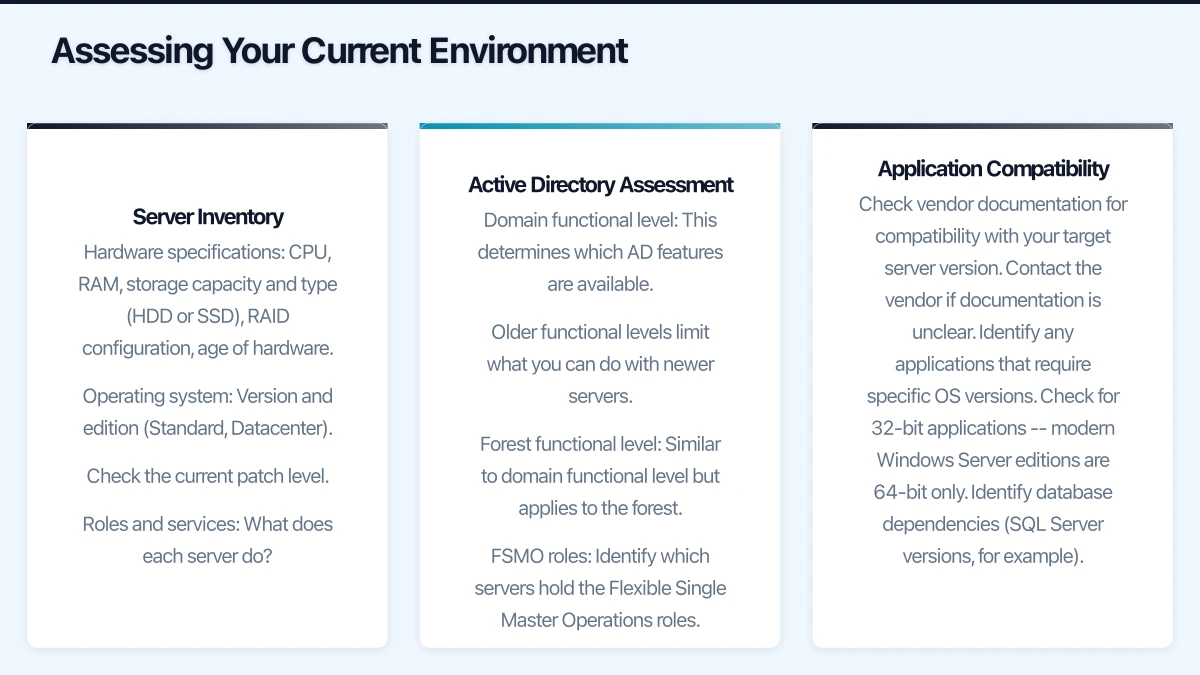
If you run Active Directory (and most small businesses with a Windows server do), assess:
- Domain functional level: This determines which AD features are available. Older functional levels limit what you can do with newer servers.
- Forest functional level: Similar to domain functional level but applies to the forest.
- FSMO roles: Identify which servers hold the Flexible Single Master Operations roles.
- Group Policy: Document your GPOs and what they control.
- DNS: Is DNS integrated with AD? Are there conditional forwarders or custom records?
- Schema: Have any applications extended the AD schema? This affects migration planning.
Application Compatibility
This is often the most complex part of the assessment. For each application running on your servers:
- Check vendor documentation for compatibility with your target server version.
- Contact the vendor if documentation is unclear.
- Identify any applications that require specific OS versions.
- Check for 32-bit applications — modern Windows Server editions are 64-bit only.
- Identify database dependencies (SQL Server versions, for example).
Migration Paths
Option 1: In-Place Upgrade
Upgrade the existing server’s operating system without rebuilding.
Supported upgrade paths to Windows Server 2019:
- Windows Server 2016 can upgrade directly to 2019.
- Windows Server 2012 R2 can upgrade directly to 2019.
- Windows Server 2012 can upgrade to 2012 R2 first, then to 2019.
- Windows Server 2008 R2 cannot upgrade directly to 2019 — a multi-step upgrade is required.
Pros: Retains all applications and configurations. Minimal data movement. Faster than a rebuild.
Cons: Carries forward any existing issues or misconfigurations. Higher risk of problems during the upgrade. Old hardware remains in use.
Our recommendation: In-place upgrades are suitable for simple file servers or where hardware is recent enough to continue using. For domain controllers or servers running critical applications, a clean build is generally safer.
Option 2: Clean Build and Migrate
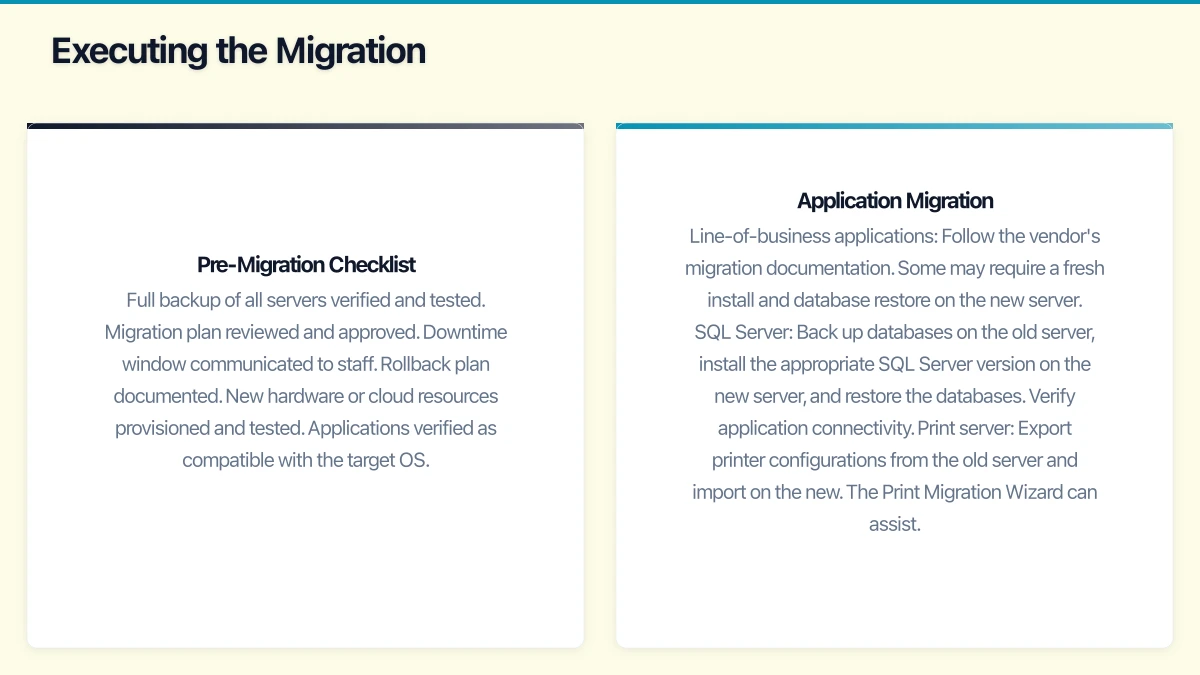
Build a new server (physical or virtual) with the target OS and migrate data, roles, and applications.
Pros: Clean start without legacy issues. Opportunity to optimise configurations. Can be done on new hardware. Lower risk — the old server remains available if problems occur.
Cons: More time-consuming. Applications need to be reinstalled and reconfigured. Data must be migrated carefully.
Our recommendation: This is the preferred approach for most SMB migrations. The additional time investment is offset by reduced risk and a cleaner result.
Option 3: Migrate to the Cloud
Instead of building a new on-premises server, migrate workloads to cloud infrastructure (Azure, AWS) or SaaS alternatives.
Cloud IaaS: Run Windows Server as a virtual machine in Azure or AWS. You manage the OS; the cloud provider manages the hardware.
SaaS alternatives: Replace on-premises server roles with cloud services:
- File server replaced by SharePoint/OneDrive or Google Drive
- Exchange Server replaced by Microsoft 365 Exchange Online
- Active Directory replaced by Azure Active Directory (for cloud-only scenarios)
- SQL Server replaced by Azure SQL Database
Our recommendation: For many small businesses, a hybrid approach works well — move file sharing and email to the cloud, but retain an on-premises server (or Azure VM) for Active Directory and applications that require it.
Planning the Migration
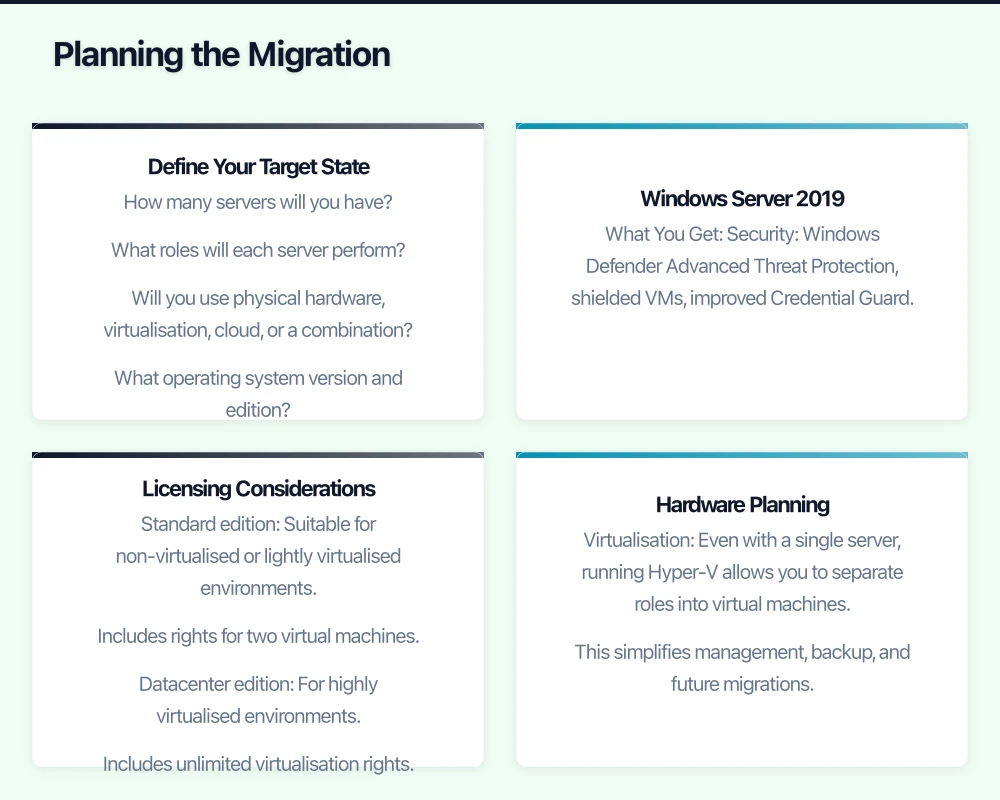
Define Your Target State
Based on your assessment, define what your server environment should look like after migration:
- How many servers will you have?
- What roles will each server perform?
- Will you use physical hardware, virtualisation, cloud, or a combination?
- What operating system version and edition?
Windows Server 2019: What You Get
Windows Server 2019 (the current Long Term Servicing Channel release as of April 2021) offers significant improvements over older versions:
- Security: Windows Defender Advanced Threat Protection, shielded VMs, improved Credential Guard.
- Hybrid capabilities: Better integration with Azure for backup, disaster recovery, and management.
- Storage: Storage Spaces Direct improvements, Storage Migration Service for easier data migration.
- Containers: Windows Server containers and Hyper-V containers support.
- Performance: Improved performance for Hyper-V, storage, and networking.
Licensing Considerations
Windows Server 2019 licensing is based on physical cores:
- Standard edition: Suitable for non-virtualised or lightly virtualised environments. Includes rights for two virtual machines.
- Datacenter edition: For highly virtualised environments. Includes unlimited virtualisation rights.
For a typical small business with one or two servers, Standard edition is sufficient. Pricing varies by channel, but expect approximately $1,200 to $1,500 for a Standard licence through a volume licensing agreement.
Client Access Licences (CALs) are also required — either per user or per device. Budget approximately $50 to $60 per user CAL.
Hardware Planning
If you are purchasing new hardware, consider:
- Virtualisation: Even with a single server, running Hyper-V allows you to separate roles into virtual machines. This simplifies management, backup, and future migrations.
- Specifications: For a small business server running AD, file services, and a business application: Intel Xeon or AMD EPYC processor (4 to 8 cores), 32 to 64 GB RAM, RAID-configured SSD storage.
- Warranty: Purchase at least 3 years of next-business-day warranty.
- UPS: Protect the server with an uninterruptible power supply.
Quality server hardware from HPE ProLiant, Dell PowerEdge, or Lenovo ThinkSystem ranges from $3,000 to $8,000 for a small business configuration.
Executing the Migration
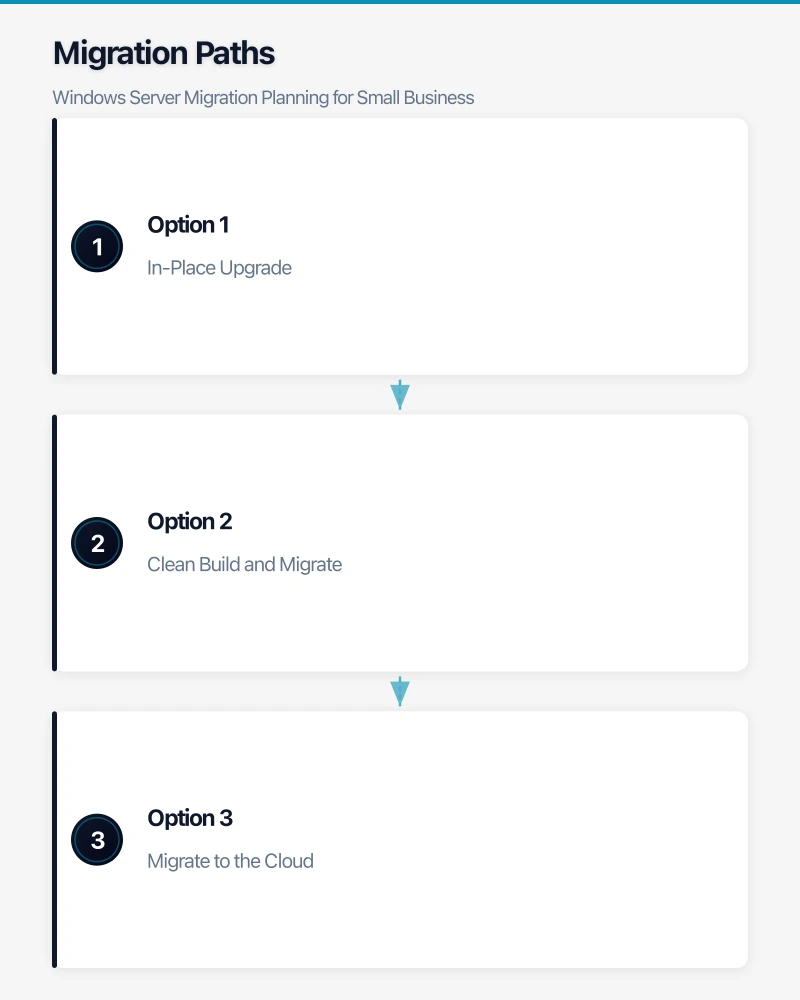
Pre-Migration Checklist
- Full backup of all servers verified and tested.
- Migration plan reviewed and approved.
- Downtime window communicated to staff.
- Rollback plan documented.
- New hardware or cloud resources provisioned and tested.
- Applications verified as compatible with the target OS.
Active Directory Migration
Migrating AD is the most critical and sensitive part of most server migrations. The recommended approach for small businesses:
- Build the new server and join it to the existing domain.
- Promote it to a domain controller using dcpromo or Server Manager.
- Transfer FSMO roles to the new domain controller.
- Raise domain and forest functional levels if appropriate.
- Update DNS to point clients to the new server.
- Demote the old domain controller and remove it from the domain.
- Verify AD replication, DNS resolution, Group Policy application, and authentication.
Take your time with this process. Rushing AD migration is a recipe for problems that can affect every user and device in your network.
File Server Migration
Windows Server 2019 includes the Storage Migration Service, which simplifies file server migrations:
- Install Storage Migration Service on the new server.
- Inventory the source server.
- Transfer data (including permissions and shares).
- Cut over — the new server assumes the identity of the old server.
For simpler setups, Robocopy remains a reliable tool for copying files with permissions intact.
Application Migration
Each application requires its own migration approach. Common scenarios:
- Line-of-business applications: Follow the vendor’s migration documentation. Some may require a fresh install and database restore on the new server.
- SQL Server: Back up databases on the old server, install the appropriate SQL Server version on the new server, and restore the databases. Verify application connectivity.
- Print server: Export printer configurations from the old server and import on the new. The Print Migration Wizard can assist.
Risk Mitigation
Keep the Old Server Available
Do not decommission the old server immediately. Keep it powered on (but with services stopped if the new server has taken over its roles) for at least two weeks. This gives you a rollback option if issues emerge.
Test Thoroughly
After migration, test:
- User logins and authentication
- File access and permissions
- Application functionality
- Printing
- Email (if Exchange is involved)
- Backup and restore
- VPN and remote access
- Group Policy application
- DNS resolution
Involve end users in testing. They will find issues that IT staff may not think to test for.
Document Everything
Update your documentation to reflect the new environment:
- Server configurations and roles
- IP addresses and DNS settings
- Admin credentials (stored securely)
- Licence keys
- Backup configurations
- Vendor contact information
Timeline
For a typical small business with one to two servers:
| Phase | Duration |
|---|---|
| Assessment and planning | 1 - 2 weeks |
| Hardware procurement (if applicable) | 1 - 3 weeks |
| Build and configure new server(s) | 1 - 2 days |
| Data migration (initial sync) | 1 - 3 days |
| Cutover (final sync, role transfer) | 1 day (weekend preferred) |
| Post-migration monitoring | 2 weeks |
| Old server decommission | After 2 - 4 weeks of stable operation |
Total elapsed time: 6 to 10 weeks, though active work is a fraction of that.
Getting Started
If you are running Windows Server 2012 R2 or earlier, start the planning process now. Assess your current environment, check application compatibility, and decide on your target state. Whether you migrate to a new on-premises server, move to the cloud, or adopt a hybrid approach, deliberate planning ensures a smooth transition with minimal disruption to your business.
Your IT provider or MSP should be able to guide you through this process. If they cannot articulate a clear migration plan, it may be time to seek a more capable partner for this critical project.
Your cloud setup handles the heavy lifting — now make sure your website delivers. Cosmos Web Tech provides web design and SEO services for businesses across Sydney and Western Sydney.
Part of the Ganda Tech Services family, Cloud Geeks delivers specialist IT and cloud solutions for Australian small and medium businesses.