
Professional Email Setup for Australian Small Businesses

Introduction
Using [email protected] or [email protected] for business looks unprofessional. Customers notice. A proper business email address—[email protected]—costs little but makes a real difference to credibility.
This guide covers how to set up professional email for your small business.
Why Professional Email Matters
Credibility
Compare these:
The second immediately looks more legitimate.
Trust
Customers sharing sensitive information want confidence:
- Financial details
- Personal information
- Business discussions
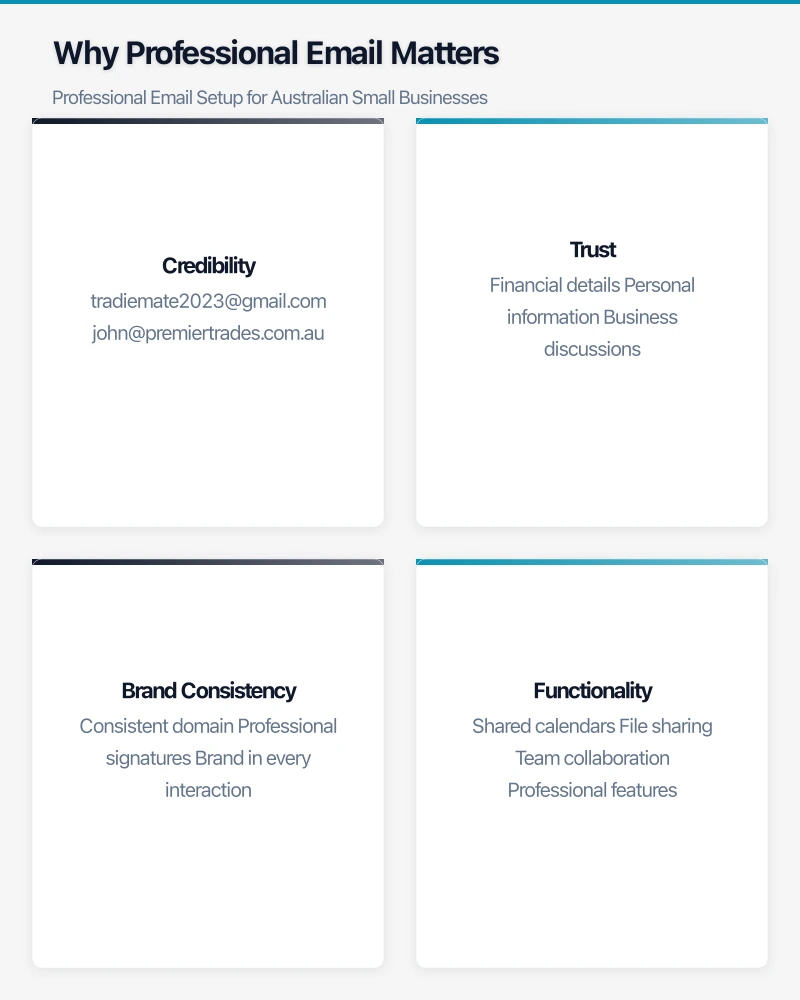
Professional email signals a serious business.
Brand Consistency
Every email reinforces your brand:
- Consistent domain
- Professional signatures
- Brand in every interaction
Functionality
Business email platforms offer features you need:
- Shared calendars
- File sharing
- Team collaboration
- Professional features
Choosing a Provider
Microsoft 365 (Recommended for Most)
What You Get
- Professional email with your domain
- Outlook for email management
- Word, Excel, PowerPoint
- OneDrive storage (1TB)
- Teams for communication
- SharePoint for file sharing
Pricing (Approximate)
- Business Basic: ~$9/user/month (web apps)
- Business Standard: ~$18/user/month (desktop apps)
- Business Premium: ~$33/user/month (advanced security)
Best For
- Businesses using Microsoft Office
- Those wanting desktop applications
- Windows-focused environments
Google Workspace
What You Get
- Professional email with your domain
- Gmail interface
- Google Docs, Sheets, Slides
- Google Drive storage (varies by plan)
- Google Meet for video
- Google Chat
Pricing (Approximate)
- Business Starter: ~$9/user/month (30GB storage)
- Business Standard: ~$18/user/month (2TB storage)
- Business Plus: ~$27/user/month (5TB storage)
Best For
- Businesses preferring Google products
- Heavy web-based work
- Those wanting simple interface
Other Options
Zoho Mail
- Cheaper option (~$1.50/user/month basic)
- Fewer features
- Good for very small budgets
Direct Hosting
- Some web hosts include email
- Basic features
- Can be unreliable
What You Need
Domain Name
Your business web address (yourbusiness.com.au):
- Register through domain registrar
- Annual cost: ~$15-50/year
- Keep registration details safe
If you don’t have a domain, get one first.
Administrator Access
Someone to manage the email system:
- Add/remove users
- Reset passwords
- Manage settings
- Handle issues
This is often the business owner or IT person.
Basic Plan
Choose your provider and plan:
- Number of users needed
- Features required
- Budget available
Start with what you need—upgrade later if necessary.
Setup Process
Step 1: Purchase Email Service
For Microsoft 365:
- Go to Microsoft 365 for business
- Choose your plan
- Enter business details
- Create admin account
- Enter payment details
For Google Workspace:
- Go to Google Workspace
- Choose your plan
- Enter business details
- Create admin account
- Enter payment details
Step 2: Verify Domain Ownership
The provider needs to confirm you own the domain:
- Provider gives you a verification code
- Add the code to your domain’s DNS records
- Wait for verification (minutes to hours)
- Provider confirms ownership
If this sounds technical, your web host or IT support can help.
Step 3: Configure Email Records
Email requires specific DNS settings:
MX Records Tell the internet where to deliver your email.
SPF Record Helps prevent email spoofing.
DKIM Record Adds digital signature to emails.
DMARC Record Additional anti-spoofing protection.
Your email provider will give you the exact records needed. Add them to your domain’s DNS settings.
Step 4: Create Email Accounts
For each person:
- Choose their email address ([email protected])
- Set initial password
- Assign appropriate license
- Send login details
Step 5: Set Up Email Clients
Users can access email via:
Web Browser
- outlook.office365.com (Microsoft)
- mail.google.com (Google)
- Works immediately
Desktop Apps
- Outlook
- Gmail
- Apple Mail
Mobile Phones
- Outlook app
- Gmail app
- Native mail app
Follow provider instructions for each platform.
Best Practices
Professional Email Addresses
Standard Format
Generic Addresses
- [email protected] (general enquiries)
- [email protected] (billing)
- [email protected] (customer support)
- [email protected] (sales enquiries)
Email Signatures
Include:
- Full name
- Job title
- Business name
- Phone number
- Website
- Professional (optional: small logo)
Keep it clean—avoid quotes, multiple fonts, or huge images.
Security
- Strong passwords
- Two-factor authentication (essential)
- Don’t share passwords
- Be careful with attachments and links
Backup and Archiving
Most business plans include:
- Cloud backup of emails
- Recovery from deletion
- Search across email history
Understand what’s included in your plan.
Common Issues
Email Going to Spam
If recipients don’t see your emails:
- Check SPF, DKIM, DMARC are configured
- Build sending reputation gradually
- Don’t send bulk unsolicited email
- Verify authentication settings
Domain Not Verified
If verification fails:
- Check DNS changes have propagated (can take 24-48 hours)
- Verify record values are exactly as provided
- Try verification again
- Contact provider support
Login Problems
If users can’t access email:
- Verify username is full email address
- Reset password
- Check browser/app compatibility
- Clear app cache and retry
Synchronisation Issues
If email doesn’t sync across devices:
- Check internet connection
- Verify account settings
- Restart email app
- Reconfigure account
Migration from Old Email
Moving from Personal Email
If you’ve been using personal email for business:
- Set up new professional email
- Update email with customers and contacts
- Set auto-reply on old address pointing to new
- Forward old email to new for transition period
- Gradually phase out old address
Moving from Another Business Email
If switching providers:
- Set up new provider
- Migrate historical emails (many providers offer tools)
- Switch DNS records
- Allow overlap period
- Confirm delivery working
- Cancel old provider
Getting Help
When to Get Professional Help
Consider IT support for:
- Initial setup (especially DNS)
- Migration from existing email
- Multiple users
- Complex requirements
What to Ask
When engaging help:
- Setup included in flat fee?
- Ongoing support available?
- What documentation will you provide?
- Who manages the account long-term?
Conclusion
Professional email is a small investment that makes a real difference to how customers perceive your business. Microsoft 365 or Google Workspace both work well—choose based on your preference and what other tools you use.
The setup process has some technical steps, but it’s a one-time effort. Once working, professional email becomes part of your business identity for years to come.
If you’re still using personal email for business, making the switch is one of the best small investments you can make.
Cloud is one piece of the digital puzzle. Ash Ganda writes about enterprise technology strategy and how to align IT investments with business growth.
Part of the Ganda Tech Services family, Cloud Geeks delivers specialist IT and cloud solutions for Australian small and medium businesses.