
Remote Desktop Solutions Compared for Australian Business
Remote Desktop Solutions Compared for Australian Business
Two years into widespread remote and hybrid work, Australian businesses are well past the “make it work somehow” phase. If your team still relies on ad-hoc remote access methods cobbled together in early 2020, it is time to evaluate proper remote desktop solutions.
This comparison covers the main remote desktop options available to Australian SMBs in 2022, with practical guidance on which solution fits different business scenarios.
What We Are Comparing
Remote desktop solutions broadly fall into three categories:
- Traditional Remote Desktop Services (RDS) — Microsoft’s built-in remote desktop technology running on your own servers
- Cloud-hosted virtual desktops — Desktop environments running in cloud data centres
- Remote access software — Applications that let you connect to an existing physical or virtual computer
Each approach has different cost structures, complexity levels, and use cases.
Option 1: Windows Remote Desktop Services (RDS)
What it is: Microsoft’s Remote Desktop Services, included with Windows Server, allows multiple users to connect to a shared server and run their own desktop sessions.
How it works: You set up a Windows Server with the RDS role, configure Remote Desktop Gateway for secure external access, and users connect using the built-in Remote Desktop Connection client.
Best for: Businesses that already have on-premise Windows Servers and want to extend access to remote workers without significant new investment.
Advantages:
- No per-user subscription fees beyond Windows Server and RDS CALs (Client Access Licences)
- Full control over the environment
- Familiar Windows experience for users
- Can run line-of-business applications that require a Windows desktop
Disadvantages:
- Requires on-premise server hardware and maintenance
- You are responsible for patching, security, and backups
- Scaling requires additional hardware
- Performance depends on your server hardware and internet upload speed
- RDS CALs add licensing cost (approximately $180 per user or $255 per device)
Cost estimate for 15 users: $8,000 to $15,000 upfront for server hardware, plus ongoing licensing, electricity, and maintenance. Monthly equivalent roughly $400 to $700 per month when amortised over three years.
Australian considerations: Your server sits in your office, so performance depends on your business internet upload speed. Most Australian NBN business plans offer 20 to 50 Mbps upload, which comfortably supports 10 to 15 concurrent RDS users for standard office work.
Option 2: Azure Virtual Desktop (AVD)
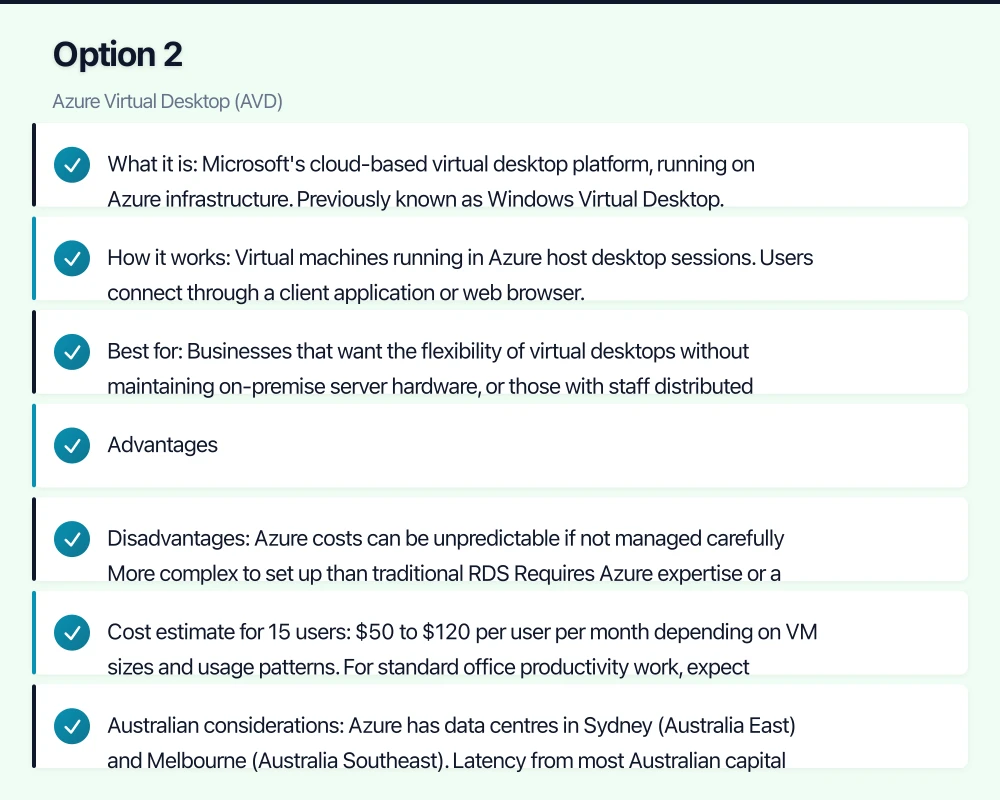
What it is: Microsoft’s cloud-based virtual desktop platform, running on Azure infrastructure. Previously known as Windows Virtual Desktop.
How it works: Virtual machines running in Azure host desktop sessions. Users connect through a client application or web browser. Microsoft manages the underlying infrastructure while you manage the virtual machines, user profiles, and applications.
Best for: Businesses that want the flexibility of virtual desktops without maintaining on-premise server hardware, or those with staff distributed across multiple locations.
Advantages:
- No on-premise hardware to maintain
- Scales up and down as needed
- Data stays in Azure’s Australian data centres (Sydney or Melbourne)
- Supports multi-session Windows 10 and Windows 11, reducing the number of VMs needed
- Integrates with Azure Active Directory and Microsoft 365
- Users can connect from any device including thin clients, Macs, and tablets
Disadvantages:
- Azure costs can be unpredictable if not managed carefully
- More complex to set up than traditional RDS
- Requires Azure expertise or a managed service provider
- Ongoing monthly costs rather than capital expenditure
Cost estimate for 15 users: $50 to $120 per user per month depending on VM sizes and usage patterns. For standard office productivity work, expect approximately $70 per user per month, totalling roughly $1,050 per month for 15 users.
Australian considerations: Azure has data centres in Sydney (Australia East) and Melbourne (Australia Southeast). Latency from most Australian capital cities to these data centres is under 20 milliseconds, which provides a responsive experience. Regional and rural areas may experience higher latency depending on internet connectivity.
Option 3: Amazon WorkSpaces
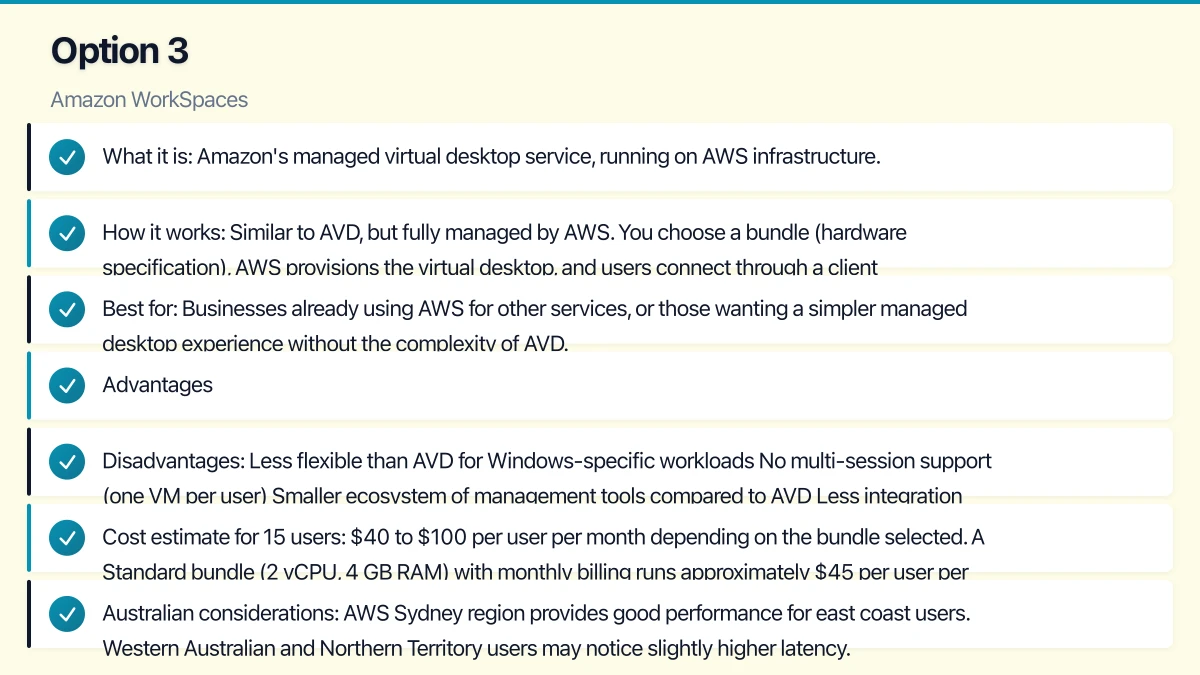
What it is: Amazon’s managed virtual desktop service, running on AWS infrastructure.
How it works: Similar to AVD, but fully managed by AWS. You choose a bundle (hardware specification), AWS provisions the virtual desktop, and users connect through a client application.
Best for: Businesses already using AWS for other services, or those wanting a simpler managed desktop experience without the complexity of AVD.
Advantages:

- Simpler to deploy than AVD
- Predictable monthly or hourly pricing
- AWS manages the underlying infrastructure and desktop provisioning
- Available in the Sydney AWS region
Disadvantages:
- Less flexible than AVD for Windows-specific workloads
- No multi-session support (one VM per user)
- Smaller ecosystem of management tools compared to AVD
- Less integration with Microsoft 365
Cost estimate for 15 users: $40 to $100 per user per month depending on the bundle selected. A Standard bundle (2 vCPU, 4 GB RAM) with monthly billing runs approximately $45 per user per month. For 15 users, that is roughly $675 per month.
Australian considerations: AWS Sydney region provides good performance for east coast users. Western Australian and Northern Territory users may notice slightly higher latency.
Option 4: TeamViewer
What it is: Remote access software that lets users connect to their office computer (or any other computer) from a remote location.
How it works: Install TeamViewer on the office computer and the remote device. The user connects through TeamViewer’s servers and controls the office computer remotely.
Best for: Small businesses (under 10 staff) where each person has a dedicated office computer they need to access remotely.
Advantages:
- Simple to set up and use
- Works across Windows, Mac, Linux, iOS, and Android
- No server infrastructure required
- Good performance even on modest internet connections
- Includes file transfer and remote printing
Disadvantages:
- Requires the office computer to remain powered on
- Performance depends on both the office and remote internet connections
- Per-user licensing can become expensive at scale
- Security depends on proper configuration (unattended access settings)
- Not suitable for hot-desking or shared environments
Cost estimate for 15 users: TeamViewer Business licence at approximately $75 per month covers up to 200 devices with a single concurrent connection. For multiple concurrent users, you need the Premium licence at approximately $150 per month (up to 15 concurrent connections) or the Corporate licence at approximately $290 per month.
Australian considerations: TeamViewer routes connections through relay servers. Performance is generally good for Australian users, but can vary during peak usage. For latency-sensitive applications, consider alternatives that provide direct connections.
Option 5: Splashtop
What it is: A remote access solution similar to TeamViewer but often more affordable, particularly for business use cases.
How it works: Like TeamViewer, you install software on both the remote and target computers. Splashtop provides the connection infrastructure.
Best for: Small businesses looking for a cost-effective remote access solution with good performance.
Advantages:
- Generally lower cost than TeamViewer for equivalent features
- Good streaming performance (originally designed for media streaming)
- Simple deployment and management
- Includes remote management features in higher tiers
Disadvantages:
- Smaller brand recognition and community compared to TeamViewer
- Limited advanced features compared to enterprise solutions
- Same “office computer must be on” requirement as TeamViewer
Cost estimate for 15 users: Splashtop Business Access at approximately $8 per user per month. For 15 users, that is roughly $120 per month. The Business Access Pro tier at approximately $15 per user per month adds features like file transfer and remote print.
Option 6: ConnectWise Control (formerly ScreenConnect)
What it is: A remote access and support platform popular with managed service providers and IT teams.
How it works: Self-hosted or cloud-hosted remote access with both attended and unattended access capabilities.
Best for: Businesses that also need remote IT support capabilities, or those working with a managed service provider.
Advantages:
- Powerful remote support features
- Can be self-hosted for full control
- Highly customisable
- Good integration with IT management tools
Disadvantages:
- More complex than consumer-oriented tools
- Higher cost for small teams
- Self-hosted option requires server management
Cost estimate for 15 users: Cloud-hosted plans start at approximately $30 per month for a single technician with 25 unattended access agents. For 15 users needing remote access, expect approximately $50 to $100 per month.
Comparison Summary
| Feature | RDS | AVD | AWS WorkSpaces | TeamViewer | Splashtop |
|---|---|---|---|---|---|
| Monthly cost (15 users) | $400-$700 | $1,050 | $675 | $150-$290 | $120-$225 |
| Setup complexity | Medium | High | Medium | Low | Low |
| On-premise hardware | Yes | No | No | Yes (PCs) | Yes (PCs) |
| Australian data centres | Your office | Yes | Yes | Relay servers | Relay servers |
| Scalability | Limited | Excellent | Good | Limited | Limited |
| Offline access | Yes | No | No | N/A | N/A |
| Multi-session | Yes | Yes | No | No | No |
Making the Decision
Choose RDS if you already have server infrastructure, have IT staff or an MSP to manage it, and want to minimise ongoing monthly costs. This works well for businesses in a single office location.
Choose AVD if you want a scalable cloud solution, your team is geographically distributed, you are invested in the Microsoft ecosystem, and you are comfortable with monthly cloud costs. This is the best long-term option for growing businesses.
Choose AWS WorkSpaces if you are already on AWS, want a simpler managed experience than AVD, and do not need multi-session Windows desktops.
Choose TeamViewer or Splashtop if you are a small team (under 10), everyone has a dedicated office computer, setup simplicity is paramount, and your remote access needs are straightforward.
Security Considerations for All Options
Regardless of which solution you choose, implement these security measures:
- Multi-factor authentication on all remote access accounts
- Network-level controls to restrict access by IP address or VPN where practical
- Session timeouts to disconnect idle sessions
- Audit logging to track who connected and when
- Regular patching of both the remote desktop platform and the operating systems
- Endpoint protection on all devices used for remote access
Final Thoughts
There is no single “best” remote desktop solution for Australian businesses. The right choice depends on your size, budget, technical capability, and growth plans. For most Australian SMBs with 10 to 50 staff, Azure Virtual Desktop offers the best balance of capability, security, and scalability. For smaller teams, remote access tools like Splashtop provide a simpler and more affordable path.
Whatever you choose, treat remote access as critical infrastructure. Secure it properly, monitor it regularly, and plan for your business to grow into the solution rather than out of it.
If your business also needs a web portal or customer-facing dashboard, Cosmos Web Tech builds custom web applications tailored to Australian SMBs.
Ashish Ganda is the founder of Ganda Tech Services, a Sydney-based technology consultancy helping Australian businesses grow through cloud, web, and mobile solutions.