
Printer and Scanner Management for Multi-Office Businesses

Printer and Scanner Management for Multi-Office Businesses
Printers and scanners may not be glamorous technology, but they remain essential in most Australian businesses. For organisations operating across multiple offices, managing print infrastructure creates unique challenges — inconsistent hardware, unpredictable costs, security risks, and the ongoing hassle of toner, maintenance, and driver issues.
A deliberate approach to print management can reduce costs, improve security, simplify IT support, and even reduce your environmental footprint. This guide covers practical strategies for managing print and scan infrastructure across multiple business locations.
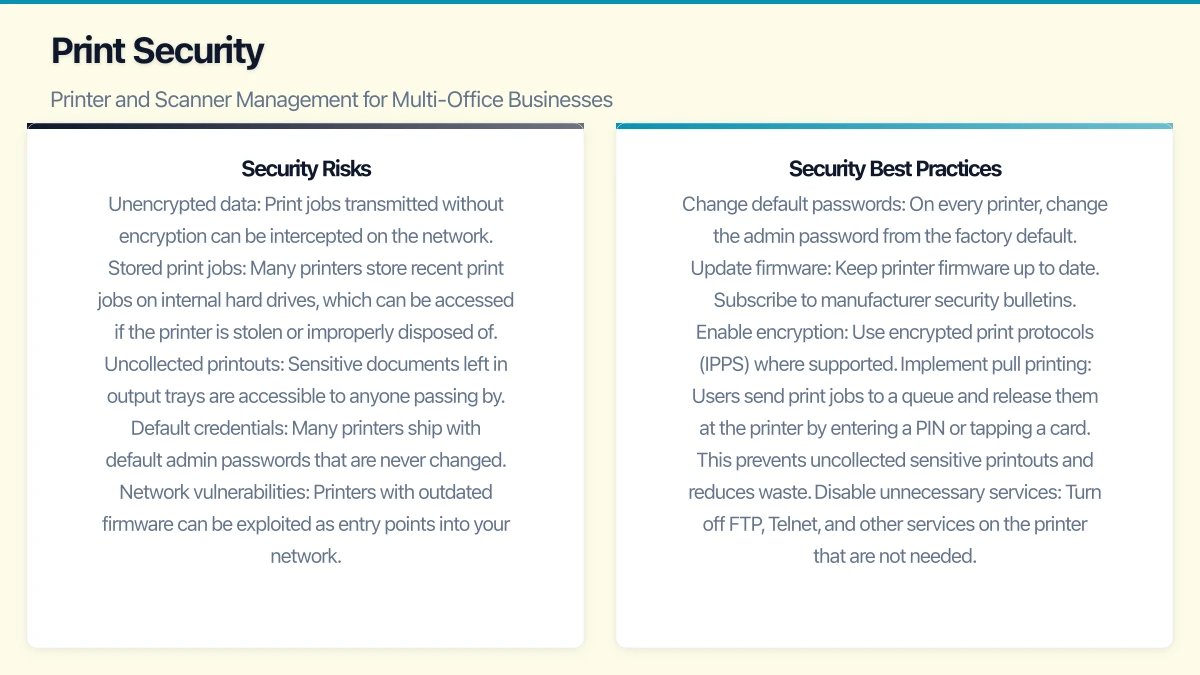
The True Cost of Printing
Most businesses significantly underestimate their printing costs. The visible costs — printer purchase and toner — represent only about 30% of the total cost of printing. The hidden costs include:
- Maintenance and repairs: Service calls, parts, and labour.
- Paper: Ongoing consumable that adds up quickly.
- Electricity: Printers consume energy even when idle.
- IT support time: Driver installation, troubleshooting connectivity issues, managing print queues.
- Waste: Pages printed unnecessarily, print jobs collected too late and reprinted, or test pages.
- Ink and toner waste: Cartridges replaced before they are fully depleted.
For a typical Australian SMB with 50 employees across two offices, total annual print costs can easily reach $15,000 to $30,000 — often without anyone realising it.
Managed Print Services (MPS)
Managed Print Services is an outsourced approach where a provider takes over management of your entire print fleet.
What MPS Includes
A typical MPS agreement covers:
- Hardware: The provider supplies printers and multifunction devices, usually under a lease or rental arrangement.
- Consumables: Toner and ink are included in the service fee, often with automatic replenishment triggered by monitoring.
- Maintenance: Proactive servicing and reactive repair. Most MPS providers guarantee response times.
- Monitoring: Software monitors each device for toner levels, error states, and usage patterns.
- Support: A single point of contact for all print-related issues.
- Reporting: Monthly or quarterly reports on print volumes, costs, and usage patterns.
MPS Pricing
MPS is typically priced per page printed:
- Black and white: $0.01 to $0.03 per page
- Colour: $0.07 to $0.15 per page
These rates include hardware, toner, maintenance, and support. For a business printing 10,000 black-and-white pages per month, expect $100 to $300 per month per location.
Some providers offer a fixed monthly fee based on estimated volume, with overage charges for excess printing.
Benefits of MPS
- Predictable costs: Per-page pricing eliminates surprise repair bills and toner expenses.
- Reduced IT burden: Print issues are handled by the MPS provider, not your IT team.
- Proactive maintenance: Monitored devices are serviced before they break down.
- Automatic supply replenishment: Toner is shipped automatically when levels are low.
- Right-sized fleet: MPS providers assess your needs and recommend the right number and type of devices, often reducing total devices.
MPS Providers in Australia
Several providers offer MPS to Australian SMBs:
- Ricoh Australia: One of the largest MPS providers in Australia. Full range of devices and services.
- Fuji Xerox (now FUJIFILM Business Innovation): Strong MPS offering with local service network.
- Konica Minolta: Well-established in the Australian market with comprehensive MPS.
- Canon Business: MPS and fleet management for businesses of all sizes.
- Local print dealers: Many independent dealers offer MPS arrangements, sometimes with more flexibility than the global brands.
Is MPS Right for Your Business?
MPS makes sense if:
- You have 10 or more printing devices across your offices.
- Print-related issues consume noticeable IT support time.
- Your print costs are unpredictable or poorly understood.
- You want to consolidate print vendors and simplify management.
For very small businesses with only a few printers, the overhead of an MPS agreement may not be justified. In that case, the strategies below still apply.
Standardisation
One of the biggest pain points in multi-office print management is inconsistency. Each office might have different brands, models, and ages of printers, each requiring different drivers, toner cartridges, and maintenance procedures.
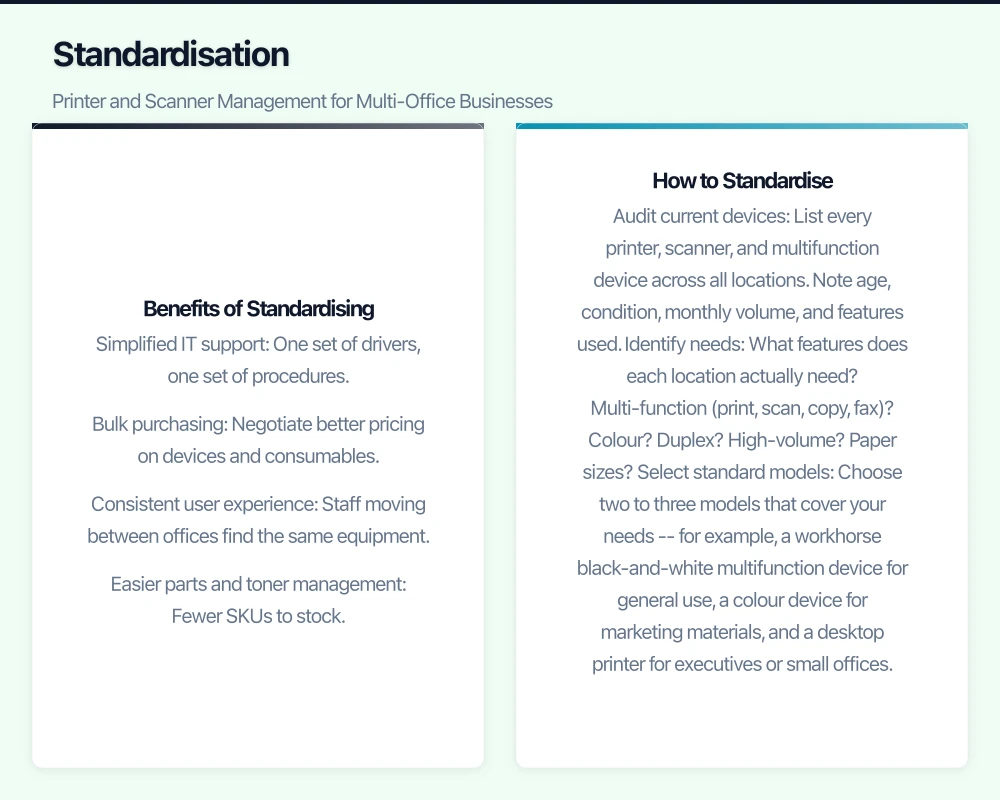
Benefits of Standardising
- Simplified IT support: One set of drivers, one set of procedures.
- Bulk purchasing: Negotiate better pricing on devices and consumables.
- Consistent user experience: Staff moving between offices find the same equipment.
- Easier parts and toner management: Fewer SKUs to stock.
How to Standardise
- Audit current devices: List every printer, scanner, and multifunction device across all locations. Note age, condition, monthly volume, and features used.
- Identify needs: What features does each location actually need? Multi-function (print, scan, copy, fax)? Colour? Duplex? High-volume? Paper sizes?
- Select standard models: Choose two to three models that cover your needs — for example, a workhorse black-and-white multifunction device for general use, a colour device for marketing materials, and a desktop printer for executives or small offices.
- Replace on a schedule: You do not need to replace everything at once. Replace devices as they reach end of life or end of lease, transitioning to the standard models over 12 to 24 months.
Print Security
Printers are networked devices with storage, processing capability, and access to sensitive documents. They are also frequently overlooked in security planning.
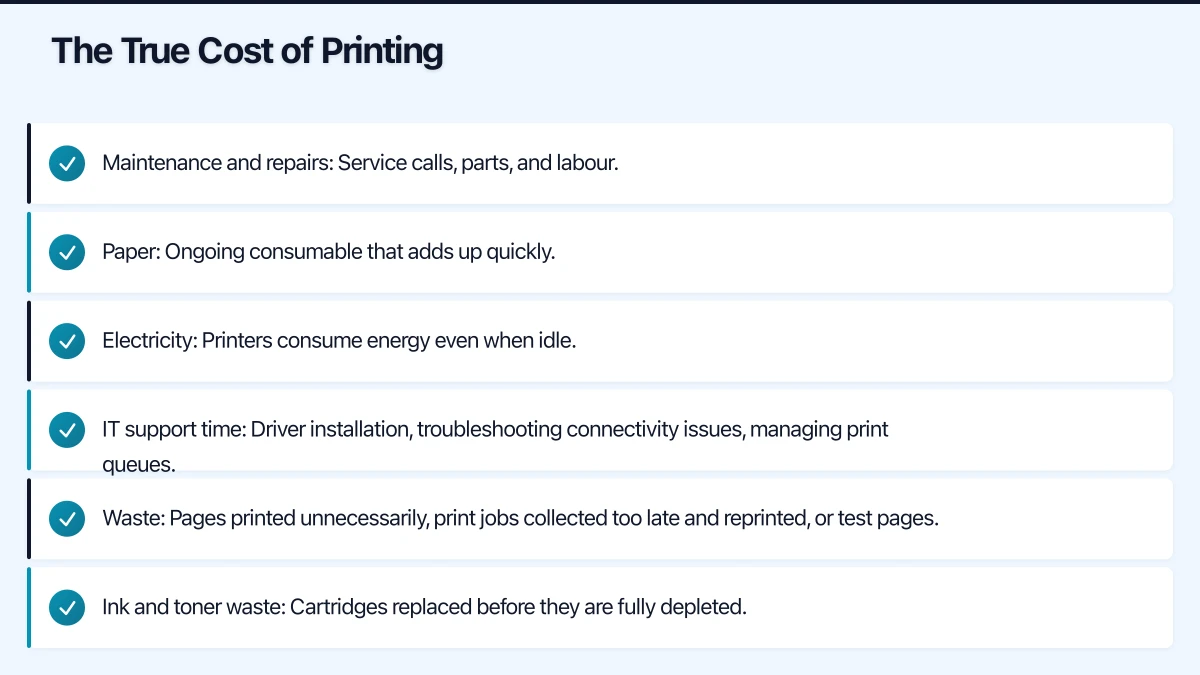
Security Risks
- Unencrypted data: Print jobs transmitted without encryption can be intercepted on the network.
- Stored print jobs: Many printers store recent print jobs on internal hard drives, which can be accessed if the printer is stolen or improperly disposed of.
- Uncollected printouts: Sensitive documents left in output trays are accessible to anyone passing by.
- Default credentials: Many printers ship with default admin passwords that are never changed.
- Network vulnerabilities: Printers with outdated firmware can be exploited as entry points into your network.
Security Best Practices
- Change default passwords: On every printer, change the admin password from the factory default.
- Update firmware: Keep printer firmware up to date. Subscribe to manufacturer security bulletins.
- Enable encryption: Use encrypted print protocols (IPPS) where supported.
- Implement pull printing: Users send print jobs to a queue and release them at the printer by entering a PIN or tapping a card. This prevents uncollected sensitive printouts and reduces waste.
- Disable unnecessary services: Turn off FTP, Telnet, and other services on the printer that are not needed.
- Place printers on a VLAN: Separate printers from the main corporate network to limit the blast radius if a printer is compromised.
- Secure disposal: When decommissioning a printer, wipe or destroy the internal hard drive.
Scanning Strategy
Scanning is increasingly important as businesses move toward digital workflows and reduce paper dependence.
Scan-to-Email
The simplest scanning method. Documents are scanned and emailed to the user or a distribution list.
Pros: Simple setup. No additional software required. Cons: Email attachment size limits. Not suitable for large documents. Clutters inboxes.
Scan-to-Folder
Documents are scanned to a shared network folder or cloud storage location.
Pros: Organised filing. No email size limits. Can be integrated with document management workflows. Cons: Requires network folder setup and permission management.
Scan-to-Cloud
Documents are scanned directly to cloud services like OneDrive, SharePoint, or Google Drive.
Pros: Accessible from anywhere. Integrates with cloud-based workflows. Supports remote and hybrid workers. Cons: Requires cloud integration configuration on the scanner.
OCR (Optical Character Recognition)
Modern multifunction devices can apply OCR to scanned documents, converting images into searchable, editable text.
Benefit: Scanned documents become searchable, making it much easier to find information later. If your business scans a significant volume of documents, OCR capability is worth prioritising.
Reducing Print Volumes
The most cost-effective print strategy is printing less. Consider:
- Default to duplex: Set all printers to double-sided printing by default.
- Default to black and white: Set colour printing as an opt-in rather than default.
- Print awareness: Some organisations display print costs to users (e.g., “This document will cost $2.40 to print”), which reduces unnecessary printing.
- Digital workflows: Encourage digital document signing (DocuSign, Adobe Sign), digital forms, and on-screen document review instead of printing.
- Follow-me printing: Users send jobs to a central queue and release them at any printer. Jobs not released within 24 hours are automatically deleted, eliminating waste from forgotten print jobs.
Multi-Office Management Tips
Centralised Management
Use a centralised print management platform to monitor and manage devices across all locations:
- PaperCut: Popular print management software that works across brands. Provides tracking, quotas, and reporting. Starting from approximately $600 for a small deployment.
- Manufacturer portals: Ricoh, Canon, and others offer cloud-based fleet management tools.
- MPS provider portals: If using MPS, your provider’s portal gives visibility across all locations.
Consistent Policies
Establish company-wide print policies:
- Standard print settings (duplex, black-and-white default).
- Acceptable use (personal printing limits).
- Colour printing guidelines.
- Scanning naming conventions and filing locations.
- Device placement guidelines (shared devices in common areas, not personal printers at desks).
Supply Management
For businesses not on MPS:
- Maintain a small inventory of toner for each device type.
- Set up recurring orders with a supplier for consistent pricing.
- Track usage to predict when supplies will be needed.
Getting Started
Whether you manage two offices or ten, a structured approach to print management saves money and reduces headaches:
- Audit your current fleet: Document every device, its age, monthly volume, and condition.
- Calculate your true print costs: Include hardware, consumables, maintenance, support time, and paper.
- Evaluate MPS: Get quotes from two or three MPS providers. Compare their per-page pricing against your current costs.
- Standardise: Begin transitioning to standard device models as current devices reach end of life.
- Implement security basics: Change default passwords, update firmware, and consider pull printing.
- Set print policies: Default to duplex and black-and-white. Encourage digital alternatives.
Print management is not the most exciting topic in IT, but for multi-office businesses, getting it right delivers tangible cost savings and operational simplicity. The effort invested in standardisation, security, and smart management pays for itself through reduced costs, fewer support issues, and better control over your print environment.
Strong cloud infrastructure is the foundation — a great website is the shopfront. Cosmos Web Tech helps Australian businesses turn technical capability into online growth.
This article is brought to you by Ganda Tech Services — Sydney’s complete digital solutions provider covering cloud, web, and mobile.