
Power BI for Australian SMBs: Getting Started with Business Intelligence

If your Australian small business is drowning in spreadsheets and struggling to spot trends in your data, you’re not alone. The good news is that business intelligence tools like Microsoft Power BI have become accessible and affordable for SMBs, not just enterprise giants.
Power BI transforms how Australian businesses make decisions. Instead of spending hours compiling reports from multiple Excel files, you can connect your data sources once and get real-time insights through interactive dashboards. For SMBs juggling limited resources, this shift from reactive reporting to proactive analysis can be game-changing.
The platform has matured significantly, and with Microsoft’s February 2024 update introducing enhanced mobile experiences and improved AI-powered insights, there’s never been a better time for Australian SMBs to explore business intelligence.
Why Power BI Makes Sense for Australian SMBs
Business intelligence used to require six-figure investments and dedicated IT teams. Power BI changes that equation dramatically. For Australian small businesses, several factors make it particularly compelling right now.
Cost structure works for SMB budgets. Power BI Desktop is completely free for creating reports and visualizations on your local machine. When you’re ready to share dashboards across your team, Power BI Pro costs AUD $13.70 per user per month. For a five-person management team, that’s under $70 monthly—less than most businesses spend on coffee.
Integration with Microsoft 365 reduces friction. Most Australian SMBs already use Microsoft 365 for email and Office applications. Power BI integrates seamlessly with this ecosystem, connecting to Excel files stored in OneDrive or SharePoint without complex configuration. Your team doesn’t need to learn an entirely new platform.
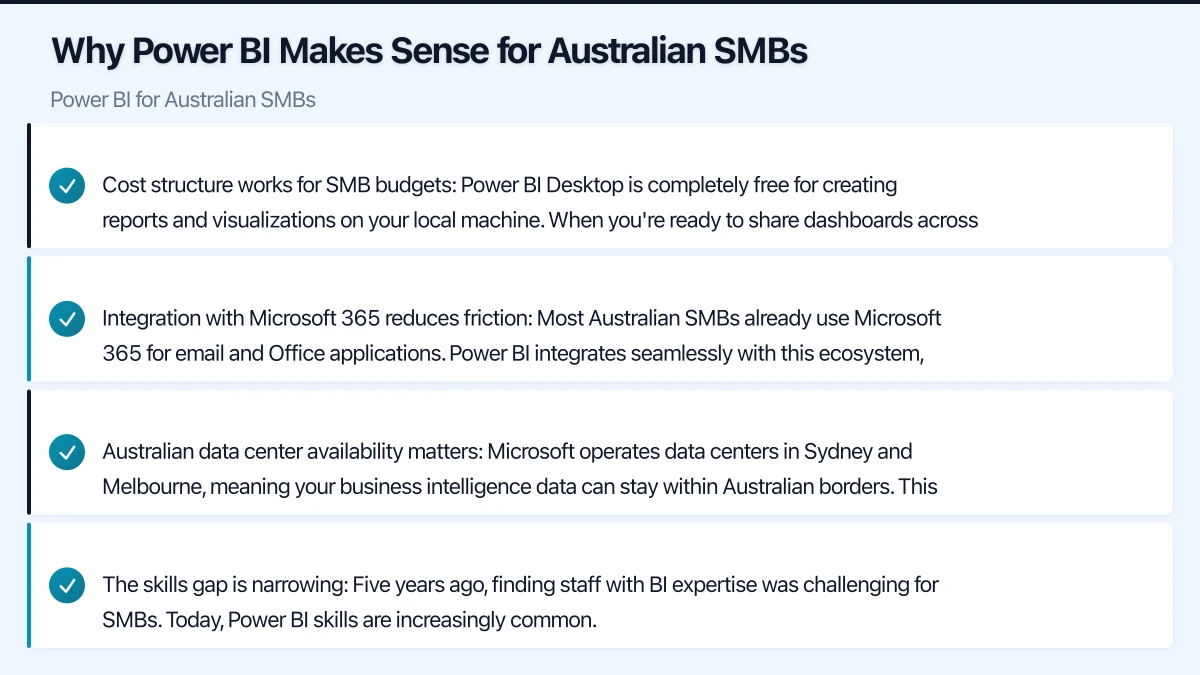
Australian data center availability matters. Microsoft operates data centers in Sydney and Melbourne, meaning your business intelligence data can stay within Australian borders. This addresses data sovereignty concerns and ensures compliance with the Privacy Act 1988, which increasingly matters for Australian businesses handling customer information.
The skills gap is narrowing. Five years ago, finding staff with BI expertise was challenging for SMBs. Today, Power BI skills are increasingly common. Business analysts and even marketing managers are learning Power BI fundamentals, making it easier to find help or train existing staff.
A Melbourne-based wholesale distributor we worked with recently implemented Power BI to track inventory and sales trends. Within three weeks, they identified that 15% of their product lines were generating 60% of their returns—insight buried in their old spreadsheet system. They adjusted their purchasing strategy and reduced inventory carrying costs by $45,000 in the first quarter.
Getting Started: Power BI Desktop Setup
Before connecting data sources and building dashboards, you need to set up your environment. The process is straightforward, but understanding the licensing model helps you make informed decisions.
Download and install Power BI Desktop. Visit the Microsoft website and download Power BI Desktop for free. It’s a Windows application that runs on Windows 10 or later. Mac users can run it through Parallels Desktop or VMware Fusion, though the experience isn’t as smooth—keep this in mind if your team uses Macs primarily.
The installation takes about five minutes on a modern business laptop. Power BI Desktop requires around 2GB of disk space and runs adequately on machines with 4GB RAM, though 8GB provides a noticeably better experience when working with larger datasets.
Understand the licensing tiers. This is where many Australian SMBs get confused, so let’s clarify the options available in early 2024:
-
Power BI Desktop (Free): Create reports and visualizations locally. You can’t share dashboards online or collaborate with team members, but it’s perfect for learning or personal use.
-
Power BI Pro (AUD $13.70/user/month): Enables sharing dashboards through the Power BI Service (the cloud platform), collaborating with colleagues, and accessing reports from any device. Most SMBs start here.
-
Power BI Premium Per User (AUD $27.40/user/month): Adds advanced features like paginated reports, larger dataset sizes, and more frequent data refreshes. Typically overkill for SMBs starting out.
-
Power BI Premium Per Capacity (from AUD $6,858/month): Organization-wide licensing for unlimited users. Only makes sense for larger companies with 250+ users or specific compliance requirements.
For a typical Australian SMB with 3-10 people needing access to dashboards, Power BI Pro is the right choice. You can start with one or two licenses for dashboard creators and add more as needed.
Connect your first data source. Open Power BI Desktop and you’ll see the “Get Data” button prominently displayed. Power BI connects to over 100 data sources, but Australian SMBs typically start with these common ones:
- Excel files: Your existing spreadsheets from accounting, sales, or inventory systems
- SQL databases: If you’re using MYOB, Xero, or other business software with SQL backends
- SharePoint lists: For tracking projects, customer information, or operational data
- Web sources: Public data from Australian Bureau of Statistics or industry benchmarks
- Direct connections: Salesforce, Google Analytics, QuickBooks Online, and other cloud applications your business uses
For your first project, start simple. Connect to a single Excel file with 6-12 months of sales data. Click “Get Data,” select “Excel,” browse to your file, and choose which sheets or tables to import. Power BI will load the data into its internal model, ready for analysis.
Connecting Your Australian Business Data
The real power of business intelligence emerges when you connect multiple data sources and find relationships between them. For Australian SMBs, this typically means bringing together sales, inventory, customer, and financial data.
Start with your accounting system. Most Australian small businesses use Xero, MYOB, or QuickBooks Online. Power BI offers direct connectors for all three platforms, eliminating manual data exports in most cases.
For Xero users, the connection process is straightforward. In Power BI Desktop, select “Get Data,” search for “Xero,” and authenticate with your Xero credentials. You’ll see your organization’s data available for import—profit and loss, balance sheet, invoices, contacts, and more. Select the tables you need and load them.
MYOB and QuickBooks connections work similarly. The key consideration is data refresh frequency. With Power BI Pro, you can schedule up to eight automatic refreshes per day. For most SMBs, refreshing once or twice daily provides sufficiently current information without excessive API calls to your accounting platform.
Bring in your sales and CRM data. If you’re using Salesforce, HubSpot, or another CRM system, Power BI’s pre-built connectors make integration simple. For businesses tracking sales in Excel or Google Sheets, you can connect directly to those files stored in OneDrive or SharePoint.
A Sydney-based professional services firm we assisted connects Power BI to their Salesforce account to track pipeline value, conversion rates, and customer acquisition costs. They combine this with Xero financial data to calculate true profitability by client segment—revealing that their smallest clients required disproportionate support time relative to revenue.
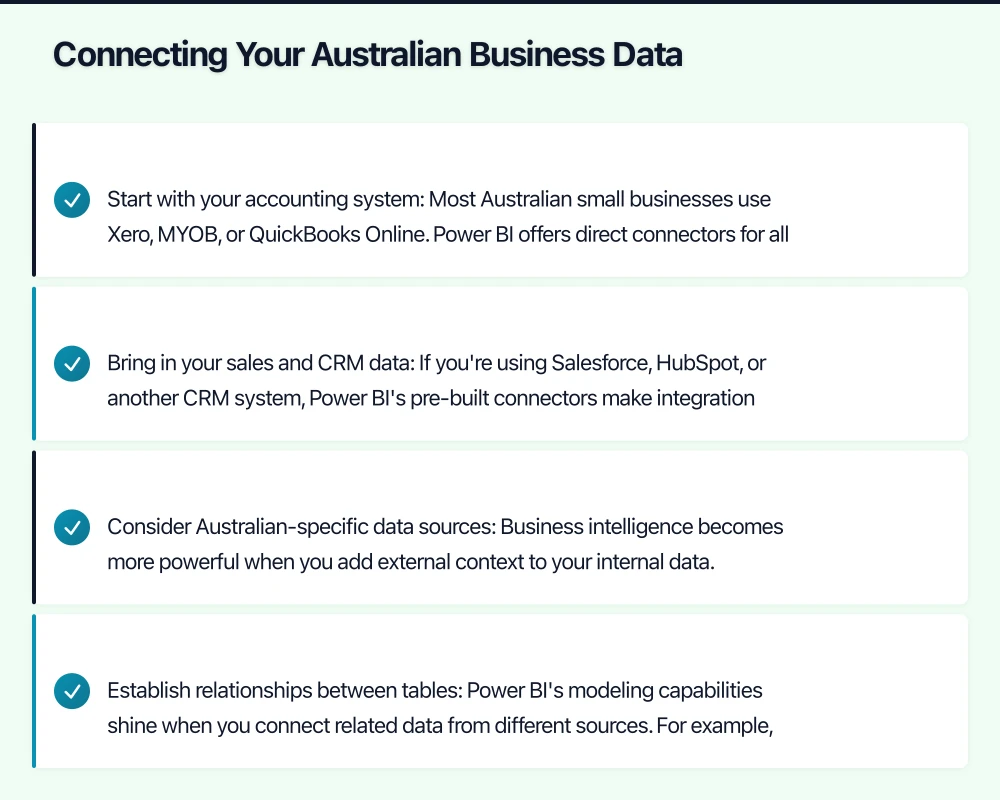
Consider Australian-specific data sources. Business intelligence becomes more powerful when you add external context to your internal data. Several Australian sources provide valuable benchmarking and market data:
- Australian Bureau of Statistics: Economic indicators, population data, and industry statistics available through their API
- Reserve Bank of Australia: Interest rates, currency data, and economic trends
- Industry associations: Many provide member benchmarking data in formats Power BI can consume
- Australian Business Register: For verifying customer or supplier information
You can also connect to Google Analytics to understand your website performance or link to social media advertising platforms if you’re running Facebook or LinkedIn campaigns.
Establish relationships between tables. Power BI’s modeling capabilities shine when you connect related data from different sources. For example, your sales data might include customer IDs that match customer records in your CRM, while your inventory data includes product codes that correspond to items in your sales transactions.
Power BI usually auto-detects relationships based on matching column names, but you should verify these connections. Click on the “Model” view in the left sidebar to see your data tables and the lines connecting them. Each relationship should make logical sense—customers to sales, products to inventory, invoices to payments.
Building Your First Dashboard
With data connected and relationships established, you’re ready to create visualizations that answer your business questions. Think of this as moving from raw ingredients to a finished meal—the hard work of data preparation is done, now comes the creative part.
Define what questions you want to answer. Before dragging fields onto the canvas, spend ten minutes writing down the specific questions your dashboard should address. For Australian SMBs, common starting points include:
- Which products or services generate the most revenue and profit?
- How do sales trends vary by month, quarter, or season?
- Who are our most valuable customers by revenue and profitability?
- What’s our cash flow position over the next 30-60 days?
- How do we compare to industry benchmarks for our sector?
Starting with clear questions prevents the common trap of building impressive-looking dashboards that don’t actually inform decisions.
Create your core visualizations. Power BI offers dozens of chart types, but most effective SMB dashboards use a handful of proven formats. Here’s what works well:
Line charts for trends over time. Perfect for showing monthly revenue, customer acquisition, or website traffic. Drag your date field to the X-axis and your metric (revenue, units sold, etc.) to the Y-axis. Power BI automatically aggregates the data appropriately.
Bar charts for comparisons. Compare product categories, sales by state, or customer segments. Horizontal bars work well when you have many categories or long labels—particularly useful when displaying Australian city or suburb names.
Cards for key metrics. Display single important numbers prominently—total revenue, number of active customers, or current inventory value. These act as headlines for your dashboard, drawing attention to the most critical information.
Maps for geographic data. Australian businesses with multiple locations or regional sales territories benefit from map visualizations. Power BI recognizes Australian states, suburbs, and postcodes automatically, plotting your data geographically without additional configuration.
Tables for detailed drill-down. While charts show patterns, sometimes you need to see the underlying details. Include a table showing your top 10 customers or products, allowing viewers to identify specific accounts or items worth investigating.
A Brisbane-based retailer’s dashboard includes a map showing sales by postcode, immediately revealing that their northern suburbs locations outperform southern suburbs by 40%. This led to targeted marketing in underperforming areas and site selection criteria for future expansion.
Apply filters and slicers. Business questions rarely have one-size-fits-all answers. You want to see overall performance but also filter by product line, time period, or sales rep. That’s where slicers come in.
Add a slicer by clicking the slicer icon in the Visualizations pane and dragging a field like “Month” or “Product Category” into it. Now your dashboard users can click different options and watch all visualizations update instantly. This interactivity transforms static reports into exploration tools.
Include date range slicers on almost every dashboard—letting users switch between year-to-date, last quarter, or custom periods makes the dashboard useful for both strategic review and tactical decision-making.
Design for clarity, not complexity. Your first instinct might be to fill every pixel with charts and numbers. Resist this temptation. White space improves readability. The best SMB dashboards include 5-8 visualizations maximum on a single page, each with a clear purpose.
Use consistent colours aligned with your company branding. Power BI defaults to bright blues and oranges, but you can customize these in the format panel. Many Australian businesses use their logo colours to make dashboards feel more professional and on-brand.
Place the most important information in the top-left corner—where viewers’ eyes naturally go first. Position detailed tables or less critical metrics toward the bottom or right side.
Sharing Dashboards with Your Team
Creating insightful dashboards provides no value if they’re trapped on your laptop. Power BI’s sharing capabilities enable your team to access current information from anywhere, but you need to understand the security and licensing implications for Australian SMBs.
Publish to the Power BI Service. Once you’ve built a dashboard in Power BI Desktop, click “Publish” in the Home ribbon. You’ll sign in with your Microsoft 365 account (this is where you need at least a Power BI Pro license) and select a workspace to publish to.
The Power BI Service is Microsoft’s cloud platform for sharing and collaboration. Think of it as SharePoint for dashboards—you upload your reports there and manage who can view or edit them.
Publishing takes 30 seconds to a few minutes depending on your data volume and internet connection speed. Once complete, you’ll get a link to view your dashboard in any web browser.
Set up scheduled data refreshes. Your dashboard is now online, but it shows data from the moment you published. For true business intelligence, you need automatic updates as your source data changes.
In the Power BI Service, navigate to your dataset settings and configure scheduled refresh. You’ll need to:
- Set up a gateway if connecting to on-premises data sources (like a local SQL server)
- Provide credentials for cloud data sources (Xero, Salesforce, etc.)
- Choose refresh frequency—daily at 6am works well for most Australian SMBs
Power BI Pro allows up to eight refreshes per day. Schedule them before key meetings or decision points. A Monday morning refresh ensures your weekly team meeting has current data, while an end-of-day refresh prepares tomorrow’s information overnight.
Manage access and permissions. Not everyone in your organization needs to see every dashboard. Financial performance might be for management only, while sales dashboards should be available to your entire sales team.
Power BI offers several sharing options:
Direct sharing: Add specific users by email address. They need their own Power BI Pro license to view shared content. This works well for small teams where you can manage individuals.
Workspaces: Create dedicated spaces for different departments or projects. Add team members as workspace members, admins, or contributors depending on whether they should view, edit, or manage content.
Apps: Package multiple dashboards and reports into a single app for a clean, curated experience. Users don’t need Pro licenses to view apps if you have Premium capacity, but for most SMBs, the Pro-to-Pro sharing model is standard.
For Australian businesses with privacy concerns, review who has access quarterly. Staff turnover means people who shouldn’t have access might retain it unless you actively manage permissions.
Enable mobile access. Your sales team won’t be at their desks when they need to check pipeline metrics, and you’ll want to review performance data over the weekend without firing up your laptop.
Download the Power BI mobile app for iOS or Android. Sign in with your Microsoft 365 credentials, and you’ll see all dashboards shared with you. The mobile experience automatically reformats desktop dashboards for phone screens, though you can also design mobile-optimized layouts in Power BI Desktop for the best experience.
The February 2024 updates to the mobile app have significantly improved the experience, with faster loading and better offline support—critical for Australian businesses where mobile connectivity can be patchy in regional areas.
Understanding Power BI Pricing for Australian SMBs
The licensing model confuses many Australian small businesses, so let’s break down what you’ll actually pay and what represents good value at different scales.
Starting small with Power BI Pro. For most Australian SMBs, Power BI Pro at AUD $13.70 per user per month provides everything needed. This includes:
- Creating unlimited reports and dashboards
- Publishing and sharing with other Pro users
- 10GB storage per user
- Data refreshes eight times daily
- Mobile app access
- Basic AI-powered insights
A five-person team costs $68.50 monthly or $822 annually. That’s less than hiring a business analyst for a single day to produce what you can now generate continuously.
When to consider Premium Per User. Premium Per User at AUD $27.40 monthly adds capabilities like:
- Paginated reports (multi-page, print-ready formats)
- Larger datasets (up to 100GB vs 1GB with Pro)
- More frequent refreshes (48 per day)
- Advanced AI features and deployment pipelines
For most Australian SMBs under 50 employees, these features aren’t necessary initially. Consider Premium Per User if you’re working with particularly large datasets or need compliance features for regulated industries like financial services or healthcare.
Premium capacity for larger organizations. Premium Per Capacity starts at AUD $6,858 monthly and makes sense for organizations with 250+ users needing dashboard access. At that scale, per-user licensing becomes expensive, and capacity-based pricing provides better value.
For SMBs, this option is usually overkill. Stick with Pro licenses for the people who need to create and share content, and only those people need licenses initially.
Hidden costs to factor in. While Power BI licensing is transparent, Australian SMBs should budget for:
Initial setup time: Plan for 20-40 hours of work to connect data sources, build your first dashboards, and train users. If you’re doing this internally, that’s staff time. If hiring a consultant, expect AUD $150-250 per hour for qualified Power BI specialists in Australian metros.
Data source licensing: You need appropriate licenses for your source systems. Most Australian businesses already pay for Xero, Salesforce, or other platforms, but verify your plan includes API access for Power BI connections.
Training and skill development: Microsoft offers free Power BI training through Microsoft Learn, but investing in formal training accelerates adoption. One-day Power BI workshops in Australia cost AUD $500-900 per person, while online courses range from $50-300.
Ongoing maintenance: Dashboards require updates as your business evolves. Budget 2-5 hours monthly for maintaining existing reports and creating new visualizations as questions arise.
Getting Started This Week
You don’t need to transform your entire data strategy overnight. Start with one business question and one data source, then expand as you build confidence and see value.
Week one: Install and explore. Download Power BI Desktop this week and connect to a single Excel file containing recent sales or operational data. Spend a few hours experimenting with visualizations. The goal isn’t perfection—it’s familiarity with the interface and basic concepts.
Microsoft’s free “Dashboard in a Day” workshop provides structured learning if you prefer guided instruction. Several Australian training providers offer this virtually, and it’s worth the investment of a full day to accelerate your understanding.
Week two: Build your first meaningful dashboard. Identify the business question that causes the most debate or uncertainty in your management meetings. What metrics would definitively answer that question? Connect the necessary data sources and create a focused dashboard addressing that specific issue.
Show this dashboard to your team informally. Their questions and feedback will guide your next iteration. You’ll quickly discover which visualizations resonate and which confuse people.
Week three: Implement sharing and automation. Purchase the Power BI Pro licenses you need and publish your dashboard to the Power BI Service. Configure scheduled refreshes and share with key stakeholders. Now you’re providing real business value—current, accessible information for better decisions.
Month two and beyond: Expand thoughtfully. Add additional data sources and dashboards based on the areas where you’re seeing value. Don’t build everything at once. Focus on solving specific problems or answering particular questions that matter to your business right now.
Consider engaging an Australian Power BI consultant for a few days of strategic guidance. They can audit your data architecture, suggest optimization techniques, and train your team on advanced features. This investment typically pays for itself within months through more efficient reporting.
The Path Forward for Australian SMBs
Business intelligence is no longer a luxury for large enterprises. With Power BI’s accessible pricing and improving capabilities, Australian small businesses can compete on insights and data-driven decision making just as effectively as their bigger competitors.
The February 2024 updates continue Microsoft’s trajectory of making Power BI more powerful while keeping it approachable for non-technical users. Enhanced AI features help you spot trends and anomalies automatically, while improved mobile experiences mean you’re never out of touch with your business metrics.
Start simple, focus on specific business questions, and expand as you see results. The Australian SMBs getting ahead right now aren’t those with the most sophisticated dashboards—they’re the ones actually using their data to make faster, better-informed decisions every day.
Your competitors are likely still compiling Excel reports manually. By implementing Power BI this month, you’ll gain a decision-making advantage that compounds over time—and that competitive edge is worth far more than the modest licensing investment.
Need help implementing Power BI for your Australian small business? CloudGeeks specializes in practical business intelligence solutions for SMBs across Australia. We’ll help you connect your data, build meaningful dashboards, and train your team—without enterprise complexity or cost. Contact us for a no-obligation consultation.
For insights on building a technology roadmap that ties cloud, web, and mobile together, visit Ash Ganda’s blog.
Cloud Geeks operates under the Ganda Tech Services umbrella, delivering end-to-end technology solutions for Australian businesses.