
Patch Management Strategy for Small Business IT
Patch Management Strategy for Small Business IT
Patching is one of those IT tasks that everyone knows is important but few small businesses do well. The Australian Cyber Security Centre (ACSC) lists patching as two of the Essential Eight strategies (patching applications and patching operating systems), and for good reason — unpatched software is one of the most common entry points for cyberattacks.
Yet for many Australian SMBs, patching means occasionally clicking “Update and Restart” when Windows nags enough. That is not a strategy. This guide provides a practical, implementable patch management approach for small businesses with 10 to 100 devices.
Why Patching Matters More Than You Think
In 2021 and early 2022, several high-profile vulnerabilities demonstrated why timely patching is critical:
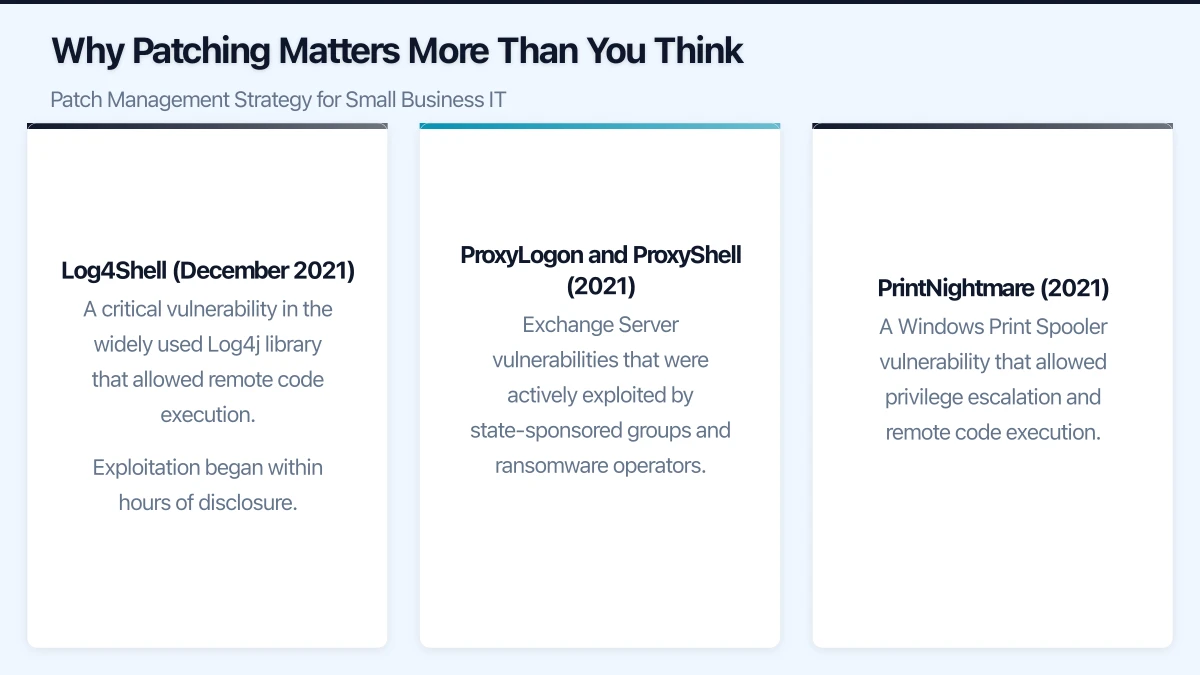
- Log4Shell (December 2021): A critical vulnerability in the widely used Log4j library that allowed remote code execution. Exploitation began within hours of disclosure.
- ProxyLogon and ProxyShell (2021): Exchange Server vulnerabilities that were actively exploited by state-sponsored groups and ransomware operators.
- PrintNightmare (2021): A Windows Print Spooler vulnerability that allowed privilege escalation and remote code execution.
These are not theoretical risks. The ACSC reported a significant increase in cyber incidents targeting Australian businesses, with unpatched systems being a primary attack vector.
The Essential Eight Patching Requirements
The ACSC Essential Eight framework specifies two patching strategies:
Patch Applications:
- Maturity Level 1: Patches for internet-facing applications are applied within two weeks of release
- Maturity Level 2: Patches for all applications are applied within two weeks, or within 48 hours if an exploit exists
- Maturity Level 3: Patches applied within 48 hours of release
Patch Operating Systems:
- Maturity Level 1: Patches for internet-facing operating systems are applied within two weeks
- Maturity Level 2: All operating systems patched within two weeks, or within 48 hours if an exploit exists
- Maturity Level 3: Patches applied within 48 hours
For most Australian SMBs, achieving Maturity Level 1 is the immediate goal, with a plan to reach Level 2. Level 3 is typically only required for organisations with high-security requirements.
Building Your Patch Management Process
Step 1: Inventory Your Systems
You cannot patch what you do not know about. Create and maintain an inventory of:
- Operating systems: All Windows, macOS, and Linux devices, including servers
- Applications: Every installed application, especially internet-facing ones (browsers, email clients, PDF readers, Java)
- Firmware: Network devices (routers, switches, firewalls, access points)
- Cloud services: SaaS applications that require client-side updates
If you do not have an inventory, refer to asset management practices. At minimum, use your Active Directory or Azure AD to list all domain-joined devices.
Step 2: Categorise by Risk
Not all systems carry the same risk. Categorise your devices to prioritise patching:
Critical (patch within 48 hours for critical vulnerabilities):
- Internet-facing servers and services
- Domain controllers and authentication servers
- Firewalls and VPN gateways
- Systems handling sensitive data (financial, health, personal information)
High (patch within one week):
- Employee workstations with internet access
- Internal servers
- Network infrastructure devices
Standard (patch within two weeks):
- Non-internet-facing systems
- Test and development environments
- Non-critical internal applications
Step 3: Establish a Patching Schedule
Consistency is more important than speed for most SMBs. Establish a regular patching cadence:
Weekly (recommended for most SMBs):
- Monday: Review new patches released in the past week
- Tuesday: Test critical patches on a pilot group (2 to 3 devices)
- Wednesday: Deploy patches to workstations
- Thursday: Deploy patches to servers (during a maintenance window)
- Friday: Verify deployment and address failures
Alternative — Microsoft Patch Tuesday alignment: Microsoft releases patches on the second Tuesday of each month. Many businesses align their patching schedule to this cycle:
- Patch Tuesday (second Tuesday): Review and test
- Patch Wednesday/Thursday: Deploy to workstations
- Following weekend: Deploy to servers
- Following Monday: Verify and remediate
This works but means patches released outside of Patch Tuesday (including out-of-band security patches) may wait up to a month. For critical vulnerabilities, always have an emergency patching process.
Step 4: Test Before Deploying
Even in a small business, testing matters. You do not need a formal test lab — just a practical approach.
Minimal testing approach:
- Identify 2 to 3 devices that represent your typical configuration (different hardware models, common applications)
- Deploy patches to these devices first
- Wait 24 hours and check for issues (application compatibility, performance problems, boot failures)
- If no issues, proceed with full deployment
- If issues are found, delay deployment and investigate
What to test for:
- Device boots normally after patching
- Key business applications function correctly
- VPN and remote access still work
- Printers and peripherals still function
- No significant performance degradation
Step 5: Deploy and Verify
After testing, deploy patches to your remaining devices. Verification is the step most businesses skip, but it is essential.
Verify that patches were successfully installed:
- Check your patching tool’s compliance report
- Randomly spot-check 5 to 10 devices
- Investigate any devices that failed to install patches (common causes: insufficient disk space, pending reboots, connectivity issues)
Tools for Patch Management
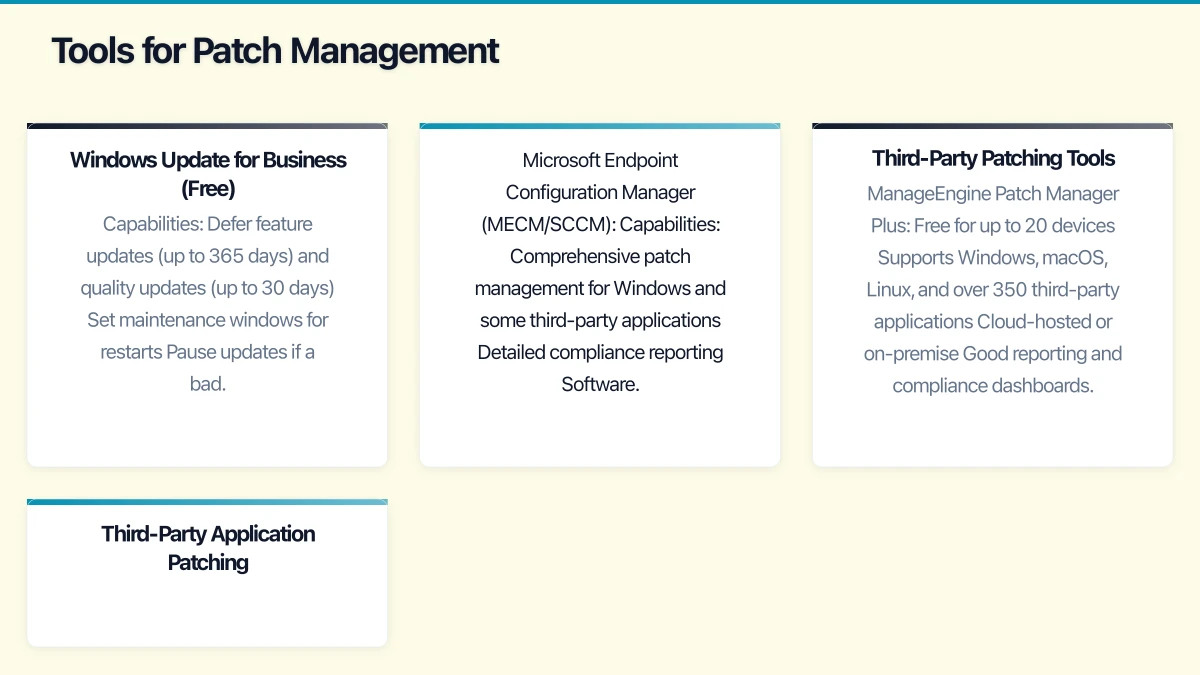
Windows Update for Business (Free)
If your devices are Azure AD joined or Hybrid Azure AD joined, Windows Update for Business provides basic patch management without additional tools.
Capabilities:
- Defer feature updates (up to 365 days) and quality updates (up to 30 days)
- Set maintenance windows for restarts
- Pause updates if a bad update is discovered
- Configure through Group Policy, Intune, or Windows Update for Business deployment service
Limitations:
- Only manages Windows updates (not third-party applications)
- Limited reporting capabilities
- Cannot target specific updates to specific groups (without Intune)
Best for: Small businesses (under 20 devices) using Microsoft 365 Business Premium with Intune.
Microsoft Endpoint Configuration Manager (MECM/SCCM)
Capabilities:
- Comprehensive patch management for Windows and some third-party applications
- Detailed compliance reporting
- Software distribution and inventory
- Operating system deployment
Limitations:
- Complex to set up and maintain
- Requires on-premise infrastructure (server, SQL database)
- Expensive for small businesses (included with certain enterprise agreements)
Best for: Businesses with over 100 devices and dedicated IT staff.
Third-Party Patching Tools
For small businesses, third-party tools often provide the best balance of capability and simplicity:
ManageEngine Patch Manager Plus:
- Free for up to 20 devices
- Supports Windows, macOS, Linux, and over 350 third-party applications
- Cloud-hosted or on-premise
- Good reporting and compliance dashboards
NinjaRMM:
- Cloud-based remote monitoring and management with built-in patching
- Supports Windows and macOS patching plus many third-party applications
- Approximately $3 to $6 per device per month
- Popular with Australian MSPs
Automox:
- Cloud-native patch management
- Cross-platform (Windows, macOS, Linux)
- Third-party patching included
- Approximately $4 per device per month
- Simple setup and management
Third-Party Application Patching
Windows updates handle the operating system, but third-party applications need attention too. The most commonly exploited applications include:
- Web browsers (Chrome, Firefox, Edge)
- Adobe Acrobat Reader
- Java Runtime Environment
- Microsoft Office (if not using Click-to-Run/Microsoft 365 Apps)
- 7-Zip, WinRAR, and other utilities
- Video conferencing tools (Zoom, Teams client)
Options for third-party patching:
- Chocolatey (free): A package manager for Windows that can automate third-party application updates. Requires some scripting knowledge.
- Patch My PC: Integrates with MECM or Intune to provide third-party patching. Free home edition, paid business edition.
- Ninite Pro: Silently installs and updates common applications. Simple and effective for small environments. Approximately $1 per device per month.
Handling Emergency Patches
When a critical vulnerability is disclosed and actively exploited, your standard patching schedule is too slow. Establish an emergency patching process:
- Detection: Monitor the ACSC alerts feed (cyber.gov.au), vendor security bulletins, and IT news sources for critical vulnerability announcements
- Assessment: Determine if the vulnerability affects your environment. Check which systems run the affected software.
- Decision: If affected, authorise emergency patching. This may mean deploying patches with minimal testing.
- Deployment: Push the patch to affected systems as quickly as possible. For truly critical vulnerabilities (like Log4Shell), same-day deployment is appropriate.
- Verification: Confirm the patch was applied to all affected systems.
- Documentation: Record the emergency patch event for your records.
Designate who has authority to approve emergency patches. In a small business, this is typically the IT manager or business owner.
Measuring Patch Compliance
Track these metrics to measure the effectiveness of your patching process:
- Patch compliance rate: Percentage of devices with all applicable patches installed. Target is over 95%.
- Mean time to patch: Average number of days between patch release and installation. Target varies by risk category (48 hours to 14 days).
- Patch failure rate: Percentage of patch deployments that fail. Investigate if this exceeds 5%.
- Outstanding critical patches: Number of critical patches not yet applied. Target is zero.
Report these metrics monthly. Even a simple spreadsheet tracking compliance over time demonstrates progress and identifies issues.
Common Pitfalls
Not rebooting. Many patches require a restart to take effect. If devices are not restarted, the patch is installed but not active, leaving the vulnerability open.
Ignoring non-Windows devices. Macs, Linux servers, network devices, and IoT devices all need patching. Do not focus exclusively on Windows.
No rollback plan. Occasionally, a patch causes problems. Know how to uninstall a problematic update before you need to do it under pressure.
Patching servers without a maintenance window. Never patch production servers during business hours without a planned maintenance window and rollback procedure.
Ignoring firmware. Network devices, storage appliances, and BIOS/UEFI firmware often have security updates. Include these in your patching scope.
Getting Started This Month
If you currently have no formal patching process:
- This week: Enable automatic Windows Updates on all workstations. This is imperfect but immediately improves your posture.
- Next week: Set up a free ManageEngine Patch Manager Plus instance or enable Windows Update for Business through Intune. Create a basic inventory.
- This month: Establish your patching schedule and categorise your systems by risk. Deploy your first managed patch cycle.
- Next month: Add third-party application patching. Set up compliance reporting.
- Ongoing: Review compliance monthly, tune your process, and work toward Essential Eight Maturity Level 1.
Patching is not glamorous, but it is one of the most effective security measures your business can implement. A disciplined patching process closes the door on the majority of known vulnerabilities, making your business a significantly harder target for attackers.
Pair your cloud backend with a polished mobile experience. Awesome Apps develops apps for iOS and Android that keep your team and customers connected.
Cloud Geeks operates under the Ganda Tech Services umbrella, delivering end-to-end technology solutions for Australian businesses.