
Password Management for Australian SMBs: Beyond Sticky Notes
Introduction
Walk through any Australian office and you’ll find passwords on sticky notes, in spreadsheets, and shared via email. It’s not that people don’t care about security—it’s that they’re trying to do their jobs with too many passwords and no good way to manage them.
The average business user has over 100 passwords. Without proper management, people reuse passwords, use weak passwords, or create workarounds that create even bigger security risks.
This guide covers practical password management that SMBs can actually implement.
The Real Problem
Password Fatigue
Consider what your employees deal with:
- Email and calendar
- Accounting software
- CRM system
- Cloud storage
- Industry-specific applications
- Social media accounts
- Vendor portals
- Banking platforms
Each requires a password. Some require regular changes. Many have different complexity requirements. It’s too much for anyone to manage securely without help.
The Security Consequences
Password Reuse
When people can’t remember unique passwords, they reuse them. One breach exposes everything.
Weak Passwords
The more passwords required, the simpler each becomes. “Company2023!” across twelve systems isn’t security.
Insecure Storage
Sticky notes, unencrypted spreadsheets, and email chains create easy targets for attackers—or even disgruntled employees.
Shared Credentials
Team accounts shared via insecure methods. When someone leaves, the password doesn’t change.
Password Manager Solutions
What Password Managers Do
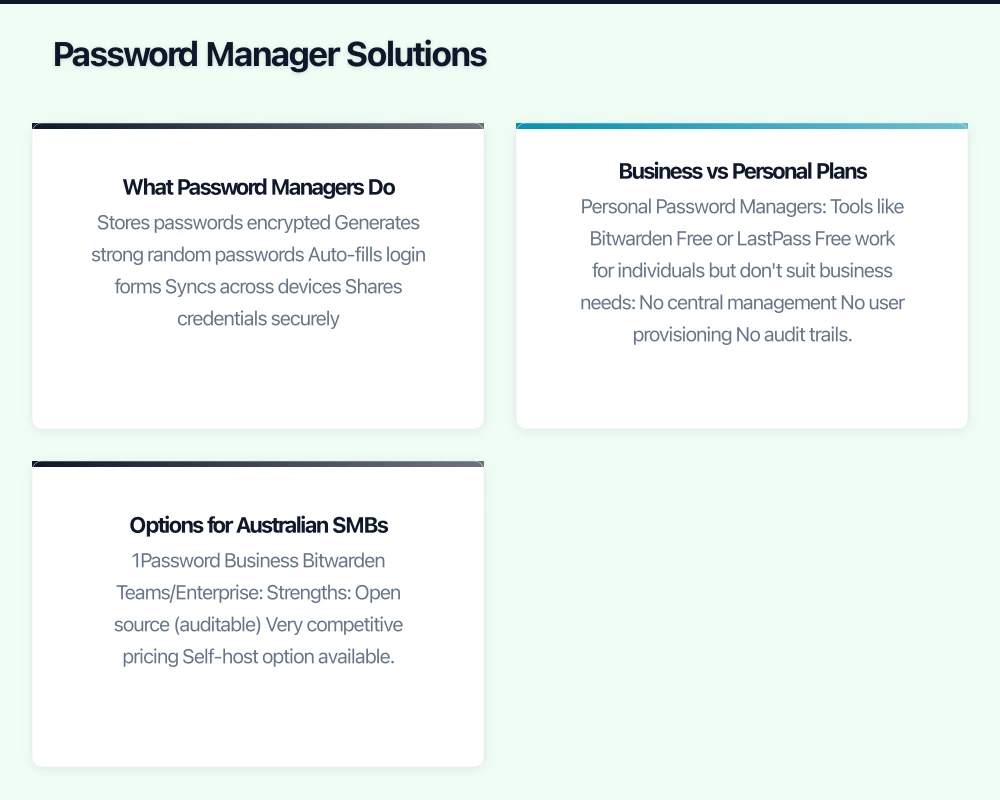
A password manager is a secure vault for all credentials:
- Stores passwords encrypted
- Generates strong random passwords
- Auto-fills login forms
- Syncs across devices
- Shares credentials securely
You remember one master password. The manager handles everything else.
Business vs Personal Plans
Personal Password Managers
Tools like Bitwarden Free or LastPass Free work for individuals but don’t suit business needs:
- No central management
- No user provisioning
- No audit trails
- No recovery options
Business Password Managers
Business plans add essential features:
- Admin dashboard
- User management
- Shared folders and vaults
- Audit logs
- Directory integration
- Emergency access
- Policy enforcement
Options for Australian SMBs
1Password Business
Strengths:
- Excellent user experience
- Strong security architecture
- Travel mode for crossing borders
- Good family plan for staff
- Australian data option
Considerations:
- Higher price point
- Per-user licensing
Bitwarden Teams/Enterprise
Strengths:
- Open source (auditable)
- Very competitive pricing
- Self-host option available
- Strong security
- Australian-friendly
Considerations:
- Less polished interface
- Fewer integrations
LastPass Business
Strengths:
- Long-established
- Familiar to many users
- Good admin features
- SSO options
Considerations:
- Recent security incidents
- Reputation concerns
- Some trust erosion
Dashlane Business
Strengths:
- Built-in VPN
- Good user experience
- Strong security
- Phishing alerts
Considerations:
- Higher pricing
- Smaller market share
Recommendation
For most Australian SMBs, Bitwarden Teams offers the best value. If budget allows and user experience is paramount, 1Password Business is excellent. Avoid LastPass until they’ve rebuilt trust after recent breaches.
Implementation Guide
Phase 1: Planning (Week 1)
Assess Current State
Audit how passwords are currently managed:
- Interview team leads
- Check for spreadsheets and documents
- Review shared account situations
- Identify critical systems
Choose Your Solution
Consider:
- Number of users
- Technical capability
- Budget constraints
- Compliance requirements
- Integration needs
Define Policies
Before rollout, establish:
- Master password requirements
- Sharing permissions
- Emergency access procedures
- Offboarding process
Phase 2: Setup (Week 2)
Create Organisation
- Set up admin accounts
- Configure organisation settings
- Enable required security features
- Set up groups or teams
Prepare Shared Vaults
Create logical groupings:
- Company-wide (everyone needs access)
- Department-specific
- Project-based
- Administrator-only
Configure Policies
- Master password requirements
- Two-factor authentication
- Session timeout settings
- Browser extension policies
Phase 3: Rollout (Weeks 3-4)
Pilot Group First
Start with tech-savvy employees:
- Iron out issues
- Develop support documentation
- Build internal champions
- Refine training
Training Sessions
Cover essentials:
- Installing browser extension and mobile app
- Creating and storing passwords
- Using password generator
- Accessing shared credentials
- What to do if locked out
Migration Support
Help employees:
- Import from browsers
- Move from spreadsheets (then delete them)
- Update existing passwords
- Enable two-factor where available
Phase 4: Enforcement (Month 2+)
Remove Old Methods
- Delete password spreadsheets
- Remind about sticky notes
- Disable browser password saving
- Block insecure sharing channels
Monitor Adoption
Check admin dashboard for:
- Active users vs total users
- Weak passwords still in use
- Shared item usage
- Two-factor adoption
Handling Common Situations
Shared Accounts
Some accounts genuinely need sharing:
- Social media accounts
- Software licenses
- Vendor portals
- Utility accounts
Proper Approach
- Store in shared vault
- Grant access by role/group
- Use collections or folders
- Rotate when employees leave
Better Long-Term
Move to individual accounts where possible:
- Most business software supports multiple users
- Individual accountability improves
- Audit trails become meaningful
- Offboarding becomes simpler
Service Accounts
Automated processes and integrations:
- API keys
- Service credentials
- Automation passwords
Store in restricted vault with:
- Limited access
- Documentation of use
- Regular rotation schedule
- Audit logging
Executives and Sensitive Access
Leadership often has access to sensitive systems:
- Banking and finance
- Legal documents
- HR systems
- Confidential communications
Ensure:
- Two-factor authentication mandatory
- Emergency access configured
- Regular access reviews
- Proper succession planning
Two-Factor Authentication
Beyond Passwords
Password managers are step one. Two-factor authentication (2FA) is essential for critical systems.
What to Prioritise
Enable 2FA on:
- Email (the master key to everything else)
- Password manager itself
- Banking and finance
- Cloud storage
- Domain registrar
- Social media (company accounts)
2FA Methods
SMS Codes
- Convenient but less secure
- Vulnerable to SIM swapping
- Better than nothing
- Acceptable for low-risk accounts
Authenticator Apps
- More secure than SMS
- Works offline
- Free options (Microsoft Authenticator, Google Authenticator)
- Recommended for most accounts
Hardware Keys
- Most secure option
- Physical device required
- Phishing resistant
- Consider for high-value accounts
Backup and Recovery
2FA creates lockout risk. Plan for it:
- Store backup codes in password manager
- Document recovery procedures
- Configure trusted devices where appropriate
- Have admin recovery paths
Ongoing Management
Regular Tasks
Monthly
- Review user access
- Check for weak passwords
- Review sharing patterns
- Address inactive users
Quarterly
- Rotate critical passwords
- Review admin access
- Update policies as needed
- Check for feature updates
When Employees Leave
Immediately:
- Remove from password manager
- Rotate any shared passwords they accessed
- Check for personal accounts on company systems
- Update service account access
Security Monitoring
Watch For
- Failed login attempts
- Unusual access patterns
- Export attempts
- New device registrations
Most business password managers provide alerts for suspicious activity.
Common Objections
”It’s Too Complicated”
Modern password managers are easier than alternatives. Auto-fill beats typing. One password beats remembering dozens. Invest in training.
”What If We’re Locked Out?”
Business plans include:
- Admin password resets
- Emergency access features
- Account recovery options
- Multi-admin redundancy
”We’re Too Small to Be a Target”
SMBs are targeted precisely because attackers expect weak security. Size doesn’t provide protection—it provides cover for attackers.
”The Cost Is Too High”
Calculate the cost of:
- Password reset requests
- Time spent looking for credentials
- A single security breach
- Compliance failures
Business password management typically costs $3-8 per user monthly. The ROI is straightforward.
Conclusion
Password management isn’t exciting, but it’s foundational. Every other security measure weakens if passwords are poorly managed.
Start simple: pick a business password manager, roll it out properly, and enforce usage. This single change dramatically improves your security posture.
The sticky notes need to go. Replace them with something that actually works.
Need a web presence to complement your cloud setup? Our web team at Cosmos Web Tech designs fast, secure websites for Australian businesses.
Cloud Geeks is the IT infrastructure division of Ganda Tech Services, providing managed cloud and cybersecurity solutions to Australian businesses.