
Microsoft Teams Tips and Tricks for Australian Business Productivity

Microsoft Teams Tips and Tricks for Australian Business Productivity
Microsoft Teams has become the default collaboration platform for a significant portion of Australian businesses. But there is a wide gap between using Teams for basic chat and meetings and truly leveraging it as a productivity platform.
Many Australian organisations adopted Teams rapidly during 2020 and have been running with the default settings and basic features ever since. With Teams now firmly established as the hub of daily work, it is time to unlock the features that make a real difference to productivity.
These tips go beyond the basics. If your team already knows how to join a meeting and send a chat message, this guide will help you get substantially more value from Teams.
Organising Teams and Channels
Structure Your Teams Thoughtfully
The most common mistake Australian businesses make with Teams is creating too many teams with no clear structure. This leads to confusion about where to post, duplicate conversations, and important messages being missed.
Recommended structure for SMBs:
- Department teams: One team per department (Sales, Operations, Finance, IT). These are your permanent, long-lived teams.
- Project teams: Temporary teams for specific projects with defined end dates. Archive or delete when the project completes.
- Leadership team: A team for management discussions and company-wide announcements.
- Social team: An optional team for non-work conversations, team building, and social events.
Use Channels Effectively
Within each team, channels organise conversations by topic. Every team gets a General channel by default, but do not let it become a dumping ground for everything.
Example channel structure for a Sales team:
- General (announcements and team-wide updates)
- Leads and Opportunities (pipeline discussions)
- Client Feedback (sharing and discussing client input)
- Resources and Training (sales collateral, product updates)
- Weekly Standup (recurring meeting notes and updates)
Private channels restrict access to specific team members. Use them for sensitive discussions like HR matters or confidential projects, but avoid overusing them as they create information silos.
Meeting Productivity
Use Meeting Agendas in the Meeting Chat
Before every meeting, post the agenda in the meeting chat. This is visible to all attendees and sets expectations for what will be discussed. You can post the agenda when you create the meeting invite.
This simple practice reduces meeting time by keeping discussions focused and gives attendees time to prepare.
Record Meetings and Use Transcription
For important meetings, enable recording and transcription. The recording is automatically saved to SharePoint (for channel meetings) or OneDrive (for non-channel meetings) and shared with attendees.
Transcription is particularly valuable for:
- Team members who could not attend the meeting
- Action item follow-up (search the transcript for specific topics)
- Compliance documentation in regulated industries
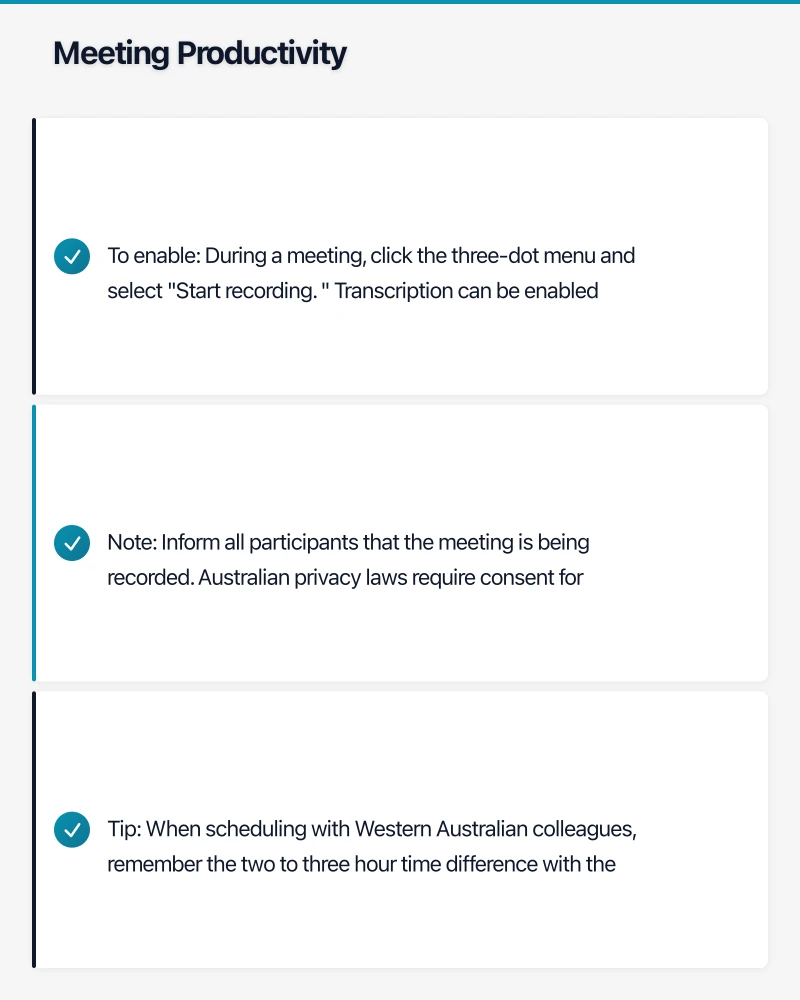
To enable: During a meeting, click the three-dot menu and select “Start recording.” Transcription can be enabled alongside recording.
Note: Inform all participants that the meeting is being recorded. Australian privacy laws require consent for recording, and it is good practice to announce it at the start of each recorded meeting.
Use Breakout Rooms for Workshops
When running larger meetings or workshops, breakout rooms allow you to split attendees into smaller groups for focused discussion. The meeting organiser can create rooms, assign participants, and set time limits.
This is particularly useful for Australian businesses running training sessions, brainstorming workshops, or team-building activities across distributed teams.
Schedule Meetings Across Time Zones
If you work with colleagues or clients across Australian time zones (AEST, ACST, AWST), or with international teams, use the scheduling assistant in Teams to find times that work for everyone. Teams displays each person’s availability and time zone.
Tip: When scheduling with Western Australian colleagues, remember the two to three hour time difference with the eastern states. Avoid scheduling meetings before 10 AM AEST for AWST participants where possible.
Chat and Communication
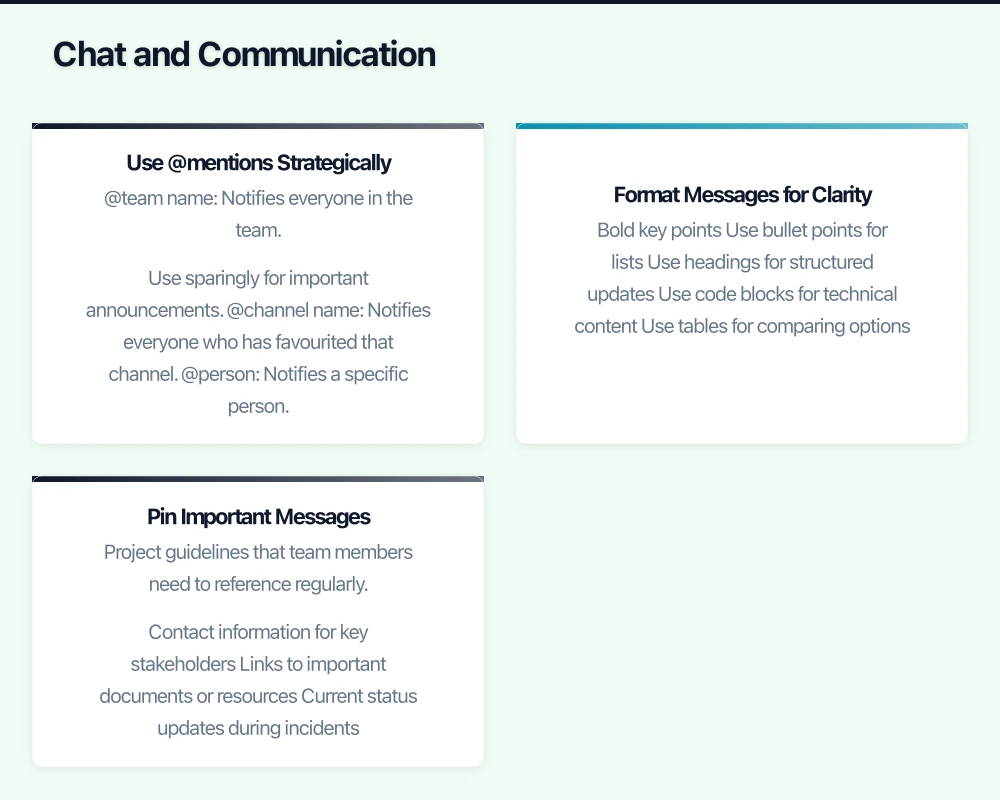
Use @mentions Strategically
- @team name: Notifies everyone in the team. Use sparingly for important announcements.
- @channel name: Notifies everyone who has favourited that channel.
- @person: Notifies a specific person. Use when you need their attention or response.
Over-mentioning creates notification fatigue. Reserve @team mentions for genuinely important communications.
Format Messages for Clarity
Use the formatting toolbar (click the “A” with a pen icon below the message box) to structure longer messages:
- Bold key points
- Use bullet points for lists
- Use headings for structured updates
- Use code blocks for technical content
- Use tables for comparing options
A well-formatted message is far more likely to be read and acted upon than a wall of text.
Pin Important Messages
Pin critical messages to the top of a channel or chat. This is invaluable for:
- Project guidelines that team members need to reference regularly
- Contact information for key stakeholders
- Links to important documents or resources
- Current status updates during incidents
Right-click a message and select “Pin” to make it persistent at the top of the conversation.
Use Saved Messages
Bookmark messages you need to come back to by hovering over a message and clicking the bookmark icon. Access your saved messages from the three-dot menu at the top of Teams. This is far more reliable than trying to scroll back through conversations.
File Collaboration
Stop Emailing Attachments
One of the biggest productivity gains Teams offers is eliminating email attachments. Instead:
- Store documents in the Teams channel’s Files tab (backed by SharePoint)
- Share a link to the document in a Teams message
- Multiple people can edit simultaneously with real-time co-authoring
- Version history tracks all changes automatically
This eliminates the problem of multiple versions of documents floating around in email inboxes, a common source of errors and wasted time in Australian businesses.
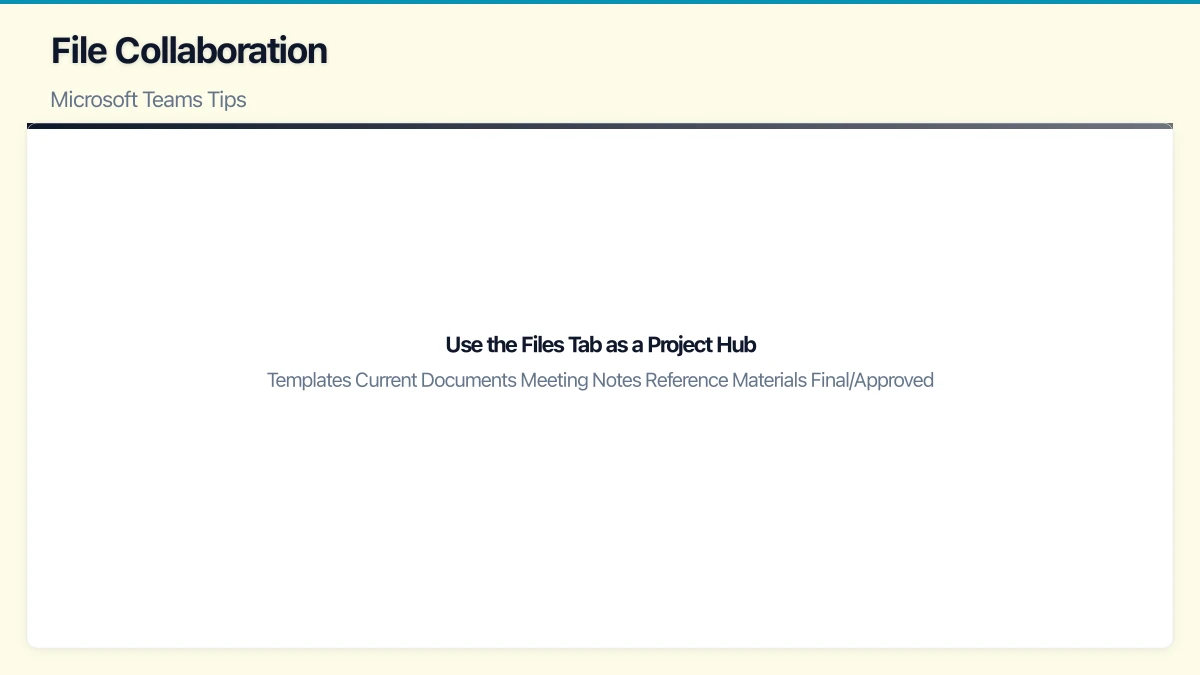
Use the Files Tab as a Project Hub
Each channel has a Files tab that maps to a SharePoint folder. Organise it with a clear folder structure:
- Templates
- Current Documents
- Meeting Notes
- Reference Materials
- Final/Approved
Pin the most frequently accessed files to the top of the Files tab for quick access.
Integrate with SharePoint and OneDrive
Add SharePoint document libraries or specific folders as tabs in Teams channels. This brings relevant documents directly into the workflow without switching applications.
For personal files, OneDrive integrates seamlessly. Share OneDrive files directly in Teams chats and channels.
Automation with Power Automate
Automate Repetitive Tasks
Power Automate (included in most Microsoft 365 plans) connects with Teams to automate routine workflows:
Useful automations for Australian SMBs:
- Approval workflows: Post a request in Teams, route it for approval, and post the result back. Useful for purchase approvals, leave requests, or document sign-offs.
- Notifications: Get a Teams notification when a new item is added to a SharePoint list, a form response is submitted, or an email arrives from a specific sender.
- Status updates: Automatically post project status updates from Planner or Project to a Teams channel.
- Onboarding automation: When a new employee is added to Azure AD, automatically add them to the appropriate Teams, post a welcome message, and share onboarding resources.
Use Teams Templates
If you create similar teams repeatedly (for new projects, new clients, or recurring events), use team templates. Templates pre-configure channels, tabs, and apps so new teams start with a consistent structure.
Create templates in the Teams admin centre or use the built-in templates Microsoft provides.
Apps and Integrations
Essential Teams Apps for Australian Businesses
- Planner: Task management integrated directly into Teams channels. Create a tab with a Planner board for visual task tracking.
- Approvals: Built-in approval workflows for simple requests. No Power Automate required for basic approvals.
- Lists: Create and manage structured data (asset registers, project trackers, client lists) directly within Teams.
- Forms: Create surveys and polls. Useful for gathering team feedback, event RSVPs, or quick decision-making.
- Bookings: Online scheduling for client-facing businesses. Clients book appointments through a web page, and the appointment appears in your Teams calendar.
Third-Party Integrations
Popular integrations for Australian businesses include:
- Xero: View financial data and notifications in Teams
- Trello: For teams that prefer Kanban-style project management
- Adobe Acrobat: Sign and manage PDFs within Teams
- Freshdesk or Zendesk: Help desk notifications in Teams channels
Administration Tips
Set Usage Policies
Define how your organisation uses Teams to prevent chaos:
- Which types of teams can employees create (or restrict team creation to IT/management)?
- Naming conventions for teams and channels
- Guest access policies (can external users be added to teams?)
- Data retention policies
- What content is appropriate for Teams vs email
Review and Clean Up Regularly
- Archive inactive teams quarterly
- Remove former employees and contractors from all teams promptly
- Review guest access monthly
- Delete channels that are no longer needed
Monitor Usage with Analytics
Teams admin centre provides usage analytics showing:
- Active users over time
- Device and platform usage
- Meeting activity and duration
- Channel and chat message volumes
Use this data to identify adoption gaps and target training where it will have the most impact.
Training Your Team
The biggest barrier to Teams productivity is not the technology but user habits. Invest in training that covers:
- When to use Teams vs email: Teams for internal collaboration, email for external and formal communications
- Notification management: How to customise notifications so they are useful without being overwhelming
- Mobile app: Ensuring all staff have the Teams mobile app installed and configured
- Search: How to find messages, files, and people quickly using Teams search
- Keyboard shortcuts: Ctrl+E for search, Ctrl+N for new chat, Ctrl+Shift+M for mute/unmute in meetings
Run short, focused training sessions (30 minutes) rather than comprehensive courses. Drip-feed tips through a dedicated “Teams Tips” channel.
Measuring the Impact
Track these metrics to gauge whether your Teams optimisation efforts are paying off:
- Reduction in internal email volume
- Faster project communication cycles
- Improved meeting punctuality and shorter meeting durations
- Increased use of co-authoring vs emailing attachments
- Positive feedback from staff surveys on collaboration tools
Microsoft Teams is already on your desktops and devices. The opportunity cost of underutilising it is significant. A few hours spent optimising your setup and training your team can yield meaningful productivity gains across your entire Australian business.
How does cloud adoption fit your long-term business strategy? Ash Ganda explores technology leadership and digital maturity for growing businesses.
Ganda Tech Services brings together cloud infrastructure, web development, and mobile app expertise to help Australian businesses thrive in the digital economy.