
Microsoft Teams Phone System for Australian Business
Microsoft Teams Phone System for Australian Business
If your business already uses Microsoft Teams for chat and video meetings, adding voice calling is a natural next step. Microsoft Teams Phone System replaces your traditional PBX (Private Branch Exchange) with a cloud-based phone system that works from your desk phone, laptop, or mobile device — anywhere you have an internet connection.
For Australian businesses, Teams Phone is now a viable replacement for on-premise phone systems. This guide covers how it works, what it costs, and how to make the switch.
How Teams Phone System Works
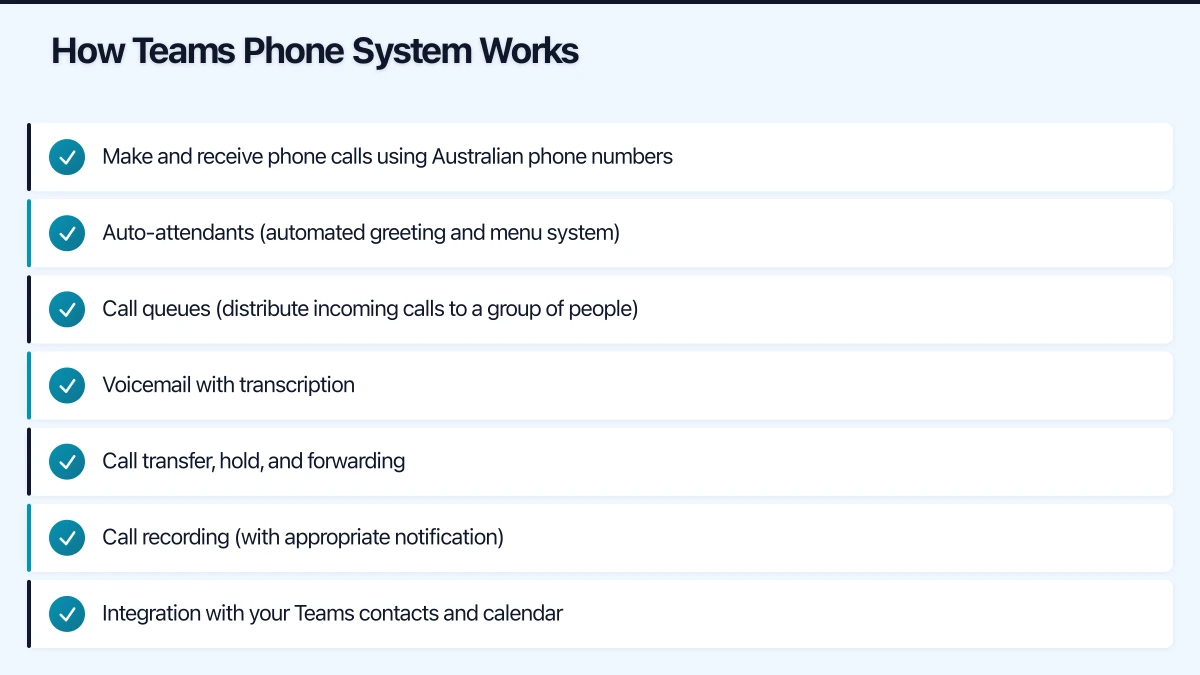
Teams Phone System adds enterprise voice capabilities to Microsoft Teams:
- Make and receive phone calls using Australian phone numbers
- Auto-attendants (automated greeting and menu system)
- Call queues (distribute incoming calls to a group of people)
- Voicemail with transcription
- Call transfer, hold, and forwarding
- Call recording (with appropriate notification)
- Integration with your Teams contacts and calendar
Callers dial your business phone number and reach your staff on Teams — whether they are at their desk, working from home, or on their mobile device.
Licensing Options
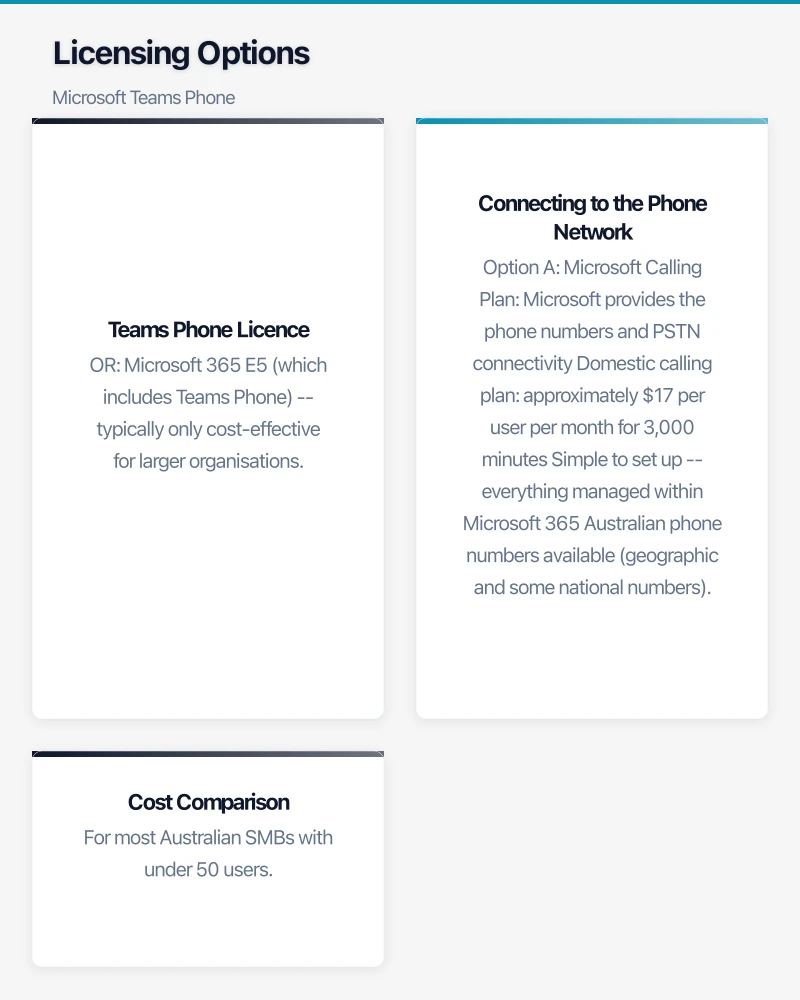
Teams Phone Licence
To use Teams Phone, each user needs:
- A Microsoft 365 licence that includes Teams (Business Basic, Standard, or Premium, or E3/E5)
- Teams Phone Standard licence ($12 per user per month) — adds calling features to Teams
OR
- Microsoft 365 E5 (which includes Teams Phone) — typically only cost-effective for larger organisations
Connecting to the Phone Network
The Teams Phone licence gives you internal calling (Teams-to-Teams). To make and receive calls from regular phone numbers (landlines and mobiles), you need one of these options:
Option A: Microsoft Calling Plan
- Microsoft provides the phone numbers and PSTN connectivity
- Domestic calling plan: approximately $17 per user per month for 3,000 minutes
- Simple to set up — everything managed within Microsoft 365
- Australian phone numbers available (geographic and some national numbers)
Option B: Operator Connect
- An approved Australian telco provides the phone numbers and PSTN connectivity through a managed connection to Microsoft Teams
- Australian Operator Connect partners include Telstra and other carriers
- Allows you to keep your existing phone numbers and telco relationship
- Pricing varies by operator
Option C: Direct Routing
- You connect your own SIP trunk provider to Teams through a Session Border Controller (SBC)
- Most flexible option — use any Australian SIP trunk provider
- Keep your existing phone numbers and potentially lower per-minute rates
- Requires more technical setup (SBC configuration)
- Popular Australian SIP providers: Vonage, Telstra, TPG, Macquarie Telecom
Cost Comparison
For a 20-user Australian business:
| Option | Per-User Monthly Cost | Total Monthly Cost |
|---|---|---|
| Teams Phone + Microsoft Calling Plan | $12 + $17 = $29 | $580 |
| Teams Phone + Operator Connect | $12 + $10-15 = $22-27 | $440-540 |
| Teams Phone + Direct Routing (SIP) | $12 + $5-10 = $17-22 | $340-440 |
All options assume a Microsoft 365 Business Standard base licence ($18.70/user).
Direct routing has the lowest per-user cost but requires a Session Border Controller (approximately $500 to $2,000 for a hardware SBC, or $15 to $30 per month for a cloud-hosted SBC).
For most Australian SMBs with under 50 users, Microsoft Calling Plans or Operator Connect provides the simplest path. Direct routing is better for businesses with specific requirements, existing SIP infrastructure, or higher call volumes where per-minute rates matter.
Key Features for Australian Businesses
Auto-Attendant
Replace your receptionist’s first-contact role with an automated greeting:
“Thank you for calling CloudGeeks. Press 1 for Sales, 2 for Support, or 3 for Accounts. To speak with a team member directly, please say their name or enter their extension.”
Configuration:
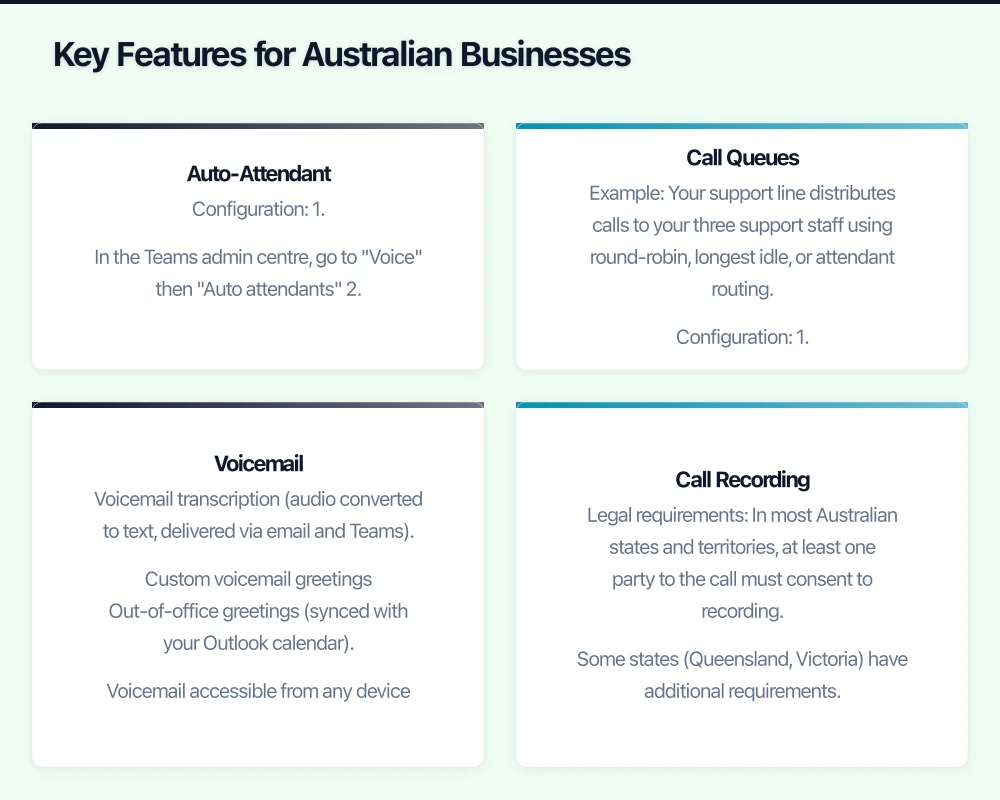
- In the Teams admin centre, go to “Voice” then “Auto attendants”
- Create a new auto-attendant
- Record or type your greeting (text-to-speech is available)
- Configure menu options (map each option to a user, call queue, or another auto-attendant)
- Set business hours and after-hours behaviour
- Assign a phone number
Multiple auto-attendants can be chained together for different departments or scenarios (business hours vs. after hours vs. holidays).
Call Queues
Distribute incoming calls to a group of agents:
Example: Your support line distributes calls to your three support staff using round-robin, longest idle, or attendant routing.
Configuration:
- Create a call queue in the Teams admin centre
- Add agents (Teams users who will answer calls)
- Set the routing method
- Configure overflow behaviour (what happens when all agents are busy)
- Set timeout behaviour (what happens if nobody answers within a set time)
- Assign a phone number or link to an auto-attendant
Voicemail
Teams voicemail includes:
- Voicemail transcription (audio converted to text, delivered via email and Teams)
- Custom voicemail greetings
- Out-of-office greetings (synced with your Outlook calendar)
- Voicemail accessible from any device
Call Recording
Teams supports call recording with some important considerations for Australian businesses:
Legal requirements:
- In most Australian states and territories, at least one party to the call must consent to recording. Some states (Queensland, Victoria) have additional requirements.
- Notification of recording is best practice — inform callers at the beginning of recorded calls.
- Configure your auto-attendant to include a recording notice: “This call may be recorded for quality and training purposes.”
Technical setup:
- Call recording policies are configured in the Teams admin centre
- Recordings are stored in OneDrive (1:1 calls) or SharePoint (meetings)
- Retention policies should be applied to manage storage and compliance
Hardware Options
Desk Phones
If your staff prefer physical desk phones, several Teams-certified models are available:
Entry-level:
- Yealink T43U: Basic Teams phone, approximately $200
- Poly (Polycom) CCX 400: Touch screen, approximately $300
Mid-range:
- Yealink T56A: Large touch screen, integrated Teams, approximately $400
- Poly CCX 500: 5-inch colour touch screen, approximately $450
Executive:
- Yealink T58A: Large screen with optional camera, approximately $500
- Poly CCX 600: Built-in camera for video calls, approximately $600
Reception/common area:
- Yealink CP960: Conference phone, approximately $800
- Teams-certified common area phones: approximately $200 with a Common Area Phone licence ($10/month)
Headsets
For staff who use their computer for calls (the most common setup):
- Jabra Evolve2 40: Wired USB headset, excellent noise cancellation, approximately $180
- Jabra Evolve2 65: Wireless Bluetooth, approximately $300
- Poly Voyager Focus 2: Wireless with active noise cancellation, approximately $350
- Jabra Evolve2 75: Premium wireless with advanced ANC, approximately $450
For open-plan offices, noise-cancelling headsets are essential for call quality.
Migration from Traditional PBX
Planning the Migration
Phase 1: Assessment (2-4 weeks)
- Inventory your current phone system: handsets, lines, features in use
- Document all phone numbers (main numbers, direct numbers, fax lines)
- List special requirements (call recording, call centre features, fax)
- Identify numbers to port (transfer) to the new system
- Check internet bandwidth — VoIP calls use approximately 100 Kbps each. For 20 concurrent calls, you need at least 2 Mbps of dedicated bandwidth.
Phase 2: Setup (2-4 weeks)
- Configure Teams Phone licences for all users
- Set up your PSTN connectivity (Calling Plan, Operator Connect, or Direct Routing)
- Configure auto-attendants and call queues
- Port your existing phone numbers (this can take 10 to 20 business days in Australia)
- Configure emergency calling (000 access) — this is critical and must be tested
- Deploy and configure desk phones or headsets
Phase 3: Pilot (1-2 weeks)
- Migrate a small group of users (5 to 10) to Teams Phone
- Test all call scenarios: inbound, outbound, transfer, voicemail, auto-attendant
- Test emergency calling (verify 000 access works and provides correct location information)
- Gather feedback and address issues
Phase 4: Full migration (1-2 weeks)
- Migrate remaining users
- Complete number porting
- Decommission old PBX
- Provide training to all staff
Number Porting in Australia
Porting your existing phone numbers to Teams ensures callers reach you at the same number.
The process:
- Submit a porting request through the Teams admin centre (for Microsoft Calling Plans) or through your Operator Connect/SIP provider
- Provide a Letter of Authority (LOA) authorising the transfer
- The porting process typically takes 10 to 20 business days in Australia
- On the porting date, calls to your old numbers automatically route to Teams
Important: Do not cancel your existing phone service until the port is complete. Cancelling before porting can result in losing your numbers.
Emergency Calling (000)
Emergency calling must work correctly. In Australia, this means calls to 000 must connect and provide location information.
Configuration requirements:
- Assign an emergency address to each Teams Phone user
- For fixed locations (offices), the address is set in the admin centre
- For mobile users, dynamic emergency calling can use network location information
- Test emergency calling during your pilot phase (coordinate with your telco or Microsoft support)
Common Concerns
Call quality: Teams Phone call quality depends on your internet connection. For a business with 20 staff, ensure you have at least 10 Mbps upload bandwidth dedicated to voice traffic. QoS (Quality of Service) configuration on your router or firewall can prioritise voice traffic.
Reliability: Microsoft Teams has a 99.99% uptime SLA. However, if your local internet goes down, so do your phones. Consider a 4G/5G failover internet connection for redundancy, or configure mobile Teams app as a fallback.
Fax: Traditional fax is not supported in Teams. If your business still uses fax, consider a cloud fax service (eFax, HelloFax) or a fax-to-email gateway.
Lift/intercom integration: Building intercoms and lift phones connected to your old PBX will need alternative solutions. Analogue telephone adapters (ATAs) or SIP-compatible intercom systems can address this.
Is Teams Phone Right for Your Business?
Teams Phone is a strong fit if:
- You already use Microsoft Teams
- Your staff work from multiple locations or remotely
- You want to consolidate communication tools
- Your current phone system is ageing or costly to maintain
Teams Phone may not be ideal if:
- You have a large call centre (over 50 agents) — consider dedicated contact centre solutions
- You have complex PBX features (hunt groups with specific routing logic, CRM screen pop) that Teams does not replicate
- Your internet connection is unreliable
For most Australian SMBs already invested in Microsoft 365, Teams Phone is the natural evolution of your communication infrastructure. The setup is manageable, the cost is competitive with traditional phone systems, and the flexibility of calling from any device is a genuine business advantage.
Considering an online store backed by your cloud infrastructure? Cosmos Web Tech creates Shopify and WooCommerce stores optimised for the Australian market.
Ashish Ganda is the founder of Ganda Tech Services, a Sydney-based technology consultancy helping Australian businesses grow through cloud, web, and mobile solutions.