
Microsoft Teams Deployment Guide for Australian Offices
Microsoft Teams Deployment Guide for Australian Offices
Microsoft Teams has become the central hub for workplace collaboration. With over 145 million daily active users as of April 2021, it has evolved from a chat tool into a comprehensive platform for communication, collaboration, and business process management. For Australian offices — particularly those adopting hybrid work models — Teams is often the first application staff open each morning.
But deploying Teams effectively requires more than simply enabling it in your Microsoft 365 tenant. Without proper planning, businesses end up with sprawling, ungoverned environments where information is impossible to find and staff revert to email out of frustration.
This guide covers how to deploy Teams deliberately, with governance, structure, and adoption practices that set your team up for success.
Pre-Deployment Planning
Licensing
Teams is included in these Microsoft 365 plans:
- Microsoft 365 Business Basic ($7.50/user/month): Teams with web/mobile Office apps.
- Microsoft 365 Business Standard ($18.70/user/month): Teams with full desktop Office apps.
- Microsoft 365 Business Premium ($30/user/month): Teams with advanced security features.
There is also a free version of Teams, but it lacks administrative controls, compliance features, and integration with Microsoft 365 services that businesses need.
For most Australian SMBs, Business Standard or Business Premium is the appropriate choice.
Network Assessment
Teams relies heavily on your network for chat, file sharing, and especially video and voice calls. Before deployment:
Internet bandwidth: Microsoft recommends at least 1.5 Mbps per user for video conferencing. For an office with 20 people, 10 simultaneous video calls would require 15 Mbps of dedicated bandwidth.
WiFi quality: Poor WiFi is the number one cause of bad Teams call quality. Ensure your wireless infrastructure can handle the additional load. Business-grade access points are essential.
Quality of Service (QoS): Configure your firewall and switches to prioritise Teams traffic (audio and video) over other data. Microsoft provides specific port and protocol information for QoS configuration.
Test with the Microsoft 365 network connectivity tool: Microsoft offers a connectivity test at connectivity.office.com that assesses your network’s readiness for Microsoft 365 services.
Governance Planning
Governance is the most overlooked aspect of Teams deployment. Without it, you end up with dozens of abandoned teams, inconsistent naming, and scattered information.
Team creation policy: Who can create teams? Options:
- Anyone can create teams (maximum flexibility, minimum governance).
- Only specific people can create teams (maximum governance, potential bottleneck).
- Anyone can request a team, with approval required (balanced approach).
For most SMBs, we recommend a moderate approach: allow team creation but with naming conventions and regular reviews.
Naming conventions: Establish a naming standard. For example:
- Department teams: “Dept - [Department Name]” (e.g., “Dept - Finance”)
- Project teams: “Proj - [Project Name]” (e.g., “Proj - Website Redesign”)
- Client teams: “Client - [Client Name]” (e.g., “Client - ABC Corp”)
Lifecycle management: Teams that are no longer active should be archived, not left to accumulate. Set a policy to review inactive teams quarterly.
Guest access: Decide whether external users (clients, contractors, suppliers) can be invited to teams. If yes, establish policies around what they can access.
Configuration
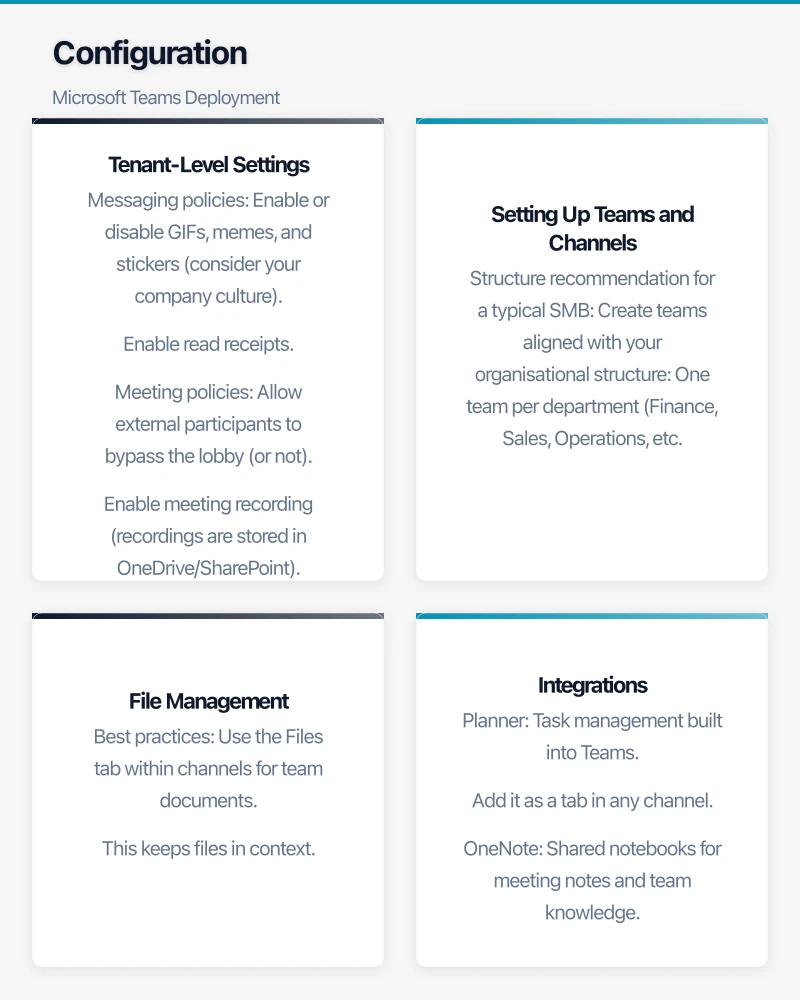
Tenant-Level Settings
Configure these in the Teams admin centre:
Messaging policies:
- Enable or disable GIFs, memes, and stickers (consider your company culture).
- Enable read receipts.
- Enable message editing and deletion (with appropriate time limits).
Meeting policies:
- Allow external participants to bypass the lobby (or not).
- Enable meeting recording (recordings are stored in OneDrive/SharePoint).
- Configure who can present in meetings.
- Enable live captions and transcription.
App policies:
- Control which third-party apps are available in Teams.
- Block apps that are not approved for business use.
- Pin essential apps (like Planner, SharePoint, or your CRM integration) for easy access.
Security settings:
- Enforce multi-factor authentication.
- Configure data loss prevention policies if handling sensitive information.
- Review and configure compliance and retention policies.
Setting Up Teams and Channels
Structure recommendation for a typical SMB:
Create teams aligned with your organisational structure:
- One team per department (Finance, Sales, Operations, etc.)
- Project-based teams for cross-functional work
- A company-wide team for all-staff announcements and social interaction
Within each team, use channels to organise topics:
- General: Default channel. Use for broad team communication.
- Topic-specific channels: Create channels for recurring topics (e.g., “Weekly Reports”, “Client Updates”, “Training Resources”).
Keep the structure simple. Too many teams and channels create confusion. You can always add more as needs evolve.
File Management
Teams integrates with SharePoint for file storage. Every team gets a SharePoint site, and every channel gets a folder in that site’s document library.
Best practices:
- Use the Files tab within channels for team documents. This keeps files in context.
- Create folder structures within channels for organisation.
- For company-wide documents (policies, templates, procedures), create a dedicated team or SharePoint site.
- Educate staff on the difference between files in Teams (shared with the team) and files in OneDrive (personal until shared).
Integrations
Teams becomes more powerful when integrated with other tools:
- Planner: Task management built into Teams. Add it as a tab in any channel.
- OneNote: Shared notebooks for meeting notes and team knowledge.
- SharePoint: Document libraries and lists accessible directly within Teams.
- Power Automate: Automate workflows (e.g., notify a channel when a form is submitted).
- Third-party apps: Many popular business tools integrate with Teams — Trello, Asana, Salesforce, Jira, and others.
Deployment Approach
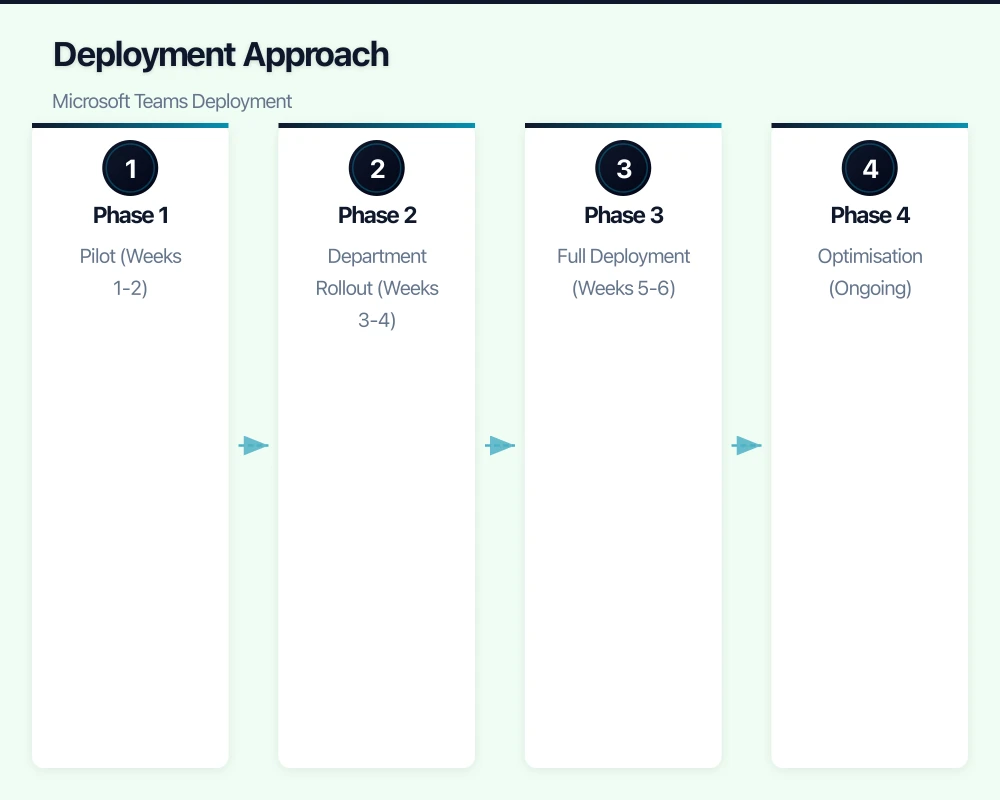
Phase 1: Pilot (Weeks 1-2)
Deploy Teams to a small pilot group (5 to 10 people, ideally from different departments):
- Set up the pilot team with proper structure and governance.
- Ask the pilot group to use Teams for all internal communication for two weeks.
- Collect feedback on usability, features, and gaps.
- Identify training needs based on the pilot experience.
Phase 2: Department Rollout (Weeks 3-4)
Roll out to all departments, one at a time:
- Create department teams with appropriate channels.
- Provide training (see below).
- Migrate key conversations from email to Teams.
- Assign a Teams champion in each department to support adoption.
Phase 3: Full Deployment (Weeks 5-6)
Complete the rollout:
- Enable Teams for all users.
- Set up project-based and cross-functional teams.
- Configure integrations with other business tools.
- Establish ongoing governance practices.
Phase 4: Optimisation (Ongoing)
- Gather feedback and refine the structure.
- Add new integrations as needed.
- Archive inactive teams.
- Continue training on new features.
Training
Training is the difference between adoption and abandonment. Invest in it properly.
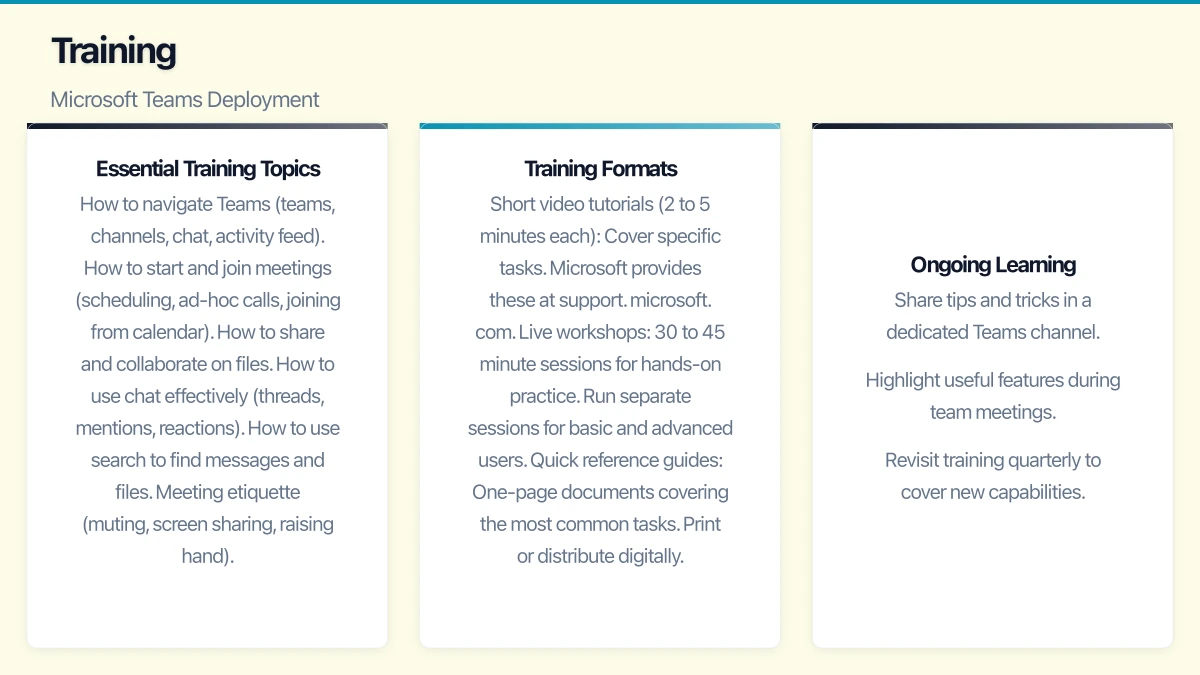
Essential Training Topics
- How to navigate Teams (teams, channels, chat, activity feed).
- How to start and join meetings (scheduling, ad-hoc calls, joining from calendar).
- How to share and collaborate on files.
- How to use chat effectively (threads, mentions, reactions).
- How to use search to find messages and files.
- Meeting etiquette (muting, screen sharing, raising hand).
Training Formats
- Short video tutorials (2 to 5 minutes each): Cover specific tasks. Microsoft provides these at support.microsoft.com.
- Live workshops: 30 to 45 minute sessions for hands-on practice. Run separate sessions for basic and advanced users.
- Quick reference guides: One-page documents covering the most common tasks. Print or distribute digitally.
- Teams champions: Identify early adopters in each department who can help colleagues with day-to-day questions.
Ongoing Learning
Teams is updated frequently with new features. Keep your team informed:
- Share tips and tricks in a dedicated Teams channel.
- Highlight useful features during team meetings.
- Revisit training quarterly to cover new capabilities.
Managing the Transition from Email
The biggest adoption challenge is not technical — it is cultural. Staff default to email because it is familiar. Transitioning to Teams requires deliberate effort.
Strategies:
- Lead from the top: If management continues using email for everything, staff will too. Leaders must use Teams visibly.
- Define when to use what: Create clear guidelines. For example: Teams chat for quick questions, Teams channels for team discussions, email for external communication and formal correspondence.
- Move recurring discussions: Shift regular meetings, status updates, and project discussions into Teams channels.
- Be patient: Cultural change takes time. Expect three to six months before Teams becomes the default communication tool.
Common Mistakes to Avoid
- No governance: Allowing unchecked team creation leads to sprawl. Establish naming conventions and lifecycle policies from the start.
- Too many teams: Start with fewer, well-structured teams. You can always add more.
- No training: Assuming people will figure it out leads to frustration and poor adoption.
- Ignoring network readiness: Poor call quality kills adoption faster than anything else. Fix your network before deploying.
- Using Teams for everything: Teams is not a replacement for all communication. Email still has its place for external and formal communication.
Measuring Success
Track these metrics to gauge adoption:
- Active users: How many staff are using Teams daily?
- Messages sent: Trend over time — should increase as adoption grows.
- Meetings held in Teams: Versus other platforms.
- Files shared: Indicates collaboration is moving into Teams.
- Email volume: Should decrease as Teams usage increases.
Microsoft 365 admin centre provides usage reports that cover these metrics.
Getting Started
If Teams is enabled in your Microsoft 365 tenant but not being used effectively, now is a good time to reset. Establish governance, create a clear structure, invest in training, and deploy deliberately. The payoff — faster communication, better collaboration, and reduced email overload — is well worth the effort.
For businesses that have not yet started with Teams, the deployment process described in this guide can be completed in four to six weeks. The earlier you start, the sooner your team benefits from a modern collaboration platform that supports both office and remote work equally well.
Pair your cloud backend with a polished mobile experience. Awesome Apps develops apps for iOS and Android that keep your team and customers connected.
This article is brought to you by Ganda Tech Services — Sydney’s complete digital solutions provider covering cloud, web, and mobile.