
Microsoft Intune for Australian Business Device Management

Microsoft Intune for Australian Business Device Management
Managing business devices gets complicated quickly. You have Windows laptops, a few Macs, everyone’s smartphones checking email, maybe some iPads in the field — and you need to keep them all secure, updated, and configured consistently. Microsoft Intune, included with Microsoft 365 Business Premium, provides a cloud-based solution for exactly this problem.
This guide walks through setting up and using Intune for an Australian small business, focusing on the practical configurations that matter most.
What Intune Does
Intune is Microsoft’s cloud-based endpoint management service. It lets you:
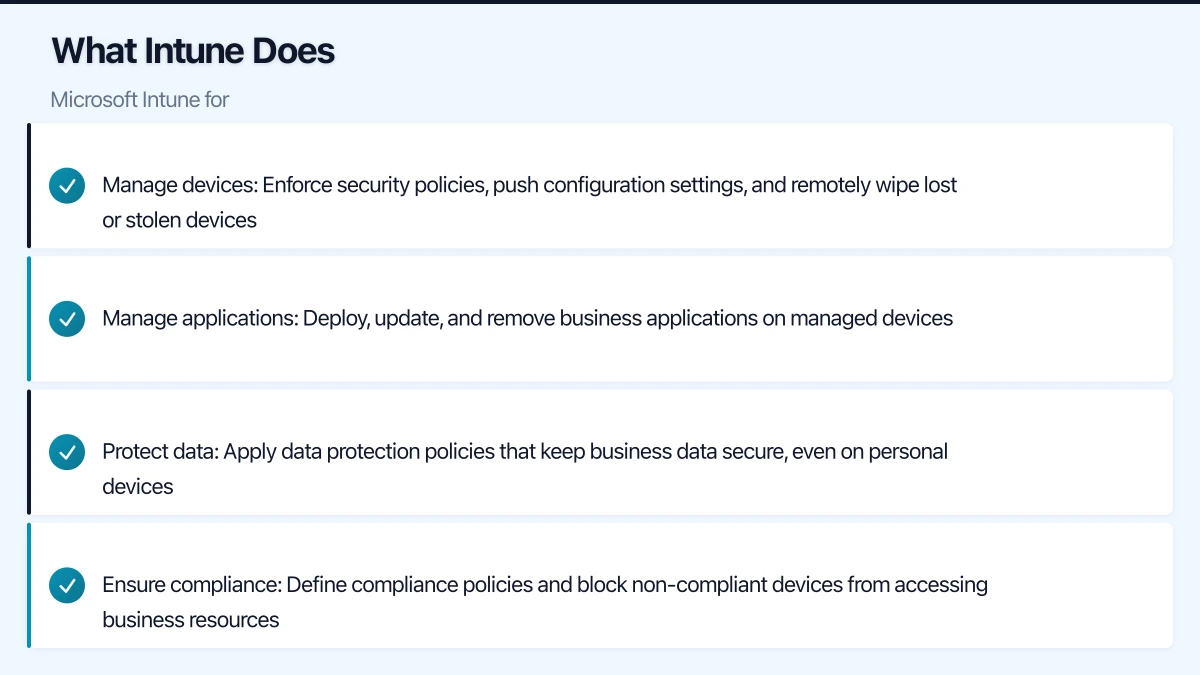
- Manage devices: Enforce security policies, push configuration settings, and remotely wipe lost or stolen devices
- Manage applications: Deploy, update, and remove business applications on managed devices
- Protect data: Apply data protection policies that keep business data secure, even on personal devices
- Ensure compliance: Define compliance policies and block non-compliant devices from accessing business resources
Intune replaces traditional tools like Group Policy (for cloud-managed devices) and System Center Configuration Manager (for small-scale deployments), providing similar functionality without on-premise infrastructure.
Licensing
Intune is included in:
- Microsoft 365 Business Premium ($33 per user per month) — the most common choice for Australian SMBs
- Microsoft 365 E3/E5 — enterprise plans
- Enterprise Mobility + Security E3/E5 — standalone mobility suite
- Intune standalone ($12 per user per month) — if you do not need the full Microsoft 365 suite
For most Australian SMBs, Microsoft 365 Business Premium provides the best value because it includes Intune alongside Office apps, Exchange Online, Teams, and advanced security features.
Step 1: Initial Configuration
Set the MDM Authority
In the Microsoft Endpoint Manager admin centre (endpoint.microsoft.com):
- Navigate to “Tenant administration” then “Tenant status”
- Verify the MDM authority is set to “Microsoft Intune” (this should be the default for new tenants)
Configure Automatic Enrolment
Enable automatic device enrolment so that when users sign in with their work account, their device is enrolled in Intune.
- Go to “Devices” then “Enrol devices” then “Automatic Enrollment”
- Set the MDM user scope to “All” or select specific groups
- Set the MAM user scope as needed (for BYOD app-only management)
Configure Device Categories
Device categories help you organise and target policies. Create categories that match your business:
- Company Laptop
- Company Desktop
- Company Mobile
- Personal Mobile (BYOD)
- Shared Device
Step 2: Create Compliance Policies
Compliance policies define the minimum security requirements for devices accessing your business data. Non-compliant devices can be blocked from accessing email, files, and applications.
Windows Compliance Policy
Create a compliance policy for Windows devices:
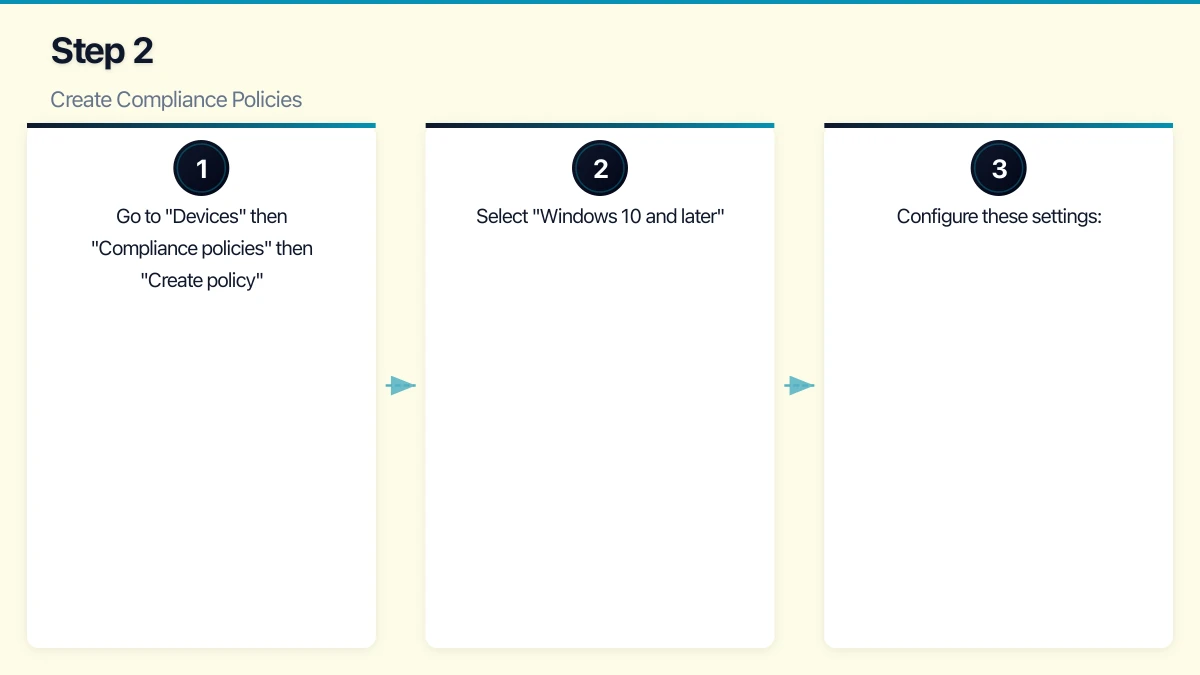
- Go to “Devices” then “Compliance policies” then “Create policy”
- Select “Windows 10 and later”
- Configure these settings:
Device Health:
- Require BitLocker: Yes
- Require Secure Boot: Yes
- Require code integrity: Yes
Device Properties:
- Minimum OS version: 10.0.19041 (Windows 10 version 2004 or later)
System Security:
- Require a password: Yes
- Minimum password length: 8 characters
- Password type: Alphanumeric
- Maximum minutes of inactivity before password is required: 5
- Password expiration: 90 days (or consider removing expiry and enforcing complexity instead)
- Require encryption of data storage: Yes
- Firewall: Require
- Antivirus: Require
- Antispyware: Require
- Microsoft Defender Antimalware minimum version: Current
Actions for non-compliance:
- Mark device as non-compliant: Immediately or after a grace period (3 days is reasonable for initial rollout)
- Send email to user: Yes (notify them of what needs to be fixed)
- Block access after grace period: Yes
iOS/iPadOS Compliance Policy
For iPhones and iPads:
- Require device to be at or under the device threat level: Secured
- Minimum OS version: 15.0
- Require a passcode: Yes
- Minimum passcode length: 6
- Simple passcodes: Block
- Maximum minutes of inactivity before passcode is required: 5
- Jailbroken devices: Block
Android Compliance Policy
For Android devices:
- Rooted devices: Block
- Minimum OS version: 11.0
- Require a password: Yes
- Required password type: At least numeric complex
- Minimum password length: 6
- Require encryption: Yes
Step 3: Create Configuration Profiles
Configuration profiles push settings to devices, replacing what Group Policy does in traditional on-premise environments.
Essential Windows Configuration Profiles
Windows Update settings:
- Configure update rings to control how quickly updates are installed
- Set quality update deferral: 3 to 7 days (allows time for testing)
- Set feature update deferral: 30 to 60 days
- Configure maintenance windows for restarts
- Enable “Auto-restart at the scheduled time”
BitLocker encryption:
- Require device encryption
- Configure recovery key backup to Azure AD
- Set encryption method: XTS-AES 256-bit
Microsoft Defender settings:
- Enable real-time protection
- Enable cloud-delivered protection
- Enable automatic sample submission
- Configure scan schedule (daily quick scan, weekly full scan)
- Enable network protection
- Enable controlled folder access (ransomware protection)
Wi-Fi profile:
- Push your office Wi-Fi configuration to devices automatically
- Include the Wi-Fi password securely (users never see it)
- Configure preferred network settings
Essential iOS/Android Configuration Profiles
Email profile:
- Push the Exchange Online email configuration to devices automatically
- Users do not need to manually configure server settings
Wi-Fi profile:
- Same as Windows — push office Wi-Fi configuration
Restrictions (company-owned devices):
- Disable iCloud backup for managed apps (iOS)
- Require managed paste (prevent copying data from business apps to personal apps)
Step 4: Deploy Applications
Intune can deploy applications to managed devices, ensuring everyone has the tools they need.
Windows Applications
Microsoft 365 Apps:
- Go to “Apps” then “All apps” then “Add”
- Select “Microsoft 365 Apps” then “Windows 10 and later”
- Configure the apps to install (Word, Excel, Outlook, PowerPoint, Teams, etc.)
- Set the update channel (Current Channel is recommended for most SMBs)
- Assign to your user groups
Line-of-business applications:
- Package .msi or .intunewin files for deployment
- For complex installations, use the Microsoft Win32 Content Prep Tool to create .intunewin packages
- Assign as “Required” for essential applications or “Available” for optional ones
iOS and Android Applications
Managed App Store apps:
- Search for the app in the relevant store
- Assign to user groups
- Apps are installed automatically on managed devices or made available in the Company Portal
Common apps to deploy:
- Microsoft Outlook
- Microsoft Teams
- Microsoft OneDrive
- Microsoft Authenticator
- Company-specific apps (CRM mobile app, field service app, etc.)
Step 5: Configure App Protection Policies (for BYOD)
App protection policies protect business data within applications without requiring full device enrolment. This is ideal for BYOD scenarios.
iOS/Android App Protection Policy
- Go to “Apps” then “App protection policies” then “Create policy”
- Select iOS/iPadOS or Android
- Target apps: Microsoft Outlook, OneDrive, Teams, SharePoint, and any other business apps
- Configure data protection settings:
Data transfer:
- Restrict cut, copy, and paste between managed and unmanaged apps
- Allow data transfer to: Policy managed apps only
- Allow data transfer from: All apps (so users can paste content into business apps)
- Save copies of org data: Block (or allow only to OneDrive for Business and SharePoint)
Access requirements:
- PIN for access: Require (separate from device PIN)
- PIN type: Numeric
- Minimum PIN length: 4
- Fingerprint/Face ID: Allow
- Timeout: Recheck access requirements after 30 minutes
Conditional launch:
- Max PIN attempts: 5 (wipe app data after exceeding)
- Offline grace period: 720 minutes (12 hours) before blocking access
- Jailbroken/rooted device: Block access
- Min OS version: Set to a recent version
These policies mean that even on a personal phone, business data in Outlook, Teams, and OneDrive is encrypted, cannot be copied to personal apps, and can be selectively wiped when the employee leaves — without touching their personal photos, messages, or apps.
Step 6: Set Up Conditional Access
Conditional Access policies in Azure AD work with Intune compliance to control access to business resources.
Recommended policy: Require compliant device for Microsoft 365 access
- In Azure AD, go to “Security” then “Conditional Access”
- Create a new policy
- Users: All users (exclude break-glass accounts)
- Cloud apps: Office 365
- Conditions: All platforms
- Grant: Require device to be marked as compliant, OR require approved client app (for BYOD without full enrolment)
This policy ensures that only devices meeting your compliance standards can access Microsoft 365 data.
Step 7: Enrol Devices
Windows Devices (Company-Owned)
Azure AD Join (recommended for new devices):
- During Windows setup (OOBE), select “Set up for work or school”
- Sign in with the user’s work Microsoft 365 account
- The device automatically joins Azure AD and enrols in Intune
- Compliance policies, configuration profiles, and apps are applied automatically
For existing devices:
- Go to Settings then Accounts then Access work or school
- Click “Connect” and sign in with the work account
- Select “Join this device to Azure Active Directory”
iOS and Android (BYOD)
- Install the Company Portal app from the App Store or Google Play
- Open Company Portal and sign in with the work account
- Follow the enrolment prompts
- The device is enrolled and policies are applied
For BYOD with app protection policies only (no full enrolment), users simply install the managed business apps (Outlook, Teams, OneDrive) and sign in. App protection policies are applied automatically.
Ongoing Management
Regular Tasks
Weekly:
- Review the Intune dashboard for non-compliant devices
- Check app deployment status for failures
- Review any new device enrolments
Monthly:
- Review and update compliance policies as needed
- Check Windows Update compliance (are devices receiving and installing updates?)
- Review app protection policy reports
Quarterly:
- Audit enrolled devices and remove stale entries (devices no longer in use)
- Review and update configuration profiles
- Assess whether new policies or apps are needed
Troubleshooting Common Issues
Device not compliant: Check the device’s compliance details in the Intune portal. The most common issues are missing OS updates, disabled encryption, or outdated antivirus definitions.
App not installing: Verify the app assignment and check the device’s sync status. Trigger a manual sync from the Company Portal app if needed.
User locked out: If Conditional Access blocks a user, check their device compliance status and help them resolve any issues.
What to Expect
Intune is not a set-and-forget tool, but after the initial setup (allow one to two weeks for a 20-person business), ongoing management requires only a few hours per week. The payoff is significant: consistent security across all devices, simplified application management, and the confidence that lost or stolen devices can be remotely wiped.
For Australian SMBs already paying for Microsoft 365 Business Premium, Intune is included in your subscription. Not using it means you are leaving one of the most valuable security tools on the table.
Looking beyond the technical to the strategic? Ash Ganda writes about how CTOs and business leaders can drive digital transformation.
This article is brought to you by Ganda Tech Services — Sydney’s complete digital solutions provider covering cloud, web, and mobile.