
Microsoft 365 Security Features Every Australian Business Should Enable
Microsoft 365 Security Features Every Australian Business Should Enable
As Australian businesses begin 2023, cybersecurity remains a top concern. The high-profile Optus and Medibank breaches in late 2022 served as a stark wake-up call for organisations of all sizes across the country. If major corporations can be compromised, small and medium businesses need to take their security posture seriously.
Microsoft 365 is the backbone of productivity for many Australian SMBs. What many business owners and IT managers do not realise is that their Microsoft 365 subscription already includes a suite of powerful security features, many of which are not enabled by default. Turning these on can dramatically reduce your attack surface without spending another dollar on third-party tools.
In this guide, we walk through the most important Microsoft 365 security features your Australian business should activate today.
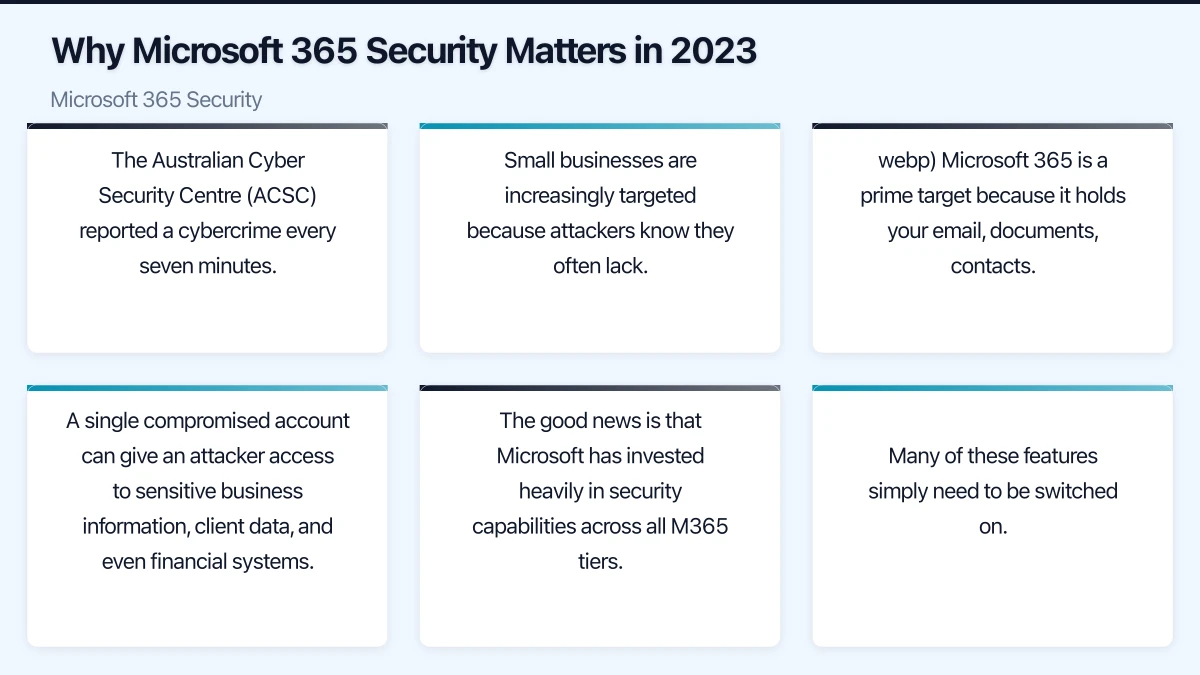
Why Microsoft 365 Security Matters in 2023
The Australian Cyber Security Centre (ACSC) reported a cybercrime every seven minutes in the 2021-2022 financial year. Small businesses are increasingly targeted because attackers know they often lack dedicated security teams.
Microsoft 365 is a prime target because it holds your email, documents, contacts, and collaboration data. A single compromised account can give an attacker access to sensitive business information, client data, and even financial systems.
The good news is that Microsoft has invested heavily in security capabilities across all M365 tiers. Many of these features simply need to be switched on.
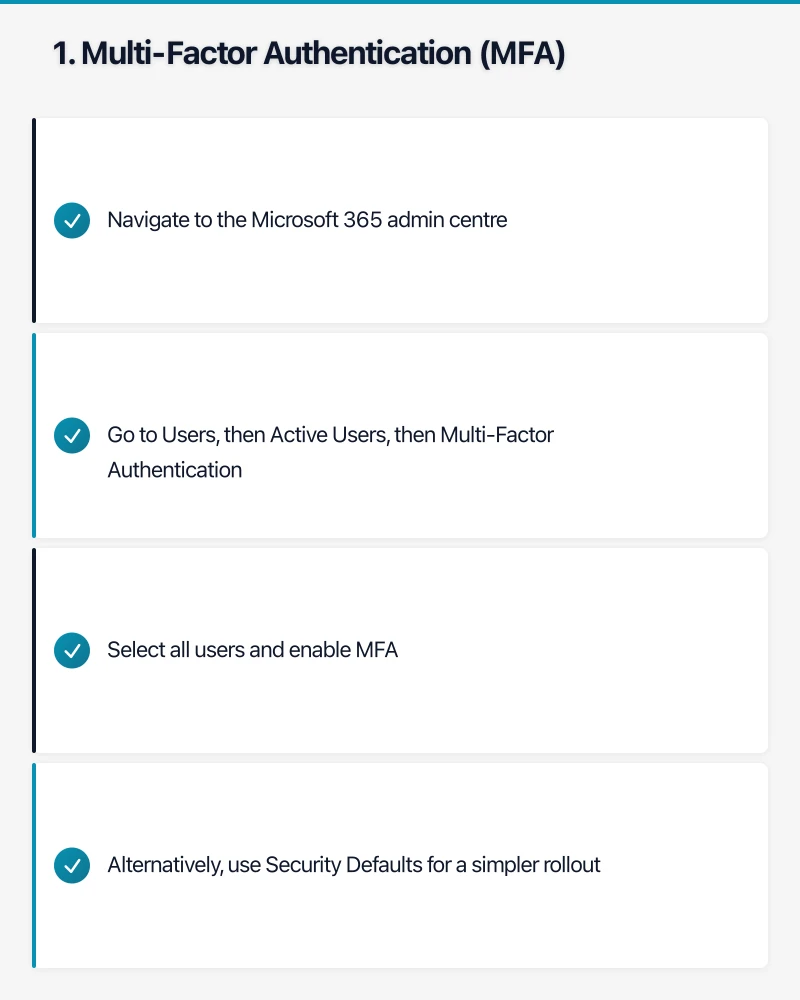
1. Multi-Factor Authentication (MFA)
Priority: Critical
MFA is the single most effective security measure you can enable. Microsoft estimates that MFA blocks 99.9 percent of automated attacks on accounts.
How to enable it:
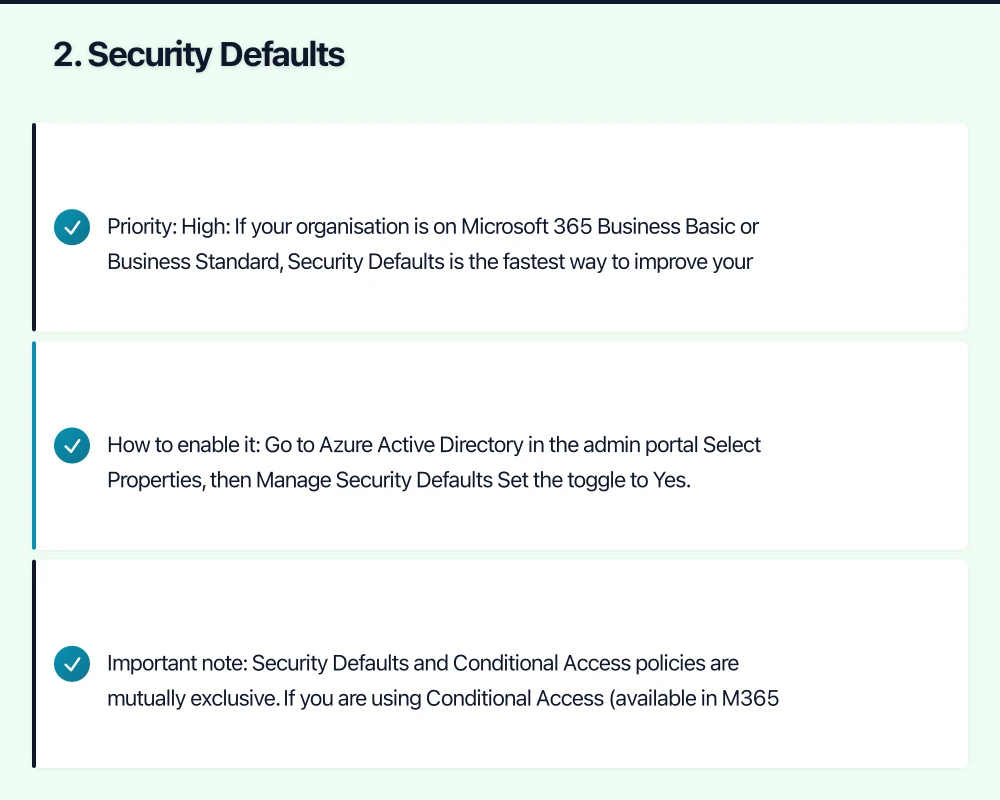
- Navigate to the Microsoft 365 admin centre
- Go to Users, then Active Users, then Multi-Factor Authentication
- Select all users and enable MFA
- Alternatively, use Security Defaults for a simpler rollout
For Australian businesses, we recommend using the Microsoft Authenticator app rather than SMS-based verification. SMS is vulnerable to SIM-swapping attacks, which have been reported by the ACSC as a growing threat.
What to expect: Users will need to set up their second factor on first login. Plan a communication to staff before enabling this, and allow a grace period for setup.
2. Security Defaults
Priority: High
If your organisation is on Microsoft 365 Business Basic or Business Standard, Security Defaults is the fastest way to improve your security posture. It enables a package of baseline security settings in one click.
Security Defaults enforces:
- MFA registration for all users
- MFA challenges when needed based on risk signals
- Blocking of legacy authentication protocols
- Protection of privileged actions in Azure AD
How to enable it:
- Go to Azure Active Directory in the admin portal
- Select Properties, then Manage Security Defaults
- Set the toggle to Yes
Important note: Security Defaults and Conditional Access policies are mutually exclusive. If you are using Conditional Access (available in M365 Business Premium and above), you should configure granular policies instead.
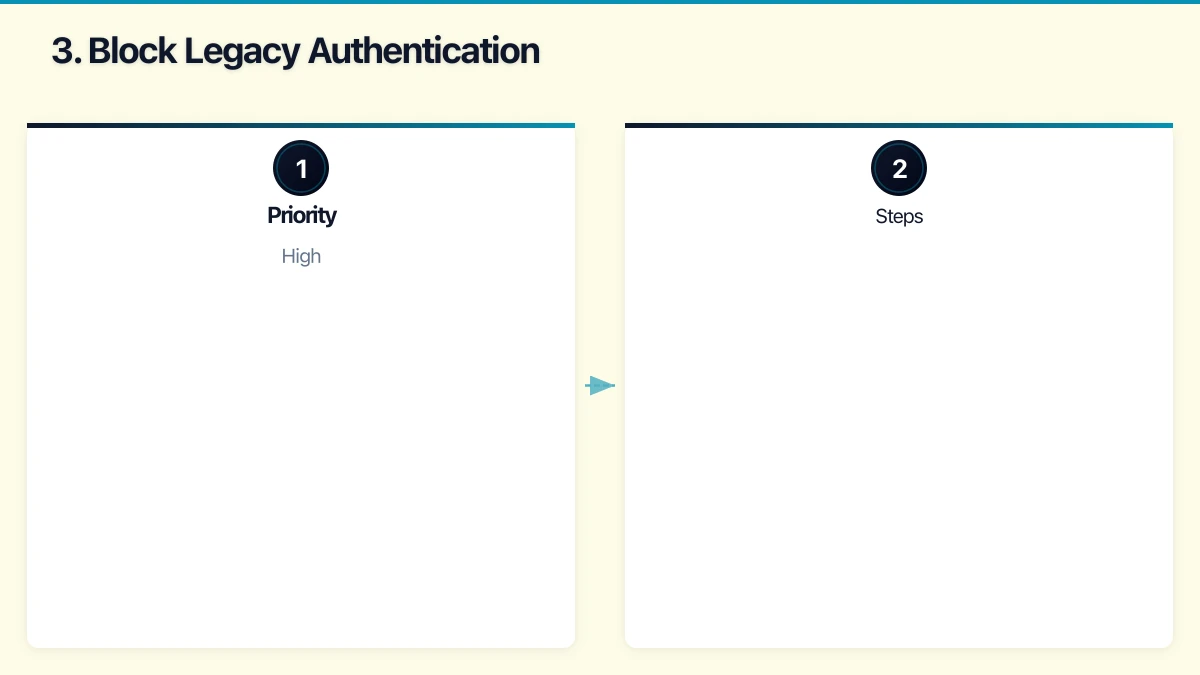
3. Block Legacy Authentication
Priority: High
Legacy authentication protocols such as POP3, IMAP, and SMTP do not support MFA. Attackers frequently exploit these protocols to bypass MFA protections. Even if you have MFA enabled, legacy authentication can be an open back door.
If you have enabled Security Defaults, legacy authentication is already blocked. If you are using Conditional Access, create a policy to block legacy authentication for all users.
Steps:
- In Azure AD, go to Security, then Conditional Access
- Create a new policy targeting all users
- Under Conditions, select Client Apps, then configure Legacy Authentication Clients
- Set the policy to Block Access
Many Australian businesses still have older email clients or line-of-business applications using legacy protocols. Audit your environment before enabling this to avoid disrupting critical workflows.
4. Configure Anti-Phishing Policies
Priority: High
Phishing remains the number one attack vector for Australian businesses. Microsoft 365 includes anti-phishing capabilities in Exchange Online Protection (EOP), which is included in all M365 plans.
Key settings to configure:
- Impersonation protection: Add your executives and key partners to the protected users list. This helps detect emails that impersonate your CEO or CFO, a tactic commonly used in business email compromise (BEC) attacks.
- Mailbox intelligence: Enable this to learn user email patterns and flag anomalies.
- Spoof intelligence: Allows Microsoft to detect and block spoofed sender addresses.
Navigate to the Microsoft 365 Defender portal, then Email and Collaboration, then Policies and Rules, then Threat Policies to configure these settings.
5. Enable Audit Logging
Priority: High
Audit logging tracks user and admin activity across your Microsoft 365 environment. This is essential for incident investigation, compliance reporting, and detecting suspicious behaviour.
For Australian businesses subject to the Privacy Act 1988 or industry-specific regulations, audit logging helps demonstrate due diligence in protecting personal information.
How to enable it:
- Go to the Microsoft 365 compliance centre
- Navigate to Audit
- Ensure audit logging is turned on (it should be by default for most tenants, but verify)
Audit logs are retained for 90 days on standard plans. If your business requires longer retention, consider Microsoft 365 E5 or an add-on licence.
6. Set Up Alerts for Suspicious Activity
Priority: Medium-High
Microsoft 365 Defender provides alert policies that notify administrators of potentially malicious activity. Several default alerts are pre-configured, but you should review and customise them.
Recommended alerts to enable:
- Unusual volume of file deletion
- Email forwarding rules created (a common sign of account compromise)
- Elevation of Exchange admin privilege
- Malware campaign detected
- Unusual external user file activity
Configure alert policies in the Microsoft 365 Defender portal under Policies and Rules.
7. Data Loss Prevention (DLP) Policies
Priority: Medium-High
DLP policies help prevent sensitive information from leaving your organisation via email or file sharing. This is particularly relevant for Australian businesses handling Tax File Numbers (TFNs), Medicare numbers, or financial data.
Microsoft provides built-in templates for Australian data types, including:
- Australia Tax File Number
- Australia Medicare Number
- Australia Financial Data
- Australia Privacy Act
How to set up DLP:
- Go to the Microsoft 365 compliance centre
- Navigate to Data Loss Prevention, then Policies
- Create a new policy using Australian regulatory templates
- Configure actions (block, notify, or allow with override)
Start with policies in “test mode” to understand what data is being shared before enforcing blocks.
8. Safe Attachments and Safe Links
Priority: Medium-High
Available with Microsoft 365 Business Premium and above, Safe Attachments and Safe Links provide advanced protection against malware and malicious URLs.
- Safe Attachments opens email attachments in a virtual sandbox to detect malicious content before delivery.
- Safe Links rewrites URLs in emails and Office documents, checking them at the time of click rather than just at delivery.
Enable these in the Microsoft 365 Defender portal under Threat Policies.
If you are on a lower-tier plan that does not include these features, consider upgrading to Business Premium. The additional cost is modest compared to the security benefits.
9. Mobile Device Management (MDM)
Priority: Medium
With remote and hybrid work now standard across Australian businesses, managing how corporate data is accessed on mobile devices is essential.
Basic Mobility and Security is included in all Microsoft 365 business plans. It allows you to:
- Require a device PIN or password
- Wipe corporate data from lost or stolen devices
- Block access from non-compliant devices
- Manage which apps can access corporate data
For more advanced capabilities, Microsoft Intune (included in Business Premium) provides comprehensive mobile device and application management.
10. External Sharing Controls in SharePoint and OneDrive
Priority: Medium
Default settings in SharePoint Online and OneDrive for Business can be more permissive than many organisations realise. Review and tighten external sharing settings to reduce the risk of data leaks.
Recommended settings:
- Limit external sharing to authenticated guests only (disable anonymous sharing links unless specifically needed)
- Set expiration dates on sharing links
- Restrict sharing to specific domains if you regularly collaborate with known partners
- Enable access reviews for guest users
Configure these settings in the SharePoint admin centre under Policies, then Sharing.
Creating a Security Improvement Roadmap
Enabling all of these features at once can be overwhelming for smaller teams. We recommend a phased approach:
Week 1-2: Critical items
- Enable MFA for all users (or Security Defaults)
- Block legacy authentication
- Verify audit logging is active
Week 3-4: High-priority items
- Configure anti-phishing policies
- Set up alerts for suspicious activity
- Review external sharing settings
Month 2: Advanced protection
- Implement DLP policies (start in test mode)
- Enable Safe Attachments and Safe Links (if licensed)
- Set up MDM policies for mobile devices
Ongoing:
- Review audit logs monthly
- Update anti-phishing protected users list as staff changes
- Refine DLP policies based on test mode results
Australian Compliance Considerations
Australian businesses should be aware of several regulatory requirements that Microsoft 365 security features can help address:
- Privacy Act 1988: Requires businesses with annual turnover exceeding 3 million dollars to take reasonable steps to protect personal information. MFA, DLP, and audit logging all support this requirement.
- Notifiable Data Breaches (NDB) scheme: Requires notification to the OAIC and affected individuals when a data breach is likely to result in serious harm. Audit logging and alerts help detect breaches quickly.
- Essential Eight: The ACSC’s Essential Eight mitigation strategies recommend MFA, restricting admin privileges, and patching applications, all of which align with the features covered here.
Getting Professional Help
While many of these settings can be configured by an experienced IT administrator, some require careful planning to avoid disrupting business operations. If your team lacks the expertise, engaging a managed IT services provider familiar with Australian compliance requirements can ensure a smooth implementation.
Next Steps
Start by auditing your current Microsoft 365 security settings. Microsoft provides a free tool called Secure Score in the Microsoft 365 Defender portal. It assesses your current configuration and provides specific recommendations ranked by impact.
Your Secure Score gives you a baseline and a clear roadmap for improvement. Aim to address the highest-impact recommendations first, and revisit your score monthly to track progress.
Security is not a one-time project but an ongoing practice. By enabling the features already included in your Microsoft 365 subscription, Australian SMBs can significantly reduce their risk without major additional investment.
Need mobile access to your cloud systems? Our app development team at Awesome Apps builds iOS and Android apps for Australian businesses.
Ashish Ganda is the founder of Ganda Tech Services, a Sydney-based technology consultancy helping Australian businesses grow through cloud, web, and mobile solutions.