
IT Security Audit Checklist for Australian Small Business
IT Security Audit Checklist for Australian Small Business
When was the last time someone thoroughly reviewed your business’s IT security posture? If the answer is “never” or “I am not sure,” you are not alone. Many Australian SMBs operate without a clear understanding of their security strengths and weaknesses. An IT security audit changes that by systematically assessing your defences and identifying gaps.
You do not need to hire an expensive security firm for a basic audit. This checklist enables you (or your IT provider) to conduct a practical security assessment of your small business environment. For businesses with higher risk profiles, this checklist serves as a starting point before engaging a professional assessor.
How to Use This Checklist
Work through each section, noting whether each item is in place (Yes), partially in place (Partial), or not in place (No). For any item marked Partial or No, add it to your remediation plan with a priority level and target date.
Be honest in your assessment. The value of an audit lies in identifying real gaps, not in achieving a perfect score on paper.
Section 1: Identity and Access Management
User Accounts
- Every user has a unique, individual account. No shared login accounts are in use.
- Default accounts on systems and devices have been disabled or had their passwords changed.
- Former employees and contractors have had their accounts disabled promptly upon departure.
- A regular review of user accounts is conducted (at least quarterly) to identify and remove unused accounts.
- Service accounts (used by applications rather than people) are documented and have strong, unique passwords.
Authentication
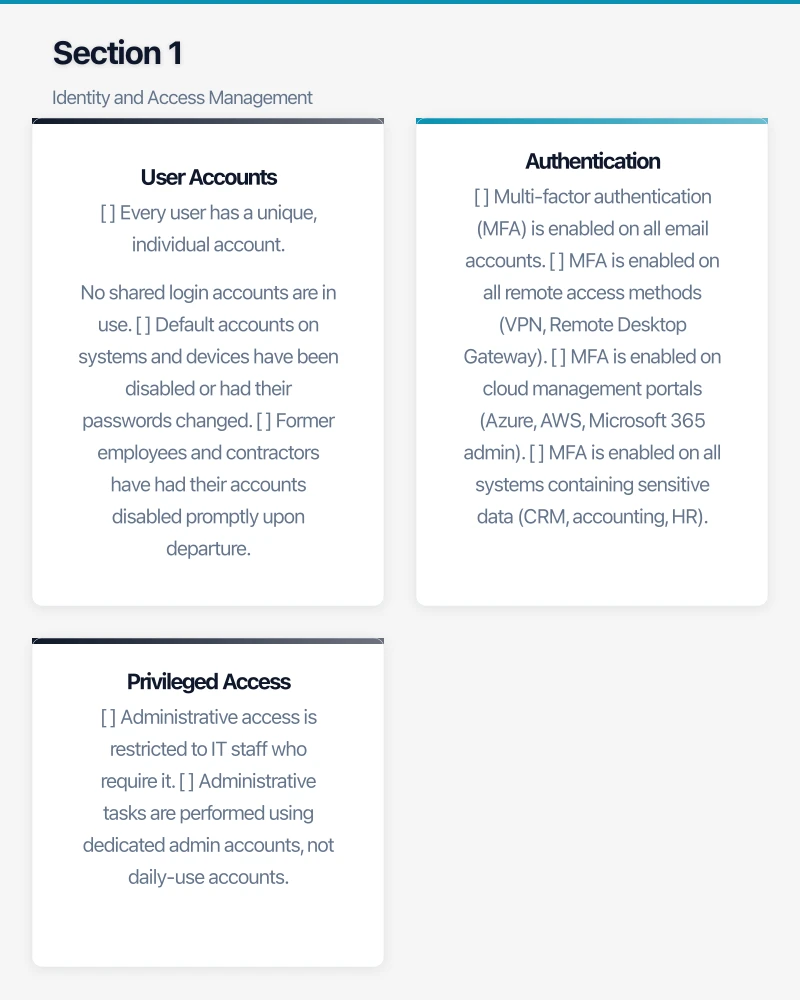
- Multi-factor authentication (MFA) is enabled on all email accounts.
- MFA is enabled on all remote access methods (VPN, Remote Desktop Gateway).
- MFA is enabled on cloud management portals (Azure, AWS, Microsoft 365 admin).
- MFA is enabled on all systems containing sensitive data (CRM, accounting, HR).
- Administrative accounts use the strongest available MFA method (hardware keys or authenticator apps, not SMS).
- Password policies require a minimum of 12 characters.
- Staff are encouraged or required to use a password manager.
Privileged Access
- Administrative access is restricted to IT staff who require it.
- Administrative tasks are performed using dedicated admin accounts, not daily-use accounts.
- Regular users do not have local administrator rights on their workstations.
- A record of who has administrative access to each system is maintained and reviewed.
Section 2: Endpoint Security
Device Management
- All company devices (desktops, laptops, mobile) are inventoried and tracked.
- All devices run supported operating systems (not end-of-life versions like Windows 7).
- Full-disk encryption is enabled on all laptops (BitLocker for Windows, FileVault for macOS).
- Screen lock is configured to activate after no more than 5 minutes of inactivity.
- Removable media (USB drives) policies are defined and enforced.
- A process exists for securely wiping or destroying devices before disposal or reuse.
Software Management
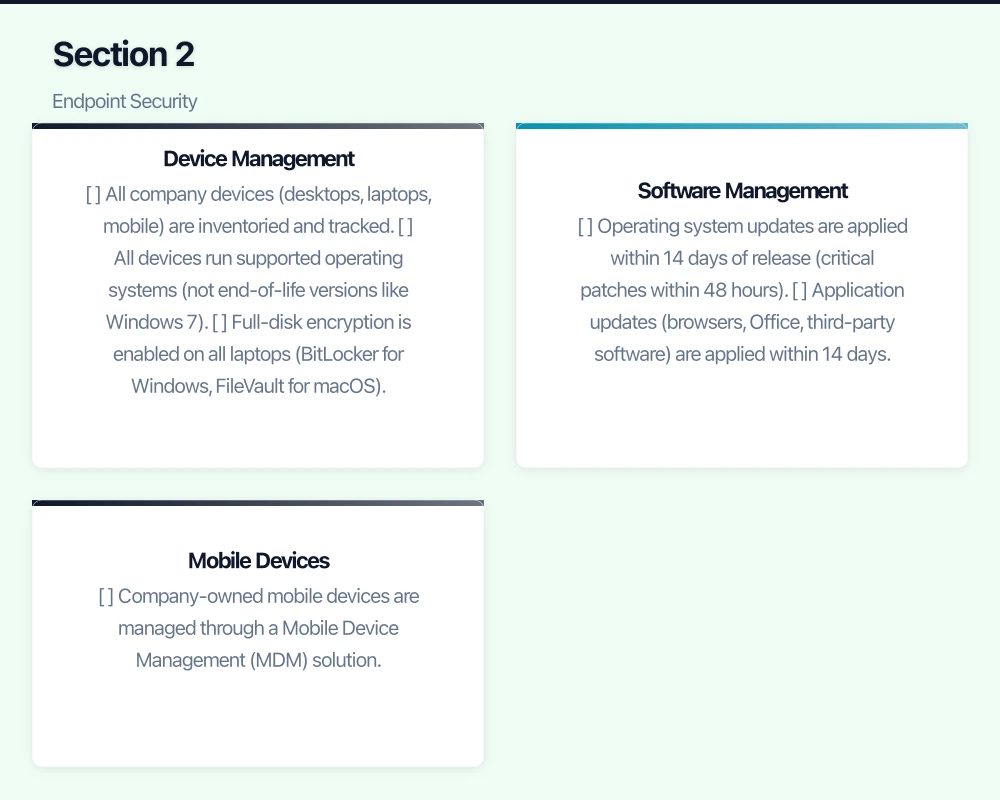
- Operating system updates are applied within 14 days of release (critical patches within 48 hours).
- Application updates (browsers, Office, third-party software) are applied within 14 days.
- Antivirus or endpoint protection software is installed on all workstations and servers.
- Endpoint protection definitions and agents are up to date on all devices.
- Unauthorised software installation is restricted (users cannot install software without approval).
Mobile Devices
- Company-owned mobile devices are managed through a Mobile Device Management (MDM) solution.
- Personal devices accessing company data (BYOD) have minimum security requirements enforced.
- Remote wipe capability exists for mobile devices accessing company data.
- Mobile devices require a PIN, password, or biometric to unlock.
Section 3: Network Security
Firewall and Perimeter
- A business-grade firewall is in place (not a consumer router).
- The firewall firmware is up to date.
- Default firewall admin credentials have been changed.
- Firewall rules follow a default-deny principle (all inbound traffic blocked unless explicitly allowed).
- Unnecessary ports and services are disabled.
- Intrusion prevention (IPS) is enabled and signatures are up to date.
- Firewall logs are enabled and reviewed (at minimum, weekly).
WiFi Security
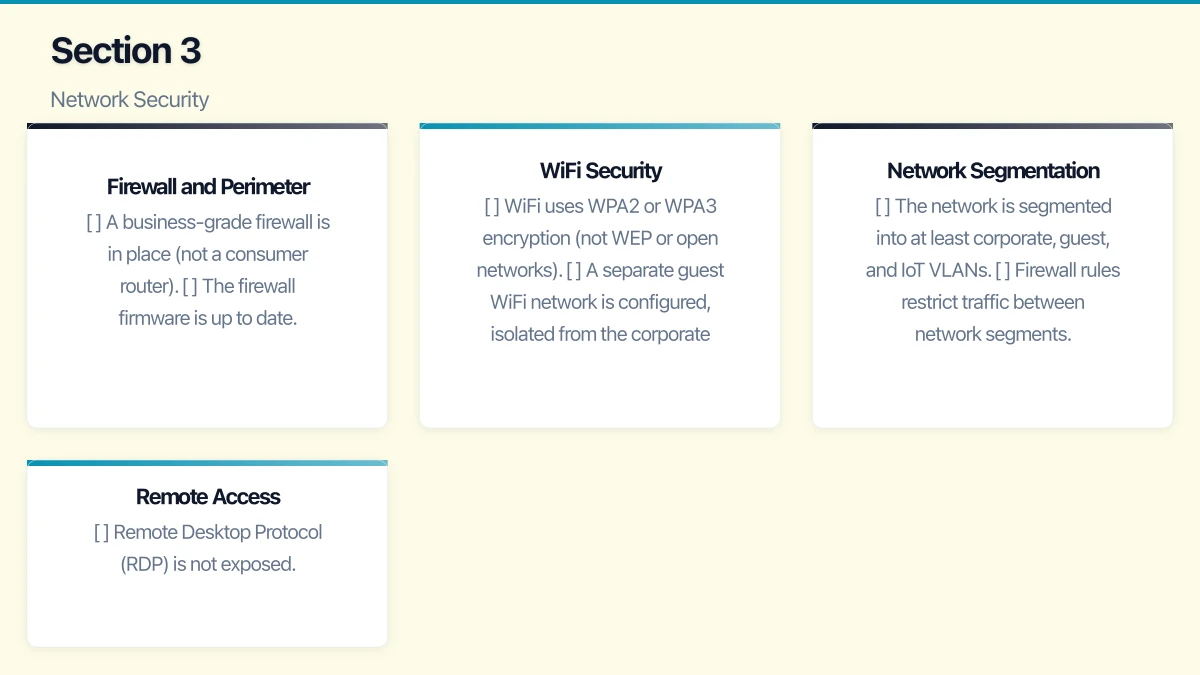
- WiFi uses WPA2 or WPA3 encryption (not WEP or open networks).
- A separate guest WiFi network is configured, isolated from the corporate network.
- WiFi passwords are strong and changed periodically (at minimum, when staff leave).
- WPS (WiFi Protected Setup) is disabled.
- WiFi access point firmware is up to date.
Network Segmentation
- The network is segmented into at least corporate, guest, and IoT VLANs.
- Firewall rules restrict traffic between network segments.
- Servers are on a separate network segment from user workstations.
Remote Access
- Remote Desktop Protocol (RDP) is not exposed directly to the internet.
- VPN access requires MFA.
- Remote access logs are monitored for unusual activity.
- Only necessary remote access methods are enabled.
Section 4: Email Security
- SPF records are configured for all company domains.
- DKIM signing is enabled for outgoing email.
- A DMARC record is published (ideally with a quarantine or reject policy).
- Advanced email filtering is in place (spam, malware, and phishing filtering).
- External email banners warn users when messages come from outside the organisation.
- Auto-forwarding to external addresses is disabled or restricted.
- Email retention policies are defined and implemented.
Section 5: Data Protection
Backup
- All critical data is backed up regularly (at minimum, daily).
- Backups include servers, workstations (key data), and cloud services (Microsoft 365, Google Workspace).
- At least one backup copy is stored offsite or in the cloud.
- Backup encryption is enabled.
- Backup restoration has been tested within the last 90 days.
- Backup alerts are monitored (someone is notified if a backup fails).
- Backups are protected from ransomware (air-gapped or immutable).
Data Classification and Handling
- Sensitive data has been identified and classified (personal information, financial data, health records).
- Access to sensitive data is restricted to those who need it for their role.
- Sensitive data is encrypted when stored and when transmitted.
- A data retention policy defines how long different types of data are kept and how they are disposed of.
- Paper documents containing sensitive information are disposed of securely (shredding).
Cloud Data
- Cloud service providers have been assessed for data residency (is data stored in Australia?).
- Terms of service and data processing agreements have been reviewed.
- Cloud service configurations are reviewed for overly permissive sharing settings.
- Third-party application access to cloud data (OAuth consents) is reviewed periodically.
Section 6: Security Awareness
- Staff receive cybersecurity awareness training at least annually (quarterly preferred).
- Training covers phishing identification, password hygiene, and reporting procedures.
- Simulated phishing campaigns are conducted regularly.
- New staff receive security training as part of onboarding.
- A clear process exists for staff to report suspected security incidents.
- Verification procedures exist for financial transactions and sensitive data requests.
Section 7: Incident Response
- A documented incident response plan exists.
- The plan includes ransomware-specific procedures.
- Contact details for the IT provider, insurers, legal advisors, and the ACSC are readily available.
- Staff know who to contact and what to do if they suspect a security incident.
- The incident response plan has been tested (tabletop exercise) within the last 12 months.
- Obligations under the Notifiable Data Breaches scheme are understood and documented.
Section 8: Compliance
- A privacy policy is published on the company website.
- The privacy policy accurately reflects data collection and handling practices.
- Data handling practices comply with the Australian Privacy Principles (or the business has assessed its exemption status).
- A process exists for responding to requests for access to personal information.
- A data breach response plan addresses notification obligations under the NDB scheme.
- Industry-specific compliance requirements have been identified and addressed.
Section 9: Physical Security
- Server rooms or network closets are locked and access is restricted.
- Visitors are supervised in areas containing IT equipment.
- Network equipment is protected by an uninterruptible power supply (UPS).
- Office security (locks, alarms, cameras) protects IT equipment from theft.
Section 10: Documentation
- A network diagram exists and is up to date.
- System configurations are documented.
- Administrative credentials are stored securely (password manager or secure vault).
- Vendor and licence information is documented.
- Disaster recovery procedures are documented and accessible.
Scoring Your Audit
Count the items in each category:
- Green (Yes): The control is in place and functioning.
- Amber (Partial): The control exists but has gaps or is inconsistently applied.
- Red (No): The control is not in place.
Priority Levels for Remediation
Immediate (this week): Any item that is a critical vulnerability — exposed RDP, no MFA on admin accounts, no backups, or default passwords on network devices.
High (this month): Items that significantly reduce risk — MFA on all accounts, endpoint protection on all devices, patching cadence, email authentication.
Medium (this quarter): Items that improve your posture — security training, network segmentation, documentation, incident response planning.
Low (this half): Items that represent best practices — advanced monitoring, pull printing, comprehensive data classification.
After the Audit
An audit is only valuable if you act on the findings:
- Create a remediation plan: List every Red and Amber item, assign a priority, and set a target date for resolution.
- Assign ownership: Each item needs someone responsible for addressing it.
- Track progress: Review the remediation plan monthly until all items are addressed.
- Re-audit: Conduct the audit again in 12 months to measure improvement and identify new gaps.
- Consider professional assessment: If this self-audit reveals significant gaps or if your business handles sensitive data, engage a professional security assessor for a deeper review.
Getting Started
Print this checklist (or copy it into a spreadsheet) and work through it systematically. Set aside two to three hours for the assessment. If you have a managed IT provider, involve them — they should be able to answer many of the technical questions and help develop the remediation plan.
The goal is not perfection. The goal is to understand your current position and make deliberate improvements. Every gap you close makes your business a harder target and a more resilient organisation.
Pairing cloud infrastructure with a professional website amplifies your online presence. Cosmos Web Tech builds high-performance sites that make the most of solid hosting foundations.
Part of the Ganda Tech Services family, Cloud Geeks delivers specialist IT and cloud solutions for Australian small and medium businesses.