
Implementing Two-Factor Authentication Across Your Business
Implementing Two-Factor Authentication Across Your Business
If there is one security measure that delivers the most protection for the least cost, it is two-factor authentication (2FA), also called multi-factor authentication (MFA). Microsoft’s research indicates that MFA blocks over 99.9% of account compromise attacks. Yet many Australian businesses still have not enabled it, often because they assume it is complicated or that staff will resist it.
This guide walks you through implementing 2FA across your business, from choosing the right methods to managing the human side of the rollout.
What Is Two-Factor Authentication?
Two-factor authentication requires two different forms of verification to prove your identity:
- Something you know: Your password.
- Something you have: A phone, hardware token, or security key.
- Something you are: A fingerprint or face scan (biometrics).
Standard authentication uses only a password (one factor). Two-factor authentication adds a second factor, typically from the “something you have” category. Even if an attacker steals your password, they cannot access your account without the second factor.
2FA Methods Compared
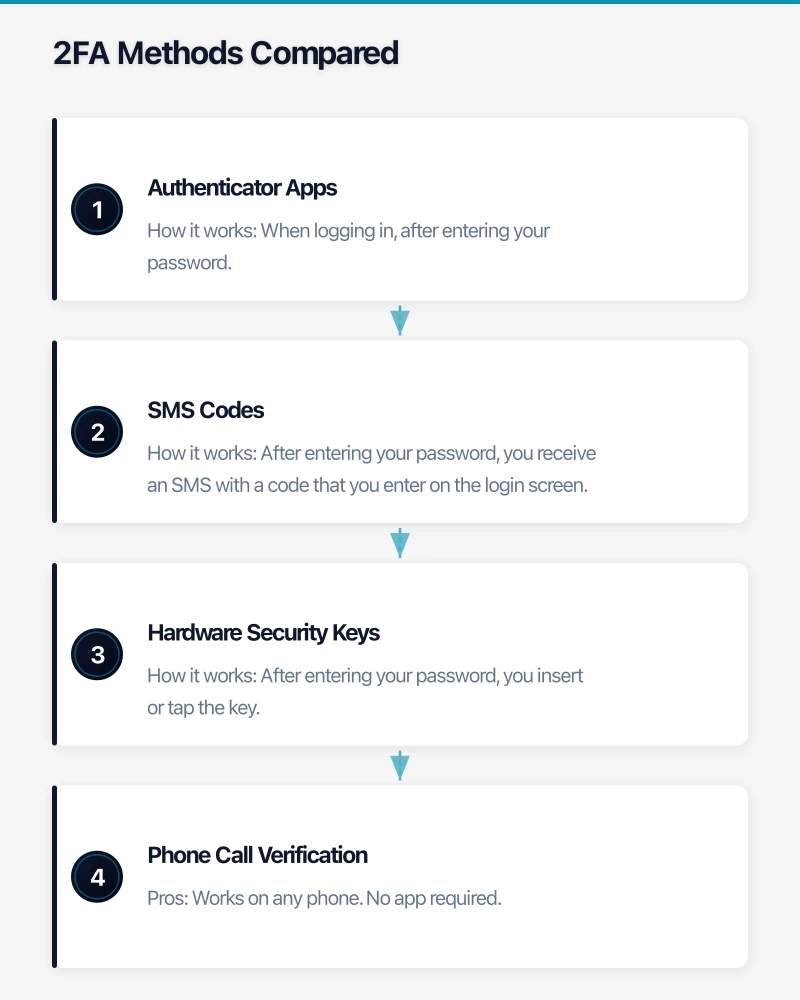
Authenticator Apps
Applications like Microsoft Authenticator, Google Authenticator, or Authy generate time-based one-time codes (TOTP) or push notifications.
How it works: When logging in, after entering your password, you open the app and either enter the displayed code or approve a push notification.
Pros: Free. Works offline. More secure than SMS. Push notifications are quick and easy. Cons: Requires a smartphone. If the phone is lost, recovery requires backup codes or admin intervention.
Recommended for: Most business users. Microsoft Authenticator with push notifications is the most user-friendly option for Microsoft 365 environments.
SMS Codes
A one-time code is sent to your mobile phone via text message.
How it works: After entering your password, you receive an SMS with a code that you enter on the login screen.
Pros: Works on any phone (no smartphone required). Familiar to most people. Cons: Vulnerable to SIM-swapping attacks and SMS interception. Dependent on mobile coverage. Increasingly discouraged by security professionals.
Recommended for: Fallback only. Use when authenticator apps or hardware keys are not feasible.
Hardware Security Keys
Physical USB devices (like YubiKey) that you insert into your computer or tap against your phone.
How it works: After entering your password, you insert or tap the key. The key communicates directly with the service using cryptographic protocols (FIDO2/WebAuthn).
Pros: Most secure method. Phishing-resistant — the key verifies the website’s identity, preventing fake login pages from capturing credentials. No battery or connectivity required. Cons: Cost ($50 to $80 per key, and users should have a backup key). Can be physically lost. Not all services support hardware keys.
Recommended for: Administrators, executives, and anyone with access to sensitive systems or financial data. The additional cost is justified by the higher security.
Phone Call Verification
An automated call to a registered phone number requiring the user to press a key to confirm.
Pros: Works on any phone. No app required. Cons: Disruptive. Slow. Vulnerable to social engineering. Not available on all platforms.
Recommended for: Rarely. Only as a last resort for users who cannot use other methods.
Planning Your Rollout
Step 1: Identify What to Protect
Prioritise 2FA deployment by risk:
Critical (enable immediately):
- Email accounts (Microsoft 365, Google Workspace)
- Admin accounts for any system
- Banking and financial services
- Remote access (VPN, Remote Desktop)
- Cloud management portals (Azure, AWS)
High priority (enable within a month):
- CRM systems
- Accounting software
- HR and payroll systems
- File sharing platforms
- Social media accounts
Standard (enable when practical):
- All remaining business applications that support 2FA
Step 2: Choose Your Methods
For most Australian SMBs, the recommended approach is:
- Primary method: Authenticator app (Microsoft Authenticator for Microsoft 365 environments, Google Authenticator for Google Workspace).
- Backup method: Phone number for SMS or call verification (as a fallback, not primary).
- For administrators: Hardware security key (YubiKey 5 series) as the primary method, with an authenticator app as backup.
Step 3: Configure the Platform
Microsoft 365:
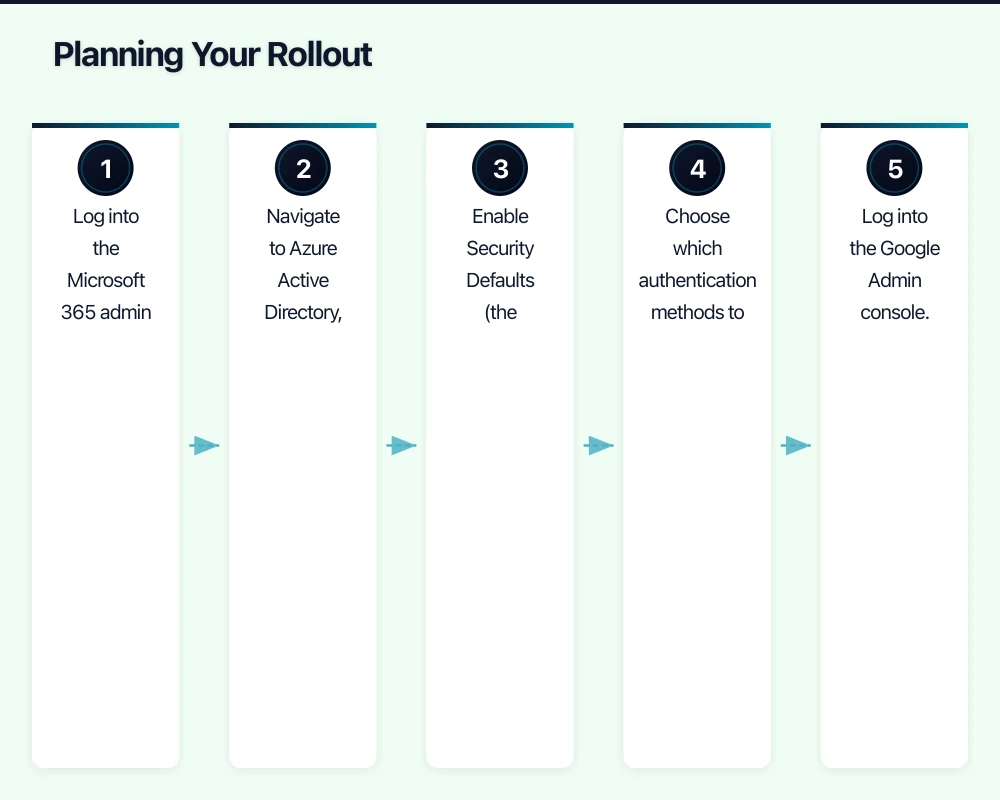
- Log into the Microsoft 365 admin centre.
- Navigate to Azure Active Directory, then Security, then MFA.
- Enable Security Defaults (the simplest approach — requires MFA for all users with Microsoft Authenticator) or configure Conditional Access policies for more control (requires Azure AD Premium P1, included in Microsoft 365 Business Premium).
- Choose which authentication methods to allow.
Google Workspace:
- Log into the Google Admin console.
- Navigate to Security, then 2-Step Verification.
- Enable 2-Step Verification and choose allowed methods.
- Set an enrollment period to give users time to configure their devices.
Other platforms: Most business SaaS applications support 2FA in their security settings. Enable it on each platform individually.
Step 4: Communicate with Your Team
This is where many rollouts fail. Springing 2FA on users without warning creates frustration and resistance. A successful rollout requires:
Two weeks before:
- Announce the change via email and team meeting.
- Explain why 2FA is being implemented (protect the business and personal data, compliance requirements).
- Set a clear enrollment deadline.
- Share simple instructions with screenshots.
One week before:
- Send a reminder with step-by-step setup instructions.
- Offer drop-in help sessions for anyone who needs assistance.
- Address common concerns (what happens if I lose my phone, do I need a smartphone).
On the day:
- Enable the requirement.
- Have IT support available (in person or via chat) to help anyone who encounters issues.
- Follow up with anyone who has not enrolled.
Step 5: Handle Edge Cases
Every rollout encounters edge cases. Plan for:
- Staff without smartphones: Provide hardware security keys or allow SMS verification.
- Shared accounts: Shared accounts are a security risk regardless, but if they exist, hardware keys or shared authenticator setups are options. Better yet, eliminate shared accounts.
- Lost phones: Ensure administrators can reset MFA for users who lose their devices. Encourage users to set up backup methods (a second phone number, backup codes).
- New staff onboarding: Include MFA setup in your onboarding process. New staff should configure 2FA on their first day.
- Resistance: Some staff will push back. Be empathetic but firm. Frame it as protecting the business and their colleagues, not as an inconvenience.
Managing 2FA Day-to-Day
Recovery Procedures
Document and communicate the process for when users are locked out:
- User contacts IT support (or MSP help desk).
- IT verifies the user’s identity (through a secondary channel — not the compromised account).
- IT resets the MFA requirement, allowing the user to re-enroll.
- User sets up MFA again.
Keep this process as frictionless as possible. If recovery is too difficult, users will find workarounds.
Monitoring
After enabling MFA, monitor:
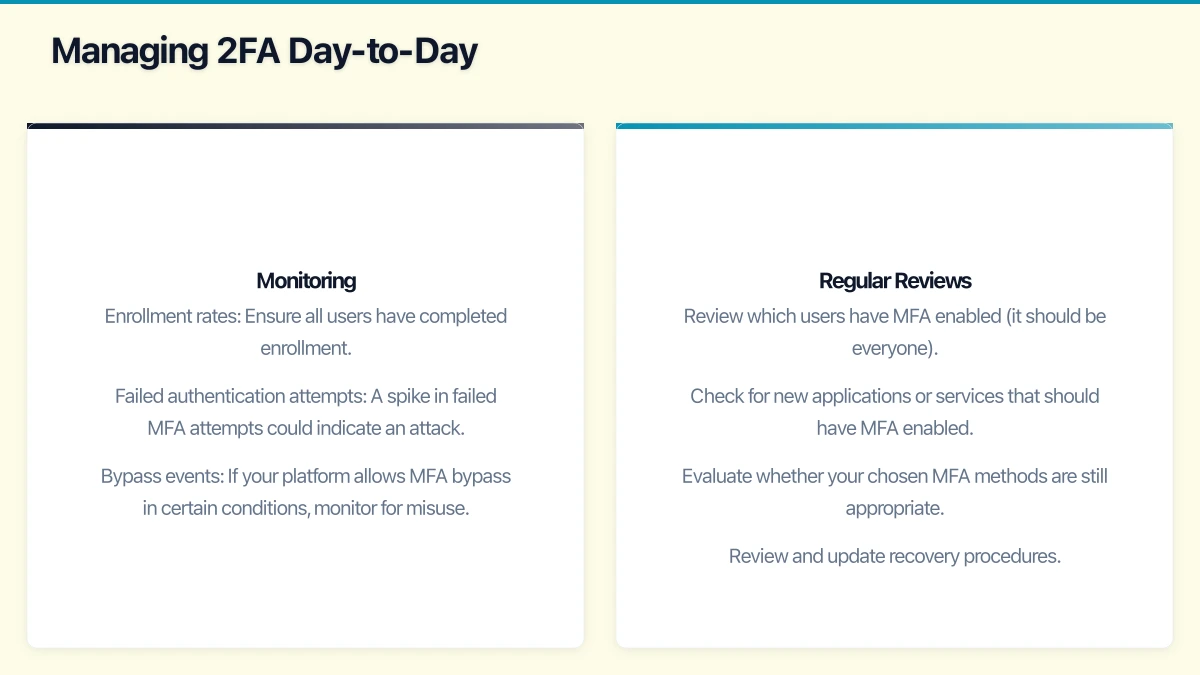
- Enrollment rates: Ensure all users have completed enrollment.
- Failed authentication attempts: A spike in failed MFA attempts could indicate an attack.
- Bypass events: If your platform allows MFA bypass in certain conditions, monitor for misuse.
Regular Reviews
Every quarter:
- Review which users have MFA enabled (it should be everyone).
- Check for new applications or services that should have MFA enabled.
- Evaluate whether your chosen MFA methods are still appropriate.
- Review and update recovery procedures.
Common Objections and Responses
“It is too inconvenient.” Modern authenticator apps with push notifications take about three seconds. The inconvenience is minimal compared to the impact of a compromised account. Many users find that push notifications are actually easier than typing complex passwords.
“I do not have a smartphone.” Hardware security keys or SMS verification are alternatives. For around $50, a hardware key provides excellent security without requiring a smartphone.
“What if I lose my phone?” Set up backup methods (a secondary phone number, backup codes stored securely, or a second authentication device). If all else fails, IT can reset your MFA enrollment.
“We have never been hacked, so why bother?” Cybercrime is increasing every year. The question is not if an attack will be attempted, but when. MFA is the single most effective measure you can take to prevent account compromise.
“Our business is too small to be a target.” Small businesses are actually preferred targets because they tend to have weaker security. Automated attacks do not discriminate by business size.
Measuring Success
Track these metrics to gauge the effectiveness of your 2FA rollout:
- Enrollment rate: Target 100% of users within 30 days.
- Support tickets related to MFA: Should decrease after the initial rollout period.
- Account compromise incidents: Should drop to near zero for accounts protected by MFA.
- User satisfaction: Survey staff after 30 days to identify ongoing friction.
Getting Started
Do not overthink it. The best time to implement 2FA was yesterday. The second best time is today.
- Enable Security Defaults in Microsoft 365 (or equivalent in your platform). This is a single toggle that requires MFA for all users.
- Communicate with your team — give them a week to set up Microsoft Authenticator on their phones.
- Enforce the requirement.
- Help anyone who gets stuck.
Within a week, your business will be dramatically more secure. And within a month, your team will wonder why they ever thought it was a big deal.
Mobile apps thrive on solid cloud foundations. Awesome Apps can build a companion app that leverages your existing cloud setup.
Ashish Ganda is the founder of Ganda Tech Services, a Sydney-based technology consultancy helping Australian businesses grow through cloud, web, and mobile solutions.