
Firewall Configuration Guide for Australian SMBs
Firewall Configuration Guide for Australian SMBs
Your firewall is the front door to your business network. Yet for many Australian small businesses, the firewall was configured once during installation and has not been touched since — or worse, it is still running with default settings.
A properly configured firewall is one of the most effective security controls you can implement. This guide covers practical firewall configuration for Australian SMBs, whether you are setting up a new firewall or auditing an existing one.
Choosing a Firewall
If you are selecting a new firewall, here are the options most suitable for Australian SMBs.
Hardware Firewalls for SMBs
Fortinet FortiGate (40F to 100F series):
- Excellent price-to-performance ratio
- Unified threat management (UTM) features included
- Strong VPN capabilities
- FortiGate 40F: suitable for up to 20 users (approximately $600 to $800 plus annual subscription)
- FortiGate 60F: suitable for up to 50 users (approximately $900 to $1,200 plus annual subscription)
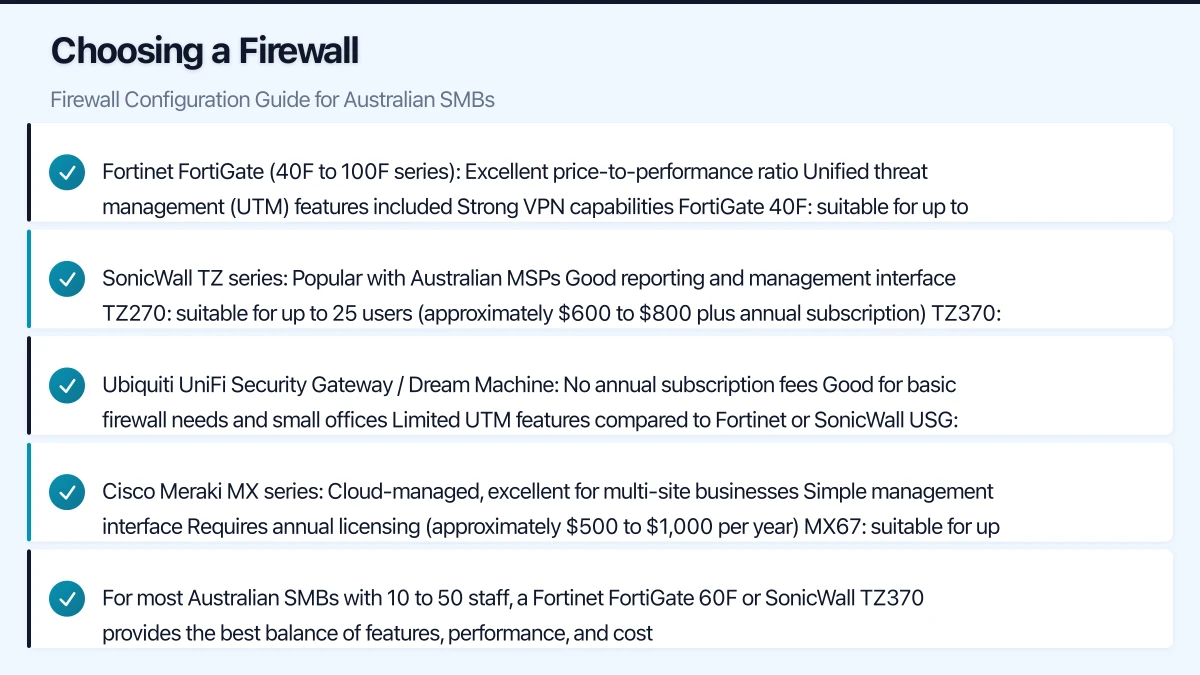
SonicWall TZ series:
- Popular with Australian MSPs
- Good reporting and management interface
- TZ270: suitable for up to 25 users (approximately $600 to $800 plus annual subscription)
- TZ370: suitable for up to 50 users (approximately $900 to $1,200 plus annual subscription)
Ubiquiti UniFi Security Gateway / Dream Machine:
- No annual subscription fees
- Good for basic firewall needs and small offices
- Limited UTM features compared to Fortinet or SonicWall
- USG: approximately $200, Dream Machine Pro: approximately $600
Cisco Meraki MX series:
- Cloud-managed, excellent for multi-site businesses
- Simple management interface
- Requires annual licensing (approximately $500 to $1,000 per year)
- MX67: suitable for up to 50 users
For most Australian SMBs with 10 to 50 staff, a Fortinet FortiGate 60F or SonicWall TZ370 provides the best balance of features, performance, and cost.
Initial Configuration
Basic Setup Checklist
Before connecting your firewall to the network:
- Change the default administrator password. Use a strong, unique password and store it in your password manager.
- Update the firmware. Apply the latest firmware before deployment. Firewall vulnerabilities are actively targeted.
- Set the hostname. Use a descriptive name (for example, FW-SYDNEY-01).
- Configure the management interface. Restrict management access to specific IP addresses or a management VLAN. Never allow management from the WAN (internet) interface.
- Set the correct time zone to your Australian time zone (AEST/AEDT). Accurate timestamps in logs are essential for incident investigation.
- Configure DNS settings. Point to reliable DNS servers (your ISP’s DNS, or public resolvers like 1.1.1.1 and 8.8.8.8).
Interface Configuration

WAN interface:
- Configure your internet connection (static IP, DHCP, or PPPoE depending on your ISP)
- If you have a static IP range from your ISP, configure the primary IP on the WAN interface
- Enable ping response only if needed for monitoring (disable for stealth)
LAN interface:
- Configure your internal network subnet (for example, 192.168.1.0/24 or 10.0.1.0/24)
- Enable DHCP server if the firewall will assign IP addresses
- Set DHCP range to leave room for static assignments (for example, DHCP range .100 to .250, static range .1 to .99)
Optional interfaces:
- DMZ: For publicly accessible servers (web server, email server). Most SMBs using cloud services do not need a DMZ.
- Guest WiFi VLAN: A separate network for guest wireless access, isolated from your business network.
- VoIP VLAN: A separate network for voice-over-IP phones to ensure call quality.
Firewall Rule Configuration
The Default Deny Principle
The most important firewall principle: deny everything by default, then explicitly allow what is needed. This means:
- Outbound traffic: Allow only necessary protocols and destinations
- Inbound traffic: Block everything unless you have a specific service that needs external access
Most SMB firewalls come with a default rule allowing all outbound traffic and blocking all inbound traffic. This is a reasonable starting point but can be tightened.
Essential Outbound Rules
At minimum, allow these outbound protocols:
| Rule | Source | Destination | Service | Purpose |
|---|---|---|---|---|
| Web browsing | LAN | Any | HTTP (80), HTTPS (443) | Internet access |
| DNS | LAN | DNS servers | DNS (53) | Name resolution |
| LAN | Mail servers | SMTP (587), IMAP (993) | Email send/receive | |
| Microsoft 365 | LAN | Microsoft IPs | HTTPS (443) | Cloud services |
| NTP | Firewall | NTP servers | NTP (123) | Time synchronisation |
For tighter security, restrict outbound access by user group. For example, accounting staff may not need access to social media, while marketing staff do.
Inbound Rules
For most Australian SMBs using cloud services, you should have zero inbound rules allowing traffic from the internet to your internal network. If you need remote access, use a VPN (covered below).
Exceptions that may require inbound rules:
- VPN connections (if hosting a VPN server on the firewall)
- On-premise email server (if still running Exchange on-premise)
- On-premise web server or application (rare for SMBs)
Every inbound rule should be:
- Restricted to specific source IPs or ranges where possible
- Limited to the exact ports needed (never open “all ports”)
- Logged for audit purposes
- Reviewed quarterly to ensure it is still needed
Inter-VLAN Rules
If you have multiple VLANs (for example, a corporate network and a guest network):
- Guest network to corporate network: Deny all. Guest devices should never access internal resources.
- Guest network to internet: Allow web browsing only.
- Corporate network to guest network: Deny (no reason for corporate devices to access the guest network).
- VoIP VLAN to corporate network: Allow only the traffic needed for phone system integration.
VPN Configuration
Site-to-Site VPN
If your business has multiple offices, a site-to-site VPN creates a secure tunnel between locations.
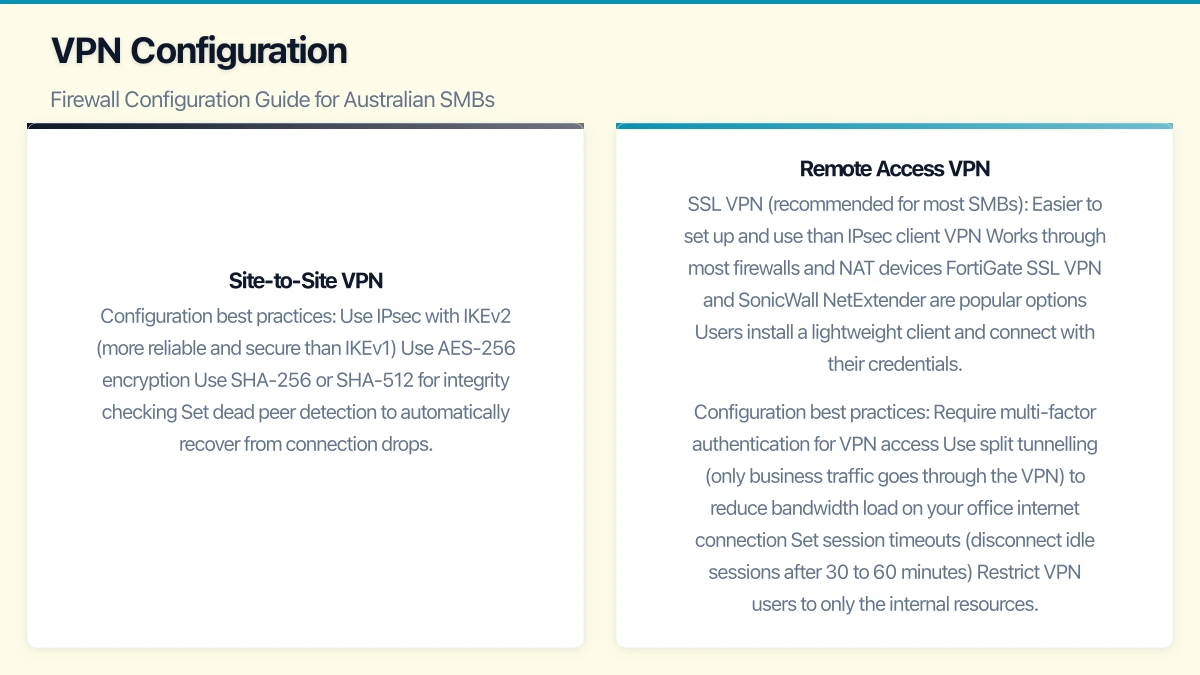
Configuration best practices:
- Use IPsec with IKEv2 (more reliable and secure than IKEv1)
- Use AES-256 encryption
- Use SHA-256 or SHA-512 for integrity checking
- Set dead peer detection to automatically recover from connection drops
- Use pre-shared keys for simplicity or certificates for stronger security
Remote Access VPN
For staff working from home or travelling:
SSL VPN (recommended for most SMBs):
- Easier to set up and use than IPsec client VPN
- Works through most firewalls and NAT devices
- FortiGate SSL VPN and SonicWall NetExtender are popular options
- Users install a lightweight client and connect with their credentials
Configuration best practices:
- Require multi-factor authentication for VPN access
- Use split tunnelling (only business traffic goes through the VPN) to reduce bandwidth load on your office internet connection
- Set session timeouts (disconnect idle sessions after 30 to 60 minutes)
- Restrict VPN users to only the internal resources they need (do not give full network access)
- Log all VPN connections
Threat Prevention Features
Modern SMB firewalls include threat prevention features beyond basic packet filtering. Enable these if your firewall supports them.
Intrusion Prevention System (IPS)
IPS inspects network traffic for known attack patterns and blocks malicious traffic.
- Enable IPS on the WAN interface
- Use the vendor’s recommended signature set
- Set the action to “Block” for high-severity signatures and “Alert” for medium-severity
- Update signatures automatically (most firewalls check daily)
Web Filtering
Web filtering blocks access to categories of websites, reducing the risk of malware infections and improving productivity.
Recommended categories to block:
- Malware and phishing sites (essential)
- Botnet command and control (essential)
- Newly registered domains (high risk)
- Adult content (policy decision)
- Gambling (policy decision)
- Peer-to-peer file sharing (security and bandwidth)
Configure web filtering to log blocked and allowed traffic for reporting purposes.
Application Control
Application control identifies and controls specific applications regardless of the port they use.
Consider blocking or restricting:
- Tor (anonymous browsing network)
- BitTorrent and other P2P applications
- Proxy avoidance tools (designed to bypass web filtering)
- Remote access tools not sanctioned by your business (TeamViewer, AnyDesk — if not officially used)
Antivirus/Antimalware
Many firewalls offer gateway antivirus that scans traffic as it passes through the firewall.
- Enable on HTTP and HTTPS traffic (requires SSL inspection, which has privacy implications — discuss with your team)
- Enable on SMTP traffic if you have an on-premise email server
- Update signatures automatically
Logging and Monitoring
What to Log
Configure your firewall to log:
- All denied traffic (both inbound and outbound)
- All VPN connections and disconnections
- All administrator logins and configuration changes
- IPS alerts and blocks
- Web filter blocks
Log Retention
Retain firewall logs for a minimum of 90 days. For businesses with compliance requirements, 12 months is recommended. Most firewalls can forward logs to a syslog server or cloud logging service for long-term retention.
Regular Log Review
- Daily: Check for critical IPS alerts or unusual denied traffic patterns
- Weekly: Review VPN connection logs and web filter reports
- Monthly: Review overall traffic patterns and identify anomalies
Common Configuration Mistakes
Leaving default passwords. Always change default admin credentials on every network device.
Allowing management from the WAN. Never allow firewall management from the internet. Use a VPN if you need remote management access.
Overly broad rules. Rules like “allow all from LAN to any” work but provide no security. Be specific about what traffic you allow.
Not updating firmware. Firewall vendors regularly release security patches. Subscribe to your vendor’s security advisories and apply patches promptly.
No logging. Without logs, you cannot investigate incidents or demonstrate compliance.
Forgotten rules. Over time, rules accumulate. That temporary rule from three years ago for a contractor who no longer works with you is still there, creating an unnecessary opening. Review all rules quarterly.
Not testing. After making changes, verify that legitimate traffic still flows and that blocked traffic is actually blocked.
Maintenance Schedule
Weekly:
- Check firewall dashboard for alerts or anomalies
- Verify IPS and antivirus signatures are up to date
Monthly:
- Review firewall logs for unusual patterns
- Check VPN user accounts and remove any that are no longer needed
- Verify firmware is current
Quarterly:
- Audit all firewall rules. For each rule, ask: Is this still needed? Is it as restrictive as possible?
- Review VPN configurations and access policies
- Test disaster recovery (can you restore the firewall configuration from backup?)
Annually:
- Comprehensive firewall rule review and cleanup
- Assess whether the firewall hardware is still adequate for your traffic volume and user count
- Review the firewall’s end-of-support date and plan for replacement if needed
A well-configured firewall is your first and most important line of defence. Take the time to configure it properly, review it regularly, and keep it updated. The effort is minimal compared to the cost of a security breach.
Strong cloud infrastructure is the foundation — a great website is the shopfront. Cosmos Web Tech helps Australian businesses turn technical capability into online growth.
This article is brought to you by Ganda Tech Services — Sydney’s complete digital solutions provider covering cloud, web, and mobile.