
Cloud Storage Comparison: OneDrive vs SharePoint vs Dropbox

Cloud Storage Comparison: OneDrive vs SharePoint vs Dropbox
Choosing the right cloud storage platform for your business is about more than just storing files. It affects how your team collaborates, how you manage access and permissions, and how well your storage integrates with the rest of your technology stack. For Australian SMBs, the three most common options are Microsoft OneDrive, Microsoft SharePoint, and Dropbox Business.
These platforms serve different purposes, and understanding those differences is essential for making the right choice.
Understanding the Platforms
OneDrive for Business
OneDrive for Business is personal cloud storage for each user in your organisation. Think of it as the cloud equivalent of “My Documents.”
Key characteristics:
- Each user gets their own storage space (1 TB with most Microsoft 365 business plans).
- Files are private to the user unless explicitly shared.
- Syncs seamlessly with Windows via the OneDrive sync client (also available for macOS).
- Integrates tightly with Microsoft 365 applications.
- Files can be shared with internal and external users via links.
Best for: Individual work files, drafts, personal documents, and files that do not need to be shared with the entire team.
SharePoint Online
SharePoint Online is a team-level document management and collaboration platform. It is more structured than OneDrive and designed for shared information.
Key characteristics:
- Organised into sites, each with document libraries and pages.
- Granular permissions at the site, library, folder, and file level.
- Version history and audit trails.
- Metadata and custom columns for document classification.
- Integrates with Microsoft Teams (every team gets a SharePoint site).
- Workflow capabilities via Power Automate.
- Search across all content.
Best for: Team documents, company policies, shared resources, project files, and any content that needs structured access control and management.
Dropbox Business
Dropbox started as a consumer file sync tool and has evolved into a business platform with collaboration features.
Key characteristics:
- Simple, intuitive interface that most people already understand.
- Strong file sync with minimal conflicts.
- Paper (collaborative document editing).
- Dropbox Spaces for team collaboration.
- Third-party integrations with a wide range of applications.
- Smart Sync for managing storage on local devices.
Best for: Businesses that value simplicity, work across multiple platforms (Windows, macOS, Linux), and do not need deep Microsoft 365 integration.
Feature Comparison
Storage Capacity
| Plan | OneDrive | SharePoint | Dropbox Business |
|---|---|---|---|
| Entry level | 1 TB/user (M365 Business Basic) | 1 TB + 10 GB/user (shared pool) | 5 TB total (Standard, 3+ users) |
| Mid-level | 1 TB/user (M365 Business Standard) | Same pool | Unlimited (Advanced) |
| Upper level | 1 TB/user (M365 Business Premium) | Same pool | Unlimited (Enterprise) |
OneDrive provides generous per-user storage. SharePoint uses a shared pool (1 TB base plus 10 GB per user). Dropbox Business Standard provides a shared pool of 5 TB, while Advanced and Enterprise plans offer unlimited storage.
File Sync and Access
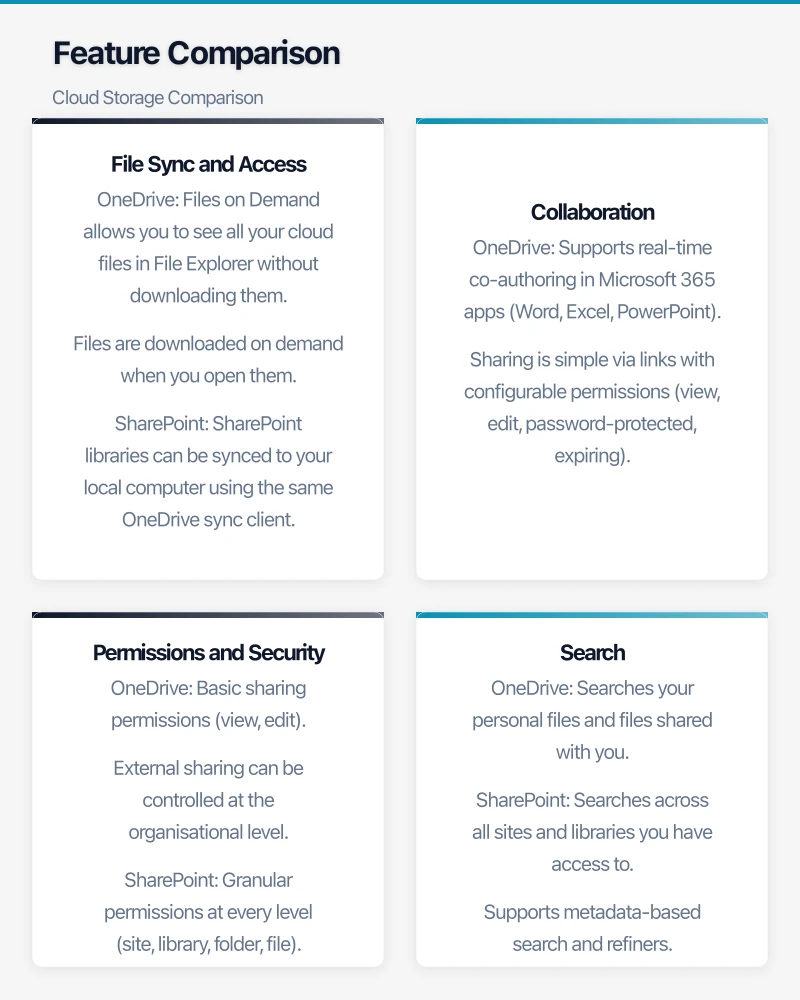
OneDrive: Files on Demand allows you to see all your cloud files in File Explorer without downloading them. Files are downloaded on demand when you open them. This works well on Windows and macOS. The sync client is reliable and well-integrated with the operating system.
SharePoint: SharePoint libraries can be synced to your local computer using the same OneDrive sync client. This is useful for teams that want local access to shared files. However, syncing large or deeply nested SharePoint libraries can sometimes cause issues.
Dropbox: Smart Sync provides similar functionality to Files on Demand. Dropbox has a long history of reliable sync and handles large files and complex sync scenarios well. It supports Windows, macOS, and Linux.
Verdict: All three handle sync well. Dropbox has the most mature sync engine. OneDrive and SharePoint benefit from using the same sync client, reducing complexity.
Collaboration
OneDrive: Supports real-time co-authoring in Microsoft 365 apps (Word, Excel, PowerPoint). Sharing is simple via links with configurable permissions (view, edit, password-protected, expiring).
SharePoint: Full co-authoring support plus structured collaboration features — check-in/check-out, approval workflows, version control, and metadata. More suitable for formal document management processes.
Dropbox: Supports co-authoring for Microsoft Office files and has Dropbox Paper for collaborative documents. Commenting on files is built in. Integration with Google Docs, Sheets, and Slides is also available.
Verdict: For businesses using Microsoft 365, OneDrive and SharePoint offer the deepest collaboration experience with Office files. Dropbox is platform-agnostic, which is an advantage for businesses using a mix of tools.
Permissions and Security
OneDrive: Basic sharing permissions (view, edit). External sharing can be controlled at the organisational level. Encryption at rest and in transit.
SharePoint: Granular permissions at every level (site, library, folder, file). Information Rights Management for preventing unauthorised distribution. Data Loss Prevention policies (with appropriate licences). Audit logging. Retention policies and labels.
Dropbox Business: Admin controls for sharing permissions. Device approvals. Remote wipe. Watermarking (Advanced plan). Detailed audit logs. Two-factor authentication. SSO integration.
Verdict: SharePoint offers the most granular and feature-rich permission and security model. For businesses with compliance requirements or complex access needs, SharePoint is the strongest option.
Search
OneDrive: Searches your personal files and files shared with you.
SharePoint: Searches across all sites and libraries you have access to. Supports metadata-based search and refiners. Microsoft Search integrates SharePoint results into the Microsoft 365 experience.
Dropbox: Full-text search across all files, including content within PDFs and images (using OCR). Search is fast and effective.
Verdict: SharePoint and Dropbox both offer strong search. SharePoint’s metadata-based search is more powerful for structured environments. Dropbox’s OCR-based search is useful for scanned documents.
Pricing for Australian Businesses
Microsoft OneDrive and SharePoint
Both are included in Microsoft 365 business plans:
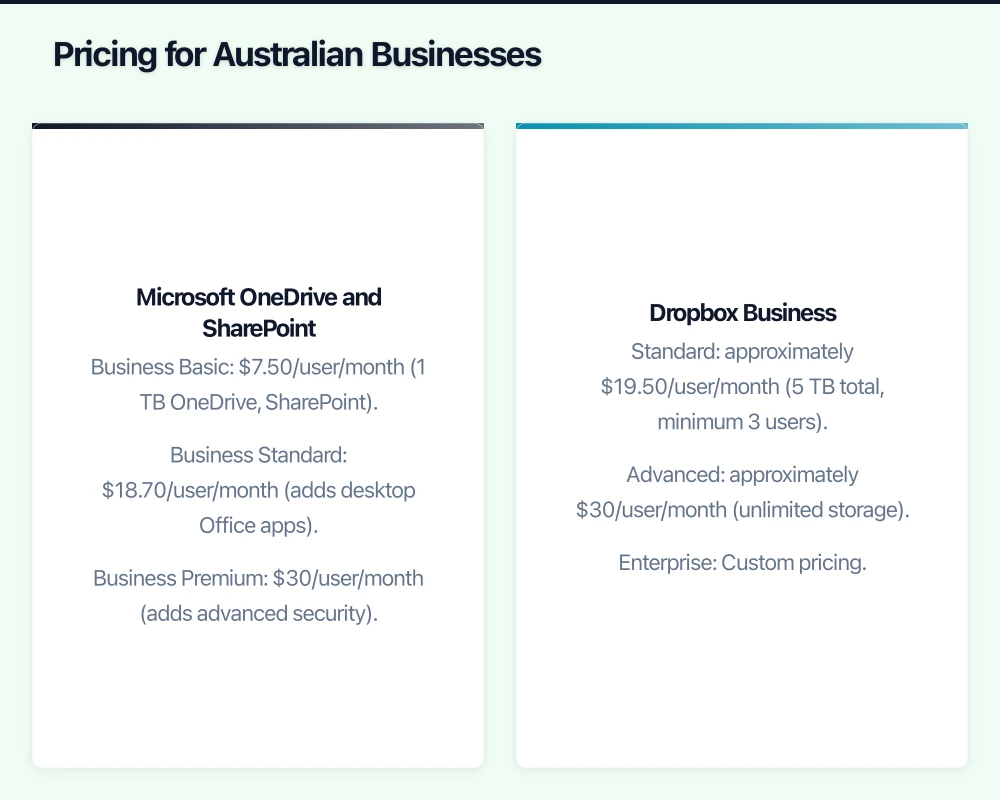
- Business Basic: $7.50/user/month (1 TB OneDrive, SharePoint)
- Business Standard: $18.70/user/month (adds desktop Office apps)
- Business Premium: $30/user/month (adds advanced security)
OneDrive and SharePoint are effectively “free” if you are already on Microsoft 365.
Dropbox Business
- Standard: approximately $19.50/user/month (5 TB total, minimum 3 users)
- Advanced: approximately $30/user/month (unlimited storage)
- Enterprise: Custom pricing
Cost Consideration
If your business uses Microsoft 365, OneDrive and SharePoint are included at no additional cost. Adding Dropbox Business on top means paying twice for cloud storage. This makes it hard to justify Dropbox unless it offers specific capabilities your business needs that Microsoft does not provide.
When to Use Each Platform
Use OneDrive When:
- A user needs personal cloud storage for their own files.
- Someone is working on a draft document that is not ready to share.
- Individual files need to be shared with specific people (internal or external).
- Staff need cloud backup of their desktop files (Known Folder Move syncs Desktop, Documents, and Pictures to OneDrive).
Use SharePoint When:
- Teams need a central location for shared documents.
- You need structured permissions and access control.
- Documents require version control and audit trails.
- You are building an intranet or knowledge base.
- Compliance or regulatory requirements mandate document management controls.
- You use Microsoft Teams (SharePoint is the backend file storage for Teams).
Use Dropbox Business When:
- Your team uses a mix of platforms (Windows, macOS, Linux) and needs reliable cross-platform sync.
- You are not on Microsoft 365 and need a standalone cloud storage solution.
- Simplicity is a priority and your team does not need SharePoint’s advanced features.
- You have specific integrations that work better with Dropbox.
Migration Considerations
Moving to OneDrive and SharePoint
If you are migrating from an on-premises file server or another cloud platform:
- SharePoint Migration Tool: Microsoft provides a free tool for migrating from file shares and SharePoint on-premises.
- Mover: Microsoft acquired Mover, which handles migrations from other cloud platforms (Google Drive, Dropbox, Box) to OneDrive and SharePoint.
- Planning: Map your existing folder structure to SharePoint sites and libraries. This is the time to reorganise and clean up — do not simply replicate a messy file server in the cloud.
- Permissions: Plan your SharePoint permissions carefully. Over-sharing is a common mistake.
Moving to Dropbox Business
- Dropbox offers migration tools and services for moving from file servers and other cloud platforms.
- The familiar interface means minimal training for staff.
- Plan your folder structure and sharing permissions before migration.
Our Recommendation
For Australian SMBs already using Microsoft 365, the combination of OneDrive and SharePoint provides the best value:
- OneDrive for personal files and ad-hoc sharing.
- SharePoint for team files, structured documents, and company resources.
- Teams as the interface for accessing SharePoint content in a collaborative context.
This approach costs nothing beyond your existing Microsoft 365 licence and provides comprehensive cloud storage with strong security and compliance features.
Dropbox Business remains a strong option for businesses that are not on Microsoft 365, that work across multiple platforms, or that have specific integration needs. But for the majority of Australian SMBs in 2021, Microsoft’s combined offering hits the right balance of features, cost, and integration.
Whichever platform you choose, invest time in planning your structure, setting permissions correctly, and training your team. A well-organised cloud storage environment saves hours of searching for files and prevents sensitive information from being shared inappropriately.
Pairing cloud infrastructure with a professional website amplifies your online presence. Cosmos Web Tech builds high-performance sites that make the most of solid hosting foundations.
Cloud Geeks operates under the Ganda Tech Services umbrella, delivering end-to-end technology solutions for Australian businesses.