
Business WiFi Setup and Optimisation Guide
Business WiFi Setup and Optimisation Guide
WiFi has become as essential as electricity in the modern office. When it works well, nobody notices. When it does not, everything stops — video calls drop, cloud applications freeze, and productivity grinds to a halt. For Australian businesses adopting hybrid work and relying on cloud services, reliable WiFi is no longer a nice-to-have; it is critical infrastructure.
Yet many businesses run their offices on consumer-grade WiFi equipment with default settings, wondering why their internet feels slow and unreliable. This guide covers how to set up and optimise business WiFi properly.
Why Consumer WiFi Equipment Fails in Business
Consumer WiFi routers and mesh systems are designed for homes with a handful of devices. A business environment is fundamentally different:
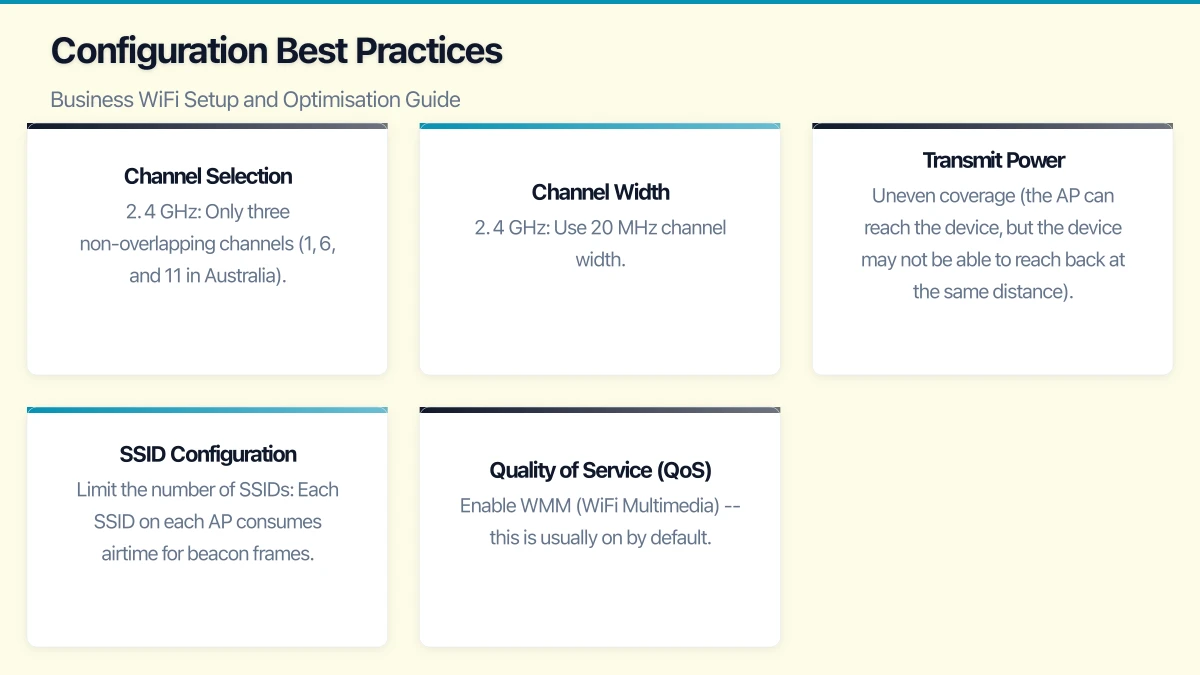
- Device density: An office with 20 staff might have 60 or more devices — laptops, phones, tablets, printers, and IoT devices. Consumer equipment struggles under this load.
- Application demands: Video conferencing, VoIP, and cloud applications are sensitive to latency and jitter. Consumer equipment does not prioritise traffic.
- Coverage requirements: Office layouts (concrete walls, metal partitions, long corridors) create challenges that a single consumer router cannot overcome.
- Security needs: Businesses need separate networks for staff, guests, and IoT devices. Consumer equipment has limited VLAN and network segmentation capability.
- Management: Businesses need centralised management, monitoring, and reporting. Consumer equipment offers minimal administrative controls.
Choosing Business WiFi Equipment
Access Points
Business-grade access points are purpose-built for commercial environments:
Ubiquiti UniFi:
- U6-Lite: WiFi 6, suitable for standard office use. Approximately $150.
- U6-LR (Long Range): WiFi 6, better for larger spaces. Approximately $250.
- U6-Pro: WiFi 6, high-performance for dense environments. Approximately $350.
- Managed through the free UniFi Controller software (self-hosted or cloud).
Cisco Meraki:
- MR36: WiFi 6, cloud-managed. Approximately $500 plus annual licence.
- MR46: WiFi 6, higher performance. Approximately $700 plus annual licence.
- Excellent cloud management dashboard. Licence required (approximately $150/year per AP).
Aruba Instant On:
- AP22: WiFi 6, managed via app or cloud. Approximately $200.
- AP25: WiFi 6, higher performance. Approximately $350.
- Free cloud management.
HP Enterprise / Aruba (higher end):
- For larger or more demanding deployments. Premium pricing with enterprise features.
For most Australian SMB offices, Ubiquiti UniFi offers the best balance of performance, features, and cost. Cisco Meraki is excellent but the ongoing licence cost adds up. Aruba Instant On is a strong mid-range option.
Controllers and Management
Business access points are managed centrally:
- Ubiquiti UniFi: Free controller software runs on a local server, a Cloud Key device ($150 to $300), or Ubiquiti’s cloud service.
- Cisco Meraki: Cloud-managed. Dashboard included with the licence.
- Aruba Instant On: Free app and cloud management.
Central management allows you to configure all access points from one place, monitor performance, push firmware updates, and troubleshoot issues.
Site Survey and Planning
Why a Site Survey Matters
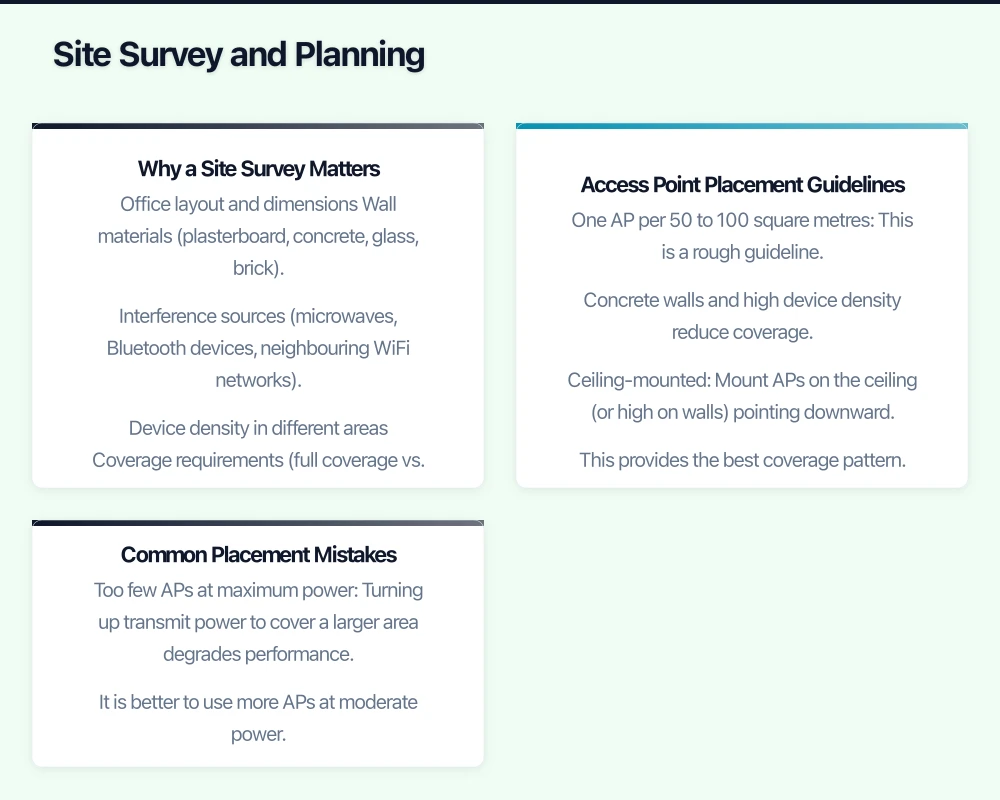
Placing access points without a survey is guesswork. A site survey maps your office space to determine optimal access point placement, taking into account:
- Office layout and dimensions
- Wall materials (plasterboard, concrete, glass, brick)
- Interference sources (microwaves, Bluetooth devices, neighbouring WiFi networks)
- Device density in different areas
- Coverage requirements (full coverage vs. targeted zones)
Conducting a Basic Survey
For small offices, a basic survey is sufficient:
- Map your office: Draw a floor plan showing walls, doors, and key areas (desks, meeting rooms, common areas).
- Identify materials: Note wall construction. Concrete and brick block signal significantly more than plasterboard and glass.
- Count devices: Estimate the number of WiFi devices in each area.
- Identify high-demand areas: Meeting rooms (video conferencing), open-plan offices (high density), and executive offices.
- Note interference: Check for neighbouring WiFi networks using a WiFi analyser app (WiFi Analyzer on Android, or similar tools).
Access Point Placement Guidelines
- One AP per 50 to 100 square metres: This is a rough guideline. Concrete walls and high device density reduce coverage.
- Ceiling-mounted: Mount APs on the ceiling (or high on walls) pointing downward. This provides the best coverage pattern.
- Central placement: Position APs centrally in the area they serve, not in corners.
- Avoid obstructions: Keep APs away from large metal objects, electrical panels, and microwaves.
- Meeting rooms: High-use meeting rooms may warrant a dedicated AP, depending on their size and usage.
- Overlap: Adjacent APs should have about 20% coverage overlap to enable seamless roaming between APs.
Common Placement Mistakes
- Too few APs at maximum power: Turning up transmit power to cover a larger area degrades performance. It is better to use more APs at moderate power.
- All APs in one location: APs clustered together interfere with each other. Spread them evenly.
- Ignoring the vertical dimension: In multi-storey buildings, APs on different floors can interfere. Coordinate placement between floors.
Configuration Best Practices
Channel Selection
WiFi operates on specific channels within the 2.4 GHz and 5 GHz frequency bands.
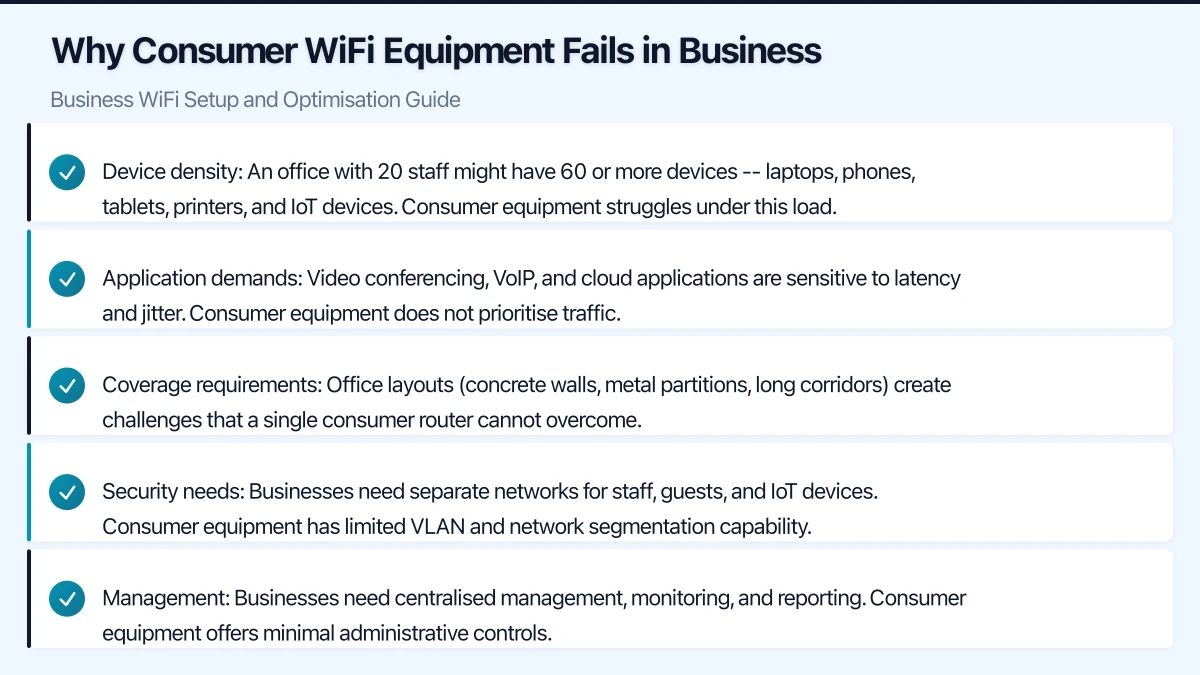
2.4 GHz: Only three non-overlapping channels (1, 6, and 11 in Australia). This band is crowded with interference from neighbouring networks, Bluetooth, and other devices. Use it for legacy devices that do not support 5 GHz and IoT devices.
5 GHz: Many more non-overlapping channels available. Less interference. Higher throughput. Use this band for laptops, phones, and any device that supports it.
Channel planning: If you have multiple APs, assign different channels to adjacent APs to avoid co-channel interference. Most business AP controllers can automate this process.
Band Steering
Enable band steering to encourage dual-band devices to connect on the faster 5 GHz band rather than the more congested 2.4 GHz band. Most business APs support this feature.
Channel Width
- 2.4 GHz: Use 20 MHz channel width. Wider channels reduce the number of non-overlapping channels and increase interference.
- 5 GHz: Use 40 MHz for a good balance of speed and reliability. 80 MHz is available for high-throughput scenarios but uses more spectrum.
Transmit Power
Do not set transmit power to maximum. This causes:
- Uneven coverage (the AP can reach the device, but the device may not be able to reach back at the same distance).
- Interference between adjacent APs.
Set transmit power to medium or auto, allowing the controller to optimise based on the environment.
SSID Configuration
- Limit the number of SSIDs: Each SSID on each AP consumes airtime for beacon frames. Aim for no more than three SSIDs per AP (corporate, guest, and IoT).
- Use consistent SSIDs across all APs: Staff should connect to a single SSID that follows them as they move through the office.
- Hidden SSIDs: Hiding your SSID does not meaningfully improve security and can cause connectivity issues. Leave SSIDs visible.
Quality of Service (QoS)
If your office uses VoIP or relies heavily on video conferencing, configure QoS to prioritise voice and video traffic:
- Enable WMM (WiFi Multimedia) — this is usually on by default.
- Mark voice and video traffic for priority handling.
- Configure QoS on your firewall and switches to complement WiFi QoS.
Security Configuration
Encryption
- WPA3: The latest standard. Use if all your devices support it.
- WPA2: Still secure and widely supported. Use WPA2-Enterprise with RADIUS authentication for the strongest security, or WPA2-Personal with a strong passphrase for simpler deployments.
- Never use WEP or WPA: These are broken and provide no meaningful security.
Network Segmentation
Create separate SSIDs for different purposes, each mapped to a different VLAN:
- Corporate: For staff devices. Full network access.
- Guest: For visitors. Internet access only, no access to internal resources. Consider a captive portal for guest registration.
- IoT: For cameras, smart displays, and other devices. Restricted access.
Additional Security Measures
- Change default AP admin passwords.
- Disable unnecessary management protocols (Telnet, HTTP — use HTTPS and SSH only).
- Keep AP firmware up to date.
- Monitor for rogue access points (unauthorised APs connected to your network).
- Disable WPS.
Troubleshooting Common Issues
Slow WiFi
Diagnosis: Run a speed test from a WiFi-connected device and compare with a wired connection.
Common causes and fixes:
- Congested channels: Use a WiFi analyser to check for channel overlap with neighbouring networks. Switch to less congested channels or enable auto-channel selection.
- Too many devices per AP: Add additional access points to distribute the load.
- Interference: Move APs away from interference sources. Switch devices to 5 GHz.
- Insufficient bandwidth: Your internet connection may be the bottleneck, not WiFi. Upgrade your internet plan if speeds are slow on wired connections too.
- Legacy devices: Old devices using 802.11n or earlier slow down the entire network. If possible, upgrade these devices or isolate them on a dedicated SSID.
Dropped Connections
Common causes and fixes:
- Poor signal strength: The device is too far from an AP. Add APs to extend coverage.
- Roaming issues: Devices struggle to switch between APs. Ensure APs have overlapping coverage and use the same SSID. Enable fast roaming (802.11r) if supported by your APs and devices.
- Channel switching: If auto-channel is changing channels frequently, consider fixed channel assignments.
- Driver issues: Update WiFi drivers on affected devices.
Poor Video Conferencing Quality
Diagnosis: Check latency and jitter during a call using network monitoring tools.
Fixes:
- Enable QoS to prioritise video and voice traffic.
- Ensure sufficient bandwidth headroom (at least 2 Mbps per concurrent video call).
- Use 5 GHz connections for video conferencing.
- Reduce background traffic during important calls.
- Consider a wired connection for staff who spend significant time on video calls.
Monitoring and Maintenance
Ongoing Monitoring
- Review AP dashboards weekly for performance issues, client connectivity problems, and channel utilisation.
- Monitor for rogue access points.
- Track client count per AP to identify overloaded access points.
- Review firmware update availability monthly.
Regular Maintenance
- Monthly: Check for and apply firmware updates. Review performance metrics.
- Quarterly: Re-evaluate channel assignments if the interference environment has changed (new neighbouring networks, new equipment).
- Annually: Review the overall WiFi design. Has your device count grown? Have you added new spaces? Is the current design still adequate?
Budget Summary
For a typical Australian office of 200 to 300 square metres with 20 to 30 users:
| Item | Estimated Cost |
|---|---|
| Business WiFi access points (3 units, UniFi U6-Lite) | $450 |
| UniFi Cloud Key (controller) | $200 |
| PoE switch (if not already present) | $400 - $800 |
| Ethernet cabling to AP locations | $300 - $900 |
| Professional installation and configuration | $500 - $1,500 |
| Total | $1,850 - $3,850 |
For Cisco Meraki or Aruba, add approximately 50% to 100% to the equipment cost, plus ongoing licence fees for Meraki.
Getting Started
If your office WiFi is unreliable:
- Assess: Identify whether the problem is WiFi (signal/congestion) or internet (bandwidth).
- Upgrade equipment: Replace consumer gear with business-grade access points.
- Plan placement: Use the guidelines above to position APs for optimal coverage.
- Configure properly: Set channels, band steering, security, and QoS.
- Monitor: Use the management dashboard to identify and resolve issues proactively.
Good WiFi is the result of good planning and proper equipment. The investment is modest compared to the productivity loss caused by unreliable wireless connectivity. And in an era where cloud applications and video conferencing are fundamental to daily business operations, reliable WiFi is not a luxury — it is a necessity.
Looking for a website that matches your enterprise-grade infrastructure? Cosmos Web Tech specialises in responsive web design and SEO for Australian businesses.
Ashish Ganda is the founder of Ganda Tech Services, a Sydney-based technology consultancy helping Australian businesses grow through cloud, web, and mobile solutions.