
Azure Backup and Recovery for Australian Small Business
Azure Backup and Recovery for Australian Small Business
Data loss can be catastrophic for a small business. Whether caused by ransomware, hardware failure, accidental deletion, or natural disaster, losing critical business data can halt operations, damage customer trust, and in severe cases, close businesses permanently.
The 2022 floods across parts of Queensland and New South Wales demonstrated that physical backups stored on-site are not sufficient. Businesses that relied solely on local backup drives or tape systems found their backup infrastructure destroyed alongside their primary systems.
Azure Backup provides a cloud-based backup and recovery solution that protects Australian small businesses from data loss while keeping data within Australian borders. This guide covers what you need to know to get started.
Why Azure Backup for Australian SMBs
Data Sovereignty
Azure has data centre regions in Sydney (Australia East) and Melbourne (Australia Southeast). You can configure Azure Backup to store all backup data within these Australian regions, satisfying data sovereignty requirements under the Privacy Act 1988 and industry-specific regulations.
Integration with Microsoft Ecosystem
If your business runs Microsoft 365, Windows Server, or SQL Server, Azure Backup integrates natively. There is no need for third-party agents or complex configurations.
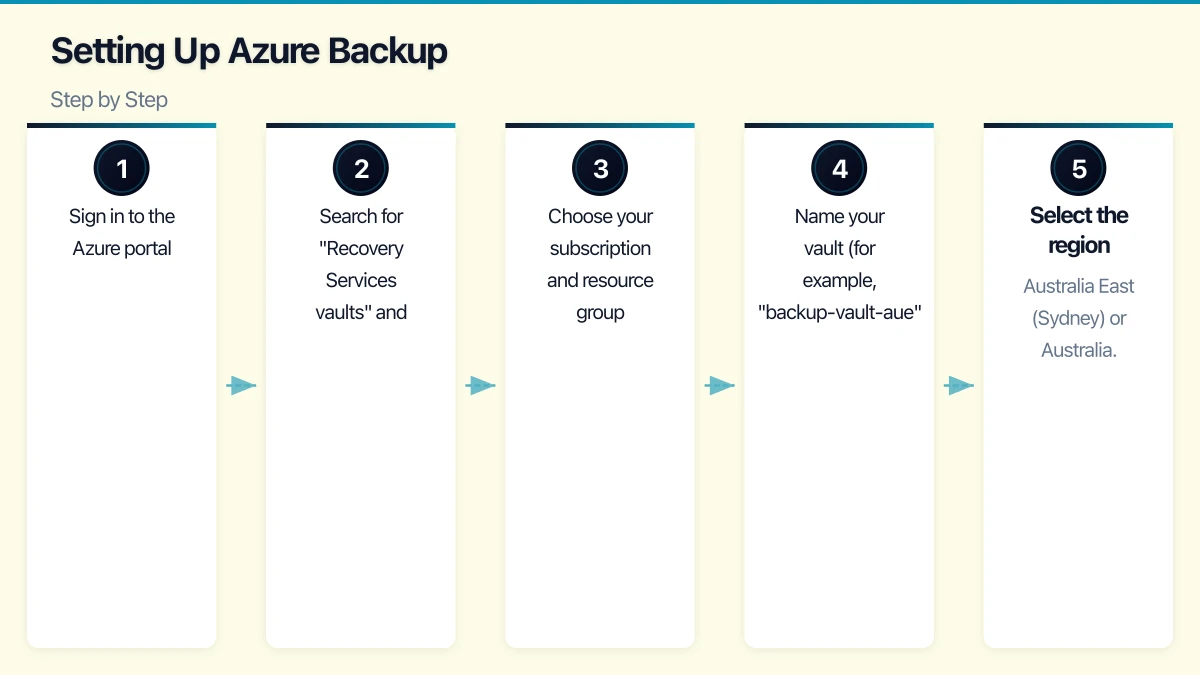
Pay-as-You-Go Pricing
Azure Backup uses consumption-based pricing. You pay for the storage you use, not for capacity you might need someday. This makes it accessible for small businesses with limited budgets.
Enterprise-Grade Security
Your backup data is encrypted at rest using 256-bit AES encryption and in transit using HTTPS. You can manage encryption keys yourself using Azure Key Vault for additional control.
What Can Azure Backup Protect?
Azure Backup can protect a wide range of workloads:
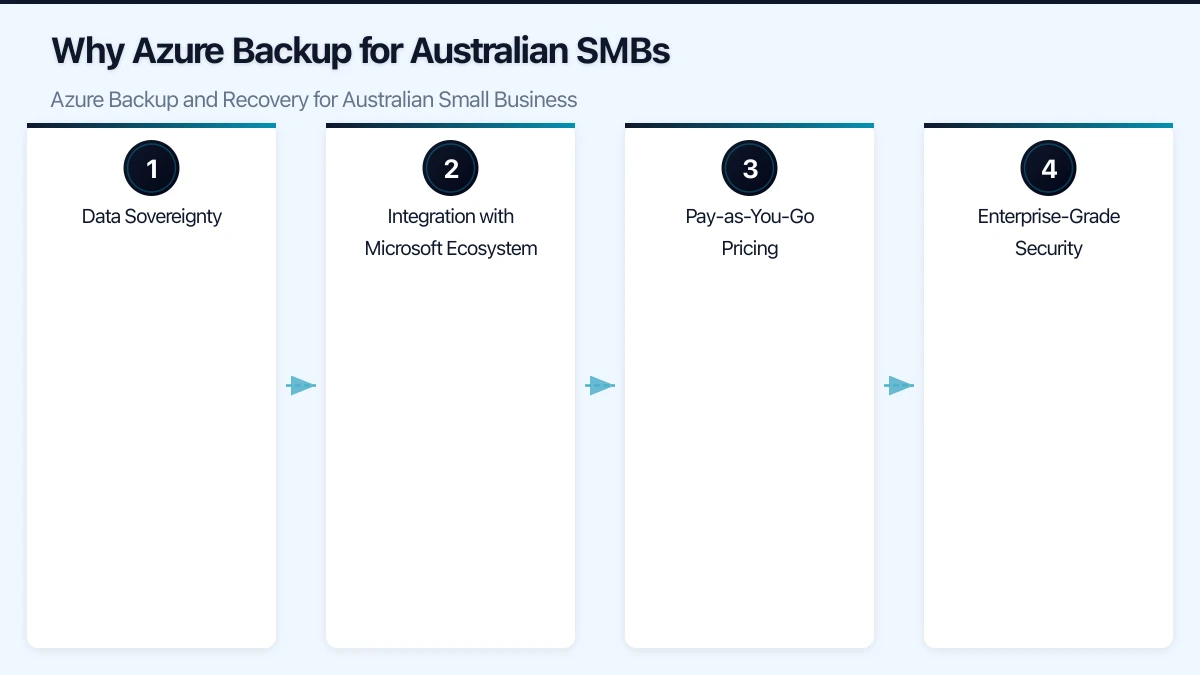
- Azure Virtual Machines: Full VM backup with application-consistent snapshots
- On-premises servers: Windows and Linux servers via the MARS agent or Azure Backup Server
- SQL Server databases: Running on Azure VMs or on-premises
- Azure Files: File shares hosted in Azure
- Microsoft 365 data: Exchange Online, SharePoint Online, and OneDrive for Business (note: Microsoft 365 backup capabilities are evolving; check current offerings)
- SAP HANA databases: Running on Azure VMs
- Azure Blob storage: Operational and vaulted backup options
For most Australian SMBs, the key scenarios are on-premises server backup, Azure VM backup, and Microsoft 365 data protection.
Understanding Azure Backup Architecture
Azure Backup uses a component called a Recovery Services vault (or the newer Backup vault) to store backup data. The vault is a storage entity in Azure that holds backup copies, recovery points, and backup policies.
Key components:
- Recovery Services vault: The central repository for backup data. Create this in an Australian region.
- Backup policy: Defines the backup schedule and retention rules. For example, daily backups retained for 30 days and monthly backups retained for 12 months.
- Backup agent: Software installed on the machines you want to protect. The MARS (Microsoft Azure Recovery Services) agent handles file and folder backups from on-premises systems.
- Recovery points: Snapshots of your data at specific points in time. Azure Backup supports both crash-consistent and application-consistent recovery points.
Setting Up Azure Backup: Step by Step
Step 1: Create a Recovery Services Vault
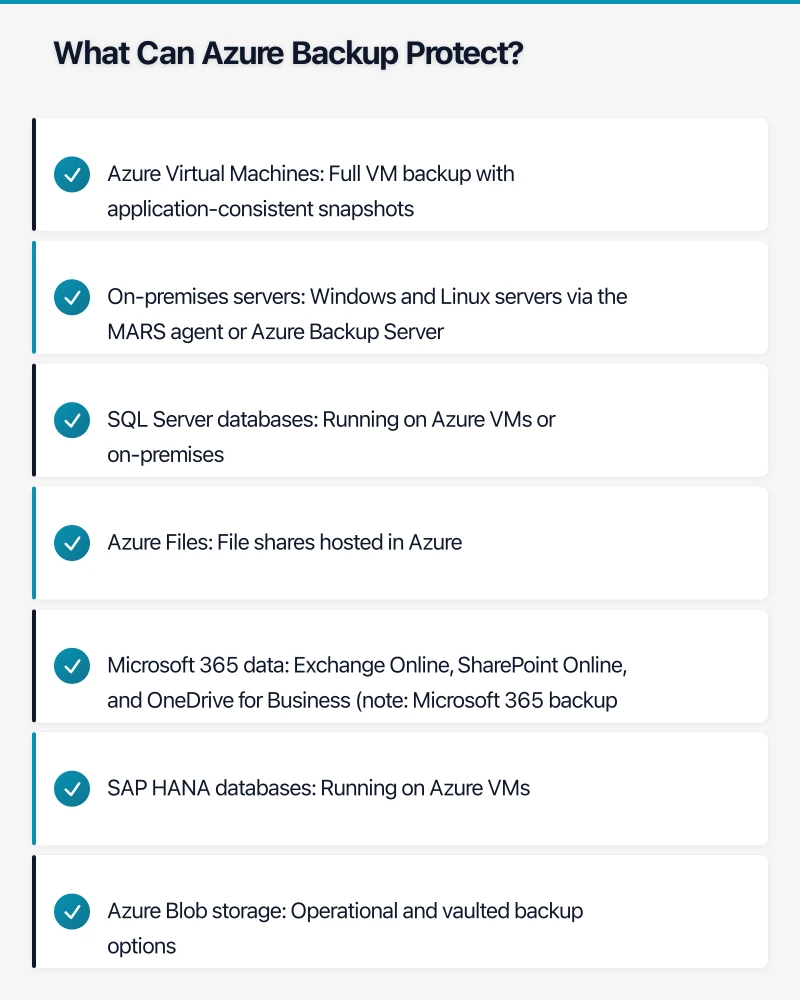
- Sign in to the Azure portal
- Search for “Recovery Services vaults” and select Create
- Choose your subscription and resource group
- Name your vault (for example, “backup-vault-aue” for Australia East)
- Select the region: Australia East (Sydney) or Australia Southeast (Melbourne)
- Review and create
Tip: Consider creating vaults in both Australian regions for geo-redundancy. If the Sydney region experiences an outage, you can restore from Melbourne.
Step 2: Configure Storage Redundancy
Azure Backup offers three storage redundancy options:
- Locally Redundant Storage (LRS): Three copies within a single data centre. Lowest cost.
- Geo-Redundant Storage (GRS): Six copies across two Australian regions. Recommended for disaster recovery. Data stays within Australia.
- Zone-Redundant Storage (ZRS): Three copies across availability zones within a single region. Balances cost and resilience.
For most Australian SMBs, GRS provides the best protection. Your data is replicated between Sydney and Melbourne, ensuring availability even if one region is affected.
Step 3: Define Backup Policies
Create backup policies that match your business requirements:
Recommended policy for critical business data:
- Daily backups at 11:00 PM AEST
- Retain daily backups for 30 days
- Retain weekly backups for 12 weeks
- Retain monthly backups for 12 months
- Retain yearly backups for 3 years
Recommended policy for less critical data:
- Daily backups at 11:00 PM AEST
- Retain daily backups for 14 days
- Retain monthly backups for 6 months
Adjust retention periods based on your compliance requirements and the cost of storage.
Step 4: Install and Configure the Backup Agent
For on-premises Windows servers:
- In the Recovery Services vault, select Backup
- Choose “On-premises” as the workload location
- Select what you want to back up (files and folders, system state, or full server)
- Download the MARS agent and vault credentials
- Install the agent on your server
- Register the server using the vault credentials
- Configure the backup schedule and select folders to protect
For Azure Virtual Machines:
- In the Recovery Services vault, select Backup
- Choose “Azure” as the workload location and “Virtual machine” as the workload type
- Select the VMs to protect
- Assign a backup policy
- Enable backup
Azure VM backup is agentless and requires no software installation on the VM.
Step 5: Verify Backup Completion
After your first backup runs, verify that it completed successfully:
- In the Recovery Services vault, go to Backup Items
- Check the status of each protected item
- Review the last backup time and status
- Configure alerts for backup failures
Set up email alerts so your IT team is notified immediately if a backup fails. Do not rely on checking the portal manually.
Recovery Options
Azure Backup provides several recovery options depending on the scenario:
File and Folder Recovery
Restore individual files or folders from a recovery point. This is the most common recovery scenario, typically used when files are accidentally deleted or corrupted.
Full Server Recovery
Restore an entire server to a new or existing machine. Used when a server suffers catastrophic failure.
Azure VM Recovery
Restore an Azure VM to a new VM, replace an existing VM, or restore individual disks. You can also restore to a different Azure region if your primary region is unavailable.
Cross-Region Restore
If you use GRS, you can restore data from the secondary (paired) region. For Australian businesses, this means restoring from Melbourne if Sydney is unavailable, or vice versa.
Pricing for Australian Small Businesses
Azure Backup pricing has two components:
- Protected instance fee: A monthly charge based on the size of the data being protected
- Storage consumed: The actual storage used by backup data
Example pricing for a small Australian business (as of early 2023):
- Backing up a Windows server with 500 GB of data: Approximately AUD 15 to 25 per month
- Backing up an Azure VM with 200 GB disk: Approximately AUD 10 to 15 per month
- Storage costs for 1 TB of GRS backup data: Approximately AUD 60 to 80 per month
These are estimates. Actual costs depend on data change rates, retention policies, and redundancy options. Use the Azure Pricing Calculator for precise estimates based on your environment.
Cost optimisation tips:
- Use LRS for non-critical data to reduce storage costs
- Set appropriate retention policies (do not retain data longer than necessary)
- Use backup policies that align with your actual recovery requirements
- Monitor storage growth and adjust policies as needed
Disaster Recovery vs Backup
It is important to understand the difference:
- Backup: Protects data by creating copies that can be restored if data is lost or corrupted. Recovery may take hours depending on the volume of data.
- Disaster Recovery (DR): Maintains a near-real-time replica of your systems that can be activated quickly if your primary environment fails. Recovery time is measured in minutes.
Azure Backup handles the backup side. For disaster recovery, Azure Site Recovery (ASR) provides automated replication and failover of virtual machines between Azure regions or from on-premises to Azure.
For most Australian SMBs, Azure Backup is sufficient. If your business cannot tolerate extended downtime (for example, a medical practice, retail operation, or financial services firm), consider Azure Site Recovery as an addition.
Testing Your Backups
A backup that has never been tested is not a backup. Establish a regular testing schedule:
- Monthly: Restore a small set of files to verify data integrity
- Quarterly: Perform a full server or VM restore to a test environment
- Annually: Conduct a full disaster recovery drill simulating a complete site failure
Document the results of each test, including restoration time and any issues encountered. This documentation supports compliance requirements and helps refine your recovery procedures.
Compliance Considerations for Australian Businesses
Privacy Act 1988
The Privacy Act requires organisations to take reasonable steps to protect personal information from loss and unauthorised access. A robust backup strategy directly supports this requirement.
Notifiable Data Breaches Scheme
If a data breach occurs, you need to be able to assess what data was affected. Backup data provides a reference point for understanding what data existed at a given time.
Industry-Specific Requirements
- Financial services: APRA Prudential Standard CPS 234 requires sound information security, including data protection and recovery capabilities.
- Healthcare: My Health Records Act 2012 and state-level health records legislation require protection of health information.
- Legal: Ethical obligations to protect client information and maintain records.
Azure Backup’s Australian data centres, encryption, and access controls help address these requirements.
Getting Started
If your Australian small business does not have a cloud backup solution in place, start here:
- Identify your critical data and systems
- Define your recovery objectives (how much data can you afford to lose, and how quickly do you need to recover?)
- Create an Azure account if you do not have one (new accounts include free credits)
- Set up a Recovery Services vault in the Australia East region
- Start with your most critical server or data set
- Verify the first backup and test a restore
- Expand to cover all critical systems
Do not wait for a disaster to expose the gaps in your backup strategy. The time to implement reliable backup and recovery is now, while everything is still working.
Thinking about the big picture? Ash Ganda shares strategic insights on digital transformation, AI, and technology leadership for Australian businesses.
Ganda Tech Services brings together cloud infrastructure, web development, and mobile app expertise to help Australian businesses thrive in the digital economy.