
Australian Small Business Guide to Essential Eight Security
Australian Small Business Guide to Essential Eight Security
The Australian Cyber Security Centre (ACSC) Essential Eight is a set of baseline mitigation strategies designed to make it much harder for adversaries to compromise systems. Originally developed for government organisations, the Essential Eight is increasingly relevant for Australian small businesses — especially as cyber insurance providers, government contracts, and industry bodies reference it as a benchmark.
This guide translates the Essential Eight into practical actions for Australian SMBs, focusing on achievable steps rather than enterprise-grade implementations.
What Is the Essential Eight?
The Essential Eight consists of eight mitigation strategies that address the most common attack vectors:
- Application control
- Patch applications
- Configure Microsoft Office macro settings
- User application hardening
- Restrict administrative privileges
- Patch operating systems
- Multi-factor authentication
- Regular backups
Each strategy has three maturity levels (ML1, ML2, ML3), with ML1 being the baseline and ML3 being the most restrictive. For most Australian SMBs, achieving ML1 across all eight strategies is the practical goal.
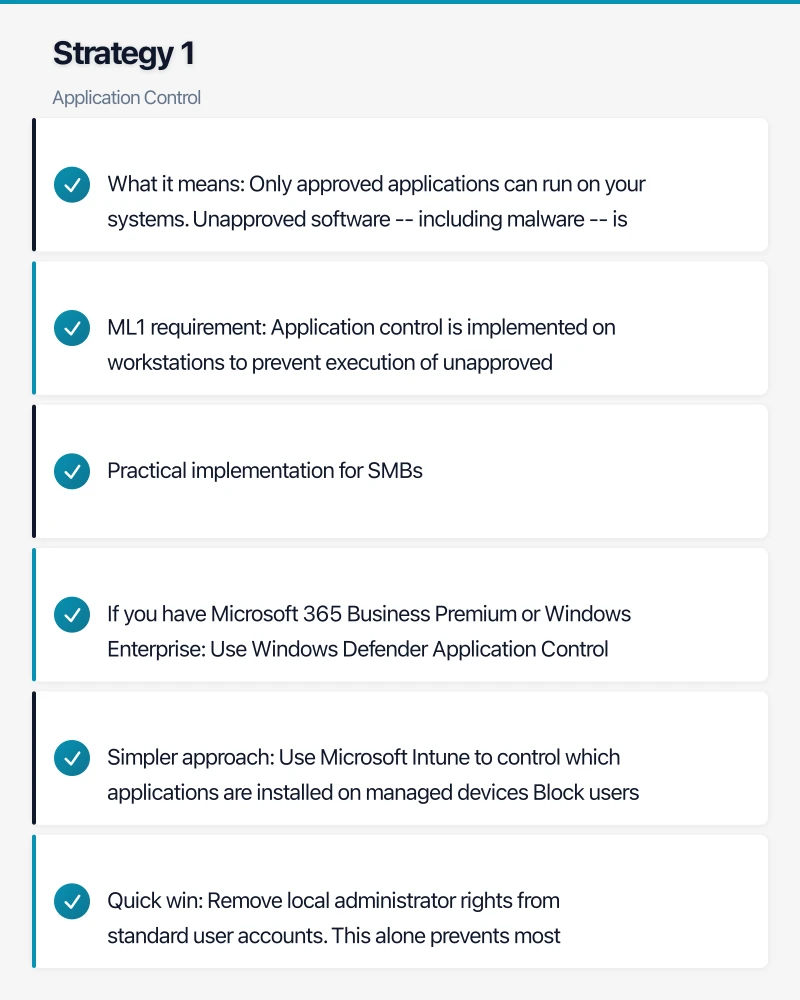
Strategy 1: Application Control
What it means: Only approved applications can run on your systems. Unapproved software — including malware — is blocked.
ML1 requirement: Application control is implemented on workstations to prevent execution of unapproved executables, software libraries, scripts, installers, compiled HTML, HTML applications, and control panel applets.
Practical implementation for SMBs:
If you have Microsoft 365 Business Premium or Windows Enterprise:
- Use Windows Defender Application Control (WDAC) or AppLocker to restrict which applications can run
- Start with audit mode to identify which applications your staff use, then switch to enforcement
Simpler approach:
- Use Microsoft Intune to control which applications are installed on managed devices
- Block users from installing software themselves (remove local administrator rights)
- Maintain an approved software list and only install vetted applications
Quick win: Remove local administrator rights from standard user accounts. This alone prevents most unapproved software from being installed.
Strategy 2: Patch Applications
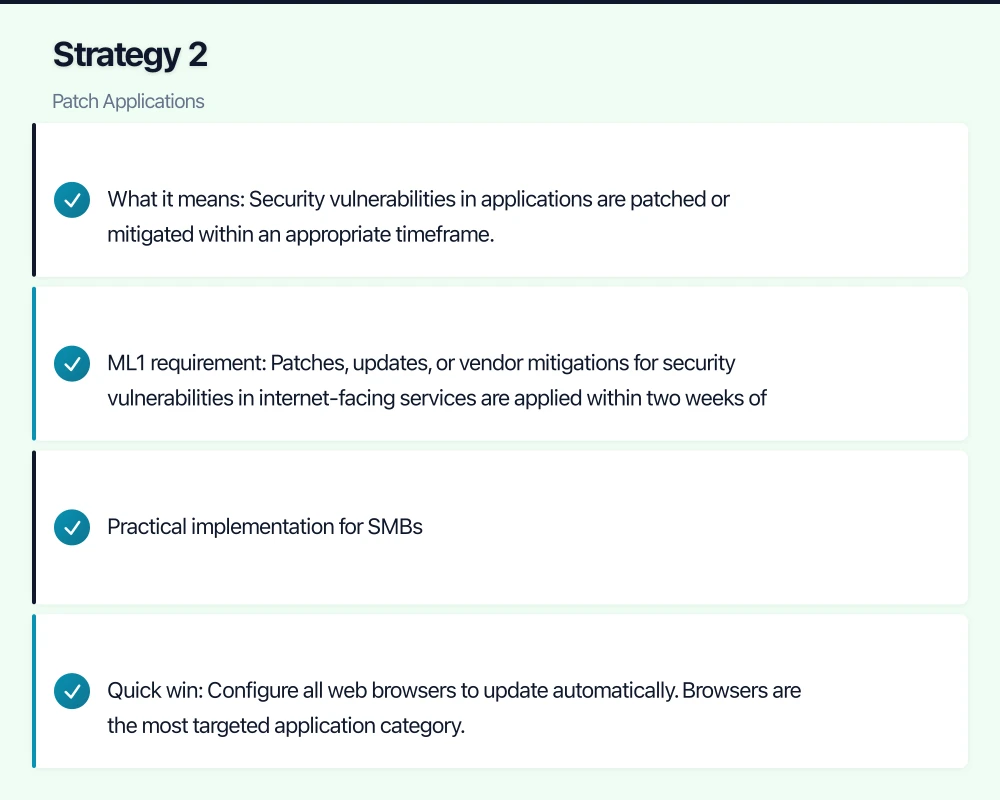
What it means: Security vulnerabilities in applications are patched or mitigated within an appropriate timeframe.
ML1 requirement: Patches, updates, or vendor mitigations for security vulnerabilities in internet-facing services are applied within two weeks of release. Patches for other applications are applied within one month.
Practical implementation for SMBs:
- Web browsers: Enable automatic updates for Chrome, Edge, and Firefox. These are the most commonly exploited applications.
- Microsoft Office: If using Microsoft 365 Apps (Click-to-Run), updates are automatic. Verify the update channel is set to Current or Monthly Enterprise.
- Adobe products: Enable automatic updates for Acrobat Reader and other Adobe applications.
- Java: If still required, keep it updated. Better yet, remove Java if no applications depend on it.
- Other applications: Use a patch management tool (ManageEngine, Automox, or Ninite Pro) to automate third-party patching.
Quick win: Configure all web browsers to update automatically. Browsers are the most targeted application category.
Strategy 3: Configure Microsoft Office Macro Settings
What it means: Microsoft Office macros are restricted to prevent malicious macros from executing.
ML1 requirement: Microsoft Office macros are disabled for users who do not require them. Macros in files originating from the internet are blocked.
Practical implementation for SMBs:
For businesses that do not use macros (most SMBs):
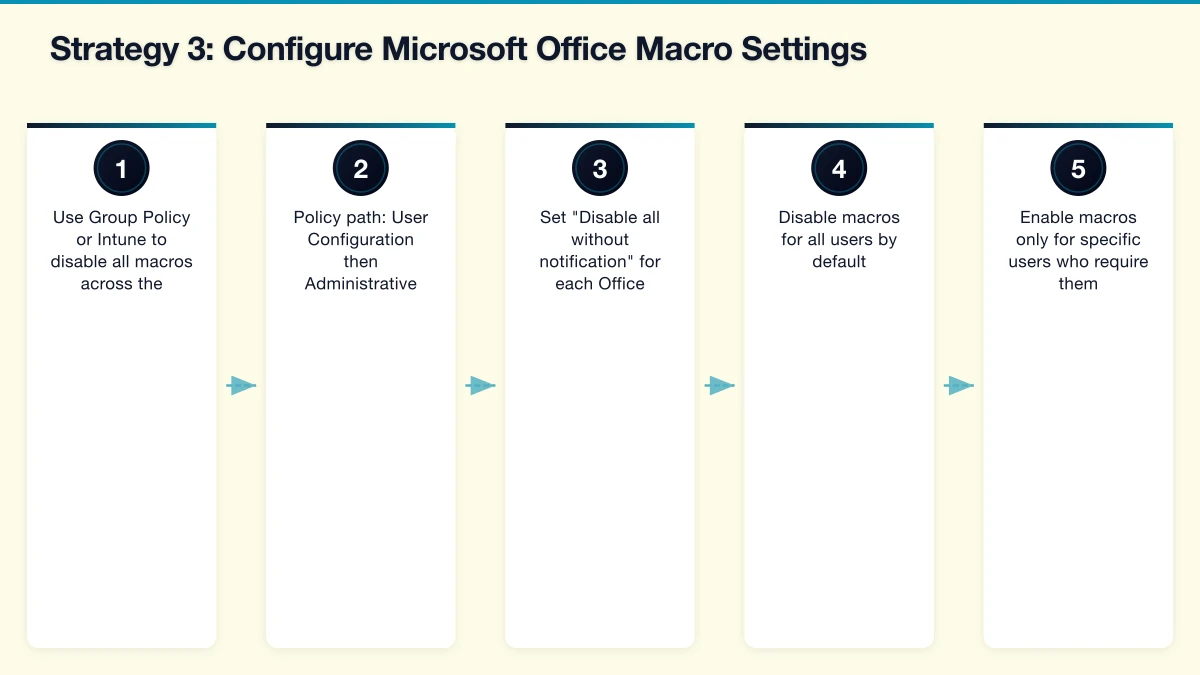
- Use Group Policy or Intune to disable all macros across the organisation
- Policy path: User Configuration then Administrative Templates then Microsoft Office then Security Settings
- Set “Disable all without notification” for each Office application
For businesses that need macros for specific users:
- Disable macros for all users by default
- Enable macros only for specific users who require them
- Block macros in files downloaded from the internet (this is now the default in recent Office updates)
- Consider digitally signing trusted macros
Quick win: The latest versions of Microsoft 365 Apps block macros in files downloaded from the internet by default. Ensure this setting has not been overridden in your organisation.
Strategy 4: User Application Hardening
What it means: Web browsers and other applications are configured to reduce their attack surface.
ML1 requirement: Web browsers do not process Java from the internet. Web browsers do not process web advertisements from the internet. Internet Explorer 11 is disabled or removed. Unneeded features in Microsoft Office, web browsers, and PDF viewers are disabled.
Practical implementation for SMBs:
- Disable Internet Explorer 11: It is end-of-life and a security risk. Use Group Policy or Intune to disable it. Edge’s IE Mode can handle legacy sites that require IE compatibility.
- Block ads: Deploy a DNS-based ad blocker (Pi-hole or a firewall-based web filter) or use browser extensions. Web advertisements are a common malware delivery mechanism.
- Disable Flash: Flash is end-of-life and should be completely removed from all systems.
- Disable unnecessary Office features: Disable Object Linking and Embedding (OLE) in Office if not needed. Disable DDE (Dynamic Data Exchange).
- Configure PDF readers: Disable JavaScript in Adobe Reader and other PDF viewers.
Quick win: Ensure Internet Explorer 11 is disabled on all workstations. Remove Flash if still present.
Strategy 5: Restrict Administrative Privileges
What it means: Administrative access is limited to only those who need it, and only used when necessary.
ML1 requirement: Requests for privileged access to systems and applications are validated when first requested. Privileged accounts are not used for reading email, web browsing, or accessing internet services.
Practical implementation for SMBs:
- Separate admin accounts: IT administrators should have two accounts — a standard account for daily work (email, web browsing) and a separate admin account for administrative tasks.
- Remove local admin rights: Standard users should not have local administrator privileges on their workstations. Use Intune or Group Policy to enforce this.
- Limit Azure AD admin roles: Only assign Global Administrator to two or three people. Use more specific roles (User Administrator, SharePoint Administrator) for others.
- Review admin access quarterly: Check who has administrative access and remove it from anyone who no longer needs it.
Quick win: Create a separate admin account for each IT administrator. Stop using admin accounts for email and web browsing.
Strategy 6: Patch Operating Systems
What it means: Security vulnerabilities in operating systems are patched within an appropriate timeframe.
ML1 requirement: Patches, updates, or vendor mitigations for security vulnerabilities in internet-facing operating systems are applied within two weeks. Operating systems that are no longer supported by vendors are replaced.
Practical implementation for SMBs:
- Windows Update: Enable automatic updates on all workstations. Configure Windows Update for Business through Intune to manage update rings.
- Servers: Apply monthly cumulative updates within two weeks of release. Use a maintenance window for restarts.
- Unsupported OS: Identify and replace any systems running Windows 7, Windows 8.1, or Windows Server 2012 R2 (which is approaching end of support).
- macOS: Enable automatic updates. Apple releases security updates regularly.
- Mobile devices: Require current OS versions through Intune compliance policies.
Quick win: Run a scan to identify any devices running unsupported operating systems. Plan their replacement immediately.
Strategy 7: Multi-Factor Authentication
What it means: Users must provide two or more forms of authentication to access systems.
ML1 requirement: Multi-factor authentication is used for all users when accessing internet-facing services.
Practical implementation for SMBs:
For Microsoft 365 (minimum):
- Enable Security Defaults in Azure AD (this requires MFA for all users)
- Or configure Conditional Access policies (Azure AD P1, included in Business Premium) for more granular control
- Encourage users to use the Microsoft Authenticator app rather than SMS (SMS is less secure but still better than no MFA)
Extend MFA to other services:
- VPN access
- Remote desktop access
- Cloud applications (CRM, accounting, file storage)
- Password managers
MFA methods ranked by security:
- FIDO2 security keys (most secure)
- Authenticator app with push notification or TOTP
- SMS or phone call (least secure, but still significantly better than password only)
Quick win: If you have not already, enable Security Defaults in Azure AD today. This immediately protects all Microsoft 365 accounts with MFA.
Strategy 8: Regular Backups
What it means: Backups of important data, software, and configuration settings are performed, stored securely, and tested for restoration.
ML1 requirement: Backups of important information, software, and configuration settings are performed at least daily. Backups are stored in a secure and resilient manner. Restoration of backups is tested as part of disaster recovery exercises.
Practical implementation for SMBs:
What to back up:
- All business data (documents, databases, email)
- System configurations and settings
- Application configurations
- Server images or snapshots
The 3-2-1 backup rule:
- 3 copies of your data
- On 2 different types of storage media
- With 1 copy stored offsite (cloud)
Backup tools for SMBs:
- Azure Backup: For servers and VMs. Integrated with Azure for offsite storage.
- Veeam Community Edition: Free for up to 10 workloads. Excellent for SMBs.
- Microsoft 365 third-party backup: Veeam for Microsoft 365, Datto SaaS Protection, or Acronis.
- Cloud backup services: Acronis Cyber Protect, Datto SIRIS (through MSP).
Critical: At least one backup copy must be offline or immutable (cannot be modified or deleted by ransomware). This is the most important protection against ransomware attacks.
Testing: Test a backup restore at least quarterly. A backup that has never been tested is a backup that might not work when you need it most.
Quick win: If you do not have offsite or cloud backup for your critical data, set it up this week. This is the single most important recovery control.
Building Your Essential Eight Roadmap
Implementing all eight strategies takes time. Here is a prioritised order for SMBs:
Month 1: The Big Three
- Multi-factor authentication (Strategy 7)
- Regular backups with offsite copy (Strategy 8)
- Patch operating systems (Strategy 6)
These three strategies provide the most immediate risk reduction.
Month 2: Application Security 4. Patch applications (Strategy 2) 5. Configure Microsoft Office macro settings (Strategy 3) 6. User application hardening (Strategy 4)
Month 3: Access Control 7. Restrict administrative privileges (Strategy 5) 8. Application control (Strategy 1)
Assessing Your Current Maturity
For each strategy, honestly assess where you stand:
- Not implemented: No controls in place
- Partially implemented: Some controls in place but not consistently applied
- ML1 achieved: Baseline controls consistently applied across the organisation
- ML2 achieved: Enhanced controls in place
- ML3 achieved: Full implementation with advanced controls
Most Australian SMBs starting this process will find they are “partially implemented” on several strategies and “not implemented” on others. That is normal and fixable.
The Business Case
Implementing the Essential Eight is not just about security — it has tangible business benefits:
- Cyber insurance: Many Australian insurers reference the Essential Eight when assessing applications. Strong implementation leads to better coverage and lower premiums.
- Government contracts: Australian Government agencies increasingly require suppliers to demonstrate Essential Eight compliance.
- Customer confidence: Being able to demonstrate a recognised security framework builds trust with customers and partners.
- Reduced incident cost: The Essential Eight strategies prevent the most common attacks. Prevention is vastly cheaper than recovery.
The Essential Eight is not a certificate you achieve and forget. It is an ongoing practice that improves your security posture over time. Start with ML1 across all eight strategies, maintain that level, and then work toward ML2 as your capabilities mature.
Mobile apps thrive on solid cloud foundations. Awesome Apps can build a companion app that leverages your existing cloud setup.
Cloud Geeks is the IT infrastructure division of Ganda Tech Services, providing managed cloud and cybersecurity solutions to Australian businesses.